Table of Contents
You can download songs and albums from Spotify with very simple steps. Below is a guide on how to download Spotify songs to your computer.
1. Instructions on downloading Spotify songs using SpotMate
Step 1:
First, access the link below to go to the SpotMate music download website.
https://spotmate.online/Step 2:
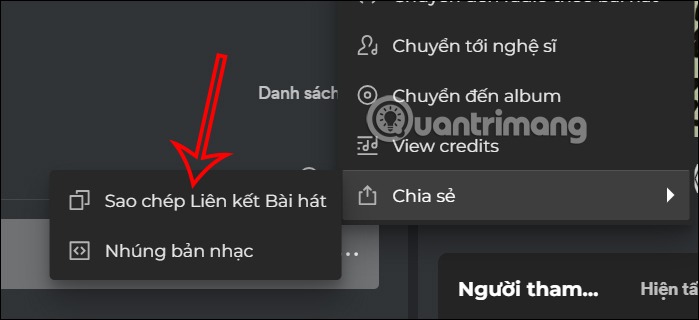
Open the Spotify interface and find the song you want to download to your computer. Then click the three-dot icon next to the song, select Share, and then click Copy song link.
Step 3:
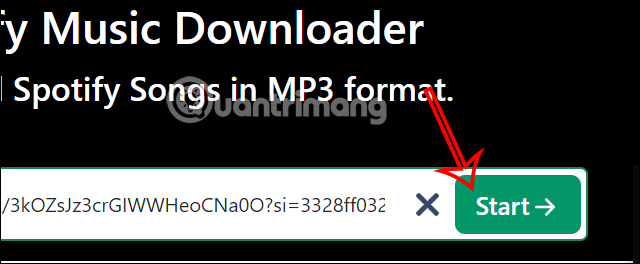
In the SpotMate interface, paste the song URL and then press the Start button to begin getting the Spotify download link.
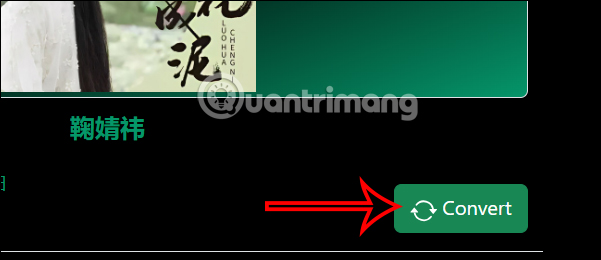
At this point, you will see the Spotify song recognized on SpotMate. Then, click the Convert button to proceed with converting the Spotify song to an MP3 file.
Step 4:
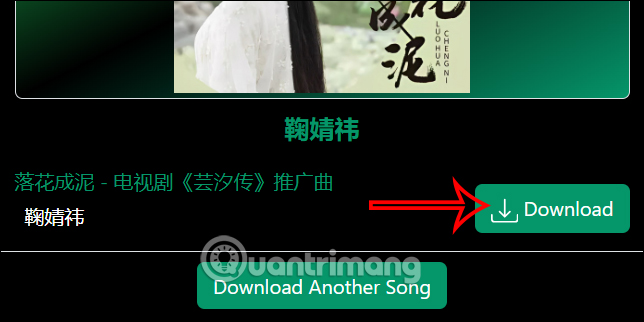
The result will show a Download button to download the Spotify song to your computer. To download another song, click on Download Another Song.
Step 5:
To download a Spotify album or playlist, you need to access the album, then tap the three-dot icon, select Share, and then select Copy album link to get the Spotify album link.
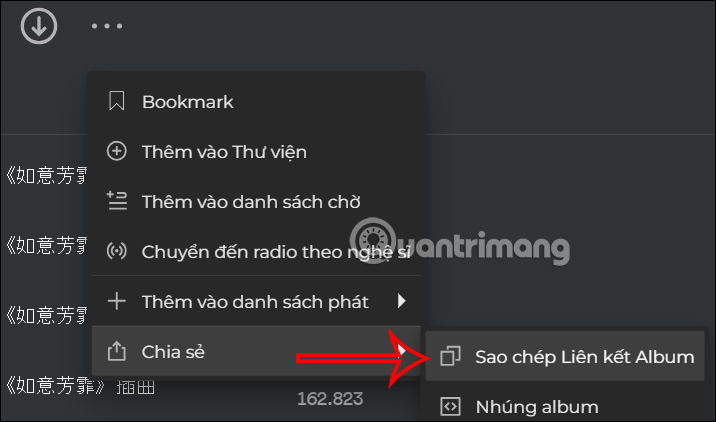
Returning to the SpotMate interface, paste the Spotify album URL and click the Start button to begin the download.
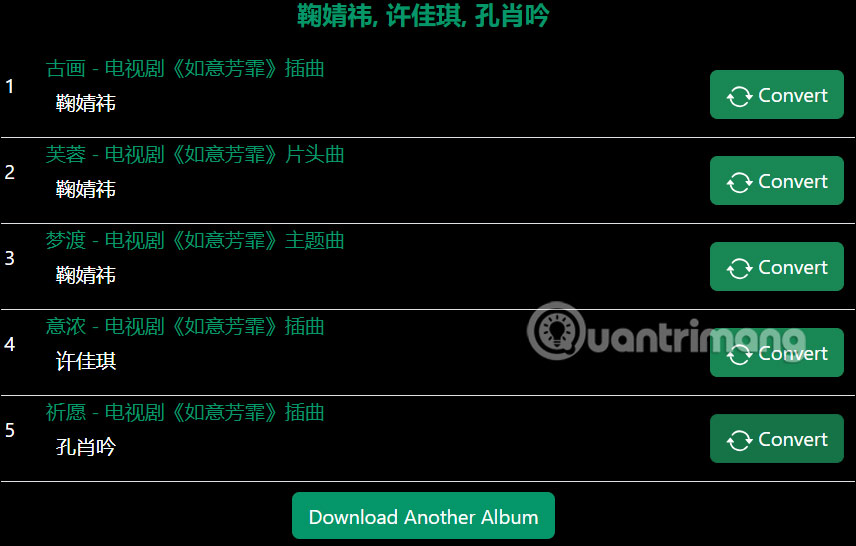
As a result, you will see all the songs in the Spotify album or playlist you want to download. To download any song from the Spotify playlist, simply press Convert to begin the download process.
2. How to download Spotify songs to listen offline
You can download music (and podcasts) from Spotify on both the mobile and desktop apps (but not on Spotify Web Player). Here's how:
How to download music from Spotify to your mobile phone
Open the Spotify app on your phone and find the song, album, or playlist you want to download to listen offline.
Note: To download individual songs, you first need to add them to a playlist. The easiest way is to add them to your Liked Songs by clicking the + icon while the song is playing. Alternatively, you can create a Spotify playlist and add the songs to it manually.
To download an album or playlist, search for the album or playlist you want to listen to offline, click on it, and then find the Download button (down arrow in a circle). This is located above the song list, to the left of the Play button.
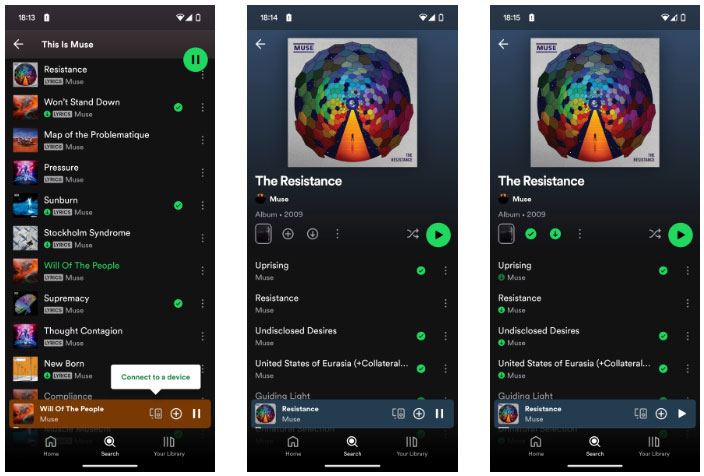
Simply press that button and the album or playlist will be downloaded to your device so you can listen offline.
How to download music from Spotify to your desktop
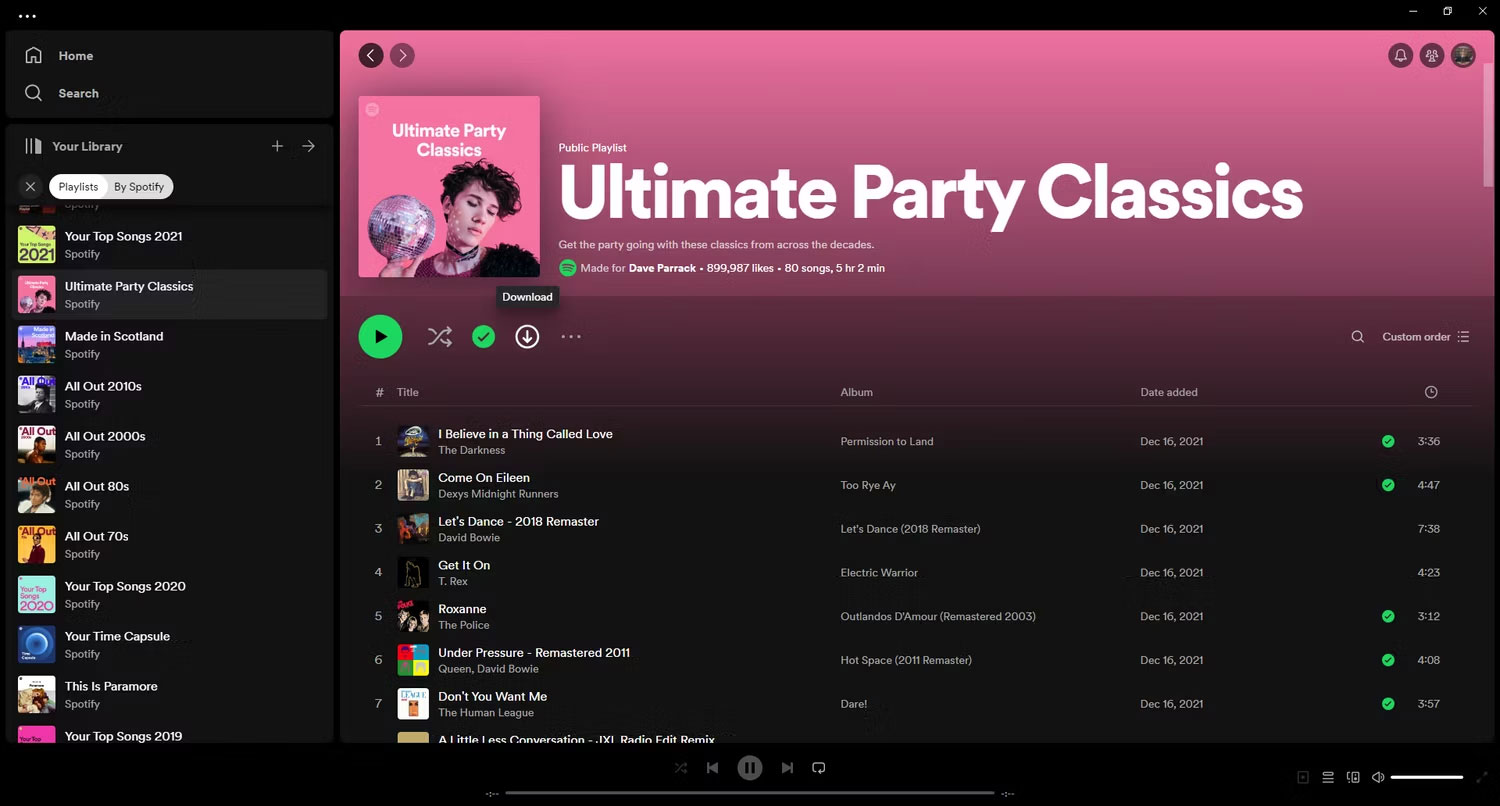
- Open the Spotify app on your computer and make sure you're signed in.
- Navigate to the album or playlist you want to download and click the Download button (the down arrow is on the same line as the Play button ).
Note: Unlike songs, you can download individual podcasts to listen offline. So, search for the podcast you want to listen to and select it to display the list of episodes. You will see a Download button in the bottom left corner of each episode. Simply click on it to download that episode and listen to your favorite podcast.
How to find everything you've downloaded on Spotify
After downloading some content, you need to know where to find it. Here's how to find everything you've downloaded on Spotify:
- Open the Spotify app on your device and tap Your Library.
- Scroll through the options until you find Downloaded.
- Click on it to see a full list of everything you've downloaded on Spotify.
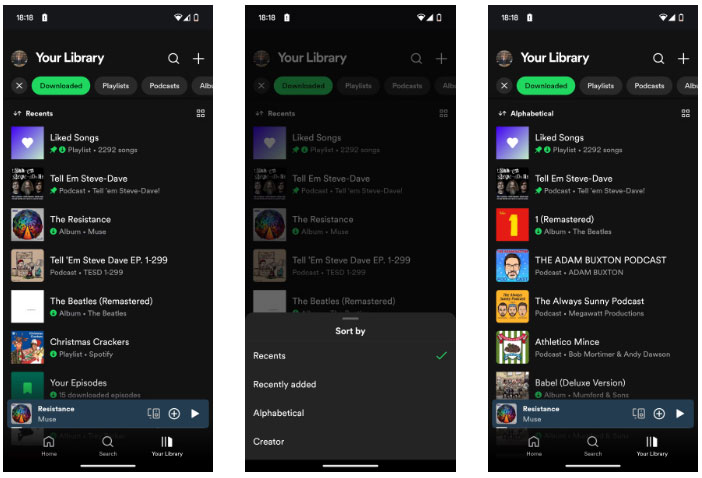
If you've downloaded a lot of content, you can sort your downloads in several ways to help you find what you're looking for.
By default, your downloads are sorted by most recent access. But if you click on Recents, you can sort by Recently Added, Alphabetical, or Creator.
No matter what device you're using, the albums, playlists, or podcasts you've downloaded will now be available to listen to offline.
3. Use Allavsoft software to download Spotify music
Step 1:
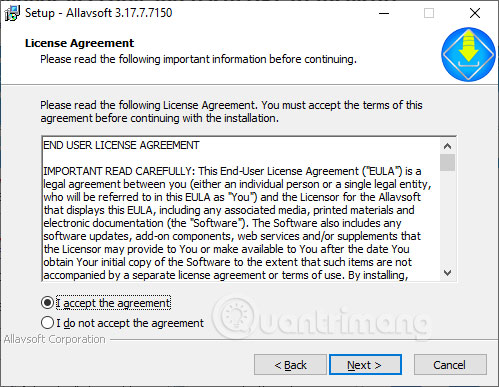
We can download the Allavsoft software using the link above, which includes a trial version. Allavsoft has versions for both Windows and Mac.
Step 2:
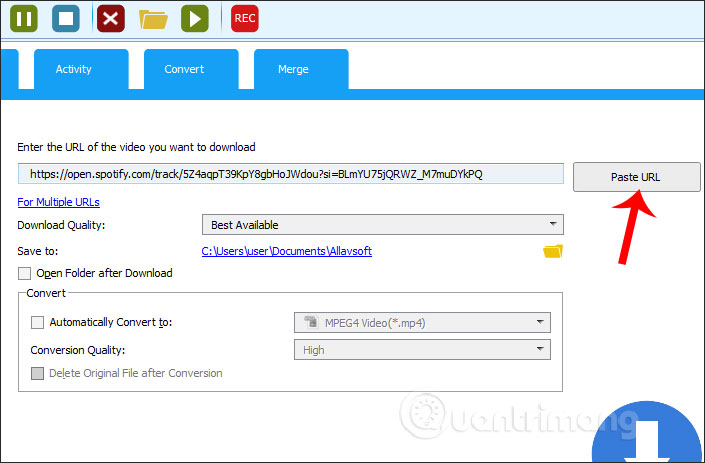
After installation, in the Allavsoft software interface, paste the URL of the Spotify song you want to download and then click Paste URL.
Below you will find options for audio file download quality at Download Quality and save location at Save to. Click the download icon in the bottom right corner.
Step 3:
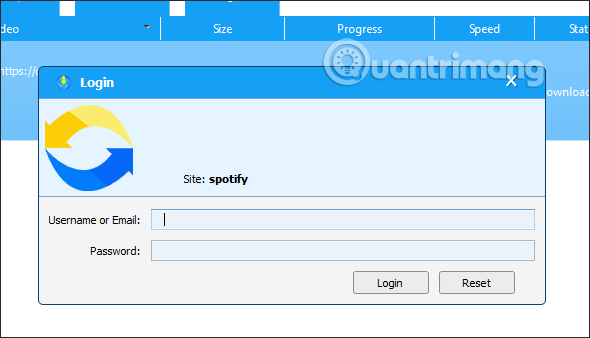
Next, the Allavsoft software will ask you to log in to your personal Spotify account. Enter the requested information and then click Login to log in.
Step 4:
Immediately after that, the Spotify music download process on Allavsoft begins. Once the download is complete, a "Success" message will appear in the Status column.
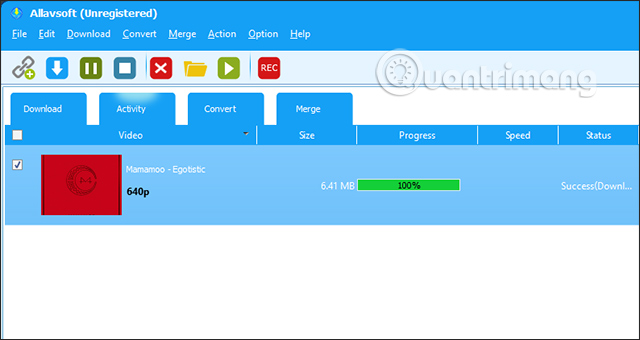
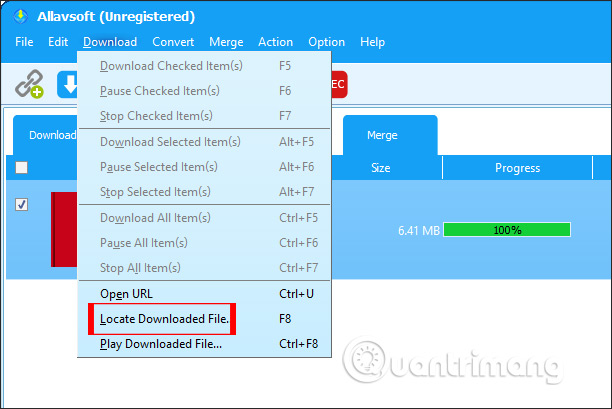
We access the previously selected folder where the file is saved, or click on the Download button on the interface and then select Locate Downloaded File.
Step 5:
To download a Spotify playlist on Allavsoft, first paste the playlist link into the interface and then click the download button. The process of downloading the songs in the Spotify playlist will then begin.
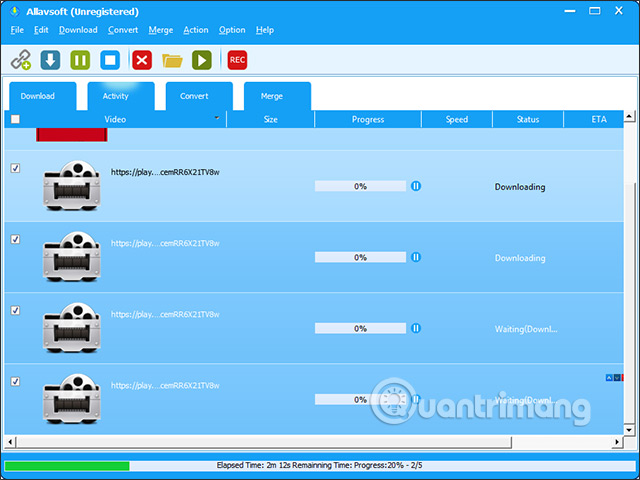
Both of the above tools allow users to download individual songs or entire Spotify playlists. The download speed for playlists will depend on the number of songs.
Good luck with your project!
Related Articles
 How to Download Mp3s on Spotify: Spotify Music Downloader5 minutes read
 How to Create Spotify QR Codes for Songs and Playlists Is Very Simple5 minutes read
 How to Download Music on Spotify - Download Music from3 minutes read
 How to Hide and Unhide Songs on Spotify4 minutes read
 How to Download Spotify Songs to Listen Offline: Complete Guide8 minutes read
 How to Listen to Offline Music on PC with Spotify5 minutes read
Reader Comments 0
Sign in with email or Google to join the discussion.