Table of Contents
Format Factory can create a short audio clip by converting only the range between a start time and an end time. This is useful for making a ringtone or extracting a specific passage. The process is: choose an audio output format, add the source, set the range, choose an output folder, and run the task.

Before trimming the audio
- Download Format Factory from the developer's official page. Review every installer screen and decline anything you do not intend to install.
- Use an audio file you own or have permission to edit.
- Play the source once and note the approximate start and end times.
- Choose an output format supported by the destination phone. Android commonly accepts MP3, while iPhone ringtone setup usually requires Apple's ringtone format and import workflow.
Converting is different from direct lossless trimming. If the source is already MP3 and you want to avoid another lossy encode, consider trimming it with mp3DirectCut instead.
Cut a section in Format Factory
1. Choose the output format
Open Format Factory, select Audio, and choose the required output type. MP3 is broadly compatible, but select another format only when the destination specifically requires it.
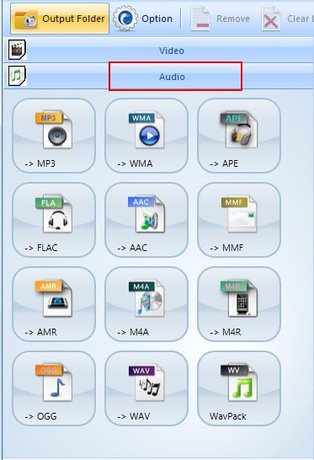
2. Add the source and open Set Range
- Select Add File and choose the audio track.
- Select the added item, then choose Set Range or the current version's equivalent clip control.
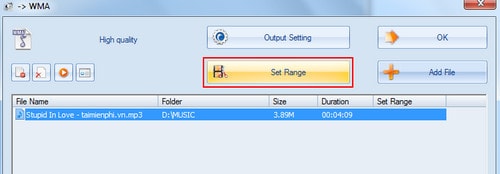
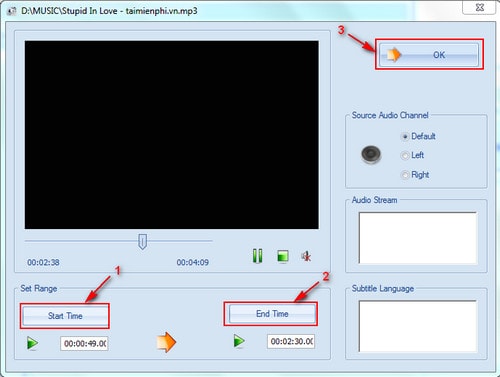
3. Set the start and end times
Enter the point where the clip should start and where it should stop. Preview the range if your version provides a play control. Leave a small, natural pause rather than cutting in the middle of a word or musical attack, then select OK.
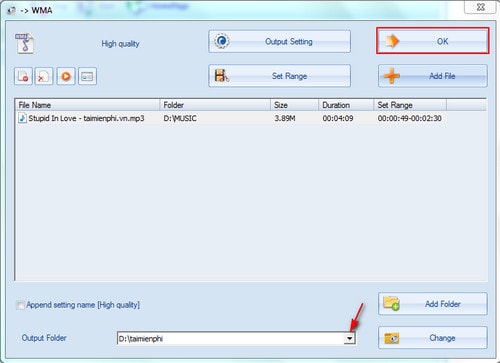
4. Choose where to save the file
Confirm that the range shown next to the task is correct. Select an Output Folder you can find easily, then return to the main task list.
5. Run and check the result
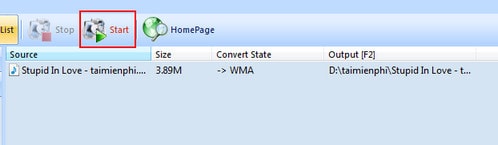
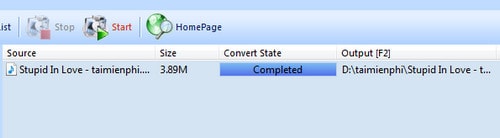
Select Start and wait for the status to show that the task is complete. Open the output folder, play the entire clip, and check its first and last seconds.
Join several clips
Trimming and joining are separate operations. To combine multiple files, use Format Factory's Audio Joiner, add the clips, arrange them in the intended order, select the output settings, and start the join task. When possible, use clips with matching sample rates and channel layouts to avoid unexpected changes.
Choose sensible output settings
- For speech or a simple ringtone, a very high bitrate is usually unnecessary.
- Repeated MP3 conversion can reduce quality, so return to the original source when making a new version.
- Do not create a MIDI file merely by selecting a MIDI extension. MIDI stores performance instructions, not ordinary recorded audio.
- Keep filenames short and avoid replacing the source until you have tested the result.
If the goal is to extract a full soundtrack rather than a short range, compare TipsMake's video-to-MP3 tools. For delivery limits, use these audio file size reduction methods and listen for quality changes after compression.
When the ringtone does not appear on the phone
- Confirm that the phone supports the chosen format and duration.
- Transfer it to the device's ringtone location or use the manufacturer's supported ringtone-import process.
- Check that the file plays normally on the computer before troubleshooting the phone.
- If it is audible but too quiet, edit the source level carefully; aggressive amplification can cause clipping.
Related Articles
 Guide to Making Phone Ringtones Using Format Factory3 minutes read
 How to Merge Subtitles into Videos with Format Factory7 minutes read
 How to Create Ringtones on Android as You Like with Ringtone Maker6 minutes read
 How to Cut MP3 Music and Create Phone Ringtones Using mp3DirectCut4 minutes read
 Link to Download Format Factory 5.5.0.09 minutes read
 How to Combine Multiple Videos into One with Format Factory3 minutes read
Reader Comments 0
Sign in with email or Google to join the discussion.