Table of Contents
The most reliable way to remove ads from a mobile game is to use its official Remove Ads purchase, buy the paid version, or choose a game from an ad-free subscription catalog. Disconnecting from the internet can work for a genuinely offline game, but it also disables multiplayer, cloud saves, rewarded videos, events, and other online features.
1. Buy the game's official Remove Ads option
Open the game's settings or store screen and look for a clearly labeled one-time purchase or subscription. Complete the purchase through Google Play or the App Store, then restart the game. Before paying, check whether it removes:
- forced interstitial and banner ads;
- only ads between levels, while optional rewarded videos remain;
- ads on every device tied to the same store account;
- ads permanently or only while a subscription is active.
A one-time “Remove Ads” item is commonly a non-consumable purchase and may be restorable, but the developer determines the exact behavior. Keep the receipt and use the game's Restore Purchases control after reinstalling or changing devices.
2. Choose an ad-free game subscription
Apple Arcade
Apple Arcade provides a curated catalog of games without ads or in-app purchases. It does not remove advertising from an unrelated game outside the Arcade catalog. Check Apple's current Apple Arcade guide for availability and the games presently included.
Google Play Pass
Google Play Pass includes a changing selection of apps and games without ads or in-app purchases. Look for the Play Pass badge on the title's store page; subscribing does not remove ads from every game in Google Play. Google's Play Pass instructions explain the catalog and what happens if a title leaves it.
3. Play offline when the game supports it
If the game is fully playable offline, cutting the connection prevents it from fetching new network ads:
- Open the game online first so required files and your latest save can synchronize.
- Close the game completely.
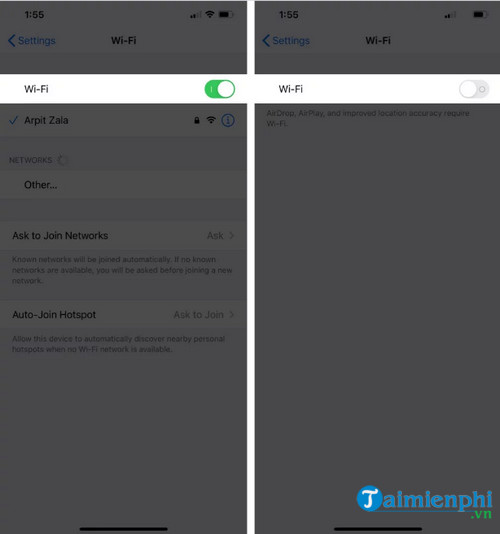
- Turn on Airplane Mode, or switch off both Wi-Fi and cellular/mobile data.
- Reopen the game and confirm that your progress is available.
- Reconnect before you need cloud saves, purchases, updates, multiplayer, or online events.
Some games cache an advertisement in advance, so an ad may still appear. Others refuse to start without a server connection. Do not bypass a game's license check or network requirement with modified software.
Disconnect on iPhone
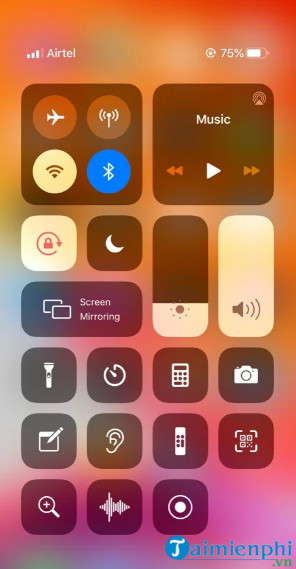
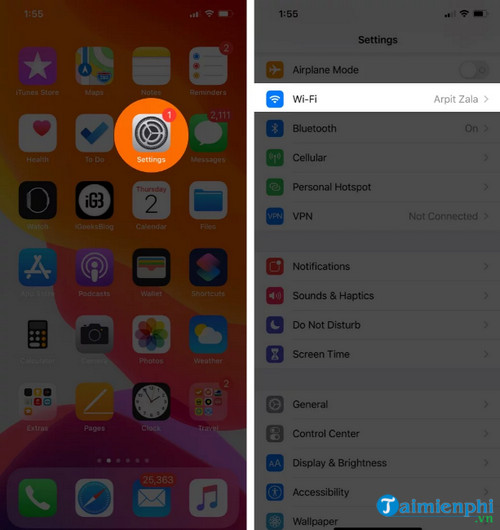
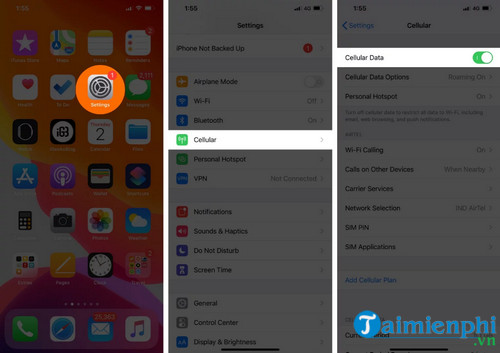
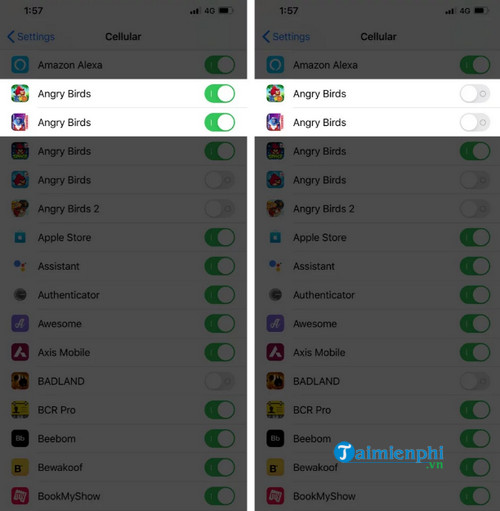
Open Control Center and turn on Airplane Mode, then confirm that Wi-Fi has not been manually re-enabled. You can also open Settings > Cellular and turn cellular data off for a particular game. Apple notes that an app with cellular access disabled can still use Wi-Fi, so this is not a complete per-app network block. See Apple's cellular data settings guide.
The screenshots below show older iPhone controls. Current models use a swipe from the top-right corner to open Control Center; Home-button models use a different gesture.
Disconnect on Android
Use Quick Settings to enable Airplane Mode, or turn off both Wi-Fi and mobile data. Some Android manufacturers provide per-app data controls, but Android menu names and whether Wi-Fi can be restricted vary by device. Do not assume that disabling background data prevents ads while the game is open.
4. Check the business model before installing a game
The store listing and reviews often reveal whether a game contains ads or in-app purchases. Prefer:
- a paid game with a clear one-time price;
- a title whose listing explicitly offers an ad-removal purchase;
- a game included in Apple Arcade or the Play Pass catalog;
- an offline game that does not require continuous server access.
Be cautious with a clone that promises a “modded,” “premium unlocked,” or ad-free APK/IPA outside the official store. Modified game packages can contain malware, steal accounts, or trigger a game ban.
Why Chrome's ad settings do not block ads inside games
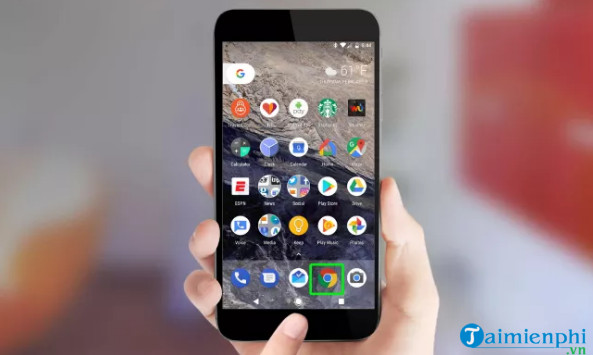
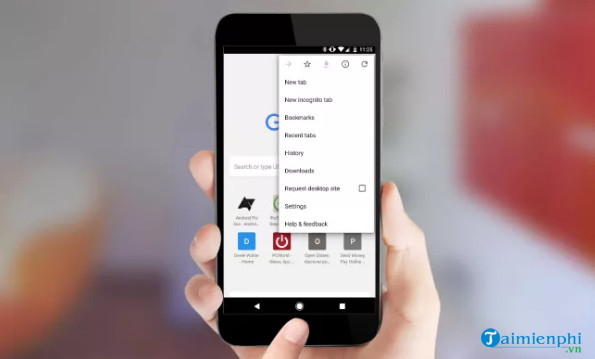
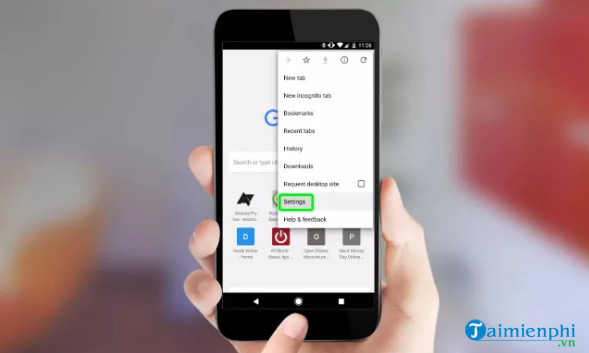
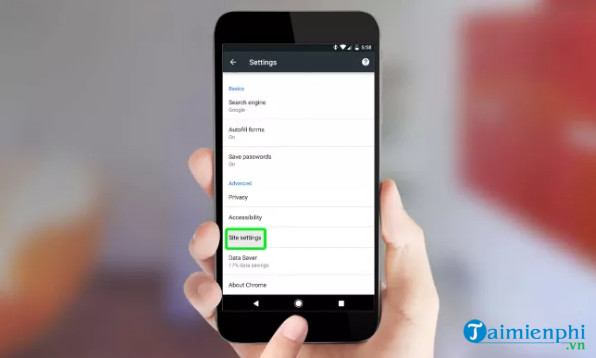
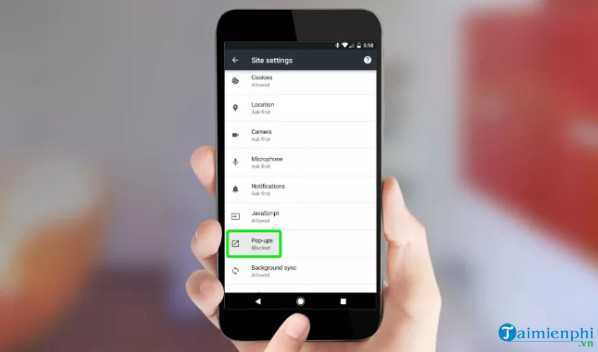
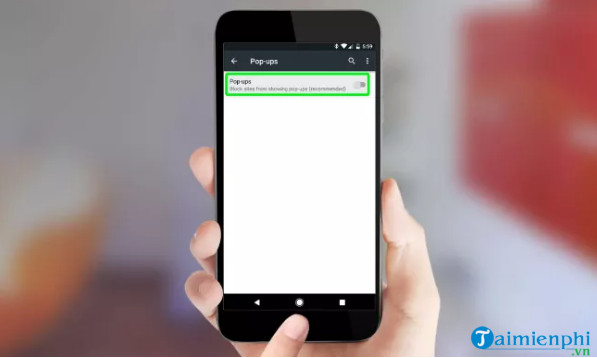
Chrome's pop-up control applies to web pages opened in Chrome. It does not change advertising rendered by a native Android game. The original article's Chrome steps are preserved below because they can still help with game-related websites, but they are not a fix for in-game ads.
Current Chrome for Android uses Menu > Settings > Site settings > Pop-ups and redirects. Chrome's old Lite Mode/Data Saver feature referenced in the original article is no longer available and should not be presented as an ad-blocking method.
What about DNS or VPN ad blockers?
A DNS- or VPN-based blocker may stop requests to known ad domains across several apps, but it is less reliable for game advertising served from the same domain as content. It can also break login, purchases, multiplayer, reward verification, or analytics required by the game.
Such an app receives significant network access. Choose it only after reviewing the developer, privacy policy, logging, supported platforms, and removal instructions. Do not install an old APK, root the phone, or add an unfamiliar iPhone configuration profile simply to hide game ads. Our guide to reducing ads in Android and iPhone apps safely explains these network-filtering tradeoffs.
If a game still shows ads after you paid
- Confirm that you are signed in with the account used for the purchase.
- Update the game and operating system.
- Use Restore Purchases if available.
- Restart the game, then the phone.
- Check the receipt to see exactly what the purchase promised.
- Contact the developer through the store listing if forced ads remain.
Rewarded ads are often optional and may remain even after a banner-removal purchase. If the listing or purchase screen was misleading, use the store's support or refund process rather than downloading a modified copy.
If full-screen ads appear outside the game
Ads that continue on the Home Screen or over other apps are not normal in-game advertising. On Android, inspect recently installed apps and “display over other apps” permission; our Android adware cleanup guide provides the removal sequence. On iPhone, review Safari notification permissions, calendars, VPNs, and configuration profiles instead of blaming the last game automatically.
Related Articles
 How to Disable Ads When Playing Games on iPhone6 minutes read
 Tips for Playing Nintendo Games on iPhone Are Extremely Simple Explained4 minutes read
 How to Fix the Game Playing Error Is Escaping on Android7 minutes read
 What Factors Do Smart Tvs Need to Have?7 minutes read
 How to Block Ads on iPhone, iPad6 minutes read
 10 Tips to Increase FPS When Playing Games11 minutes read
Reader Comments 0
Sign in with email or Google to join the discussion.