Table of Contents
There is no safe switch that removes every advertisement from every Android or iPhone app. Ads can be loaded from the same servers as app content, embedded in video, or required for a free service. The safest options are an app's paid ad-free plan, a browser content blocker for web pages, or a carefully chosen DNS/VPN filter with clear privacy terms.
| Method | Where it works | Main limitation |
|---|---|---|
| Ad-free purchase or subscription | The specific app | Costs money and may be tied to one account |
| Safari content blocker | Safari websites and supported web content on iPhone | Does not remove ads from every native app |
| Browser with built-in filtering | Web pages opened in that browser | Does not affect other apps |
| Private DNS or DNS filter | Many network requests across the phone | Can miss same-domain ads and break app features |
| VPN-based content filter | Potentially wider app traffic | Requires deep network access and usually occupies the VPN slot |
| Offline mode | Games or apps that work without a connection | Disables online features and does not help all apps |
Use the app's own ad-free option first
If you use an app frequently, check its store listing and in-app purchase page for an ad-free upgrade. This directly supports the developer and is less likely to break sign-in, rewards, multiplayer features, or content downloads. Verify whether the purchase is permanent or recurring and whether it applies to all devices signed in to the same account.
Do not pay through a pop-up that opens an unfamiliar website. Use the Google Play or App Store purchase flow unless the developer has a clearly documented alternative.
Block website ads on Android
A mobile browser with built-in content filtering can reduce ads on websites without changing traffic from every app. Install the browser from Google Play, review its privacy policy, and use its own ad-blocking controls. Chrome for Android includes pop-up and harmful-ad protections but does not accept ordinary desktop Chrome extensions.
If the problem is persistent full-screen pop-ups outside the browser, an installed app may be responsible. Follow our Android pop-up ad cleanup guide to identify recent or suspicious apps rather than adding another blocker immediately.
Use Android Private DNS carefully
Android's Private DNS setting can send DNS lookups to a provider that filters known advertising or tracking domains. It cannot hide page elements, remove creator-read sponsorships, or reliably block ads served from the same domain as useful content.
- Choose a provider with a documented privacy policy, support page, and a specific Private DNS hostname.
- Open Settings > Network & internet > Private DNS. The exact route varies by phone maker.
- Select Private DNS provider hostname, enter the provider's hostname, and save.
- Test websites, messaging, banking, login, and media apps.
- If something breaks, return to Automatic or Off.
Google documents the setting in its Android advanced network guide. Do not paste an IP address, random list, or configuration copied from a forum into a field you do not understand.
Use Safari content blockers on iPhone
Apple supports content-blocking extensions for Safari:
- Install a reputable content blocker from the App Store.
- Open Settings > Apps > Safari > Extensions.
- Turn on the content blocker.
- Test the sites you use, and disable the blocker for a site if checkout, video, or login controls fail.
Apple's Safari data and content-blocker guide confirms the current path. A Safari content blocker does not promise to remove advertising inside every native iPhone app.
You can also turn on Settings > Apps > Safari > Block Pop-ups and keep Fraudulent Website Warning enabled. These browser protections address web pop-ups and risky pages, not ordinary ads built into apps.
Evaluate DNS- and VPN-based blockers before installing
A system-wide filtering app may create a local VPN, connect to a remote VPN, install a DNS configuration, or add a configuration profile. That can expose DNS queries or traffic metadata to the provider and may conflict with a work VPN, parental controls, banking apps, streaming services, or private relay features.
Before granting access:
- Confirm the developer and install only from Google Play or the App Store.
- Read what traffic is processed on-device and what is sent to company servers.
- Check the logging, retention, ownership, and support policies.
- Understand whether a free plan is funded by subscriptions, advertising, analytics, or data collection.
- Know how to disable and remove the VPN, DNS setting, certificate, or profile.
A VPN label does not automatically mean better privacy. It means the app is in a privileged position to handle network traffic.
Why the old Android methods should not be followed
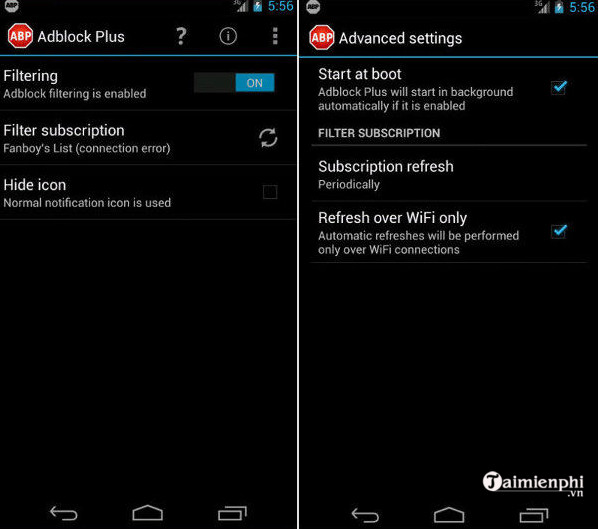
The original article instructed readers to enable installation from unknown sources, sideload an old Adblock Plus APK, configure a manual proxy, root the phone, and replace the system hosts file. Those methods are obsolete or unnecessarily risky:
- An old APK can be unmaintained, tampered with, or incompatible with current Android security controls.
- A manual proxy affects only the configured network and can expose traffic metadata or break HTTPS connections.
- Rooting weakens platform protections and can stop banking, payment, work, or media apps from running.
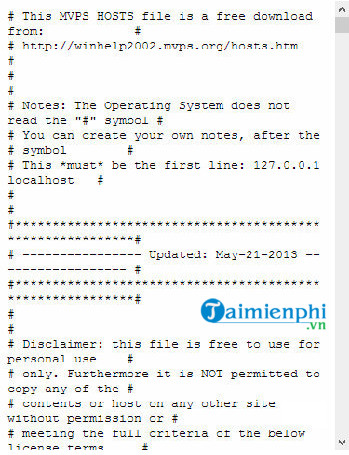
- A copied hosts file can block useful services, become stale, and is difficult to audit.
The next two images are retained as historical references only. Do not use them as current setup instructions.
Why the old iPhone VPN and proxy methods are unsafe to copy
The original guide recommended particular VPN and proxy apps and asked readers to approve a VPN configuration or paste a proxy URL into Wi-Fi settings. App ownership, privacy practices, certificates, and service availability can change, so an old recommendation is not enough reason to route current traffic through that provider.
These screenshots show the legacy process and are preserved only so readers can recognize an old configuration:
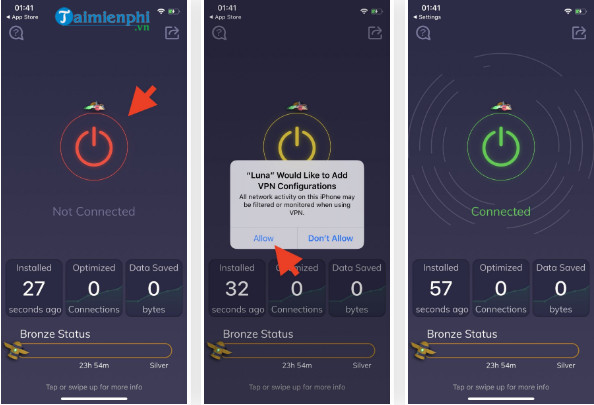
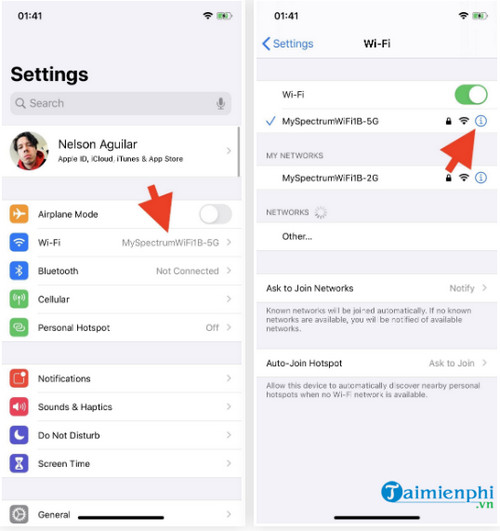
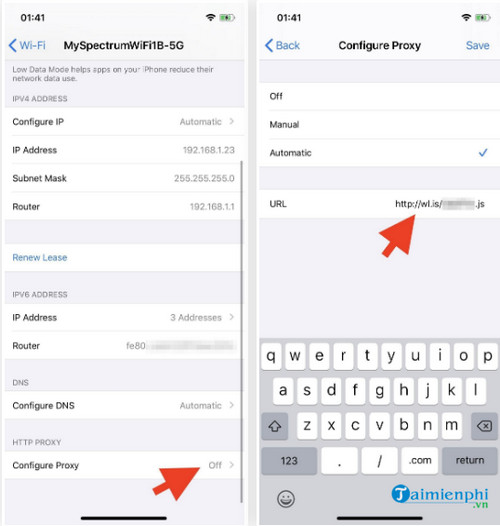
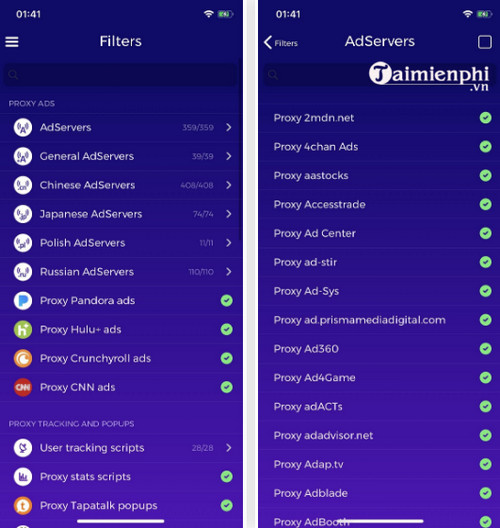
Never install a configuration profile sent through an ad, unsolicited email, or unfamiliar website. Apple displays installed profiles under Settings > General > VPN & Device Management; its profile-management guide explains how to review and remove them.
Remove an old blocker or network configuration
On Android
- Uninstall the sideloaded blocker from Settings > Apps.
- Revoke Install unknown apps permission from the browser or file manager that received the APK.
- Set each affected Wi-Fi network's proxy back to None.
- Return Private DNS to Automatic if you no longer trust or use the provider.
- Restart the phone and run Google Play Protect.
On iPhone
- Open Settings > General > VPN & Device Management and remove an unfamiliar manually installed profile.
- Open Settings > Wi-Fi, select the network, and set Configure Proxy to Off unless your organization requires it.
- Remove the filtering or VPN app and any VPN configuration it created.
- Restart the iPhone and test the network.
Do not remove a work or school management profile without contacting the administrator; doing so can delete organization-provided settings or data.
If ads suddenly appear everywhere
- Uninstall apps added shortly before the problem began.
- Review notification permissions and block spammy websites or apps.
- Check which app is allowed to appear over other apps on Android.
- Update the phone and all installed apps.
- Avoid tapping the ad, especially fake virus warnings or download buttons.
If you prefer browser-based filtering rather than system-wide network changes, compare maintained mobile options in our current web-browser overview. Browser filtering is easier to limit, test, and reverse than a root modification or unknown device profile.
Related Articles
 How to Block Apps on PC or Mac8 minutes read
 Instructions to Block Messages When Spammed on Viber3 minutes read
 How to Block Any Call on Your Android Phone7 minutes read
 How to Block Phone Numbers or Messages on Galaxy S9 / S9 +5 minutes read
 How to Block a Phone Number: Practical Guide11 minutes read
 How to Block Ads on Android Without Rooting the Device4 minutes read
Reader Comments 0
Sign in with email or Google to join the discussion.