Table of Contents
X, formerly Twitter, inserts promoted posts and other sponsored content into timelines, replies, search, and profiles. You can reduce them with X Premium+, use a browser content blocker on x.com, or turn off personalized ads. These options do different things: personalization settings change targeting, not necessarily the number of ads.

Option 1: Use X Premium+
X states that its Premium+ tier provides an ad-free experience across most areas, including the For You and Following timelines, replies, and profiles. Occasional sponsored content may still appear, and features can change. Check the current X Premium page for availability, benefits, and the price shown for your region.
This is the only option here that can apply inside the official X mobile app as well as on the web while you are signed in to the subscribed account. A desktop browser extension affects only that browser.
Option 2: Turn off personalized ads
If your goal is to limit interest-based targeting rather than hide advertisements:
- On X, open Settings and privacy.
- Select Privacy and safety.
- Open Ads preferences.
- Turn off Personalized ads.
- Review Data sharing and personalization for related controls.
X's personalized ads guide explains what the setting controls. Disabling it does not create an ad-free timeline; ads can become less tailored instead.
Option 3: Use a content blocker in Chrome
The original tutorial recommended a Chrome extension called Promoted Tweet Block. That single-purpose listing and its old store instructions should not be treated as current. A maintained general content blocker is easier to verify and can receive filter updates when X changes its page structure.
- Open the official uBlock Origin Lite listing in the Chrome Web Store.
- Verify the extension name, publisher, website, and requested access.
- Select Add to Chrome, then confirm.
- Open x.com and reload the page.
- If promoted posts remain, open the extension's settings and check that the default ruleset is active and that the extension can run on x.com.
uBlock Origin Lite is the Manifest V3 version designed for current Chromium-based browsers. Do not confuse it with unrelated extensions using “uBlock” in their names.
Legacy Chrome screenshots
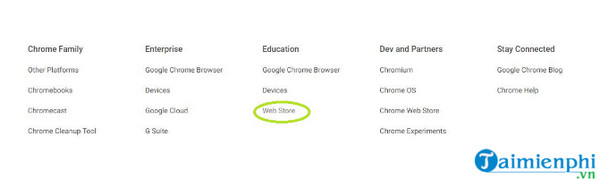
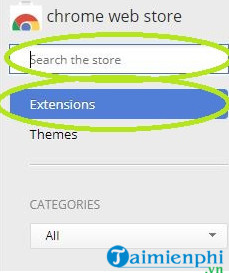
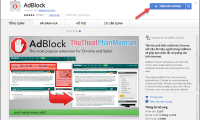
These images show the obsolete path through Chrome's old Web Store and the Promoted Tweet Block search. They are preserved as historical reference only.
Option 4: Use uBlock Origin in Firefox
- Open the official uBlock Origin page on Mozilla Add-ons.
- Confirm that the listing identifies the expected developer.
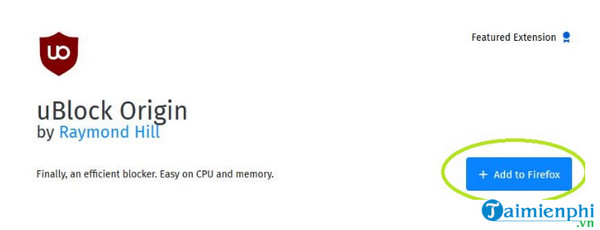
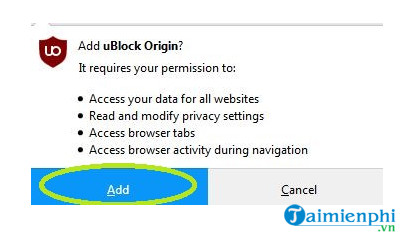
- Select Add to Firefox, review the permissions, and choose Add.
- Reload x.com.
- If needed, open the extension dashboard and update its filter lists.
The old Firefox screenshots below still show the general add-on installation idea, but the Mozilla Add-ons layout and permission prompt have changed.

What works in the X mobile app?
Chrome and Firefox desktop extensions do not filter the official X app. On a phone, the practical choices are:
- use Premium+ if its current benefits and price suit you;
- open x.com in a mobile browser that supports a reputable content blocker;
- turn off ad personalization if targeting is the concern;
- avoid VPN, DNS, or modified X apps that make vague promises about removing all promoted content.
A VPN or DNS filter can block some ad-server requests but often cannot distinguish a promoted post delivered through the same service as the rest of the timeline. It also receives sensitive network access.
If promoted posts still appear
- Update the browser and extension, then reload x.com.
- Confirm that the extension is enabled and allowed to run on X.
- Check whether x.com is allowlisted or filtering is paused.
- Update filter lists and remove stale custom rules.
- Disable other blockers temporarily to identify conflicts.
- Remember that creator sponsorships inside an ordinary post are not always labeled or delivered like platform ads.
Filters can stop working temporarily when X changes its markup. Do not install a random replacement extension, script, or APK simply because it promises a quick fix. Wait for a maintained filter update or use a supported option.
If X stops loading or buttons break
- Pause the blocker on x.com and reload.
- If the problem disappears, return to the extension settings and remove recent custom filters or optional lists.
- Clear X site data only after checking extensions; doing so signs you out and resets local preferences.
- Use a site exception if a feature matters more to you than filtering.
For a broader comparison of maintained filters, see browser extensions that reduce common web annoyances. If you need a temporary exception, follow our guide to pausing or disabling an ad blocker.
Privacy and account safety
Use only official browser stores and never enter your X password into an extension page. A content blocker needs access to web-page data, so publisher verification and updates matter. Removing personalized ad targeting also does not stop all data collection; review the wider X personalization and data settings if privacy is your main goal.
Related Articles
 How to Block Keywords, Users and Hashtags on Twitter3 minutes read
 How to Block Twitter from Tracking and Sharing Personal Data on4 minutes read
 How to Block Ads on Android Effectively5 minutes read
 How to Block Ads When Surfing the Web Effectively3 minutes read
 Twitter Account Was Suspended After Threatening to Kill. a Mosquito3 minutes read
 Instructions for Using Twitter for New Users14 minutes read
Reader Comments 0
Sign in with email or Google to join the discussion.