Recently, TipsMake has received many questions about the issue of pop-up ads constantly appearing on Android phones for no apparent reason. Therefore, in this article, TipsMake will guide you through some ways to block and remove ads on your Android phone.
How to block and remove ads on Android phones
Table of Contents:
1. How to check which apps display pop-up ads .
Method 1: Checking ad windows .
Method 2: Checking currently open apps .
Method 3: Using an ad network detector .
2. How to block or remove ads on Android phones .
Method 1: Temporary solution .
Method 2: Other methods .
1. How to check if an application is displaying pop-up ads.
When ads appear on Android device screens, we can consider two possible scenarios:
If ads appear while you're playing a game or using an app on your Android phone, it's likely because the app you're using contains ads.

If an ad pop-up appears on your home screen without any notification, it's highly likely your phone has adware – a type of malware that can be installed and monitor your device.
Here are some ways to check ads on your Android phone:
Method 1: Check the ad window
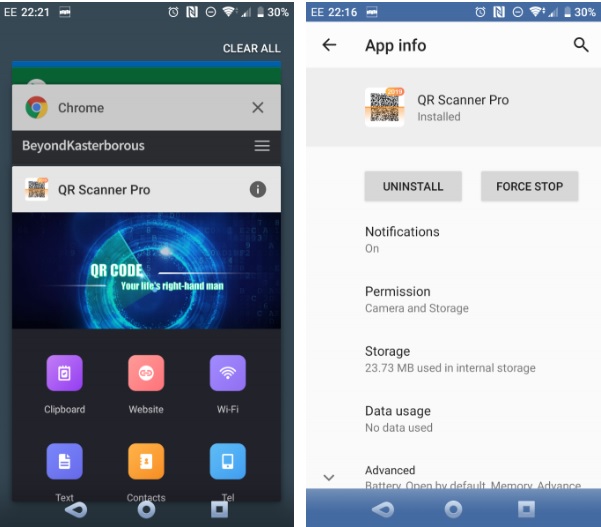
Recent versions of Android allow users to easily find out which apps are running and what permissions they are using on their device. If you discover an app running that you didn't open before, all you need to do is press and hold the notification and then press the "i" button .
This action opens the application permissions window, where you can toggle access to hardware and phone features, such as contacts or mobile data. To find other options, simply go to Menu => All permissions.
Method 2: Check the applications that are currently open.
In addition to checking for pop-up ads, you can check currently open applications to find which ones contain ads.
When the advertising popup window appears, press and hold the icon located in the upper left corner of the window.
At this point, an "i" button will appear in the upper right corner of the card. Press this button to open the application access permissions window.
If the ad window keeps appearing and you can't identify the app containing the ads, besides factory reset, you might consider using apps or utilities designed to detect and remove adware and malware.
The application that TipsMake wants to introduce to you is called Ad Detect Plugin. This free application will detect connections to advertising networks.
Download and install the Ad Detect Plugin here.
Open the app, find and tap the information button.
To see what type of ads are showing, simply open the app, then find and tap the "Show Information" button.
Besides the Ad Detect Plugin, you can choose other utilities and applications such as ESET Mobile Security & Antivirus and Malwarebytes Anti-Malware.
Download and install ESET Mobile Security & Antivirus here.
Download and install Malwarebytes Security from here.
Method 3: Use an ad network detector.
Additionally, you might consider using an ad network detector. These apps and utilities are designed to detect and block connections on your phone to advertising networks.
Some effective ad network detectors include AppBrain Ad Detector, Lookout Security & Antivirus (formerly known as Ad Network Detector), and Addons Detector. Addons Detector displays information including the types of ads being shown and the applications containing those ads.
Download and install AppBrain Ad Detector for Android
here. Download and install Lookout Security for Android here.
Download and install Addons Detector for Android here.
2. How to block and remove ads on Android phones
Method 1: Temporary Solution
If pop-up ads are constantly appearing on your Android phone and you want to block them, the first step is to close all open app windows. The other steps are simple: tap the Recents button, then swipe the app card to close it. Or, the quickest way is to restart your phone.
The next step is to check and uninstall any apps you've recently installed. These new apps and games often contain ads.
Method 2: Another way
To completely eliminate those annoying pop-up ads that constantly appear on your Android device screen, the best solution is to uninstall the apps that are delivering the ads.

To uninstall apps, go to Settings => Applications , find and long-press the app, then select Uninstall to remove it.
Alternatively, on the application information screen, tap the Uninstall tab , or on the home screen or app drawer, find and long-press the application and select Uninstall .
If your device is infected with malware, the best solution is to perform a factory reset. This will erase all applications and data on your phone, so TipsMake recommends that you back up your data before proceeding with the reset.
If you're unsure how to set up automatic backups for your entire Android device , you can refer to other articles on TipsMake for more details.
The article above, TipsMake has just introduced you to some ways to check, block, and remove ads on Android phones. In addition, readers can refer to other articles on TipsMake to learn more about how to block pop-up ads on Android devices .
Related Articles
 How to Block Pop-up Ads on Android Devices6 minutes read
 Block Ads in Browsers and Android Apps8 minutes read
 Prevent Advertising Notifications on Android5 minutes read
 How to Block All Incoming Calls on Android: Practical Guide6 minutes read
 How to Block Unknown Numbers on Android: Step-by-Step Guide6 minutes read
 How to Block Any Call on Your Android Phone7 minutes read
Reader Comments 0
Sign in with email or Google to join the discussion.