Table of Contents
Chrome already blocks many pop-ups and sites with intrusive or misleading ads. If you still see unwanted advertising, first identify whether it is a web-page ad, pop-up window, site notification, video ad, or adware installed on the computer. Each requires a different fix.

| What you see | Best first action |
|---|---|
| A new window or tab opens | Block pop-ups and redirects for the site |
| An alert appears outside the page | Revoke that site's notification permission |
| Misleading or disruptive ads appear on pages | Check Chrome's Intrusive ads setting |
| Ordinary banners and page ads remain | Consider a verified content-blocking extension |
| Ads appear on every site or after Chrome closes | Inspect extensions, installed apps, and notification permissions |
| YouTube video ads interrupt playback | Use YouTube Premium or test a reputable extension without assuming guaranteed results |
Block pop-ups and redirects
- Open Chrome's menu and choose Settings.
- Select Privacy and security > Site settings.
- Open Pop-ups and redirects.
- Choose the default that prevents sites from sending pop-ups or using redirects.
- Review the allowed list and remove sites you no longer trust.
Some legitimate sites use a pop-up for a payment confirmation, document, or sign-in. Use a site-specific exception rather than allowing pop-ups everywhere. Google's Chrome pop-up guide covers both blocking and exceptions.
Stop spam website notifications
Notification ads can appear in the corner of the desktop even when the offending site is not open. They are not controlled by the pop-up setting.
- Open Settings > Privacy and security > Site settings > Notifications.
- Under sites allowed to send notifications, find the unwanted domain.
- Open its menu and choose Block or Remove.
- For a site that is currently open, select the site-information icon beside the address and set Notifications to Block.
Do not approve a notification request merely to dismiss a page overlay. A legitimate site should still be usable after you decline unless alerts are central to its function.
Use Chrome's Intrusive ads control
- Open Settings > Privacy and security > Site settings.
- Select Additional content settings > Intrusive ads.
- Choose the option that blocks ads on sites known to show intrusive or misleading advertising.
This control is not a universal ad blocker. It targets sites that violate Chrome's ad standards, so ordinary advertising may remain. Google's unwanted ads and malware guide documents this setting and the cleanup steps below.
Install an ad blocker for wider page filtering
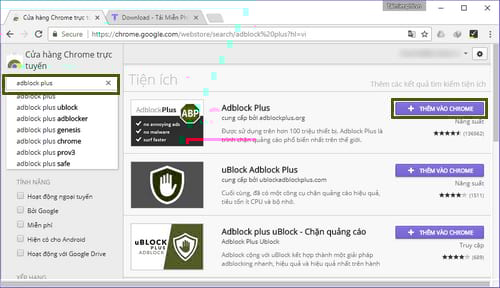
If you want to filter ordinary banners and page elements, choose a maintained extension from the Chrome Web Store. The original article used Adblock Plus:
- Open the official Adblock Plus Chrome Web Store listing.
- Verify the publisher, update information, reviews, and permissions.
- Select Add to Chrome, read the permission prompt, and choose Add extension.
- Open Chrome's Extensions menu to pin the icon or manage its site access.
The following screenshots show an older Web Store design and confirmation dialog. Current buttons and layout differ, so do not identify an extension by icon alone.
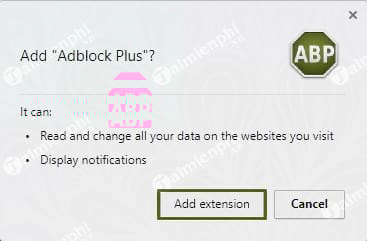
AdBlock, Adblock Plus, and similarly named extensions are different products. Install only one primary blocker at a time and review whether its default configuration allows certain nonintrusive ads.
What to expect on YouTube
A browser extension may filter many YouTube ads, but results can change when YouTube or the extension updates. It may also trigger an anti-adblock message or interfere with playback. Embedded sponsorships read by the creator are part of the video and cannot be removed like a separate ad request.
YouTube Premium is the official paid option for ad-free playback while signed in on supported devices. If you use an extension, keep it updated and be prepared to pause it on YouTube if playback fails.
If ads appear everywhere
Ads on unrelated sites, changed search results, new tabs, or notifications after Chrome closes can indicate a bad extension, an unwanted application, or an abused site permission.
- Open
chrome://extensionsand remove extensions you do not recognize or no longer need. - In Windows, open Settings > Apps > Installed apps; on macOS, inspect the Applications folder. Remove unfamiliar software installed around the time the problem began.
- Run the operating system's security scan and update Chrome.
- Review startup pages, the default search engine, and notification permissions.
- If changes persist, open Settings > Reset settings > Restore settings to their original defaults.
Resetting Chrome should be a late step. It changes startup, search, content, and extension settings but does not remove every unwanted program from the operating system.
If a page breaks after blocking ads
- Pause the blocker on that trusted site and reload.
- Remove custom filters or optional lists added recently.
- Disable duplicate privacy or script-blocking extensions one at a time.
- Allow a required pop-up only for the site rather than globally.
- Resume blocking after testing if the exception was temporary.
For detailed AdBlock configuration, see our AdBlock for Chrome setup guide. When a site needs a temporary exception, follow the guide to pausing, disabling, or removing AdBlock.
What ad blocking does not replace
Hiding ads does not make every site trustworthy. Keep Safe Browsing enabled, update Chrome, avoid unexpected downloads, and inspect sign-in URLs. A blocker can reduce distractions and some exposure to malicious advertising, but it does not guarantee protection from phishing, harmful files, or compromised websites.
Related Articles
 How to Use Ublock Origin Chrome to Block Ads4 minutes read
 What Is Google Floc? How to Block Floc on Google Chrome5 minutes read
 Enable Guest Browsing on Google Chrome and Chromebook5 minutes read
 How to Turn Off the Notification Feature on Chrome When3 minutes read
 How to Enable 'Enhanced Safe Browsing' on Google Chrome: Step-by-Step Guide7 minutes read
 How to Block Ads on Google Chrome: Step-by-Step Guide9 minutes read
Reader Comments 0
Sign in with email or Google to join the discussion.