Table of Contents
There are two practical ways to reduce interruptions from YouTube ads in Firefox: use YouTube's paid ad-free option, or install a reputable content-blocking extension. An extension may block many ads, but results can change when YouTube or the extension updates, so it should not be treated as a permanent guarantee.

Option 1: Use YouTube Premium
YouTube Premium is the official option for watching videos without YouTube-served ads while signed in to a subscribed account. Its benefits can also apply on supported phones, TVs, and other devices, whereas a Firefox extension only affects browsing inside Firefox. YouTube's Premium benefits guide explains the current features and exceptions.
This option is best if you want consistent ad-free playback across devices and do not want to grant a browser extension access to YouTube pages. Availability and pricing vary, so check the offer shown for your account rather than relying on an old quoted price.
Option 2: Install a content blocker in Firefox
If you prefer an extension, choose one from Mozilla Add-ons and inspect it before installing. The original guide used Adblock Plus, but the selection screen and configuration shown in its old screenshot no longer match current versions.
- Open Firefox's menu and choose Add-ons and themes.
- Select Extensions and search Mozilla Add-ons for the blocker you want.
- Open the listing. Verify the developer, recent update history, reviews, and requested permissions.
- Select Add to Firefox, review the permission prompt, and confirm.
- Restart the YouTube tab, then play several videos to test the result.
Mozilla maintains current instructions for finding and installing Firefox add-ons. Avoid websites that ask you to install an unsigned file, userscript, or separate “YouTube Center” package; those steps from the legacy article are no longer necessary.
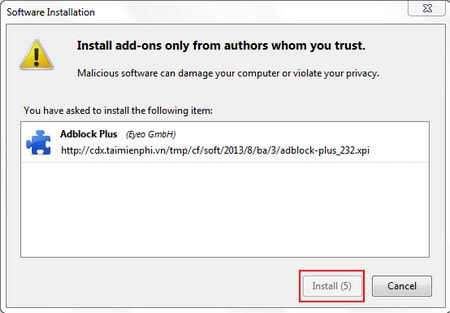
The screenshot above is a legacy reference. Current Firefox uses a different installation prompt, and current blockers may organize their privacy and filter controls differently.
How to choose an extension safely
- Use Mozilla Add-ons: install from the browser's official catalog instead of a download mirror.
- Verify the publisher: similar extension names and copied logos can cause confusion.
- Read the permissions: a content blocker needs access to page data to filter it, but unrelated permissions should be questioned.
- Check maintenance: prefer an extension with a clear update history and support information.
- Install only one primary blocker: multiple blockers can duplicate work and make playback problems harder to diagnose.
AdBlock and Adblock Plus are separate products despite their similar names. See our AdBlock versus Adblock Plus comparison before choosing, and review this broader browser-extension guide for other filtering approaches.
Allow ads for a channel or temporarily pause blocking
If you want to support a creator through advertising, or if comments, playback, sign-in, or other controls stop working, make a narrow exception:
- Open the affected YouTube page.
- Select the blocker icon beside the Firefox address bar. If it is hidden, open the Extensions menu.
- Choose the option to pause filtering on YouTube or allow the current site.
- Reload the tab.
Extension wording varies. Some products offer a site-wide allowlist, while others can allow a specific channel. Check the extension's own documentation before assuming a channel exception is available.
If YouTube still shows ads
- Update Firefox and the extension, then reload the video.
- Open the extension settings and update its filter lists if that option exists.
- Disable other privacy, script-blocking, or YouTube-enhancement extensions temporarily to check for a conflict.
- Confirm that the blocker is allowed to run on YouTube and is not paused.
- Remove duplicate blockers and test with one extension at a time.
Some sponsored messages are part of the video itself rather than separate ad elements. A browser extension cannot remove those automatically. Likewise, a blocker does not replace browser security updates, anti-malware protection, or careful handling of downloads and sign-in prompts.
If YouTube playback breaks
First pause the blocker for YouTube and reload the page. If playback returns, re-enable the extension and review its custom filters or strict privacy settings. You can also test the video in a Firefox private window with extensions disabled, provided the extension is not permitted in private browsing. If the problem persists without extensions, clear YouTube's site data or use Firefox's troubleshooting tools rather than resetting the entire browser immediately.
Related Articles
 How to Disable Chatbot AI Firefox3 minutes read
 Remove YouTube Bookmark from Firefox, Chrome, Coc Coc, and IE Browsers3 minutes read
 How to Disable AI Models in Firefox3 minutes read
 How to Turn Off AI Feature on Firefox3 minutes read
 Videos on YouTube Will Have 2 Ads Appearing Continuously to Reduce Discomfort for Viewers3 minutes read
 How to Disable Backspace Key on Chrome and Firefox4 minutes read
Reader Comments 0
Sign in with email or Google to join the discussion.