Table of Contents
Adblock Plus is a browser extension that filters many banners, pop-ups, and other page elements. To avoid lookalike extensions, install it only from the Chrome Web Store, Mozilla Add-ons, or a link from the official Adblock Plus site. Check the name and publisher before approving the permission prompt.

Do not confuse Adblock Plus with AdBlock. They are separate products with similar names. Our AdBlock versus Adblock Plus comparison explains the distinction.
Before installing Adblock Plus
- Update Chrome or Firefox so the current extension version can install correctly.
- Remove duplicate ad blockers unless you have a specific reason to use more than one. Overlapping filters can cause page problems and complicate troubleshooting.
- Review the extension's permissions. Content blockers need access to pages in order to filter them, but you should still understand what is requested.
- Do not download a separate installer from an unfamiliar software site. A browser extension should come through the browser's normal installation flow.
The developer's official installation guide lists the currently supported browsers and store routes.
Install Adblock Plus in Google Chrome
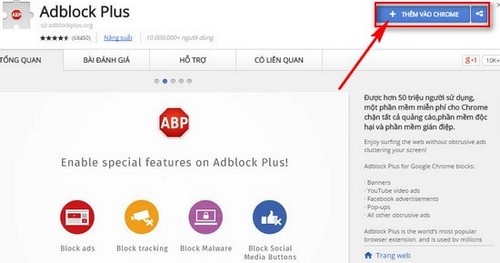
- Open the official Adblock Plus listing in the Chrome Web Store.
- Confirm that the listing is for Adblock Plus and verify its publisher.
- Select Add to Chrome.
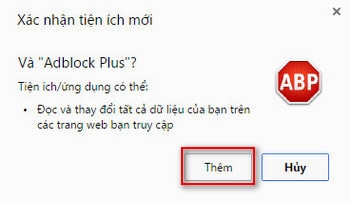
- Read the permission dialog, then choose Add extension if you want to proceed.
- Open Chrome's Extensions menu and pin the ABP icon if you want quick access to its controls.
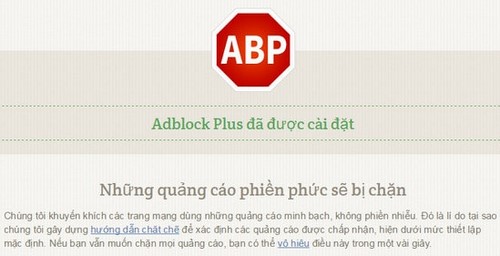
The original screenshots below show an older Chrome Web Store design. The buttons and confirmation dialog look different today, but the safe sequence remains the same: inspect the official listing, review permissions, and confirm through Chrome.
Check or remove the Chrome extension
Enter chrome://extensions in the address bar. From there you can turn Adblock Plus off, open its details, change site access, or select Remove. If an extension with a similar name appears instead, compare its identifier and publisher with the official store listing.
Install Adblock Plus in Firefox
- Open the official Adblock Plus page on Mozilla Add-ons.
- Verify the extension name and publisher.
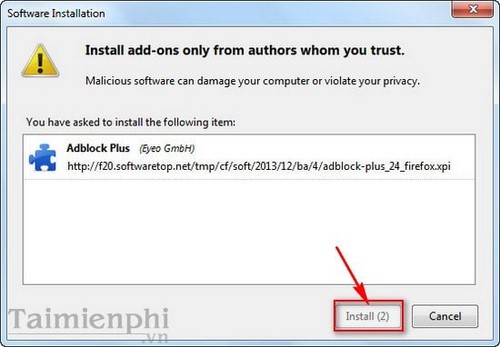
- Select Add to Firefox.
- Review the requested permissions and choose Add.
- Open Firefox's Extensions menu if you want to pin the icon to the toolbar.
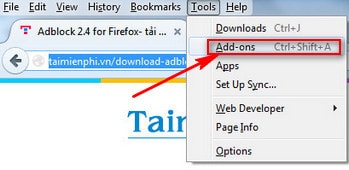
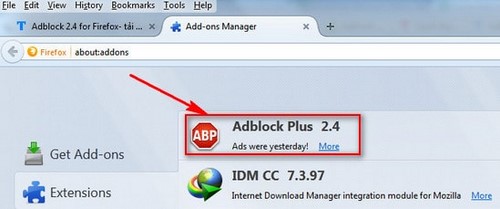
These legacy images show the old Firefox installation prompt and Tools > Add-ons page. In a current release, use Menu > Add-ons and themes > Extensions or enter about:addons.
Check or remove the Firefox extension
Enter about:addons, select Extensions, and find Adblock Plus. Its three-dot menu lets you manage, disable, or remove it. Firefox may also let you control whether it can run in private windows.
Understand the default filtering behavior
Adblock Plus may permit advertising that meets its Acceptable Ads criteria by default. If you prefer different filtering, open the ABP icon, select the settings gear, and review the available filter and privacy options. Do not assume that installing the extension blocks every ad, tracker, or malicious page.
A content blocker is not antivirus software. Keep the browser and operating system updated, and continue to treat unexpected downloads, login prompts, and security warnings carefully.
Allow ads on a trusted site
- Open the website you want to support or troubleshoot.
- Select the Adblock Plus icon on the browser toolbar.
- Turn blocking off for that site, or open ABP settings and add the domain to Allowlisted websites.
- Reload the page.
Use a site-specific exception rather than disabling the extension everywhere. This is especially useful when video, checkout, login, or comment controls stop working.
If ads still appear or a page breaks
- Confirm that Adblock Plus is enabled and allowed to run on the affected site.
- Update the browser and extension, then reload the page.
- Open ABP settings and update or restore its filter lists.
- Disable other blockers or privacy extensions temporarily to identify a conflict.
- Remember that sponsored content embedded directly in a video or article is not always a separate element that a blocker can remove.
For alternatives and narrower tools, see our guide to browser extensions that reduce common web annoyances. Choose the smallest set of extensions that meets your needs and review them periodically.
Related Articles
 Block Ads on Google Chrome, Firefox, IE with Adblock4 minutes read
 How to Block Ads When Surfing the Web7 minutes read
 How to Block Ads on Google Chrome: Step-by-Step Guide9 minutes read
 Adblock - a Tool to Completely Remove Ads from Your Browser3 minutes read
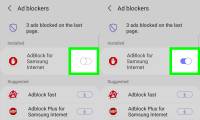 How to Turn Off Adblock: Complete Guide6 minutes read
 Block Ads on Chrome More Effectively with Adblock for Chrome3 minutes read
Reader Comments 0
Sign in with email or Google to join the discussion.