Table of Contents
If an extension named YouTubeBookmark appeared in your browser, remove it from the extensions manager first. Do not reset the entire browser as the first step: a reset can remove other extensions and custom settings, while uninstalling the unwanted add-on is usually enough.

This guide concerns the third-party extension shown in the original screenshots, not YouTube's built-in Save feature or playlists. Browser menus have changed since those screenshots were captured, so use the current paths below.
Remove YouTubeBookmark from Chrome
- Open Chrome and enter
chrome://extensionsin the address bar. - Find YouTubeBookmark. If the name is slightly different, compare its icon, description, and publisher before acting.
- Select Remove, then confirm.
- Restart Chrome and check the extensions page again.
The following images show Chrome's older Tools > Extensions interface. The current browser uses a Remove button instead of the trash-can icon shown here.
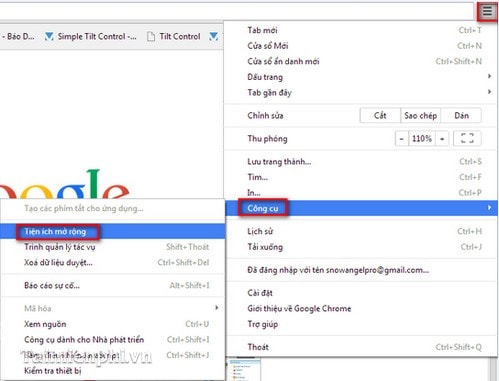
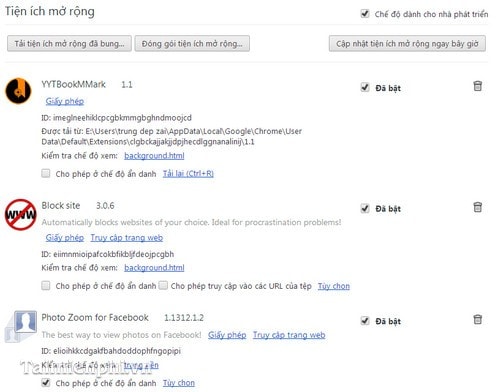
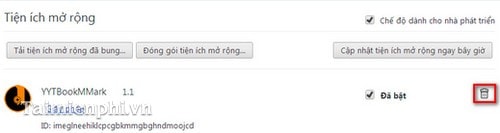
If your home page, startup page, or search engine is still being redirected after removal, open Settings > Reset settings > Restore settings to their original defaults. Google's unwanted ads and browser reset guide explains what the reset does.
Remove it from Microsoft Edge
- Enter
edge://extensionsin the address bar, or choose Extensions > Manage extensions. - Locate the unwanted extension and select Remove.
- Confirm, restart Edge, and check that it has not returned.
You can also right-click an extension icon beside the address bar and choose Remove from Microsoft Edge. See Microsoft's official extension removal instructions.
Remove it from Cốc Cốc or another Chromium browser
Cốc Cốc and other Chromium-based browsers generally provide an extensions manager from the main menu. Open that page, find YouTubeBookmark, and choose Remove. Because menu wording varies by release, use the browser's own Help page if you cannot find the manager. Avoid downloading a separate “removal tool” from an unfamiliar website.
Remove YouTubeBookmark from Firefox
- Open the Firefox menu and choose Add-ons and themes.
- Select Extensions, find YouTubeBookmark, and open its three-dot menu.
- Choose Remove and restart Firefox.
The screenshots below show the old Troubleshooting Information > Reset Firefox route. In current Firefox this recovery action is called Refresh Firefox. It removes installed extensions and other customizations, so use it only if normal removal fails or the unwanted changes persist.
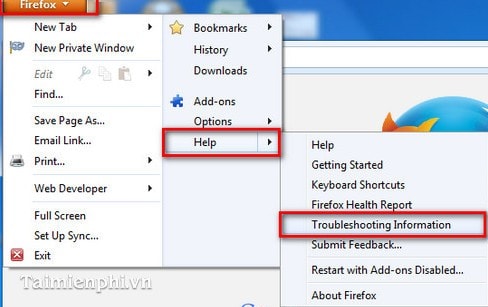
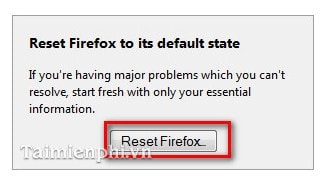
Mozilla's Refresh Firefox guide lists the data that is preserved and the add-ons and settings that are removed.
Internet Explorer instructions are now only a legacy reference
The original article reset Internet Explorer through inetcpl.cpl. Internet Explorer is retired on supported Windows systems, so these images are preserved for readers maintaining a legacy environment, not as a recommendation to continue using IE.
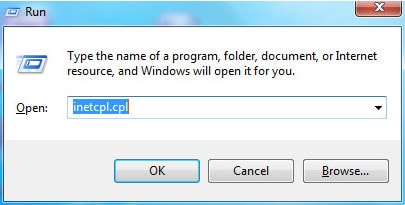

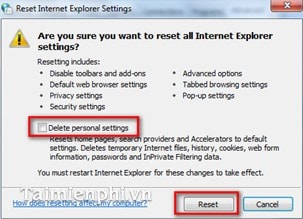
For ordinary browsing, migrate to a maintained browser rather than trying to repair an old Internet Explorer add-on.
If the extension comes back
- Check browser sync: remove the extension on other synced devices and review which settings are being synchronized.
- Inspect installed applications: in Windows Settings, open Apps > Installed apps and uninstall unfamiliar software added around the same time.
- Check for management: a message such as “Managed by your organization” can mean a workplace policy is installing the extension. On a work or school device, contact the administrator instead of trying to bypass policy.
- Run a security scan: use Windows Security or another trusted security product if the extension reappears, redirects searches, or produces persistent pop-ups.
- Reset only as a final browser step: first back up anything the browser's reset or refresh process will not keep.
If other toolbars or search redirects are present, the cleanup may extend beyond one add-on. The removal sequence in this Ask Toolbar cleanup guide shows the broader pattern, while this browser-extension overview offers context for reviewing what remains installed.
Confirm the cleanup
After restarting the browser, verify that YouTubeBookmark is absent from the extensions page, your preferred search engine and startup page are restored, and normal YouTube bookmarks or playlists still work. If only one site behaves incorrectly, clear that site's data before performing a full browser reset.
Related Articles
 How to Create Bookmarks on Chrome, Coc Coc and Firefox Browsers4 minutes read
 How to Remove Snap. Do from Firefox, Chrome, and IE Browsers4 minutes read
 Where Is Google Chrome Bookmark Data Stored on Your Computer?4 minutes read
 Instructions for Recovering Bookmarks Have Been Deleted on Chrome6 minutes read
 How to Change the Bookmark Icon on Chrome, Change the Bookmark Icon4 minutes read
 Goodbye Chrome, We Switch to Firefox13 minutes read
Reader Comments 0
Sign in with email or Google to join the discussion.