Table of Contents
Search-Gol is an older browser hijacker that can replace the default search engine, home page, or startup page after being bundled with another program. To remove it completely, uninstall the related Windows software, delete unwanted browser extensions and URLs, and scan the computer for other potentially unwanted applications.

Before you begin
- Do not use the affected browser for banking, shopping, email, or password changes.
- Save open work and back up important documents, but do not copy unknown installers.
- On a work or school computer, contact IT because a legitimate policy can also control browser settings.
- If you entered important credentials after the redirects appeared, change them from a known-clean device after the PC has been scanned.
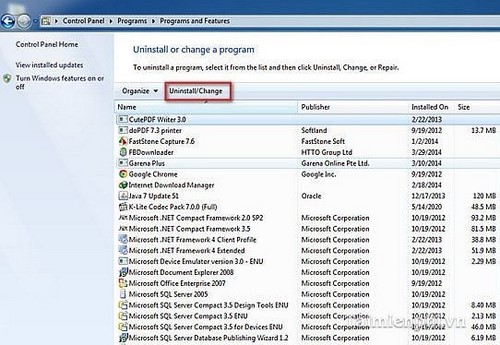
The screenshots below show much older Windows and browser interfaces. Follow the current menu paths in the text; the legacy images remain useful for identifying how Search-Gol was configured.
1. Uninstall Search-Gol and related Windows programs
Open Settings > Apps > Installed apps in Windows 11, or Settings > Apps > Apps & features in Windows 10. Sort by installation date and review software installed when the problem began. Remove Search-Gol and any unfamiliar toolbar, search utility, or bundled program that you can confidently associate with it.
Older Windows versions used Control Panel:
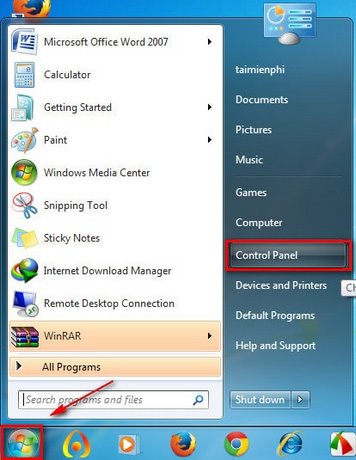
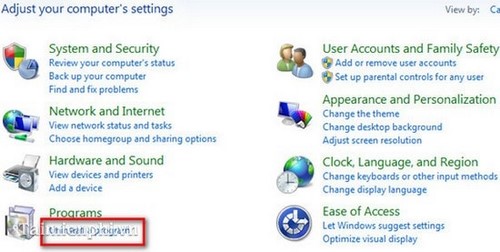
Select the unwanted entry and choose Uninstall or Uninstall/Change. Decline any prompt that offers to retain its search engine, browser extension, or home page.
Microsoft's current paths are documented in Uninstall or remove apps and programs in Windows. Avoid “removal tools” promoted by the hijacked page itself.
2. Remove Search-Gol from Firefox
- Open
about:addons, select Extensions, and remove Search-Gol or any untrusted add-on. - Open Settings > Search. Choose the intended default provider and remove Search-Gol from added search engines.
- Open Settings > Home and restore the desired home page and new-tab behavior.
- Under Settings > Privacy & Security > Permissions, review website notification permissions and remove suspicious entries.
The old Firefox search-engine menu looked like this:
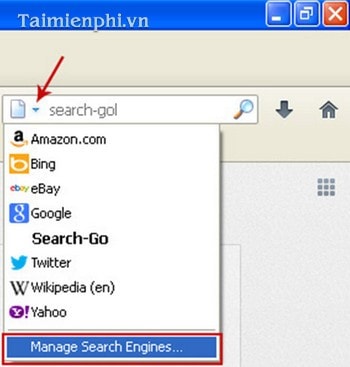
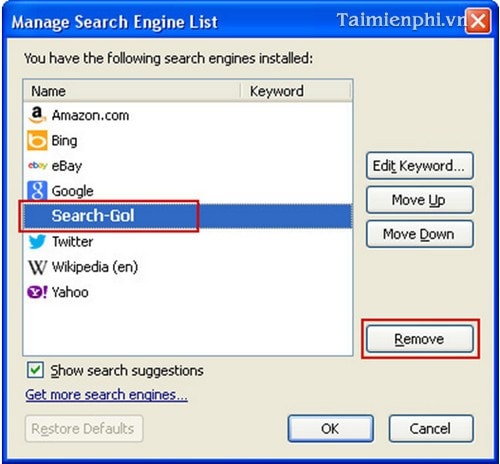
If changes return after restarting Firefox, enter about:support and select Refresh Firefox. Mozilla's Refresh Firefox guide explains what is preserved and which add-ons and preferences are removed.
3. Remove Search-Gol from Google Chrome
Delete the extension
Open chrome://extensions and remove Search-Gol or other extensions you did not intentionally install. If an extension says it is controlled by a policy on a personal computer, continue with the Windows scan below; do not delete random registry keys.
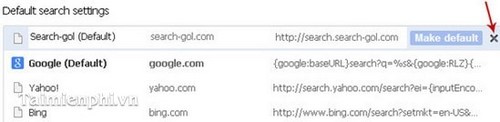
The legacy Settings menu is shown here:
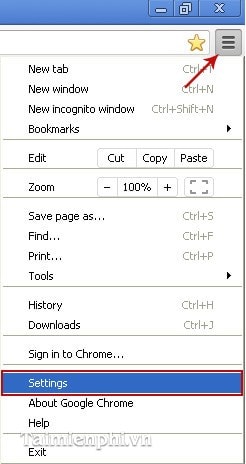
Repair startup pages
Open chrome://settings/onStartup. Remove any Search-Gol address and choose Open the New Tab page or your intended set of pages.
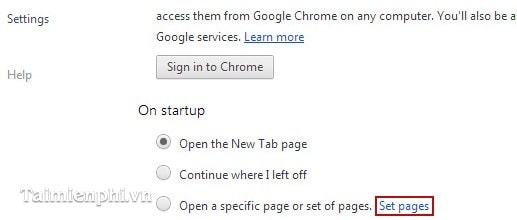
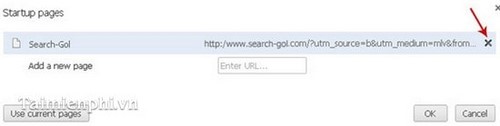
Repair the home button
Open chrome://settings/appearance. Turn off the home button or set it to the New Tab page or another trusted URL.
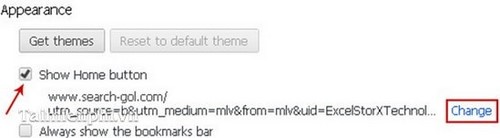
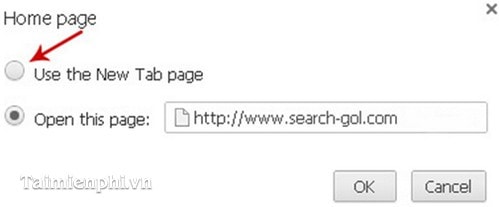
Repair the default search engine
Open chrome://settings/search and select the provider you want. Then open Manage search engines and site search and remove Search-Gol if Chrome allows it.
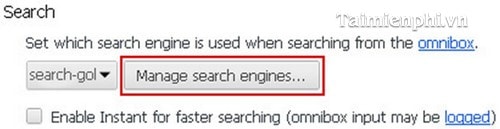
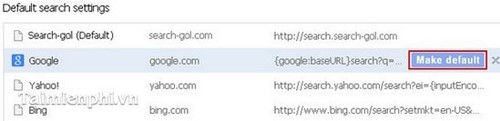
Reset Chrome if necessary
Open chrome://settings/reset, select Restore settings to their original defaults, and confirm. Turn on only trusted extensions afterward. Google recommends this reset when cleaning unwanted ads and browser changes in its Chrome unwanted software guide. TipsMake also explains how to reset Chrome to default.
4. Clean Microsoft Edge
Internet Explorer is retired on supported consumer Windows releases. For a current Microsoft browser, clean Edge instead:
- Open
edge://extensionsand remove untrusted extensions. - Open Settings > Start, home, and new tabs and delete unwanted URLs.
- Open Settings > Privacy, search, and services > Address bar and search and select the intended provider.
- Review notification permissions under Cookies and site permissions > Notifications.
- If needed, open Settings > Reset settings > Restore settings to their default values.
Legacy Internet Explorer steps
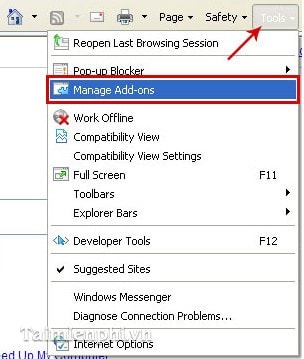
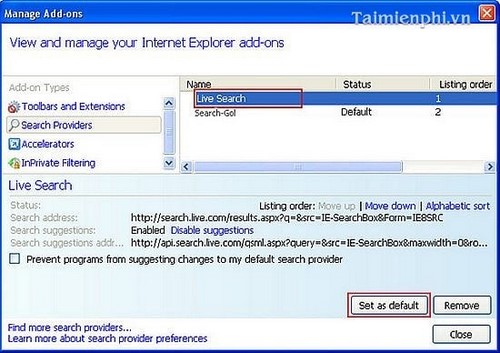
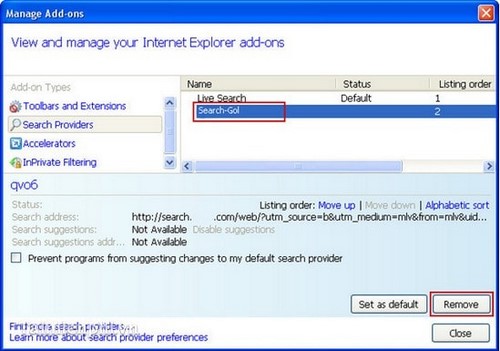
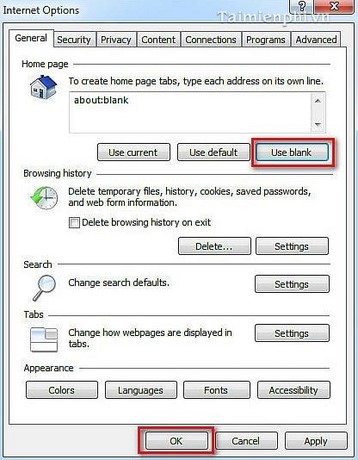
These screenshots show the old cleanup sequence: open Manage Add-ons, choose a legitimate default search provider, remove Search-Gol, and restore the home page in Internet Options. They are historical reference only; changing IE settings does not remove the Windows program, and Internet Explorer should not be used for normal browsing now.
5. Check Windows settings the hijacker may have changed
- Browser shortcuts: Right-click each shortcut, open Properties, and inspect Target. It should end with the browser executable, not a Search-Gol URL or unfamiliar command.
- Proxy: Open Settings > Network & internet > Proxy. Disable a manual proxy you did not configure. Ask IT before changing an organizational proxy.
- Startup apps: Open Task Manager and review Startup apps for software installed with the hijacker.
- Browser sync: Review extensions and settings on other synchronized devices so an unwanted item is not restored.
- Notifications: Remove permission for sites that continue sending deceptive alerts after the home page is fixed.
6. Run a full and offline malware scan
- Open Windows Security > Virus & threat protection.
- Check for current security-intelligence updates.
- Select Scan options > Full scan > Scan now.
- If redirects return, save your work and run Microsoft Defender Offline scan. The computer restarts to scan outside the normal Windows session.
- Review Protection history after the scan.
Microsoft recommends uninstalling unwanted software and running a full scan in Protect your PC from unwanted software. For more detail, see TipsMake's guide to running a full Microsoft Defender scan.
7. Confirm that removal worked
Restart Windows and open each installed browser. Check that:
- Search-Gol does not open at startup or when using the home button.
- The chosen search provider remains selected.
- No unknown extension is enabled.
- There are no redirects when entering a known address directly.
- Windows Security shows no unresolved detection.
If Search-Gol returns after uninstalling software, resetting every affected browser, and completing an offline scan, another program or policy is restoring it. On a personal PC, back up clean documents and consider a verified Windows reset or clean installation. On a managed computer, stop and contact IT.
Prevent future browser hijackers
Download installers from the publisher or an official app store, choose Custom or Advanced setup when available, and decline bundled toolbars, search providers, extensions, and “recommended” home pages. Keep Windows and browsers updated, and do not approve extensions whose publisher or permissions you cannot verify.
Related Articles
 Rooted Delta Search on Chrome, Firefox and Explorer Browsers11 minutes read
 Instructions to Remove Social Search Toolbar in Chrome, Firefox and8 minutes read
 How to Remove Snap. Do from Firefox, Chrome, and IE Browsers4 minutes read
 How to Remove the 'Junk' Search Bar from Chrome and Firefox Browsers3 minutes read
 Here's How to Remove Ask Toolbar and Ask. Com Seach Off Chrome, IE12 minutes read
 Remove YouTube Bookmark from Firefox, Chrome, Coc Coc, and IE Browsers3 minutes read
Reader Comments 0
Sign in with email or Google to join the discussion.