Table of Contents
To stop promotional pop-ups in current Avira Security, open Avira > Settings > Notifications and select Limited mode. Avira states that this mode continues to show threat alerts while blocking pop-up offers. This is safer than blocking an Avira executable with Group Policy or Software Restriction Policies.
Use Avira's Limited notification mode
- Open Avira Security from the Start menu or system-tray icon.
- Select the settings gear.
- Open Notifications.
- Choose Limited mode.
- Leave Avira running and confirm that real-time protection and updates remain active.
See Avira's official in-product messaging instructions for the current setting. Do not choose a mode that hides threat detections merely to remove upgrade offers.
Reduce Avira banners through Windows
If Avira's own setting is not enough, Windows lets you change how each app displays notifications:
- Open Start > Settings > System > Notifications.
- Select Avira under Notifications from apps and other senders.
- Turn off Show notification banners or the notification sound while leaving notices in Notification Center.
- Alternatively, configure Do not disturb for presentations, games, full-screen apps, or specific hours.
Microsoft's Windows notification guide explains the available per-app controls. Disabling every Avira notification can hide useful information about detections, failed updates, or expired protection, so reducing banners is usually better than turning the app off completely.
Turn off Avira marketing emails separately
Desktop pop-ups and account emails use different settings. To change Avira email notifications:
- Sign in to your Avira account.
- Open My Account.
- Select Notifications.
- Choose the email categories you want and save the changes.
Avira notes that account changes may take time to synchronize. These settings do not disable antivirus detections on the PC.
Check the Avira browser extension
If the message appears while shopping rather than as a Windows notification, it may come from Avira Browser Safety's price-comparison feature:
- Select the Avira Browser Safety icon in Chrome, Firefox, or another supported browser.
- Open the extension's settings gear.
- Turn off Show price comparisons.
If you do not use the extension's browsing features, remove it through the browser's extensions manager instead of leaving an unwanted component installed.
Do not use the old avnotify.exe blocking method
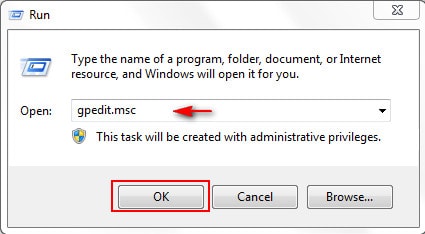
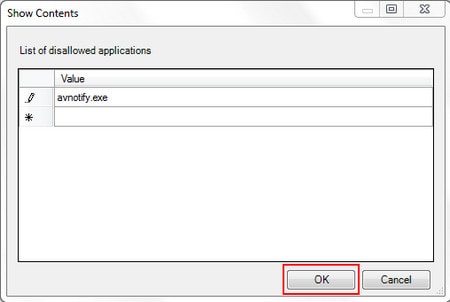
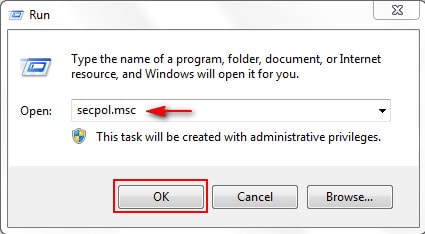
The original tutorial used gpedit.msc and secpol.msc to prevent avnotify.exe from running. Those instructions were written for an older Avira release and older Windows versions. Current Avira provides a supported notification control, and executable names, paths, and component responsibilities can change.
Blocking, renaming, deleting, or denying execution to a security-product file can interfere with its interface, updates, licensing messages, or threat alerts. It can also leave an obsolete rule behind after an upgrade. Do not create such a rule on a current installation.
Legacy screenshots: historical reference only
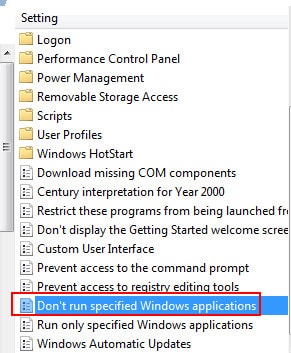
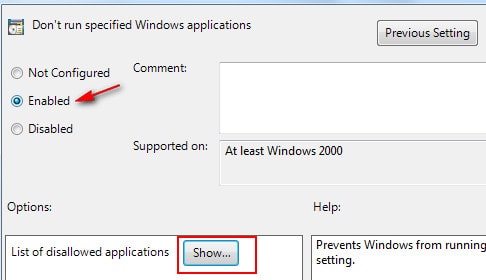
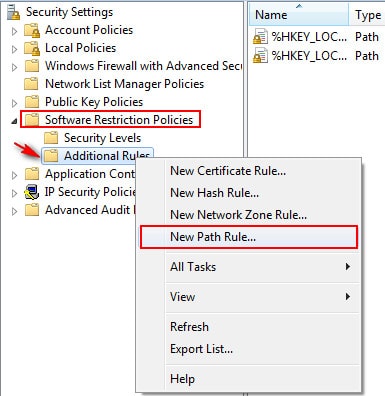
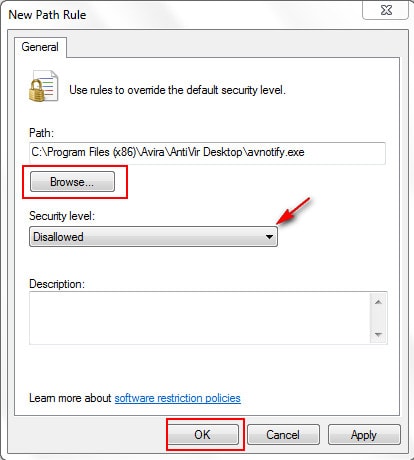
The next images document the obsolete Group Policy and Software Restriction Policies method. They are retained to help readers identify and remove an old rule, not as steps to follow.
Remove an old blocking rule
If you previously followed the legacy method and Avira no longer opens or notifies correctly, reverse only the rule you created:
- In Group Policy Editor, return to User Configuration > Administrative Templates > System > Don't run specified Windows applications. Remove the Avira entry or set the policy back to Not configured if it was created solely for this purpose.
- In Local Security Policy, inspect Software Restriction Policies > Additional Rules. Delete only the explicit rule that blocks the old Avira notification executable.
- Restart Windows, update Avira, and confirm that protection is active.
On a work or school PC, do not change organizational policy. Contact the administrator because the rule may be centrally managed.
If pop-ups continue
- Update Avira, restart the PC, and check Settings > Notifications again.
- Identify whether the message is an Avira window, a Windows notification, a browser notification, or a website pop-up; each has a different control.
- Check for duplicate Avira components or browser extensions you do not use.
- If the free edition's upgrade messaging remains unacceptable, uninstall Avira through Settings > Apps > Installed apps and use Windows Security or another reputable product rather than disabling security files.
For help deciding whether a different product would suit you, see our current free antivirus comparison. If you only want to reduce taskbar clutter, use the reversible options in this Windows system-tray guide.
Related Articles
 Offers for Copyright of Avira Prime Antivirus Software, Priced at3 minutes read
 How to Install Avira Free Antivirus on Your Computer4 minutes read
 Top 5 Free Antivirus Software of 20113 minutes read
 Top Free Antivirus Software, No Bloatware and Requires Upgrade to6 minutes read
 Top Free Antivirus Software for Windows15 minutes read
 7 Best Free Antivirus Software for Mac7 minutes read
Reader Comments 0
Sign in with email or Google to join the discussion.