Table of Contents
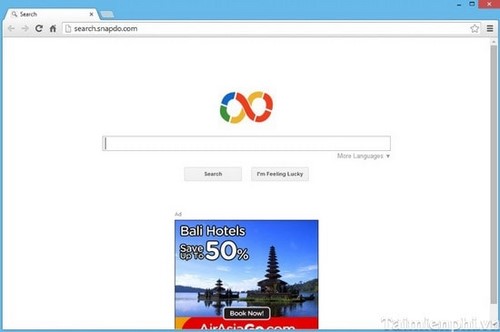
Snap.Do is an older browser hijacker that can replace the home page, startup pages, or search provider and may arrive with bundled software. Removing only the visible home page is not enough: uninstall the unwanted program, remove browser extensions, reset changed settings, and scan Windows for other potentially unwanted software.

Before cleaning the computer
- Stop using the affected browser for banking, email, shopping, or password changes.
- Save open work and back up irreplaceable documents, not unknown installers or browser extensions.
- If the computer is managed by an employer or school, contact IT before removing software or resetting policies.
- If you entered important credentials while redirects were active, change those passwords from a known-clean device after the computer has been scanned.
Menu names in the screenshots below are from older versions of Windows and the browsers. The current paths are provided in the text.
1. Uninstall Snap.Do and other unwanted programs
On Windows 11, open Settings > Apps > Installed apps. On Windows 10, use Settings > Apps > Apps & features. Sort by installation date and look for Snap.Do or another unfamiliar program installed when the redirects began.
Older Windows versions used Control Panel, as shown here:
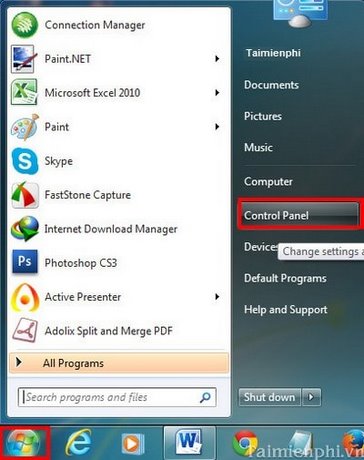
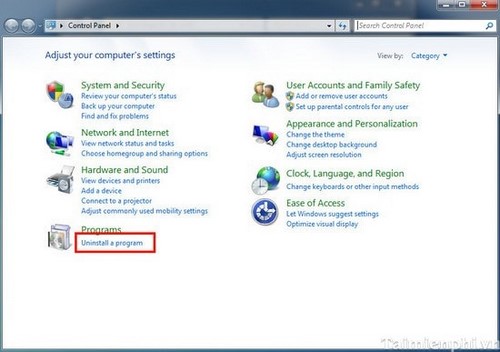
Select the unwanted entry and choose Uninstall. Read every prompt: decline any offer to keep the extension, search provider, or browser settings.
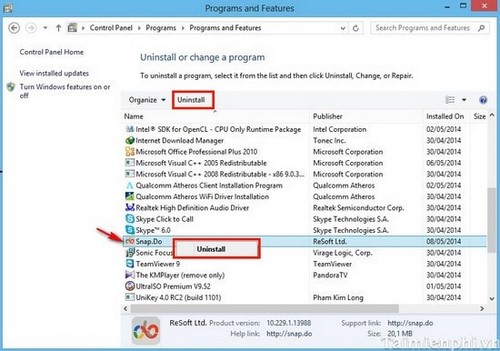
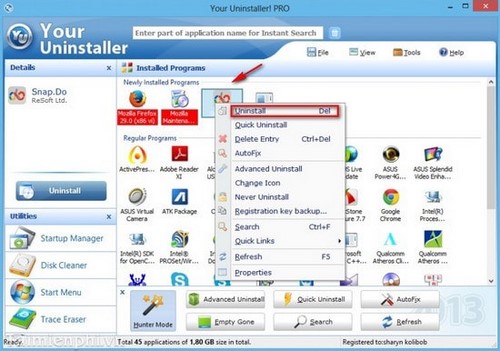
Do not install an unknown “special removal tool” advertised by a pop-up. Windows provides standard uninstall controls, documented in Microsoft's uninstall guide.
2. Clean Google Chrome
Snap.Do may have changed Chrome's startup page, home button, search engine, or extensions.
Remove unwanted extensions
- Open
chrome://extensions. - Remove Snap.Do and any extension you do not recognize or no longer need.
- If Chrome says an extension is installed by policy on a personal PC, complete the Windows scan below; do not try random registry edits from an unverified guide.
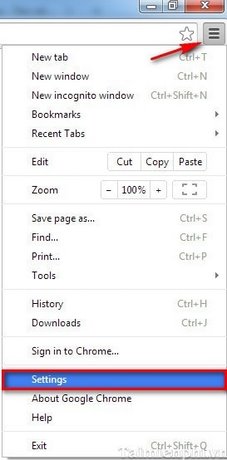
The older menu path is shown in this screenshot:
Repair startup, home, and search settings
- Open
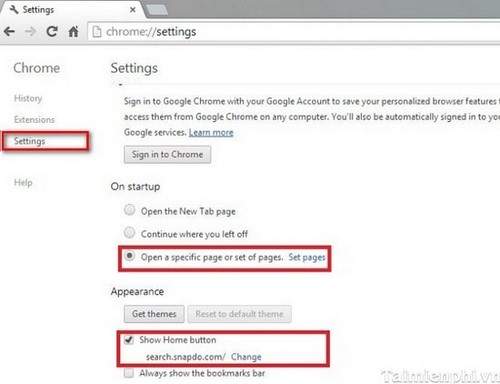
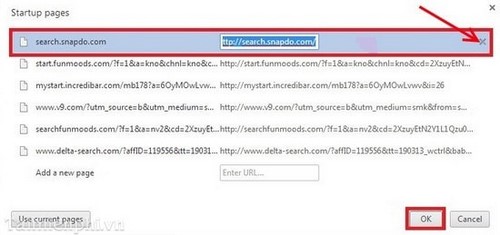
chrome://settings/onStartupand remove any Snap.Do URL. - Open
chrome://settings/appearanceand check the home-button URL. - Open
chrome://settings/searchand choose the intended search engine. - Open
chrome://settings/content/notificationsand remove permission for suspicious sites.
Reset Chrome if settings keep returning
Go to Settings > Reset settings > Restore settings to their original defaults. After the reset, turn on only extensions you trust. Google's unwanted software cleanup instructions recommend this reset. TipsMake also has a focused guide to resetting Chrome to default settings.
3. Clean Microsoft Edge
Internet Explorer is retired on current Windows releases. Use the supported Microsoft Edge browser rather than trying to restore or browse with IE.
- Open
edge://extensionsand remove unfamiliar extensions. - Open Settings > Start, home, and new tabs and remove unwanted startup or home URLs.
- Open Settings > Privacy, search, and services > Address bar and search and select the intended provider.
- Review site notifications under Settings > Cookies and site permissions > Notifications.
- If needed, open Settings > Reset settings > Restore settings to their default values.
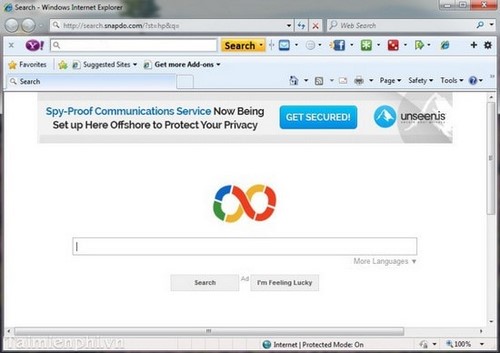
Internet Explorer screenshots are for legacy reference only
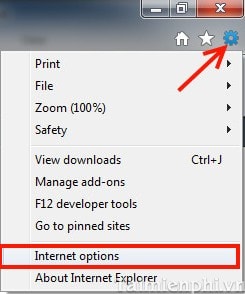
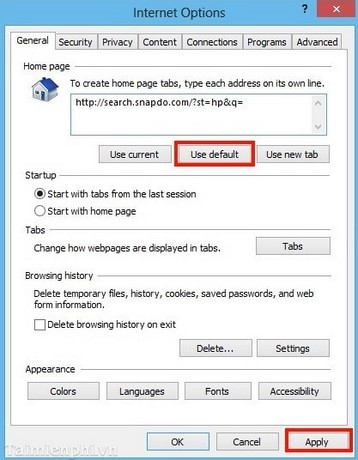
The following images show how the old hijacker was removed from Internet Options: open the menu, choose Internet Options, and replace the home page. These controls do not clean the underlying program and should not be used as a reason to keep an unsupported browser online.
4. Clean Mozilla Firefox
- Open
about:addons, select Extensions, and remove Snap.Do or any untrusted add-on. - Open Settings > Home and restore the intended home page and new-tab behavior.
- Open Settings > Search, choose the default search engine, and remove an unwanted added provider.
- Review site notification permissions under Settings > Privacy & Security > Permissions.
The older Firefox Options interface appears below:
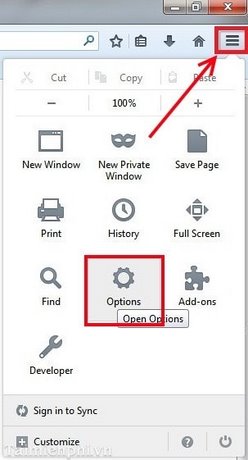
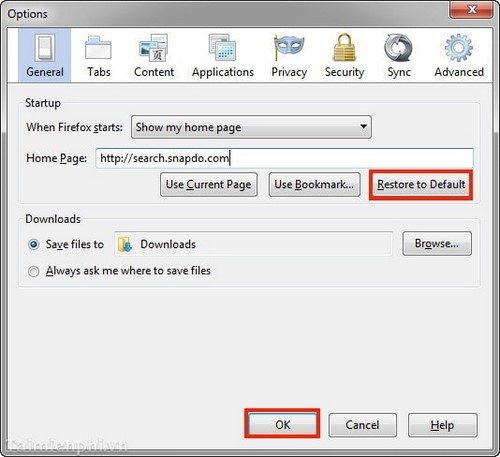
If the hijacker persists, open about:support and choose Refresh Firefox. Mozilla explains that Refresh creates a new profile, keeps important data, and removes normal profile extensions and modified preferences in its Firefox Refresh guide.
5. Check shortcuts, proxy settings, and startup apps
- Browser shortcuts: Right-click each browser shortcut, open Properties, and check the Target field. It should end with the browser executable, not a web address or unfamiliar command.
- Proxy: Open Settings > Network & internet > Proxy. Turn off a manual proxy you did not configure. A work or school proxy may be legitimate, so ask the administrator first.
- Startup apps: Open Task Manager and review Startup apps. Disable only clearly unwanted entries; do not delete unknown system files.
- Scheduled relaunches: If the browser opens Snap.Do after every sign-in, look for the related program in Installed apps and Startup apps rather than repeatedly changing the home page.
6. Update Windows security and run scans
- Open Windows Security > Virus & threat protection.
- Install current security-intelligence updates.
- Choose Scan options > Full scan and run it.
- If the hijacker returns or cannot be removed, save your work and run Microsoft Defender Offline scan. The PC restarts and scans outside the normal Windows session.
- Open Protection history afterward and review what was detected or quarantined.
Microsoft recommends uninstalling unwanted software and running a full scan in its guide to protecting a PC from unwanted software. TipsMake's Microsoft Defender full-scan guide provides additional Windows steps.
7. Prevent Snap.Do from coming back
- Install software from the publisher or official app store.
- Choose Custom or Advanced setup when an installer offers it, and decline bundled search tools, browser extensions, and “recommended” home pages.
- Keep Windows and every browser updated.
- Review browser sync on other devices; a synchronized unwanted extension or setting can reappear.
- Enable protection against potentially unwanted applications in Windows Security where available.
If the hijacker still returns
Persistent redirects after uninstalling, resetting every affected browser, and completing an offline scan can indicate another program, managed policy, or compromised browser profile. On a personal PC, back up clean documents and consider a verified Windows reset or clean installation. For a company device, stop and escalate to IT so evidence is not destroyed and the broader network can be checked.
Related Articles
 Remove YouTube Bookmark from Firefox, Chrome, Coc Coc, and IE Browsers3 minutes read
 Goodbye Chrome, We Switch to Firefox13 minutes read
 How to Remove 'Findyourmaps' Toolbar in Internet Explorer, Chrome9 minutes read
 A Malicious Extension 'Occupies' Chrome and Firefox Browsers Appears3 minutes read
 Rooted Delta Search on Chrome, Firefox and Explorer Browsers11 minutes read
 30 Shortcuts for IE, Firefox and Google Chrome: Shortcuts on Chrome3 minutes read
Reader Comments 0
Sign in with email or Google to join the discussion.