Table of Contents
Inconsistent spacing makes a presentation harder to scan. The problem can appear inside text boxes—uneven line, paragraph, bullet, and indent settings—or between slide objects, such as mismatched margins and gaps. Fix the underlying layout and text styles first, then correct exceptions slide by slide.
Start with the master or theme layout
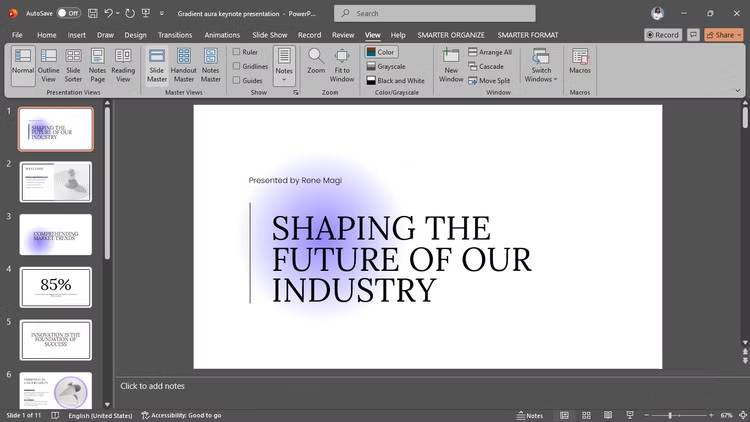

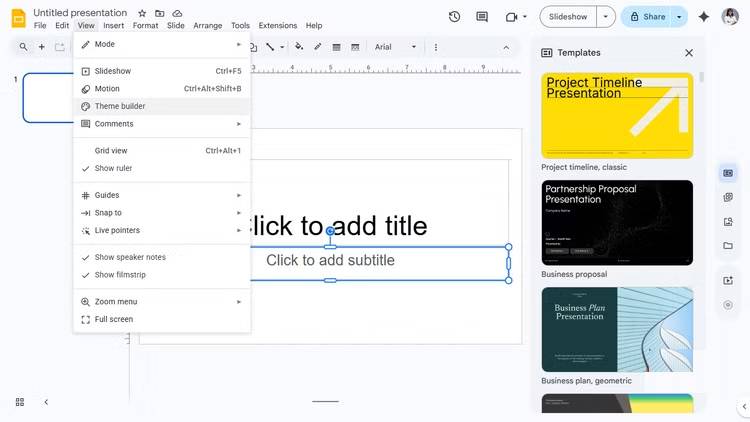
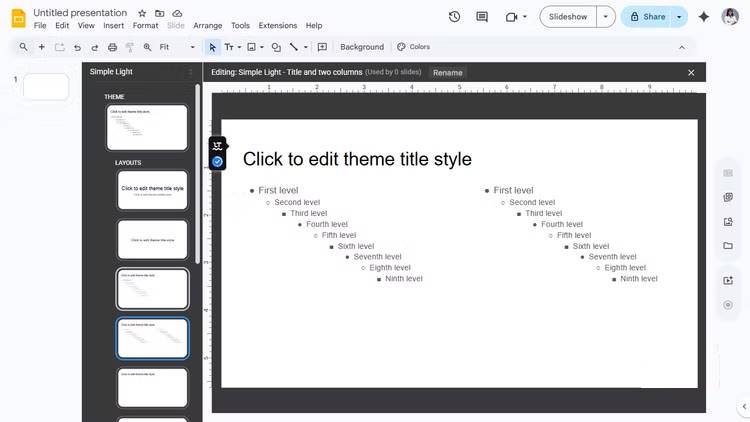
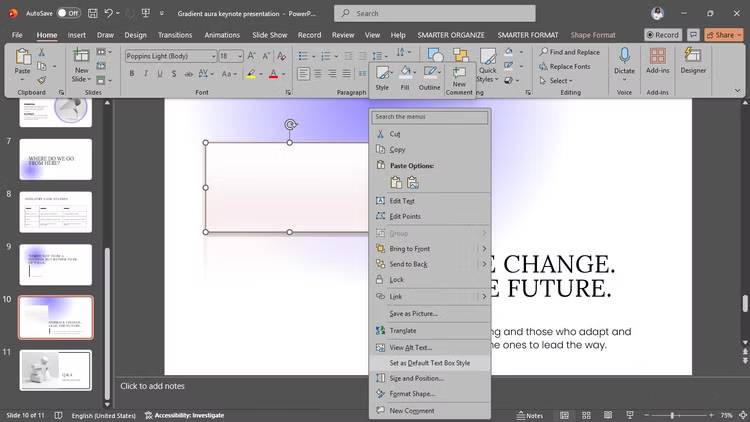
When the same problem appears across many slides, do not repair every text box independently. In PowerPoint, open View → Slide Master, select the relevant layout, and format its title and content placeholders. In Google Slides, use Slide → Edit theme and select the layout used by the affected slides. Menu wording can vary by version.
Set the font, size, placeholder position, internal margins, bullet levels, and paragraph rules on the layout. Close the master or theme editor, then create a test slide from that layout to confirm the result before changing the full deck.
A master change affects placeholders tied to that layout; it may not repair manually inserted text boxes or objects with local formatting. Google’s Slides theme and layout help explains the current theme controls.
Reapply a layout before rebuilding a slide
If a slide has drifted away from its layout, first select the intended layout again. In PowerPoint, the Reset command can restore placeholder positions and formatting associated with that layout while retaining the slide content. Review the slide afterward because deliberate manual positioning may also be lost.
In Google Slides, reselect the layout from the toolbar or Slide → Apply layout. Objects that were inserted independently of a placeholder may still need manual adjustment.
Set paragraph and line spacing deliberately
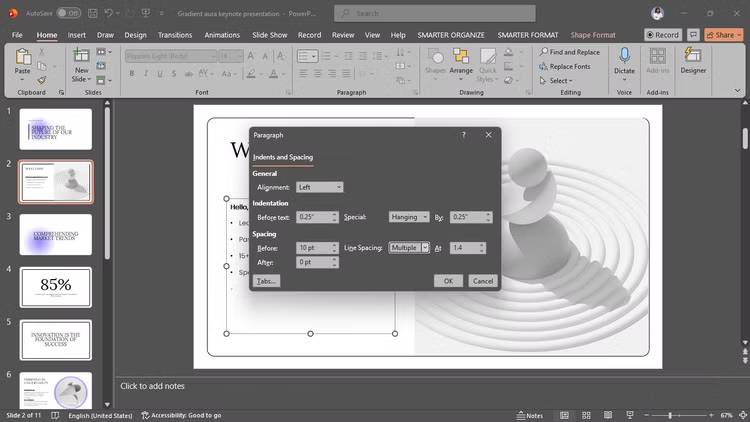
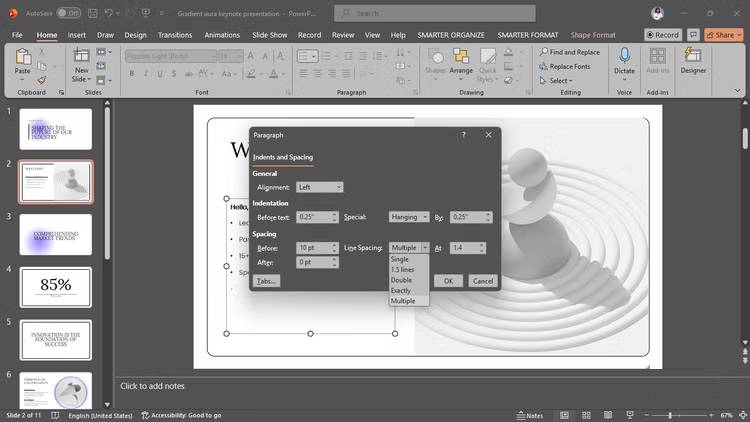
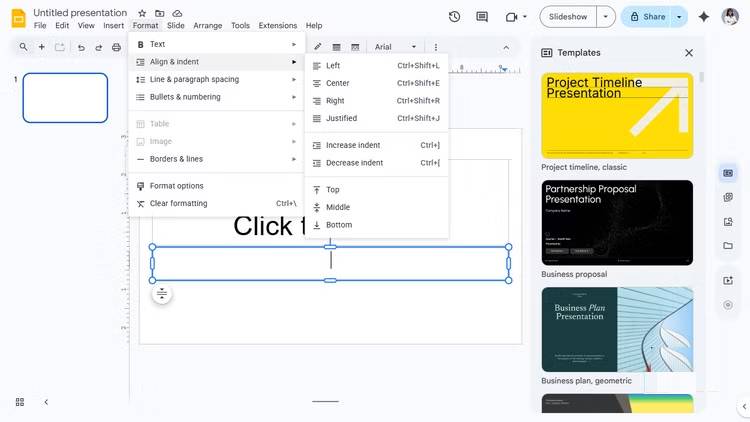
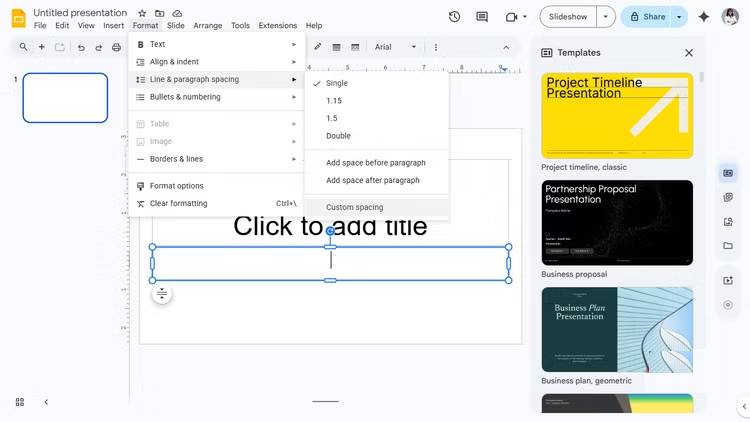
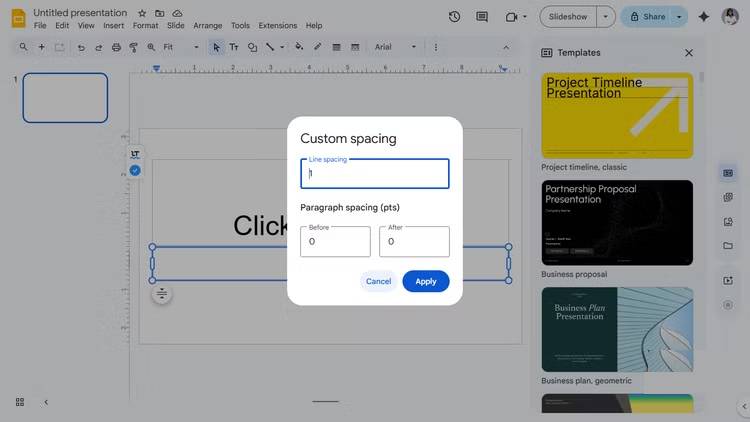
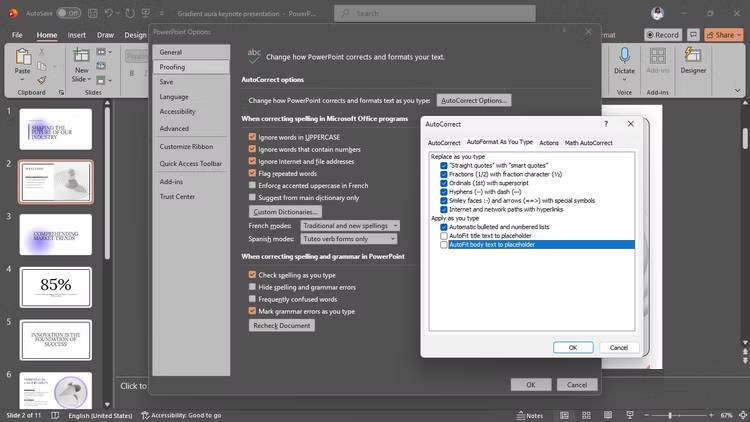
Select a representative paragraph in the layout or slide. In PowerPoint, open the detailed Paragraph dialog from the Home tab. In Google Slides, use the line and paragraph spacing controls under Format.
Check four separate settings:
- Line spacing: the vertical distance between lines within one paragraph.
- Space before and after: the gap between separate paragraphs or bullet items.
- Text-box margins: the padding between text and the edges of its container.
- Bullet indent and hanging indent: the positions of the bullet and the first character.
There is no universal numeric value that works for every font and slide size. Start with a compact, readable line spacing and a small, consistent gap after each bullet, then test the slide from normal viewing distance. Setting paragraph spacing to zero may work for tightly grouped lines, but it can make separate ideas run together. Use spacing to communicate grouping, not merely to fill the box.
Know the difference between Enter and Shift+Enter
Enter creates a new paragraph or bullet item, so paragraph spacing rules apply. Shift+Enter creates a line break within the same paragraph. Use a line break when two lines belong to one item, such as a heading and a short subtitle; use a new paragraph for a new idea.
Do not use repeated blank paragraphs or spaces to push text into position. Those manual fixes break when wording, font size, or the slide layout changes.
Paste without importing unwanted formatting
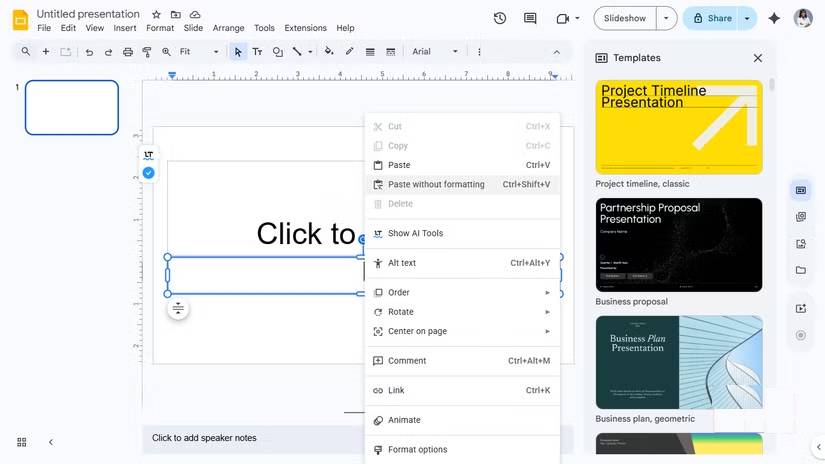
Text copied from a document, website, or email can carry its own font, paragraph, bullet, and indent settings. When you want the destination placeholder to control the style, use Keep Text Only in PowerPoint or Paste without formatting in Google Slides. Ctrl+Shift+V commonly performs plain-text paste on Windows and ChromeOS; Command+Shift+V is commonly used on macOS.
If the paste has already happened, select the affected text and use the app's clear-formatting command, then reapply the intended theme style. Clearing formatting removes local styling, so restore deliberate emphasis such as bold terms afterward.
Align and distribute slide objects
Paragraph settings do not fix uneven gaps between separate text boxes, images, charts, and shapes. For objects, use alignment and distribution tools:
- Select the related objects.
- Align them to a common edge or center line.
- Use horizontal or vertical distribution to make the gaps equal.
- Check the outer margins relative to the slide edges.
- Group objects only after their alignment and spacing are correct.
Turn on guides or rulers where available. Avoid judging alignment solely by the object boundary: an icon with transparent padding or a chart with wide labels may need optical adjustment after mathematical alignment.
Use spacing to show hierarchy
Consistency does not mean every gap must be identical. Elements that belong together should be closer; separate sections should have a larger gap. A slide title, subtitle, body text, and source note need a repeatable hierarchy.
Choose a small spacing scale—for example, a base gap and simple multiples of it—and reuse it across layouts. The exact measurement matters less than applying the same relationships throughout the deck.
Final spacing check
- Compare slides that use the same layout side by side.
- Check title position, text-box margins, bullet indents, and line spacing.
- Look for pasted text with a different font or paragraph rule.
- Confirm that objects share edges and have intentional gaps.
- Run the slide show at the display's actual aspect ratio.
- Export a PDF and scan the pages as thumbnails; inconsistent margins are easier to spot at a glance.
Fix repeated problems in the layout, use paragraph settings for text, and use alignment tools for objects. That workflow is faster and more reliable than nudging every element until one slide happens to look right.
Related Articles
 The Most Common Mistake When Writing a Job Application Even3 minutes read
 10 Useful Tips for You When Presenting with Powerpoint15 minutes read
 Don't Make This Common Mistake When Storing Your Laptop on a Plane.5 minutes read
 15 Facts About Presentations That You Should Know8 minutes read
 Before Giving a Presentation, Take 15 Minutes to Do These Things5 minutes read
 Impatience Makes You Mistake When Trying to Save Your Phone5 minutes read
Reader Comments 0
Sign in with email or Google to join the discussion.