Table of Contents
Windows 10 File and Printer Sharing lets other devices on the same local network reach folders and printers you deliberately share. Turn it on only for a trusted private or managed domain network. Leave it off on public networks such as hotels, airports, libraries, and cafés.
Windows 10 reached the end of free security support on October 14, 2025. These controls still exist on Windows 10 systems, but a PC used on a network should run a supported Windows release or an applicable support program.
Before changing the setting
- Sign in with an administrator account or be ready to approve an administrator prompt.
- Confirm that the current home or office network is marked Private, not Public.
- Remember that enabling the feature does not automatically share every file. Folder, printer, user, and NTFS permissions still control access.
- Avoid turning off password-protected sharing unless you understand who will be able to connect.
Microsoft's Windows network file-sharing guide covers sharing folders and troubleshooting current Windows versions.
Method 1: Use Advanced sharing settings
This is the clearest method when you want different behavior on private and public networks.
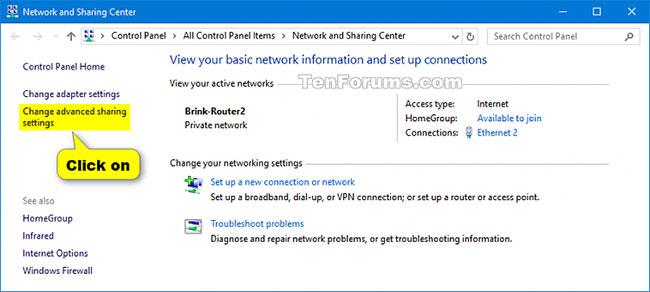
- Open Control Panel, choose Network and Internet, and then open Network and Sharing Center.
- Select Change advanced sharing settings.
- Expand the profile you want to configure: Private, Guest or Public, or Domain on a managed PC.
- Select Turn on file and printer sharing or Turn off file and printer sharing.
- Select Save changes and approve the administrator prompt if it appears.
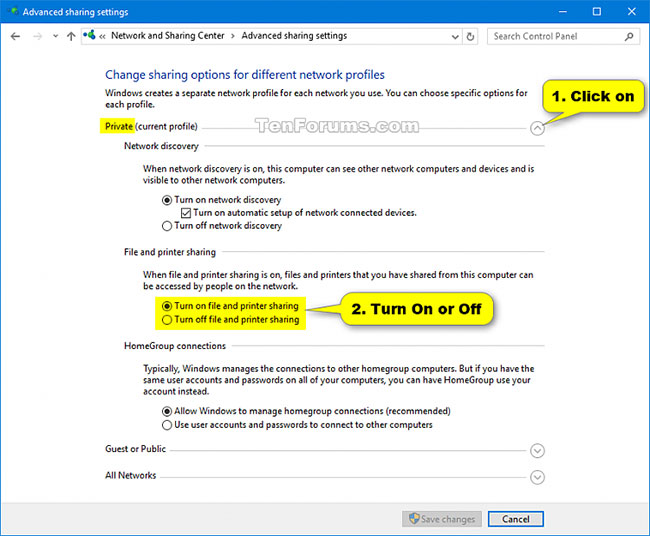
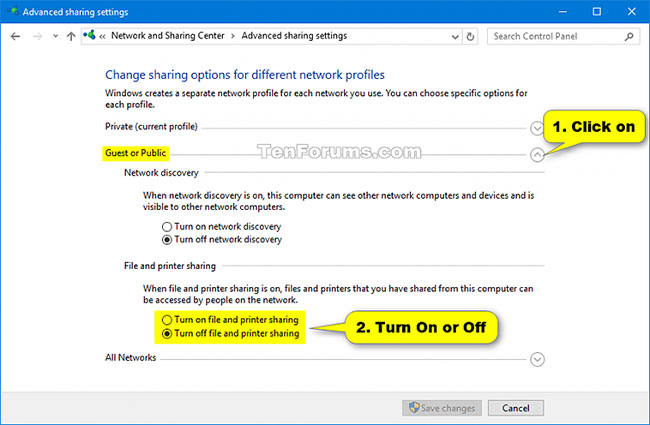
If you are enabling sharing, also turn on Network discovery for the trusted private network so other computers can find this PC. Discovery is not required when users connect directly by a known UNC path, but it makes normal browsing easier.
Method 2: Enable or disable the firewall rule group
Open Command Prompt as administrator. These commands change the Windows Defender Firewall rules in the File and Printer Sharing group for all profiles.
Enable the group:
netsh advfirewall firewall set rule group="File and Printer Sharing" new enable=YesDisable the group:
netsh advfirewall firewall set rule group="File and Printer Sharing" new enable=NoThe second command must use enable=No. Using Yes in both commands, as some copied guides do, enables the rules twice and never disables them.
On a non-English Windows installation, the localized firewall group name may differ. If the command reports that no rules match, use the graphical method or inspect the available rule groups rather than guessing a translated name.
Method 3: Use PowerShell
Open Windows PowerShell as administrator. To enable the File and Printer Sharing firewall group for all profiles, run:
Set-NetFirewallRule -DisplayGroup "File and Printer Sharing" -Enabled True -Profile AnyTo disable it for all profiles, run:
Set-NetFirewallRule -DisplayGroup "File and Printer Sharing" -Enabled False -Profile AnyFor a narrower change, replace Any with Private or Domain. Enabling the Public profile is usually inappropriate. As with the netsh command, -DisplayGroup uses a localized display name; the GUI is safer when that name does not match.
Changing firewall rules alone does not create a shared folder or grant users access. It only permits the network traffic associated with the rule group.
Method 4: Change the adapter binding
Windows network adapters have a File and Printer Sharing for Microsoft Networks binding. Disabling it prevents the adapter from offering Microsoft network shares even if firewall rules are enabled.
- Open Control Panel → Network and Sharing Center.
- Select Change adapter settings.
- Right-click the active Ethernet or Wi-Fi adapter and choose Properties.
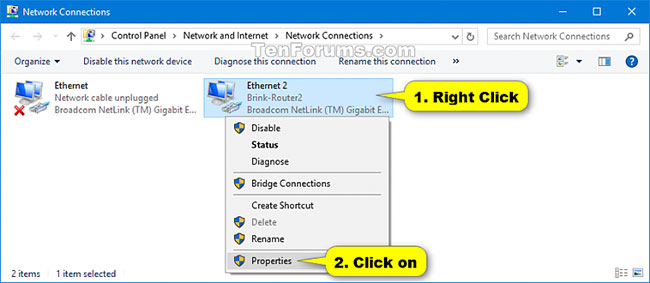
- Select the checkbox for File and Printer Sharing for Microsoft Networks to enable the binding, or clear it to disable the binding.
- Select OK.
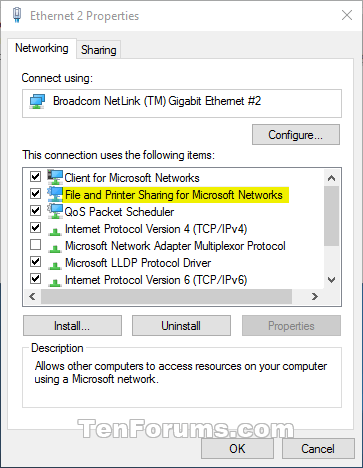
To change this binding from an elevated PowerShell window, first list exact adapter names:
Get-NetAdapter | Format-Table Name, Status, InterfaceDescription -AutoSizeEnable the binding on an adapter named Ethernet:
Enable-NetAdapterBinding -Name "Ethernet" -ComponentID ms_serverDisable it:
Disable-NetAdapterBinding -Name "Ethernet" -ComponentID ms_serverReplace Ethernet with the adapter name returned on your PC. Do not leave the name empty, and avoid changing virtual, VPN, or managed adapters unless you know which connection the workflow uses.
Share or stop sharing a folder
Turning the feature on only prepares Windows for sharing. To share a particular folder, right-click it in File Explorer, select Give access to or the available sharing command, and grant access to specific users. Prefer named users over Everyone when practical.
To stop sharing a folder, use Give access to → Remove access. You can review locally exposed shares by entering localhost in File Explorer, but remember that your own account may see locations other network users cannot access.
If the PC does not appear under Network
- Confirm both computers are connected to the same trusted local network.
- Set the network profile to Private.
- Turn on Network discovery and File and Printer Sharing for the Private profile.
- Press Windows+R, enter
services.msc, and check that Function Discovery Provider Host and Function Discovery Resource Publication are running. Microsoft also lists SSDP Discovery and UPnP Device Host in its discovery troubleshooting steps. - Try the direct path
computer-nameshare-nameto distinguish a discovery problem from a permissions or connectivity problem. - Check the folder's sharing permissions and Security tab; the effective access is limited by both.
Security checklist
- Use the Private profile only on networks you trust.
- Keep password-protected sharing enabled unless a controlled environment requires otherwise.
- Share only the folders and printers that other users need.
- Remove broad access when a temporary collaboration ends.
- Use a firewall and router; never expose Windows file-sharing ports directly to the internet.
For most users, the safest configuration is File and Printer Sharing enabled on a trusted Private network and disabled on Public networks, with access granted to named accounts only.
Related Articles
 How to Share Printer in Windows Network System?5 minutes read
 How to Fix Printer Sharing Errors on Windows5 minutes read
 How to Add a Printer on Windows 114 minutes read
 How to Transfer Files Quickly on Windows 10 with Near Share4 minutes read
 How to Share Files Via QR Codes on Fladrop2 minutes read
 ''airdrop'' for Windows: How to Use Nearby Sharing in Windows 115 minutes read
Reader Comments 0
Sign in with email or Google to join the discussion.