Table of Contents
Telegram supports animated profile pictures by treating the selected animation as a short profile video. Depending on your phone and Telegram version, you may be able to select a GIF directly or need to save or convert it as a video first.
Set a GIF or video as your Telegram profile picture
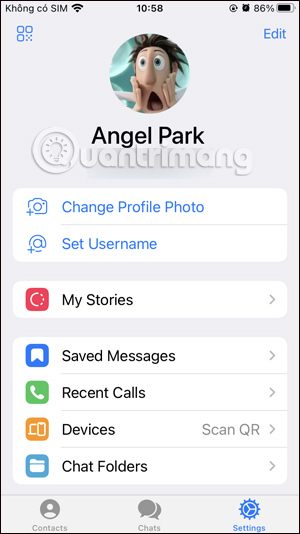
- Open Telegram and go to Settings.
- Tap your current profile picture or Edit, then choose Set New Photo or Video or Change Profile Photo.
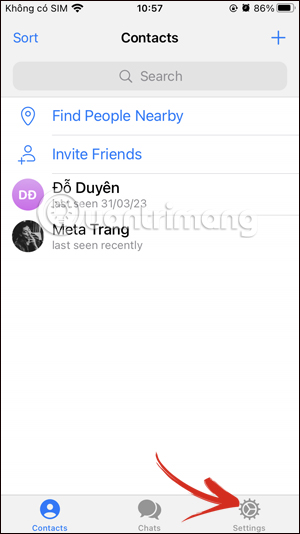
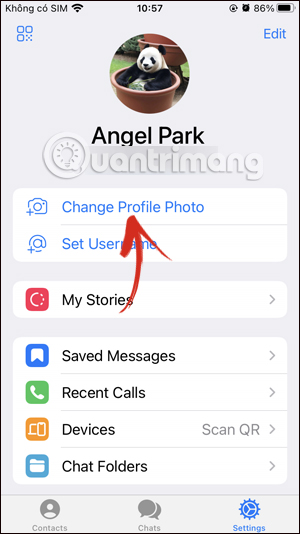
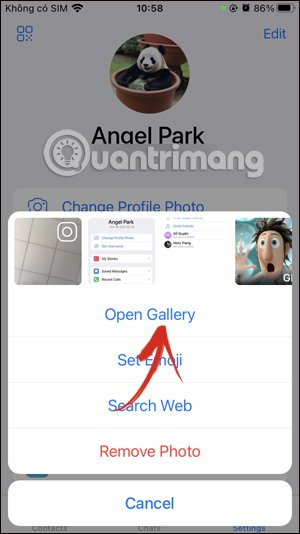
- Choose Open Gallery or the equivalent gallery button.
- Select the GIF or short video you want to use. If the GIF is not selectable, convert or save it as an MP4 video and try again.
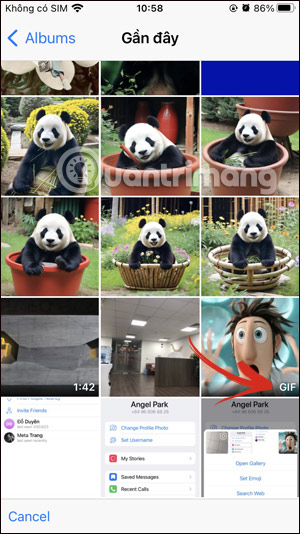
- Crop the media to the circular profile area and trim the clip if Telegram offers that control.
- Choose a cover frame. This still image appears in places where Telegram does not play the animation.
- Tap the checkmark or Done to upload it.

Open your profile after the upload finishes to confirm that the animation plays and the cover frame looks correct.
If the animation does not upload
- Update Telegram from the official app store.
- Shorten the clip and reduce its resolution or file size.
- Convert the GIF to MP4, which is usually smaller and more widely accepted.
- Allow Telegram access to Photos or Media in the phone's privacy settings.
- Try the mobile app if the option is missing in Telegram Desktop.
Choose who can see your profile picture
An animated profile picture follows Telegram's profile-photo privacy rules. Go to Settings > Privacy and Security > Profile Photos and choose who can see it. The available choices and menu wording can differ between iOS, Android, and app versions.
Related Articles
 How to Hide Your Telegram Account Profile Picture4 minutes read
 How to Make an Avatar: Step-by-Step Guide9 minutes read
 How to Set Public Telegram Account Profile Picture3 minutes read
 Instructions for Using Free Chat Software Telegram on Your Computer4 minutes read
 A Guide to Creating a Telegram Bot That Anyone Can Do6 minutes read
 Instructions for Sending Gifs on Telegram3 minutes read
Reader Comments 0
Sign in with email or Google to join the discussion.