Table of Contents
Canva AI's Magic Studio toolkit supports many different features, such as extracting text from images so we can edit them to our liking.
Canva AI's Magic Studio toolkit supports many different features, such as extracting text from images so you can edit it to your liking. This allows you to choose a more attractive font or correct font errors in images using Canva extremely quickly and effectively. Below is a guide on how to extract text from images using Canva AI.
How to Extract Text from an Image Using Canva AI
Step 1:
First, upload the image to Canva or use an existing image to make adjustments. Next, select Edit and scroll down to click Select Text to extract text from the image.
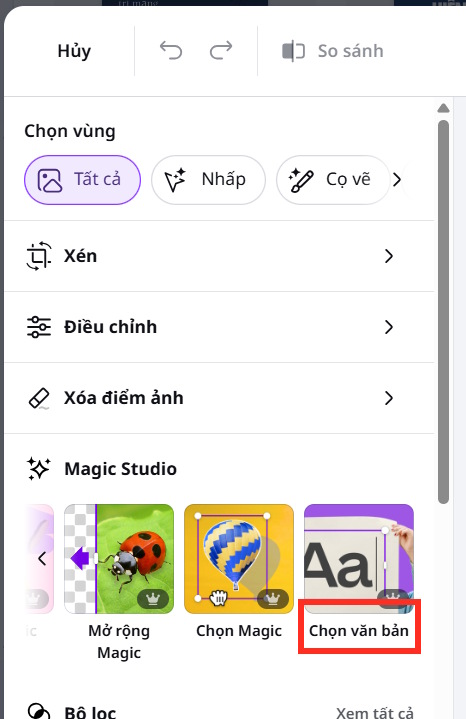
Then you choose whether to create a new design or use an existing one.
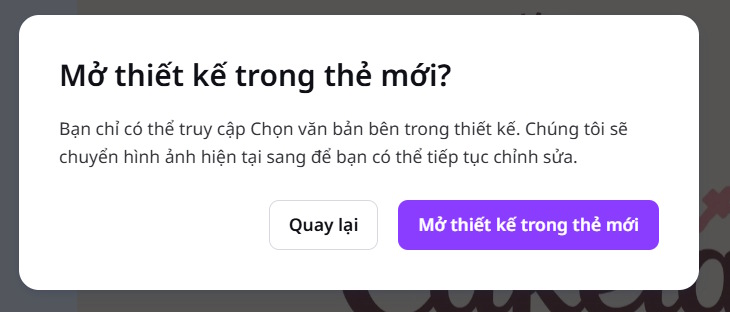
Step 2:
In the text recognition interface for extraction, the tool proceeds to select the text. You can click on the text area you want to select, or click "All Text" to select all the text in the image. Then click "Select" at the bottom.

Step 3:
Switch to the editing interface in Canva so we can modify the text extracted from the image. Here you can use Magic Write in Canva AI to change the content if needed.
Continue by selecting the font, font size, color, effects to use, and the content you want to change in the image.
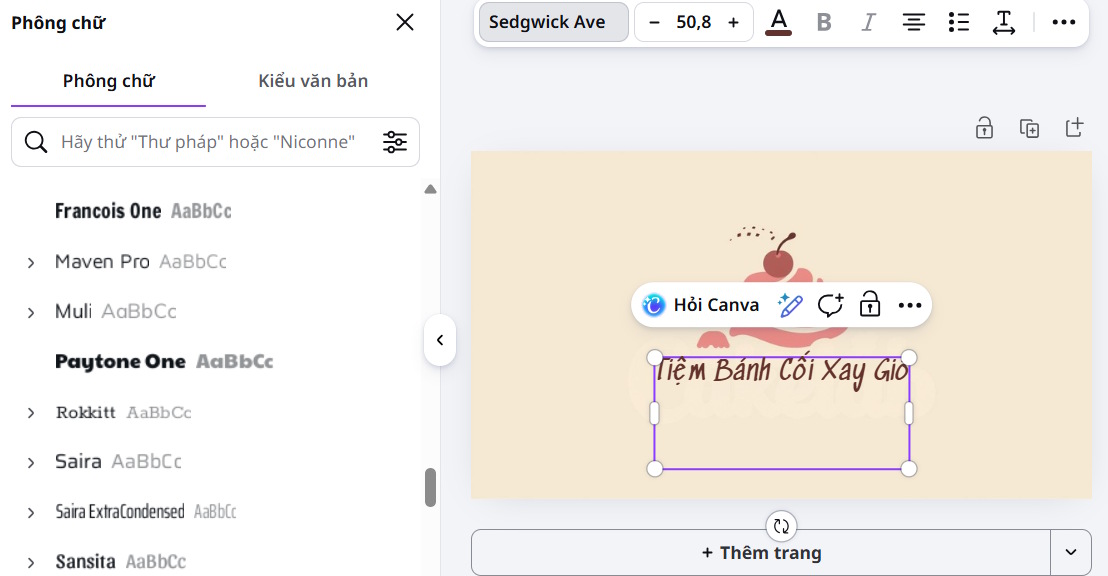
Once you've finished changing the content in the image, continue editing and then download it as usual. Advanced text formatting options such as bold, italics, or underline are not yet fully recognized.
FAQ
What is the main point of guide to extracting text from images using canva ai?
Canva AI's Magic Studio toolkit supports many different features, such as extracting text from images so we can edit them to our liking.
Why is this development important?
Key takeaway: Canva AI's Magic Studio toolkit supports many different features, such as extracting text from images so we can edit them to our liking.
What are the key takeaways?
Canva AI's Magic Studio toolkit supports many different features, such as extracting text from images so you can edit it to your liking.
Related Articles
 How to Fix Font Errors in Images Using Canva AI4 minutes read
 How to Convert Images to Text Using Google AI4 minutes read
 How to Underline Text in Canva3 minutes read
 How to Design 3D Text on Canva3 minutes read
 How to AI Text Detection Using Canva's AI Detector3 minutes read
 How to Insert YouTube Videos into a Document in Canva3 minutes read
Reader Comments 0
Sign in with email or Google to join the discussion.