Table of Contents
You can convert a PDF to JPG or PNG with a desktop PDF editor, a reputable online converter, or a screenshot tool. The best method depends on whether you need every page, print-quality resolution, batch conversion, or a quick image of one small area.
Modern browsers can open PDFs directly, so conversion is not required just to read a document. Convert when an app accepts only images, when you need to publish a single page as a graphic, or when a fixed raster image is easier to share.
Choose JPG or PNG
| Format | Best for | Tradeoff |
|---|---|---|
| JPG/JPEG | Scanned pages, photos, and smaller files | Lossy compression can blur small text and line art |
| PNG | Text, screenshots, diagrams, and sharp edges | Files are often larger, especially for photographic pages |
| TIFF | Archiving, OCR, and print workflows that explicitly require it | Very large files and less convenient web support |
For screen use, 150–200 DPI is often enough. For detailed printing or OCR, 300 DPI is a common starting point. Higher DPI increases pixel dimensions, conversion time, and storage; it cannot restore detail that was missing from the original PDF.
Method 1: Export with Adobe Acrobat
Adobe Acrobat Pro can export PDF pages as image files. Menu labels may vary by version, but the workflow is generally:
- Open the PDF in Acrobat.
- Choose Convert or Export a PDF.
- Select Image, then choose JPEG, PNG, or TIFF.
- Open the conversion settings if you need a specific resolution, color space, or page range.
- Choose an output folder and export.
Each selected PDF page is normally saved as a separate image. Acrobat Reader can view and annotate PDFs for free, but exporting to image may require a paid Acrobat feature; check the current Acrobat product page.
Method 2: Use PDF-XChange Editor on Windows
PDF-XChange Viewer in older instructions has been replaced by the actively maintained PDF-XChange Editor. In the current application, look for an export-to-image command under the File or Convert tools, then select the page range, format, resolution, and destination.

The screenshot above shows the same general concept in an older interface, so the current button names and layout may differ. Preview one page before processing a large document to confirm that text remains legible and page dimensions are correct.
Method 3: Convert a PDF online
An online converter is convenient when you cannot install software. Services such as Adobe's web tools, Zamzar, and other PDF-to-image sites typically follow the same process:
- Upload the PDF.
- Select JPG or PNG and any available quality options.
- Start the conversion.
- Download individual images or a ZIP archive containing all pages.
- Delete the uploaded file from the service if a deletion control is provided.
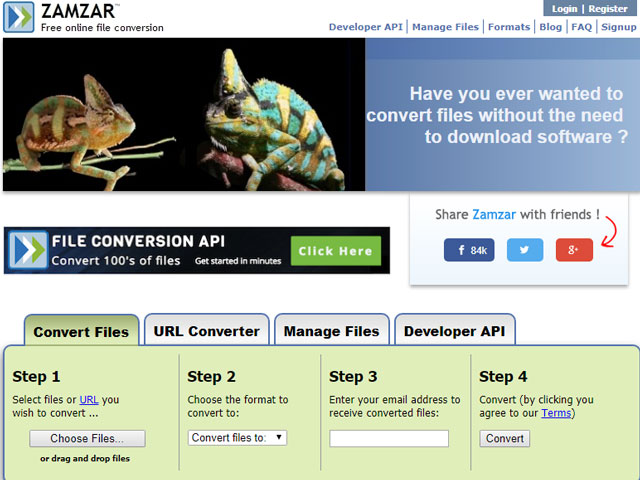
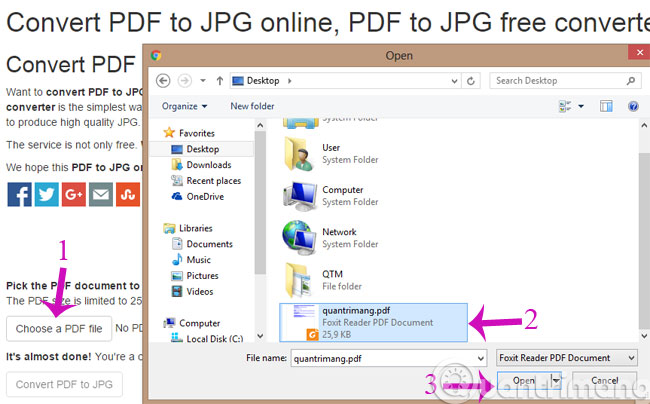
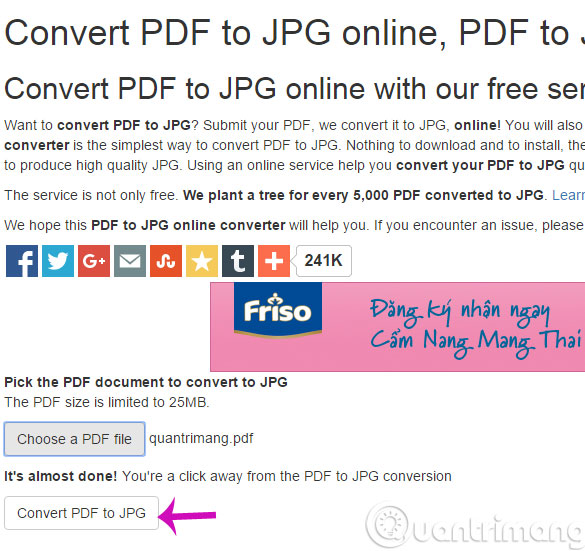
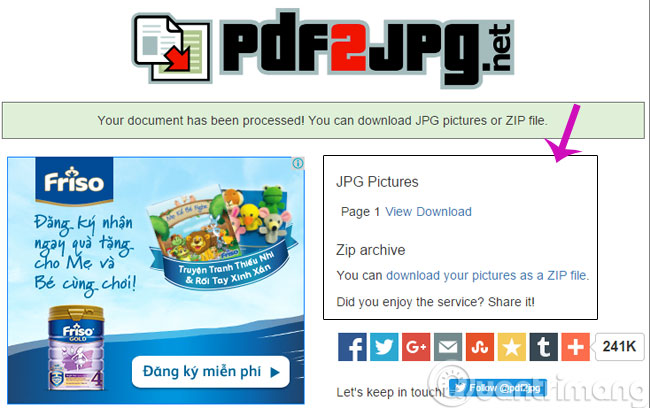
Interfaces, file-size limits, retention periods, and free-use limits change frequently. Read the current privacy policy and terms before uploading.
Do not upload confidential PDFs casually
A PDF may contain contracts, financial records, medical information, personal identifiers, hidden text, comments, or metadata. Use an offline tool for sensitive documents unless your organization has approved the service and its data-handling terms. Password protection does not make an upload safe if you must reveal the password to the converter.
Method 4: Convert several PDFs in a batch
A desktop converter is more efficient when you have many PDFs. Add the files or source folder, choose the destination folder and output format, set the resolution, and run a small test batch before converting everything.
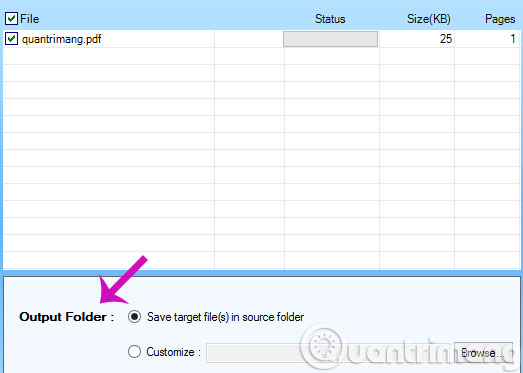
Older programs named in legacy guides may be abandoned, bundled with unwanted software, or limited in current versions. Download tools only from the developer's official site, scan installers, decline unrelated offers, and avoid software that requires disabling browser or antivirus protections.
Method 5: Use a screenshot for one page or region
A screenshot is fast when you need only a chart, paragraph, or single page and exact resolution is not important.
- Open the PDF and zoom until the target content is clear.
- In Windows, press Win + Shift + S and select the region. On macOS, press Shift + Command + 4.
- Save the capture as PNG. Convert to JPG only if a smaller photographic file is more important than sharp text.
A screenshot captures only the pixels visible on screen. It may crop the page, omit searchable text, and produce lower quality than a true page export. It is unsuitable for converting an entire document.
Preserve quality and page order
- Export at a fixed DPI instead of repeatedly resizing screenshots.
- Use zero-padded filenames such as page-001.png so pages sort correctly.
- Keep the original PDF; image conversion removes searchable text, links, bookmarks, forms, annotations, and accessibility structure.
- If text must remain searchable, use OCR after conversion or retain the PDF as the primary document.
- Check color, transparency, margins, page rotation, and small text on several pages before sharing the result.
Troubleshooting
The images look blurry
Increase the export resolution and use PNG for text-heavy pages. If the PDF contains a low-resolution scan, a higher export DPI will make a larger file but will not create missing detail.
One PDF creates many image files
This is expected: one PDF page becomes one image. Use a ZIP archive to share the set, or select a smaller page range before export.
The pages have the wrong colors or a black background
Try PNG, disable transparency flattening if the tool offers that option, or export with an RGB color profile for screen use. For professional printing, follow the printer's requested color profile instead of guessing.
The PDF is protected
Conversion may be blocked by the document's permissions or encryption. Obtain an authorized unprotected copy or the required password; do not use tools that claim to bypass access restrictions.
Related Articles
 How to Convert Images to Text Using Google AI4 minutes read
 How to Convert Images to Standard Documents Using ABBYY FineReader2 minutes read
 Software for Converting Images to the Most Standard Word4 minutes read
 How to Create PNG and JPG Images Using Photoshop3 minutes read
 How to Cut Photos from PDF to Word6 minutes read
 Transforming Waste into Biochar Could Help Make Cities Greener, Cleaner, and More Beautiful8 minutes read
Reader Comments 0
Sign in with email or Google to join the discussion.