Table of Contents
BotFather is Telegram's official tool for creating bot accounts and managing their names, descriptions, commands, and API tokens. Creating the account does not make the bot respond automatically: you still need a program or bot-building service that uses the Telegram Bot API.
Create a bot with BotFather
- In Telegram, search for @BotFather and open the verified account. Check the username carefully to avoid impersonators.
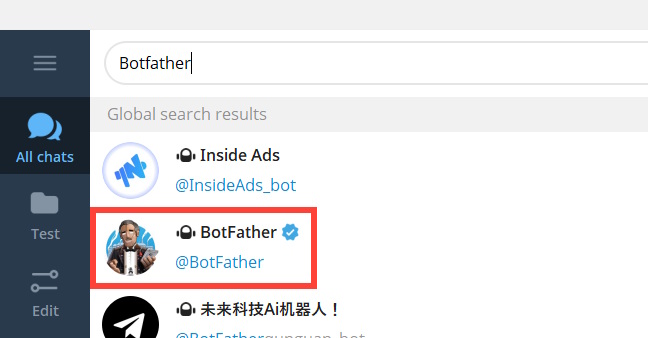
- Send
/start, then select or send/newbot.
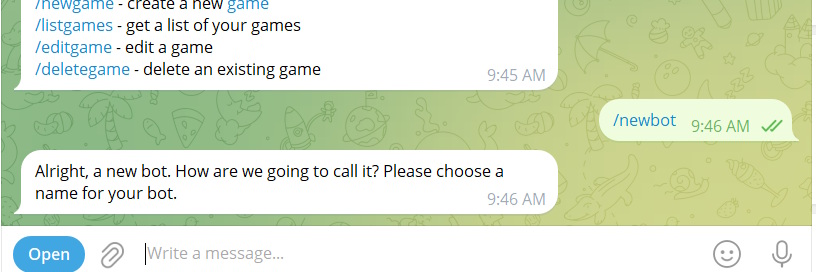
- Enter the display name people will see.
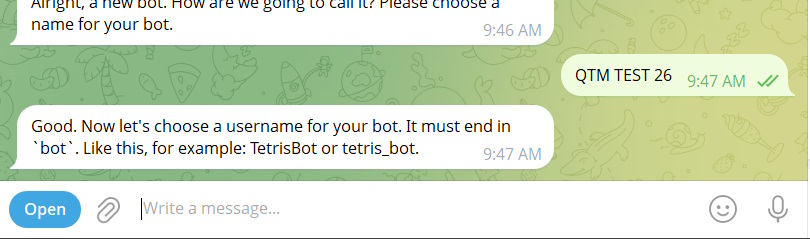
- Choose a unique username that ends in
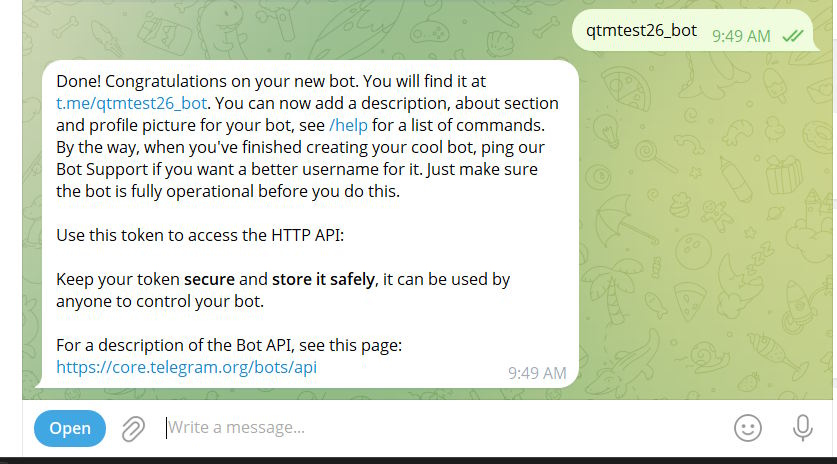
bot, such asExampleSupportBot. - BotFather confirms the account and sends an API token. Store the token in a password manager or secret store; do not paste it into public code, screenshots, or chat messages.
Customize the bot's profile
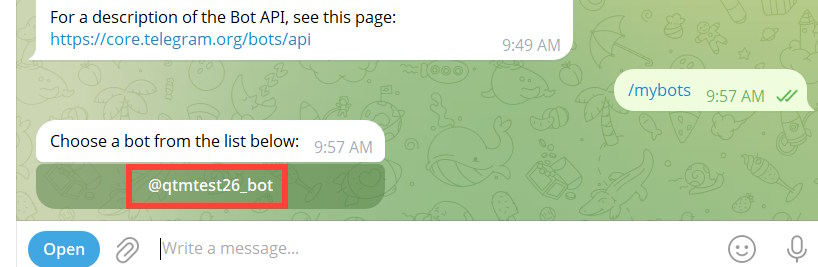
Send /mybots to BotFather and select the new bot.
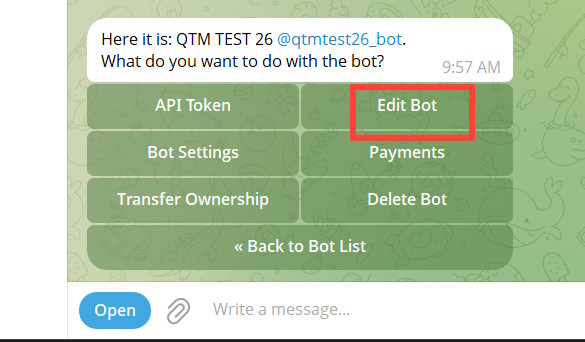
Choose Edit Bot to change its profile information.
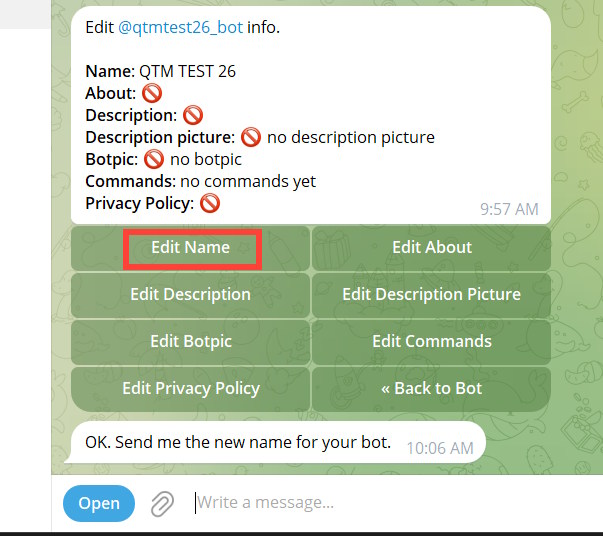
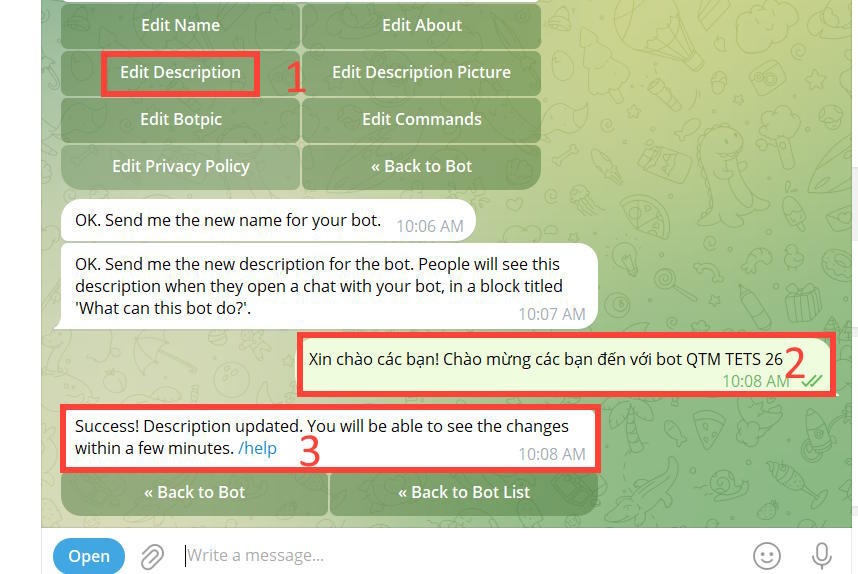
Use the available options to set a display name, description, short About text, and profile picture. Make the description explain what the bot does and what users should send it.
Add a command menu
Use /setcommands, choose the bot, and send one command per line in this format:
start - Start the bot
help - Show available help
settings - Change preferences
The menu describes commands to users; it does not implement them. Your bot code must receive each command and send the appropriate response.
Retrieve or replace the API token
Open /mybots, select the bot, and choose API Token to view or regenerate its token. In a token such as 123456789:AAExample, the numeric part before the colon corresponds to the bot's user ID, but applications should rely on the API response rather than parsing secrets unnecessarily.
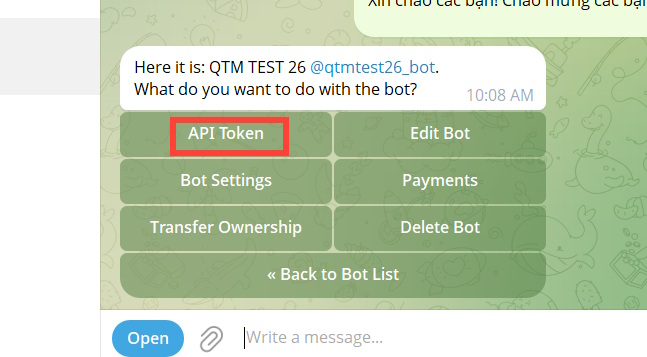
If a token is exposed, revoke it immediately in BotFather and update the application with the replacement. The old token will stop working.
Test the bot token with getMe
Open the bot chat and tap Start. The profile should display the description you configured.
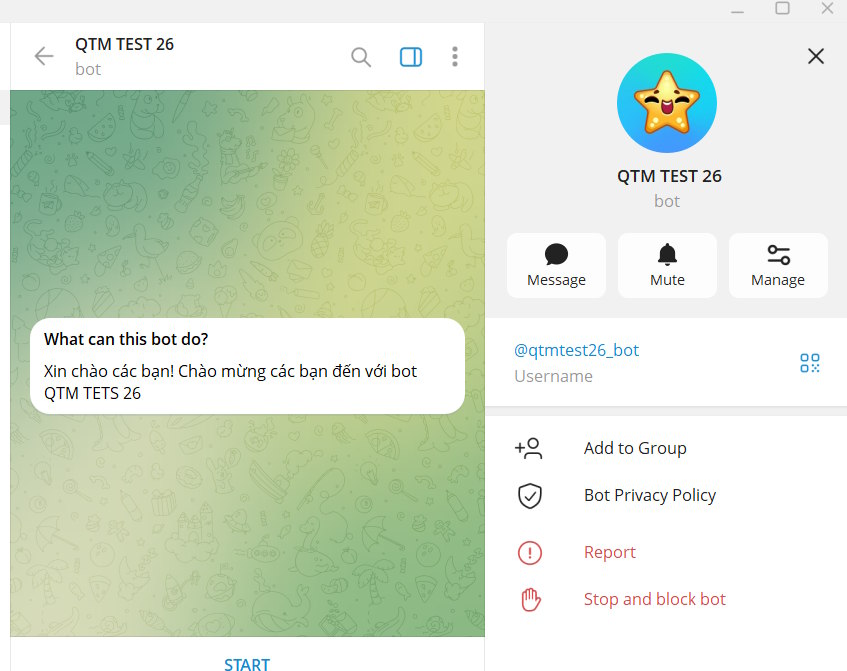
To verify a token from a terminal without putting it in browser history, use an environment variable and the Bot API's getMe method:
curl "https://api.telegram.org/bot${TELEGRAM_BOT_TOKEN}/getMe"A valid token returns JSON with "ok": true and the bot's account information. Never publish the command with the real token. Telegram's Bot API documentation explains the response fields.
Connect code before expecting replies
A newly created bot account will not answer messages until an application processes updates. Developers can use long polling with getUpdates for a simple test or configure a secure HTTPS webhook for a deployed service. Do not run both update methods simultaneously.
Before adding the bot to a group, review its privacy-mode and administrator permissions. Grant only the permissions required for its function, validate all user input, and avoid logging message content or identifiers unless necessary.
Useful BotFather management commands
/mybots: open the bots you control;/setdescription: set the profile description;/setcommands: define the command menu;/revoke: invalidate the current token and issue another;/deletebot: permanently remove the bot account.
Related Articles
 Detailed Guide on How to Quickly Integrate the Telegram API into N8n9 minutes read
 How to Create a Telegram Bot and Connect to N8n Quickly8 minutes read
 How to Create a Telegram Group Topic for Discussion4 minutes read
 Instructions for Using Free Chat Software Telegram on Your Computer4 minutes read
 How to Create Your Own Telegram Sticker8 minutes read
 How to Create Custom Stickers on Telegram: Step-by-Step Guide6 minutes read
Reader Comments 0
Sign in with email or Google to join the discussion.