Table of Contents
You can install YouTube Music as a desktop web app from Chrome or Microsoft Edge. It opens in its own window and can be pinned to the Start menu, taskbar, or dock, while still using the same account and library as music.youtube.com.
This is a Progressive Web App (PWA), not a separate native Windows or macOS program. Menu labels can vary slightly by browser version, but the process takes only a minute.
Install YouTube Music with Google Chrome
- Open YouTube Music in Chrome and sign in if needed.
- Select the three-dot More menu in the upper-right corner.
- Choose Cast, save, and share, then Install YouTube Music. If an install icon appears at the right of the address bar, you can select it instead.
- Select Install in the confirmation dialog.
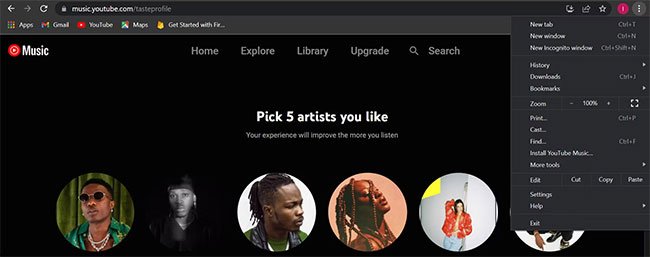
YouTube Music should now open in a separate window. On Windows, find it in the Start menu and pin it to the taskbar if you want one-click access.
Install YouTube Music with Microsoft Edge
- Open YouTube Music in Edge.
- Select the three-dot Settings and more menu.
- Open Apps, then choose Install YouTube Music or Install this site as an app.
- Confirm the app name and select Install.
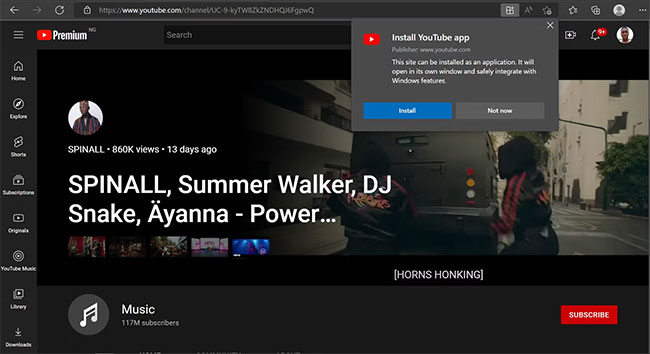
Edge may offer options to pin the app, create a desktop shortcut, or start it automatically when you sign in. Enable only the shortcuts you want.
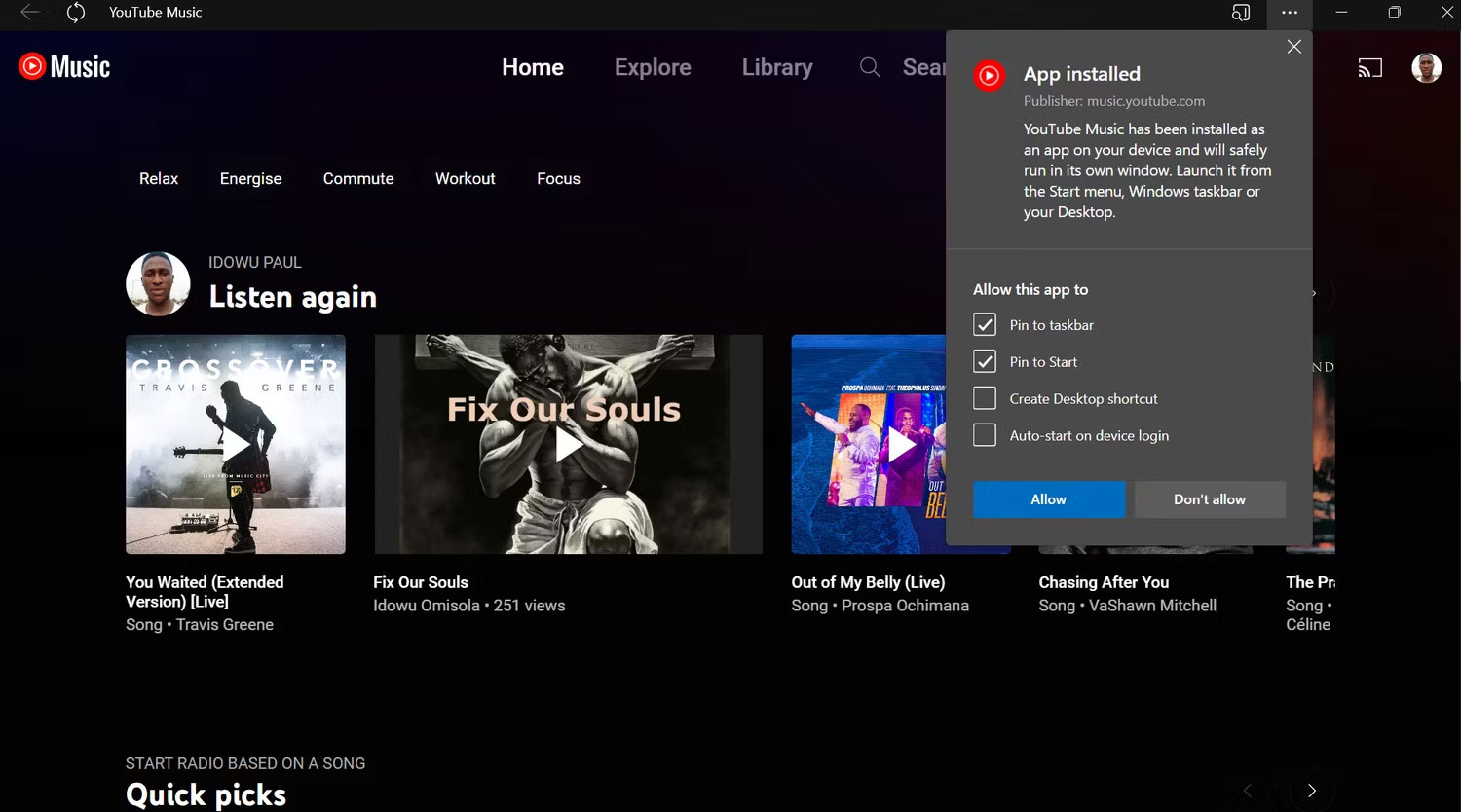
What the installed web app can do
The installed app provides the same core features as the browser version, including search, playlists, your uploaded music, subscriptions, and playback controls. It still needs a browser engine in the background, but you do not have to keep a normal browser tab open.
Installing the app does not automatically include Premium features. Ad-free playback, background listening on supported devices, and downloads remain subject to your YouTube Music plan and feature availability.
Uninstall YouTube Music from Chrome
- Open the installed YouTube Music app.
- Select the three-dot menu in the app window.
- Choose Uninstall YouTube Music, then select Remove.
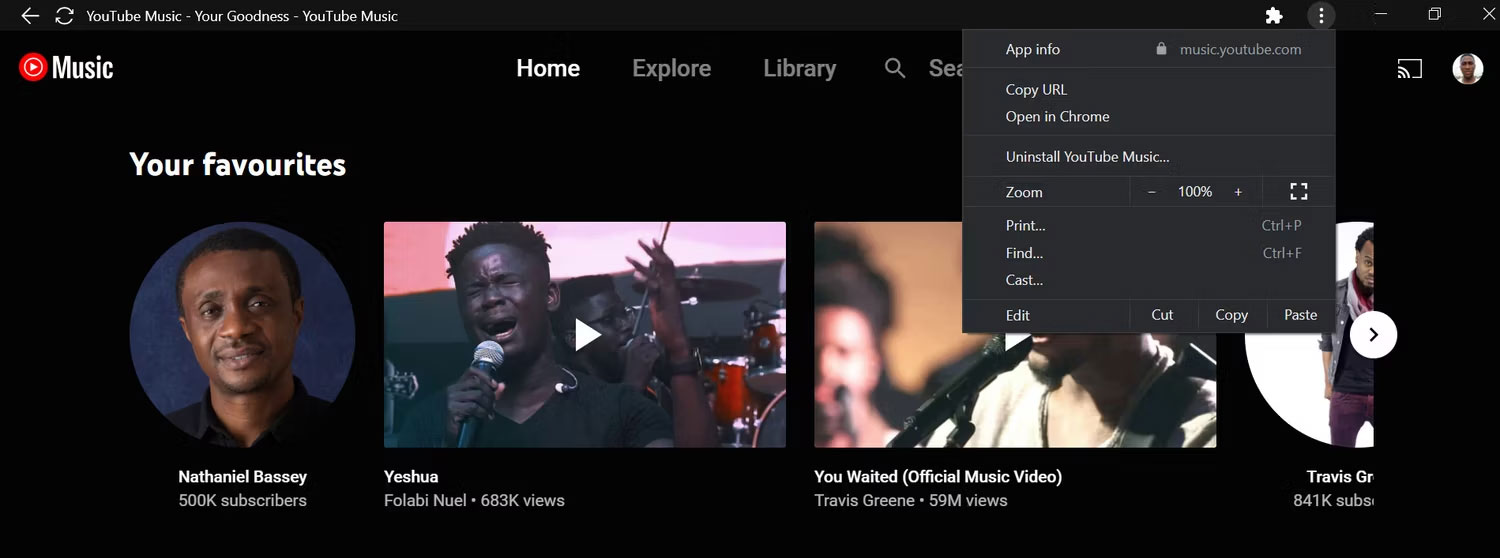
You can also manage installed Chrome web apps by entering chrome://apps in the address bar.
Uninstall YouTube Music from Edge
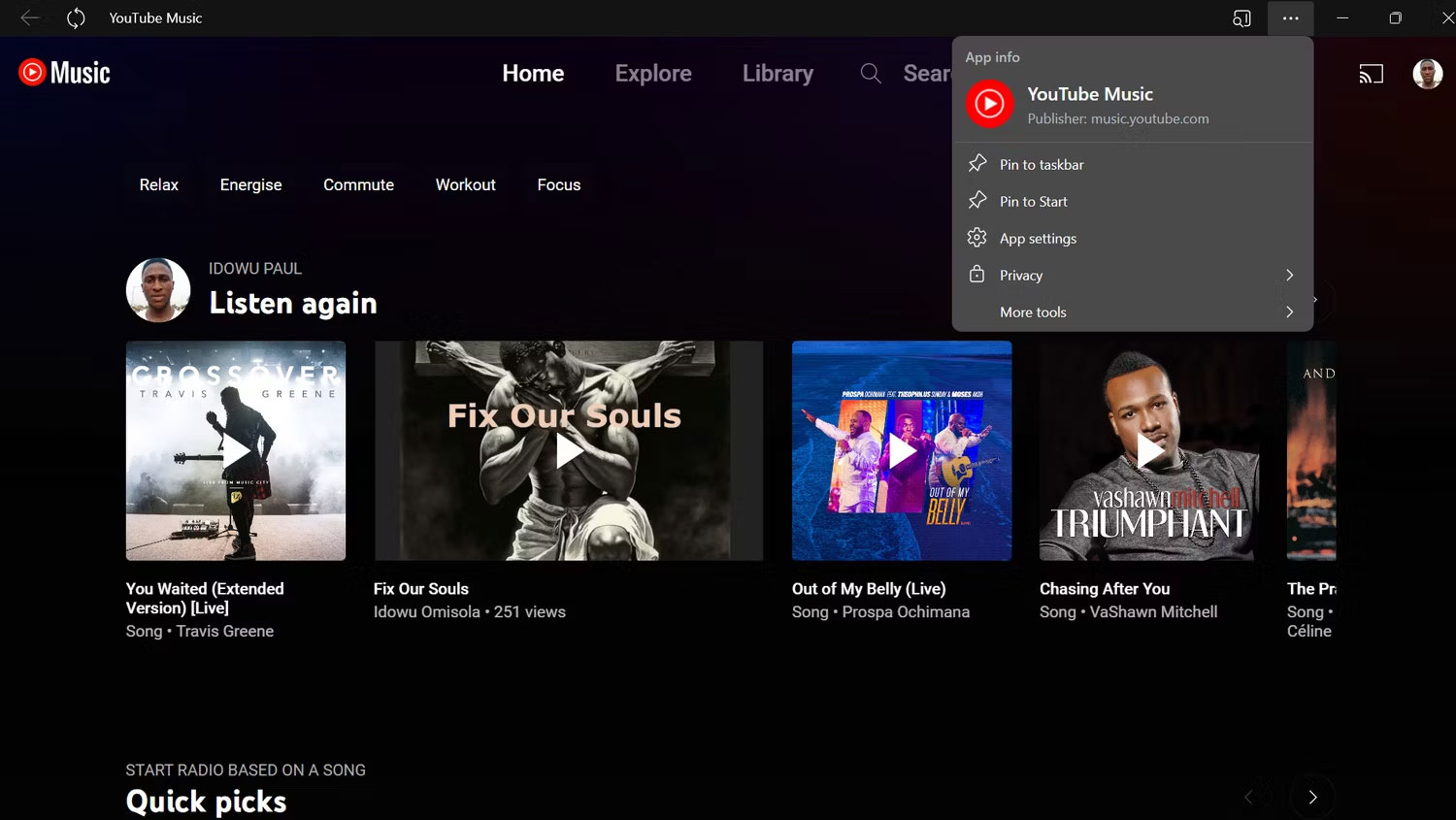
- Open the YouTube Music app and select its three-dot menu.
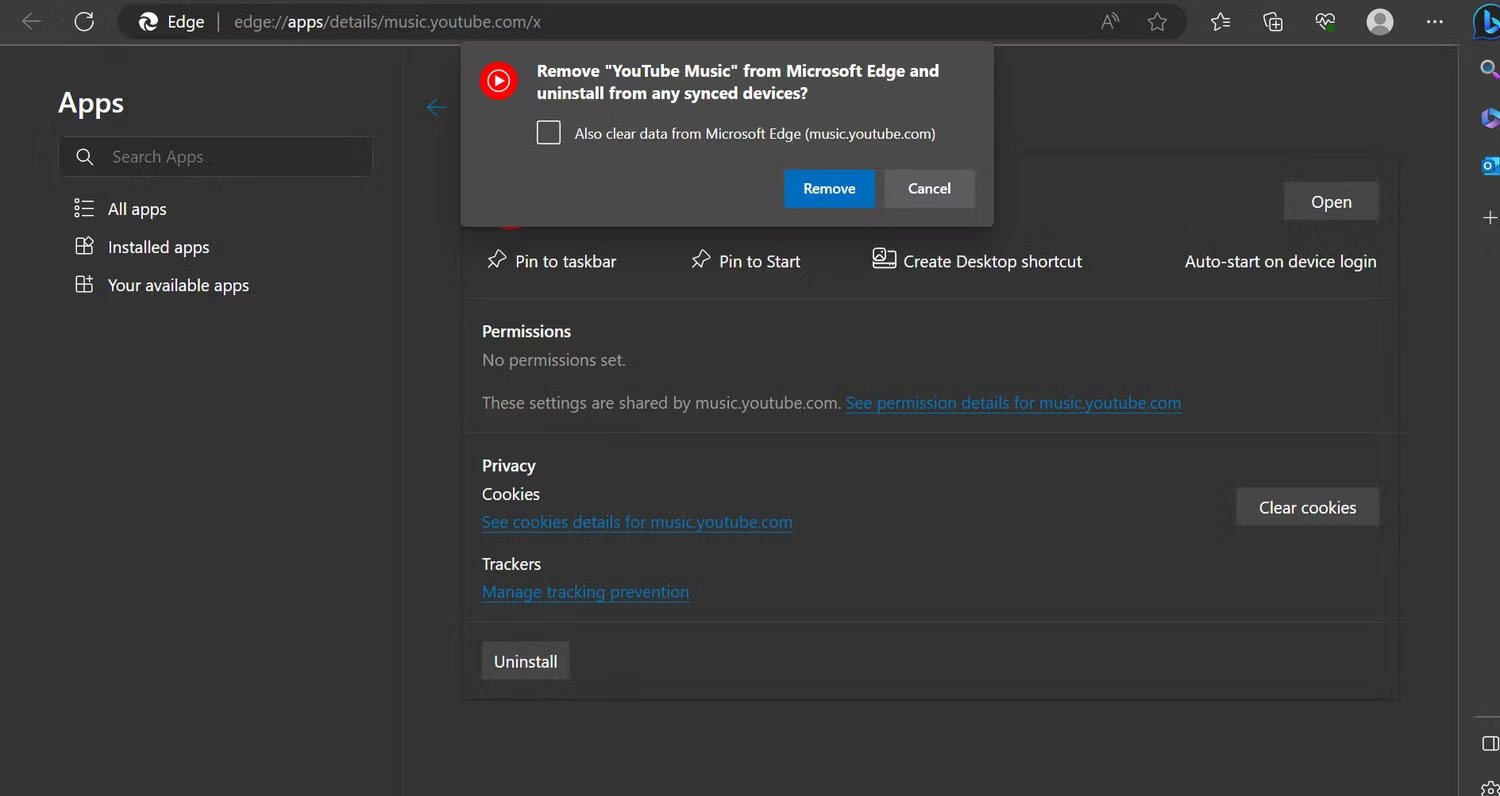
- Open App settings. If that option is unavailable, enter
edge://appsin Edge and locate YouTube Music. - Select Uninstall, then confirm with Remove.
If the install option is missing
- Confirm that you opened
music.youtube.com, not a search-results page. - Update Chrome or Edge and reload the site.
- Check whether a work or school administrator has disabled web-app installation.
- Try the browser menu even if the install icon is not visible in the address bar.
Removing the web app deletes its shortcut and standalone window, but it does not delete your YouTube Music account, playlists, or cloud library.
Related Articles
 8 Tips YouTube Music for More Enjoyable Music Experience7 minutes read
 How to Upload Personal Music to Youtube Music3 minutes read
 How to Download 320Kbps MP3 Music from YouTube3 minutes read
 Convert YouTube MP3 Files: What You Need to Know9 minutes read
 Desktop Apps for a Better YouTube Music Experience6 minutes read
 Listen to Music on YouTube? You Should Not Ignore These 5 Websites8 minutes read
Reader Comments 0
Sign in with email or Google to join the discussion.