Table of Contents
This article provides a clear overview of Restore a Windows 8 Computer with System Restore, with the main facts, useful context, and practical details organized for easy reading.
You can literally restore a laptop to an earlier operating point. Here is how to use System Restore in Windows 8.
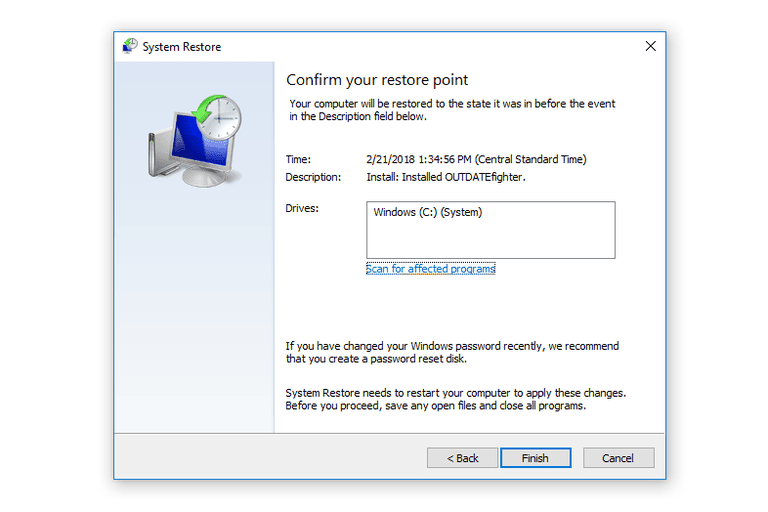
Does Your Computer Run Slowly or Where Does the Error Go?
Due to the changes you have made - installing software or changing an important setting - have caused something to go awry. Otherwise it could be infected with malware, or a hardware error (your storage is full, you don't have enough RAM or something is overheated and corrupted).
System Restore is a Windows recovery tool - it will not remove viruses or repair virus- related errors. But if the problem is caused by a recent change made by your software or you have installed it, System Restore is useful.
System Restore will help your computer or laptop go back to a time before the computer problems.
System Restore creates ' Restore point ' all the time. Every day, every time Windows updates itself, whenever you install new software, or whenever you choose to do it yourself.
The restore points capture the settings of your system at a time you know it has worked well. If something goes wrong, you can slip back to that moment, and everything will be fine. System Restore does not change your personal files, but it can remove recently installed applications and drivers.
By default, Windows System Restore will be set by default, automatically creating backups from time to time. However, if you turn it off manually, you will not be able to use System Restore to restore the computer.
System restore must be enabled on all drives you use it, and you need about 300MB of disk space. It is enabled by default, however, so this is how to use System Restore in Windows 8.
Use System Restore to Repair a Windows 8 Computer
Before you begin, back up all the documents you need to keep in the C: / drive. And remember that you will not be able to use your computer or laptop while running recovery.
Quick Adsense WordPress Plugin: http://quickadsense. com/First move the mouse to the entry point in the upper right corner of the screen, move the mouse pointer down, then click Search . Or just hold down Windows + Q. In the search box type ' System Restore '. Then type or click the 'Settings' tab on the right hand side, and select the ' System Restore ' icon
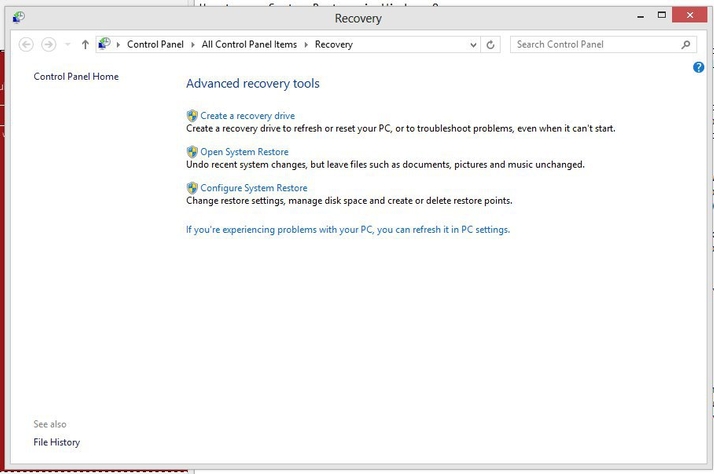
From the resulting window select Open System Restore.
By default you will be shown the most recent restore points. In our case this was created when installing the BlackBerry link software. To restore to this point, click Next and then Finish. Your PC will now reboot.
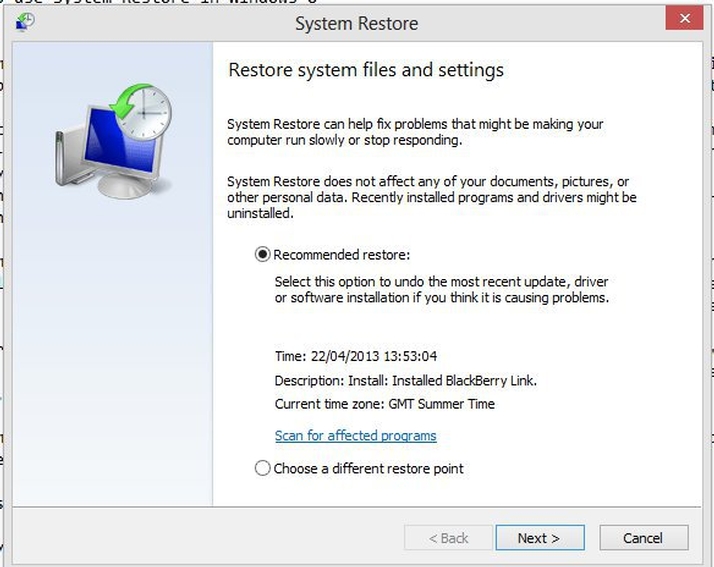
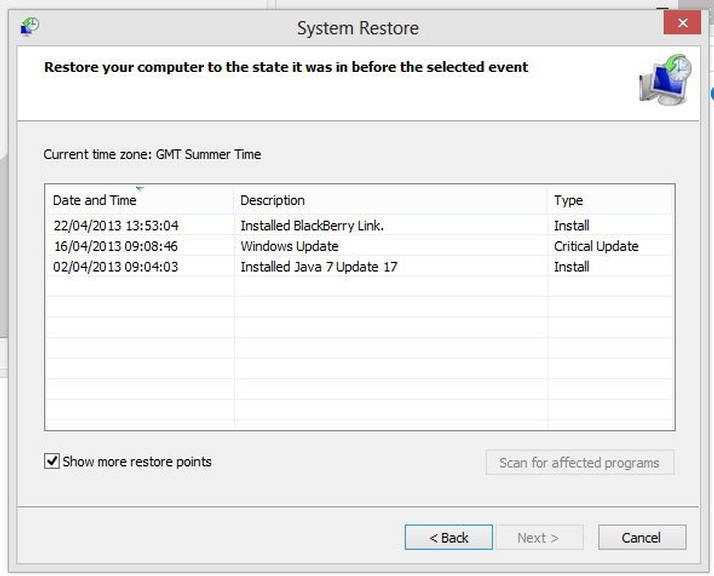
Alternatively, select ' Choose a different restore point ' and click Next. If you enable the ' Show more restore points ' checkbox, you will see all available restore points. These restore points represent all recent major changes, and any points you set yourself to restore. Choose one of them, click Next and Finish. Your PC will now return to the time you selected.
Use System Restore to Create a Restore Point
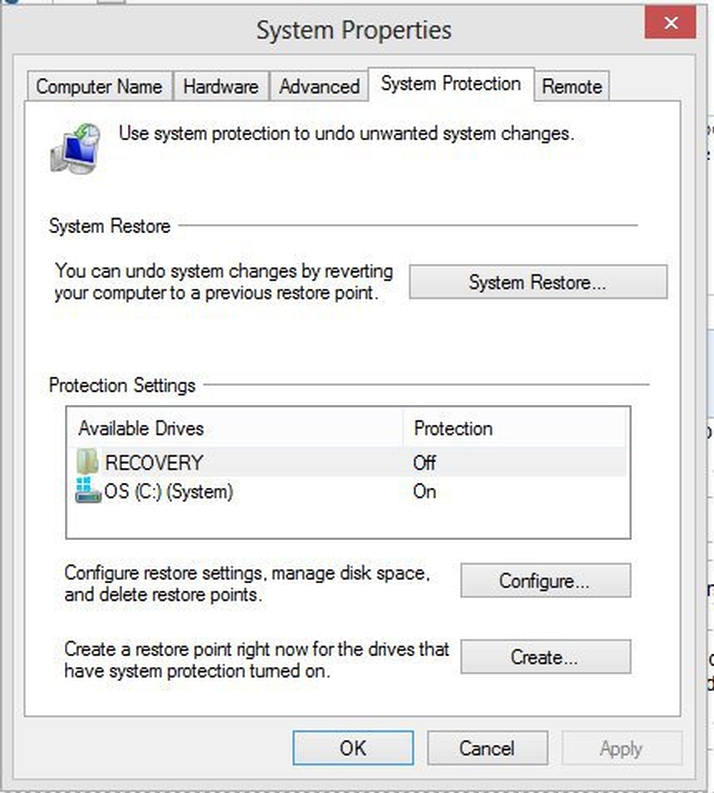 Use the above methods to bring up the Windows 8 search bar. Type in ' Restore ' and select 'Settings'. Select 'Create a restore point - Create a restore point'.
Select ' Create ' to manually create a new system Restore restore points. You will be asked to name a restore point for future reference. Write in an appropriate name and press 'Create'.
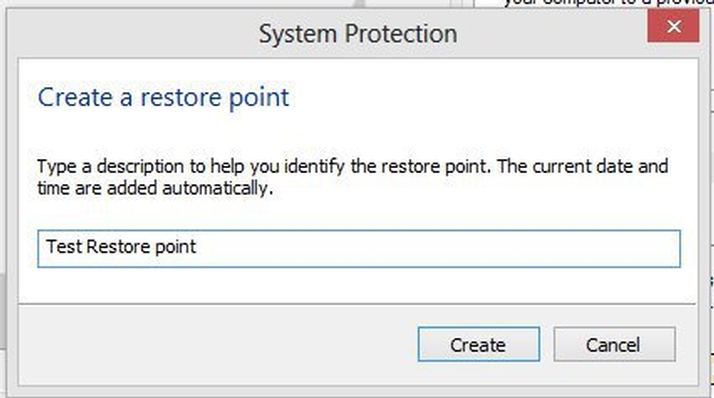 So you know how to restore Windows using System Restore, Know how to create a restore point. This method is simple but very useful when the computer has an operating system error, for example, you have just installed a software or a driver when your computer fails. Good luck@!
FAQ
What is the main focus of Restore a Windows 8 Computer with System Restore?
The article explains the most important facts, context, and practical details related to Restore a Windows 8 Computer with System Restore.
Who may find this information useful?
It is useful for readers who want a clear overview, practical context, and a better understanding of the subject.
What should readers verify before taking action?
Check current product versions, official requirements, regional availability, and any details that may have changed since the original publication.
Related Articles
 Instructions on How to Use System Restore on Windows8 minutes read
 How to Use System Restore in Windows: Turn Off, Turn on, Create, Restore3 minutes read
 How to Use System Restore on Windows 7: Practical Guide11 minutes read
 Instructions for Restoring the System on Windows6 minutes read
 How to Restore Your Windows Xp Computer4 minutes read
 How to Use System Restore on Windows 711 minutes read
Reader Comments 0
Sign in with email or Google to join the discussion.