Table of Contents
Canva can generate a 3D element from a text description and place it in presentations, videos, whiteboards, social-media designs, and websites. After adding the element, you can resize it and rotate it in 3D space.
This feature is intended for visual design, not CAD, engineering, manufacturing, or precise 3D modeling. Treat the result as a Canva design element rather than a dimensionally accurate mesh or production-ready asset.
What you need to know first
- The design type must support 3D elements. Canva currently excludes Docs, Sheets, and Email designs.
- AI access and usage allowances vary by plan and account, so the 3D option may not appear for every user.
- Generated results can vary even when you reuse the same prompt. Save a version you like before regenerating.
- A 3D element may be interactive in a presented slideshow or published Canva website, but it will be flattened in a static export such as a PNG.
If you are comparing Canva's broader toolset, start with this overview of useful AI features in Canva.
How to create a 3D element with Canva AI
1. Open a supported design
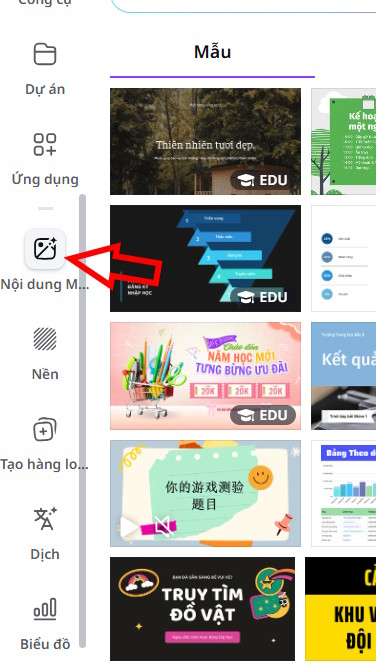
Create or open a presentation, video, whiteboard, social-media design, or website. In the editor's side panel, select Magic Media. If it is not visible, open Apps and search for Magic Media.
2. Select the 3D generator
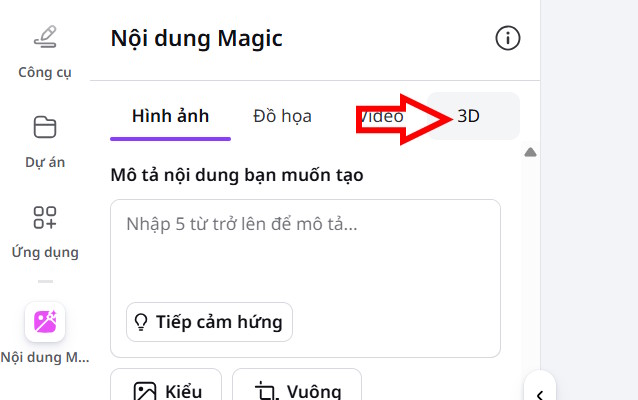
Open the 3D tab. Canva also provides another route in supported interfaces: open Elements, describe what you want in the search field, open the Generate menu, and choose 3D.
3. Write a focused prompt
Describe one main object and the visual properties that matter. A useful prompt can include:
- the object or character;
- its material or surface, such as clay, glass, polished metal, or soft plastic;
- a simple color palette;
- the viewing angle or pose;
- the overall style, such as playful, realistic, minimal, or low-poly.
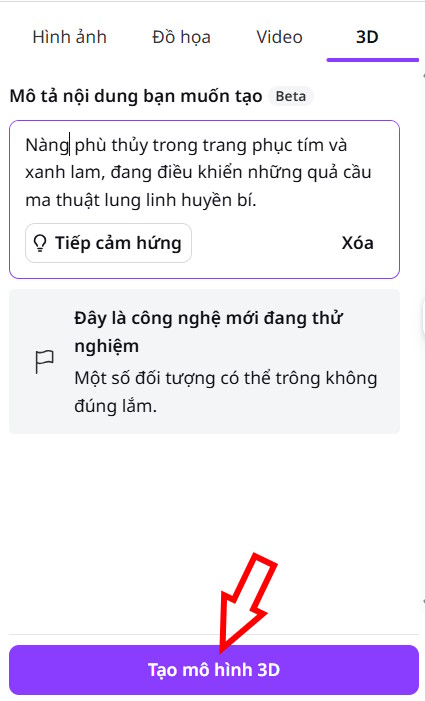
For example: “A small low-poly robot, matte teal and cream plastic, friendly rounded shape, three-quarter view.” A focused description is easier to evaluate than a long prompt containing several unrelated objects.
Enter the prompt and select Generate 3D or the equivalent generation button shown in your editor.
4. Review and add a result
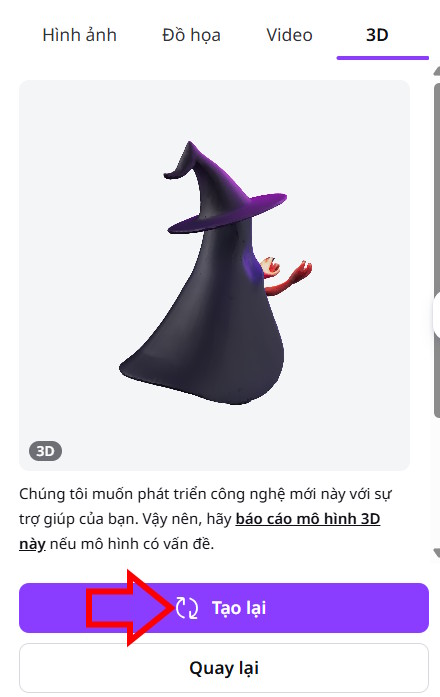
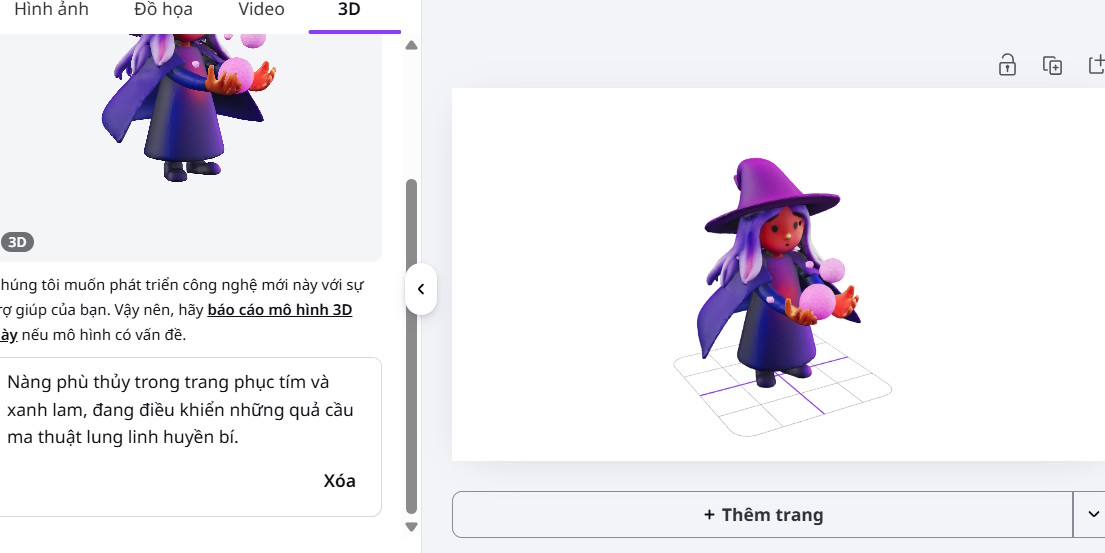
Inspect the generated element from more than one angle if a preview allows it. Look for broken geometry, merged parts, inconsistent symmetry, unreadable text, or details that disappear when rotated. Select the result to add it to the design.
5. Regenerate when the result misses the prompt
Edit the description before generating again. Change one variable at a time—material, angle, color, or shape—so you can tell what improved the result. If the object is too complicated, remove secondary details and generate a cleaner base element first.
Rotate and style the 3D element
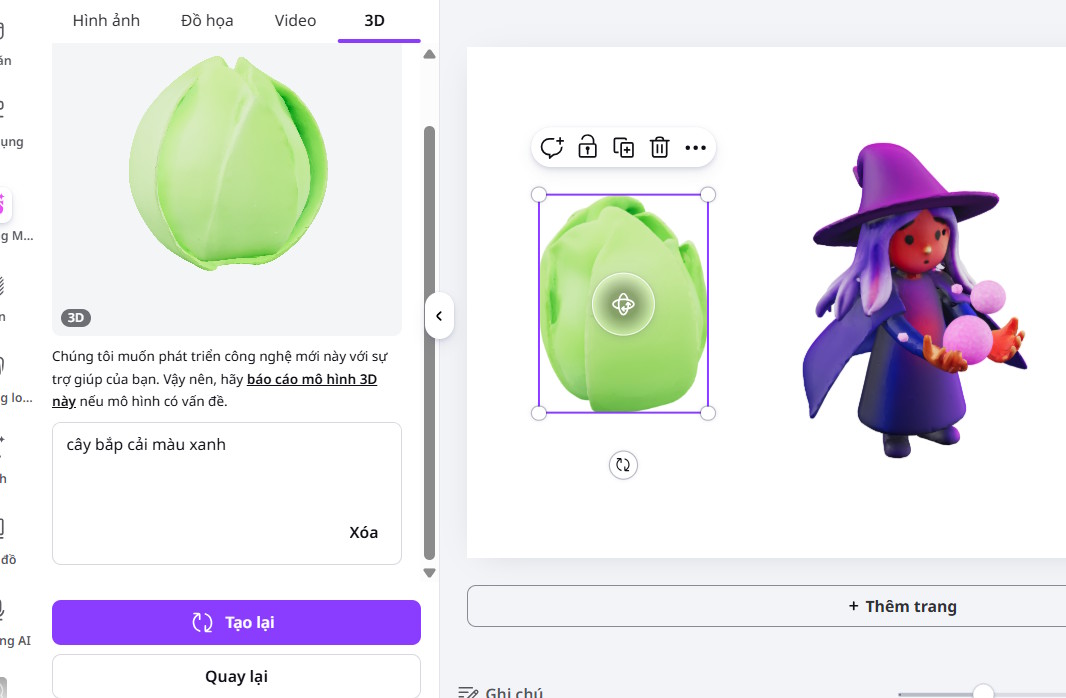
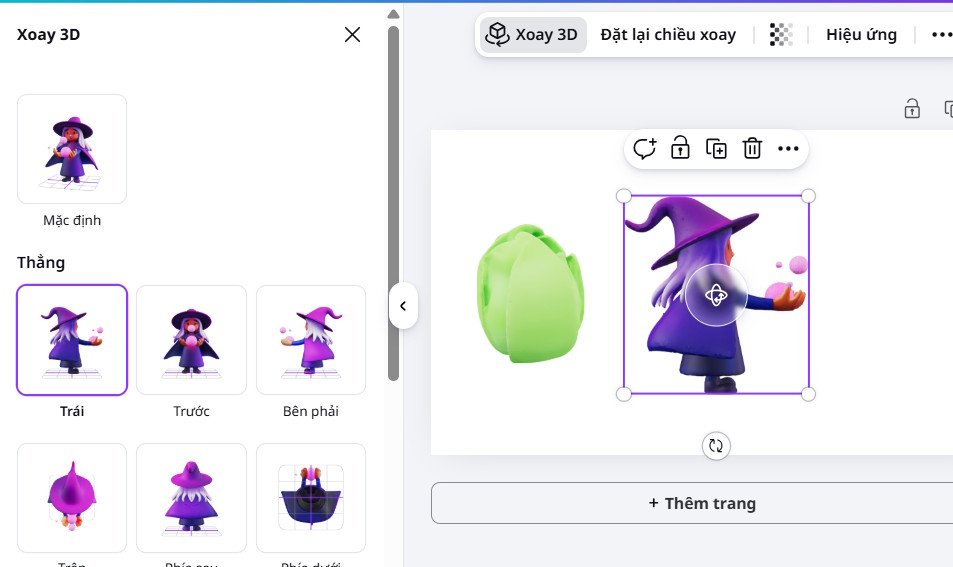
Select the element on the page, then click or press and drag it to rotate it in 3D space. Resize and position it as you would another Canva element. If your editor displays rotation presets or a Reset rotation control, use them to return to a predictable front or default view.
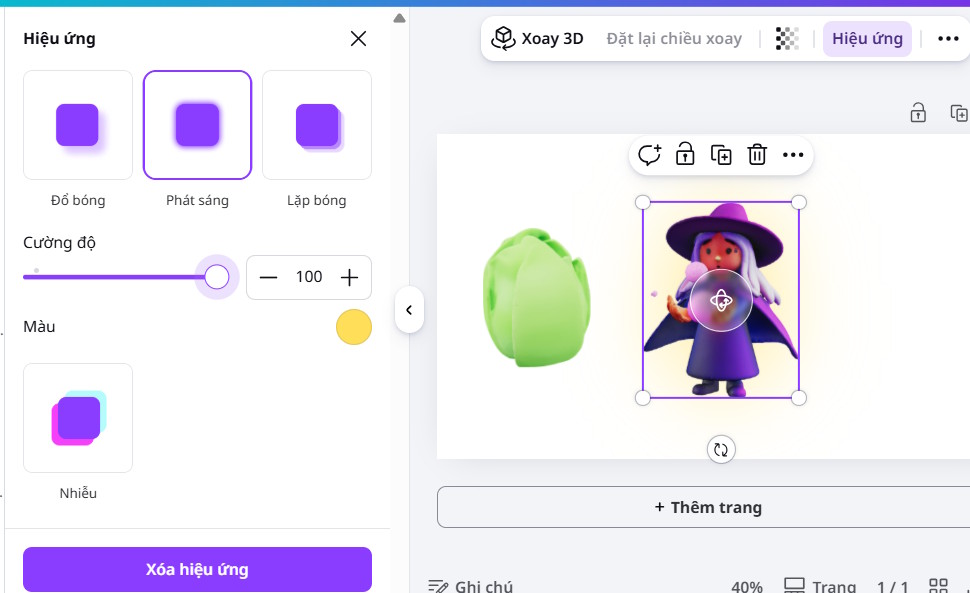
Some generated or library elements expose additional effects or editable colors. If Add effect or color tiles appear in the toolbar, adjust them while viewing the element against its final background. Not every 3D element supports the same controls.
Canva's current 3D elements documentation covers both AI generation and library elements, including the supported design types.
Build a clearer composition
- Match perspective: rotate the element so its viewpoint agrees with the background and nearby objects.
- Use consistent light: avoid combining a brightly lit 3D object with a dark scene unless the contrast is intentional.
- Leave breathing room: an interactive object needs space so viewers can recognize and manipulate it.
- Limit competing styles: one strong 3D focal point is usually clearer than several unrelated generated assets.
- Test at final size: small details that look attractive while editing may become visual noise in a thumbnail or mobile layout.
For a static depth effect rather than a rotatable object, the technique in this guide to creating a 3D tilted image in Canva may be faster.
Use 3D elements in presentations and websites
In a Canva presentation, enter Present mode and navigate to the slide containing the element. Viewers can hold and drag the 3D object to inspect it. A published Canva website can provide similar interaction.
Test the finished design in its delivery format—not only in the editor. Confirm that the element loads, rotates, and remains usable with the page's other controls. Also check a phone or tablet if the audience is likely to use one.
Common problems
The 3D tab is missing
Confirm that you are in a supported design type, then check both Magic Media and the Elements Generate menu. Account language, team controls, plan access, and staged feature rollouts can affect availability.
The generated object looks like a flat picture
Make sure you selected the 3D element type rather than the Images or Graphics generator. A rendered picture of a 3D-looking object is still a flat image and cannot be rotated as a 3D Canva element.
Text and logos are distorted
Generate the object without important lettering, then add accurate text or a permitted brand mark as a separate Canva layer. Generative tools should not be relied on for exact typography or trademark reproduction.
The element does not rotate after download
PNG, JPEG, PDF, and other static exports cannot retain interactive rotation. Present the Canva design or publish it as a supported website when interaction is essential. For other image-generation and editing choices, compare these AI photo editors and their best uses.
Review before publishing
- Rotate the element through several angles and inspect every visible side.
- Check that it does not depict impossible, misleading, or unwanted details.
- Confirm that any text, product features, or brand elements are accurate and authorized.
- Preview the presentation or website on the devices the audience will use.
- Include a static fallback or screenshot if the design may be viewed in a format that cannot render the 3D interaction.
Canva's 3D generator is most useful for fast visual concepts, presentation objects, and interactive web accents. Use dedicated 3D software when you need exact dimensions, topology, rigging, animation control, or exportable assets for a production pipeline.


Reader Comments 0
Sign in with email or Google to join the discussion.