Table of Contents
To change a Wi-Fi password from a laptop, connect to your home router, open its actual administration address, sign in with the router administrator account, and edit the password for the correct wireless network. Save the setting, then reconnect every wireless device with the new password. Menu names differ among routers, so use the labels below as guides rather than exact instructions for every model.
If possible, connect the laptop to the router with an Ethernet cable before making changes. A wired connection can keep the administration session open when the Wi-Fi network restarts.
Before changing the password
- Make sure you are connected to your own router, not a nearby access point or mobile hotspot.
- Have the router administrator username and password available. These are not necessarily the same as the Wi-Fi name and password.
- Check the router label, setup card, manufacturer's documentation, or your internet provider's app for the management address.
- List important devices that will need reconnecting: phones, computers, TVs, printers, cameras, smart speakers, and other smart-home equipment.
- If the router has separate main, guest, 2.4 GHz, 5 GHz, or 6 GHz networks, identify which SSID you intend to change.
1. Find the router's correct administration address
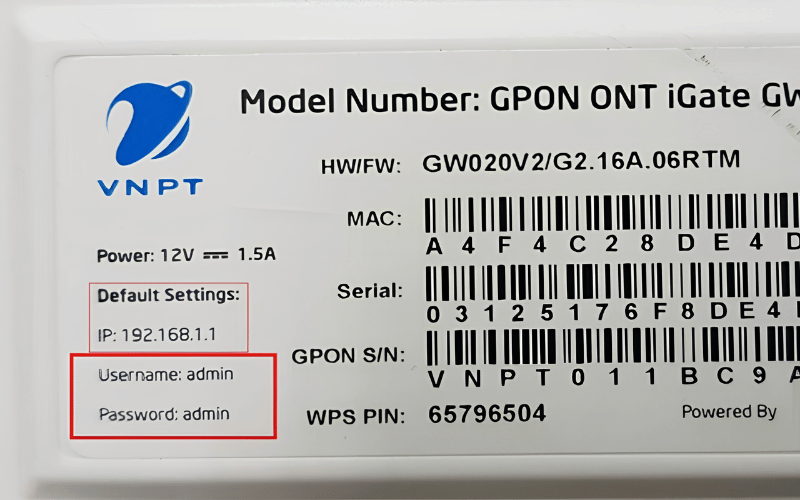
Do not assume that every router uses 192.168.1.1. Common private addresses include 192.168.0.1 and 192.168.1.1, but the reliable choice is the default gateway reported by the connected laptop or the address documented for the router.
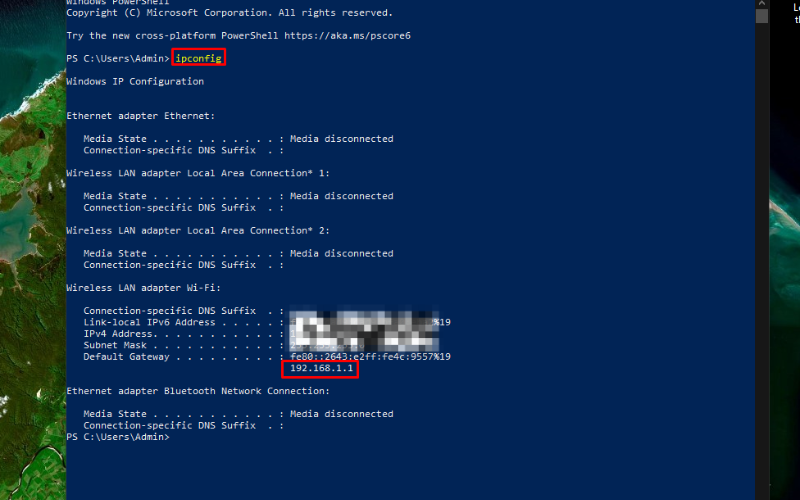
Find the default gateway in Windows
- Open Command Prompt or Windows Terminal.
- Run
ipconfig. - Find the active Wi-Fi or Ethernet adapter.
- Copy the address beside Default Gateway. It will usually be a private IPv4 address.
TipsMake's guide to finding the default gateway IP address also covers a graphical Windows method.
2. Sign in to the router, not the Wi-Fi network
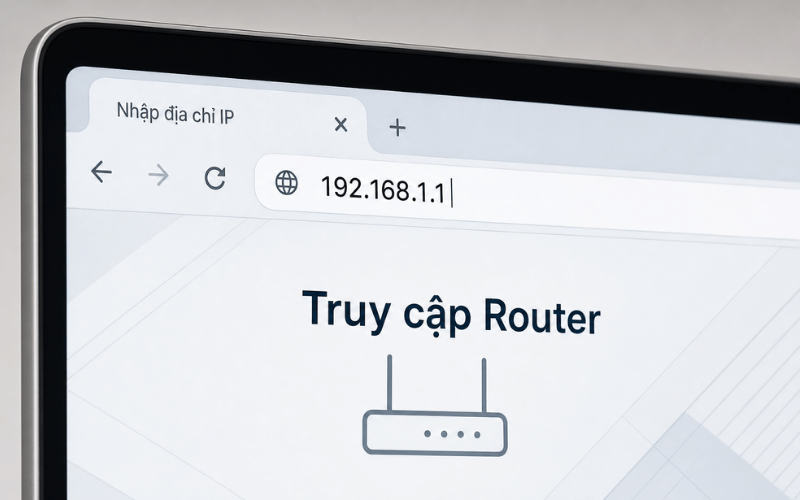
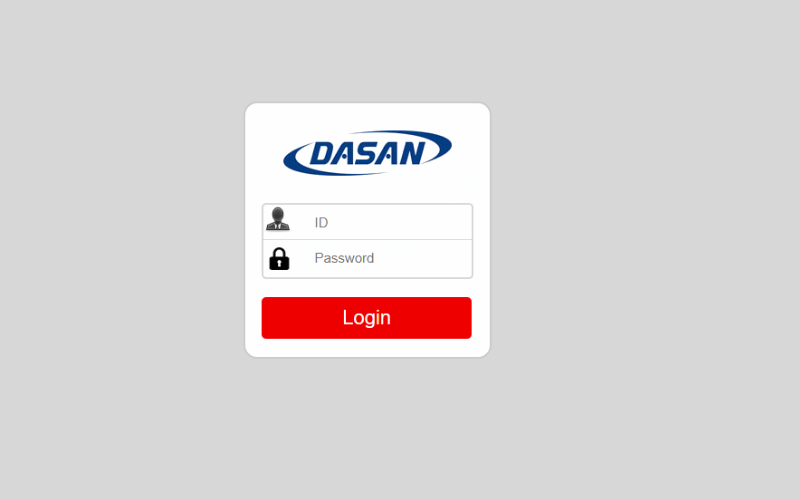
Enter the gateway address in a browser. Some routers instead use a manufacturer-supplied local hostname or a mobile app. Sign in with the router's administrator credentials. The admin password controls router settings; the Wi-Fi password is what phones and other devices use to join the wireless network.
Use the credentials you created during setup. If they have never been changed, check the router label or documentation. Do not repeatedly guess and do not copy a generic username and password from an unrelated router model. If the login page is unexpected, confirm the address and network before entering credentials.
3. Open the settings for the correct Wi-Fi network
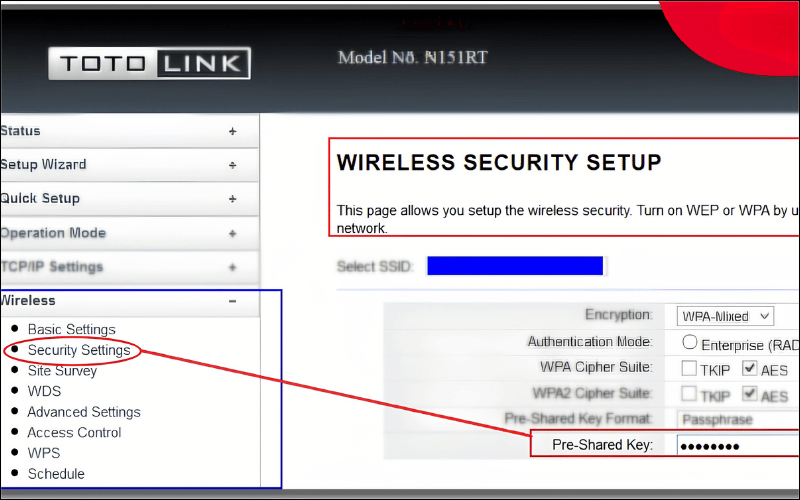
Look for a section named Wi-Fi, Wireless, WLAN, or Network. Select the intended SSID. A router may use one combined network name for several frequency bands, separate names for each band, or a separate guest network.
| Setting | Labels you may see | Meaning |
|---|---|---|
| Network name | SSID, Wi-Fi Name, Wireless Name | The name shown when devices scan for Wi-Fi |
| Security section | Security, Wireless Security, Authentication | Controls encryption and access |
| Password | Password, Passphrase, Pre-Shared Key, WPA Key | The credential devices enter to join |
| Security mode | WPA3-Personal, WPA2-Personal, WPA2/WPA3 | The protection used by compatible clients |
4. Set the new password and security mode
Enter a long, unique passphrase that is not based on a name, address, phone number, or another easily guessed detail. A memorable multi-word phrase is usually easier to type correctly on TVs and smart devices than a short string of substitutions. Store the new password in a trusted password manager or another secure place.
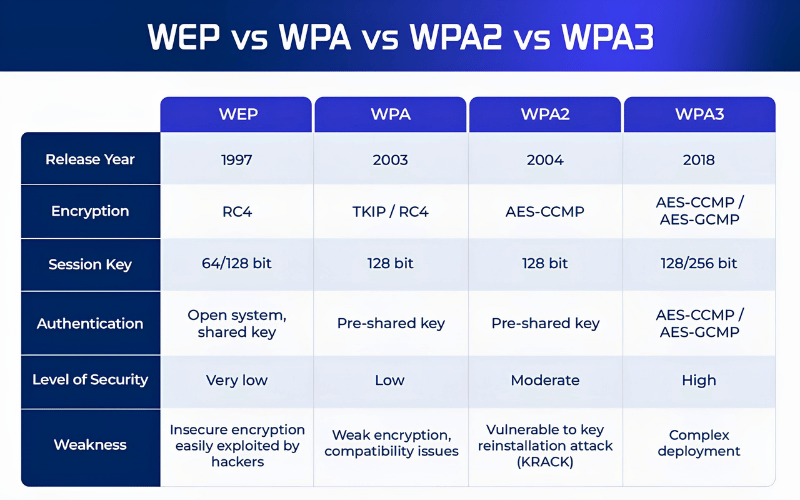
Choose WPA3-Personal when the router and all essential devices support it. A WPA2/WPA3 transition mode can help with mixed devices. Otherwise, use WPA2-Personal with AES. Do not choose WEP, original WPA, or TKIP simply to keep very old hardware connected; those modes provide weaker protection. TipsMake's comparison of WEP, WPA, WPA2, and WPA3 explains the differences.
5. Save the setting and reconnect devices
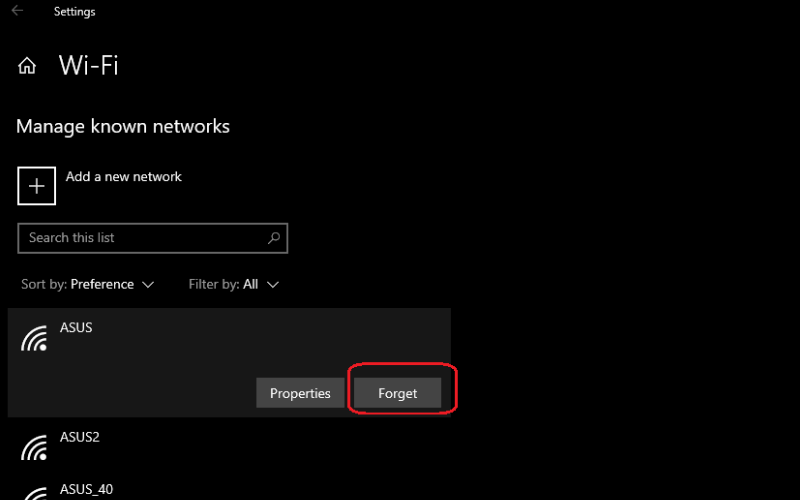
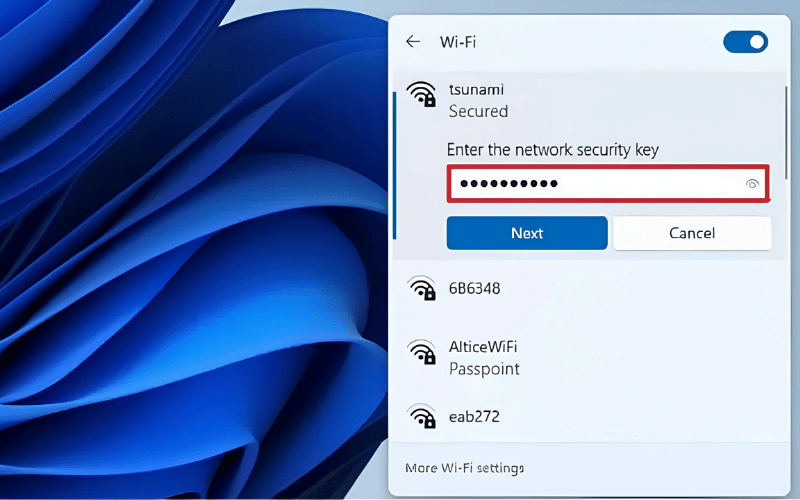
Select Save or Apply. The wireless network may disappear briefly while the router applies the change. On each device, select the same SSID and enter the new password. If a device keeps submitting the old credential, forget or remove the saved network and join it again.
Reconnect and test a laptop or phone first. Then update devices that are easy to overlook, including printers, security cameras, streaming boxes, smart plugs, and mesh nodes. If the guest network uses a different password, changing the main network does not necessarily change the guest network.
If the router page will not open
| Problem | What to check |
|---|---|
| The gateway page does not load | Confirm the laptop is connected to the correct router, rerun ipconfig, and use the Default Gateway for the active adapter. |
| A search-results page opens | Type the address directly into the browser address bar, including http:// or https:// if needed. |
| The login is rejected | Use the router admin credential, not the Wi-Fi password. Check the label, setup record, provider app, or model-specific documentation. |
| The interface loads incorrectly | Try a current browser, disable an interfering browser extension for the local page, or restart the router normally. |
| The router is managed by an app | Use the official router or internet-provider app and select its Wi-Fi settings. |
If devices cannot reconnect
- Check uppercase and lowercase letters and make sure no unwanted spaces were added.
- Forget the saved network on the affected device, then join it again.
- Confirm that you changed the password for the correct SSID and frequency band.
- If an older device cannot use WPA3, try a supported WPA2/WPA3 compatibility mode or a separate appropriately secured IoT network rather than weakening the main network for every device.
- Restart the affected device and router if the new settings have not propagated cleanly.

Avoid a factory reset unless it is truly necessary
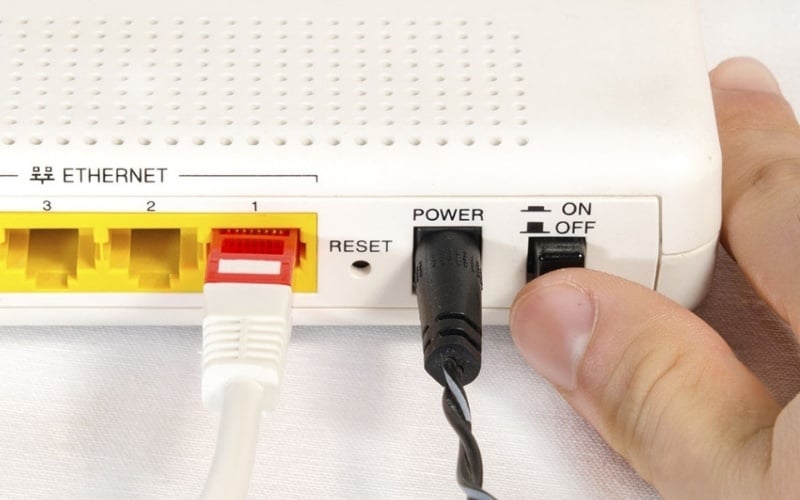
A normal restart turns the router off and back on without intentionally erasing settings. A factory reset is different: it can remove the Wi-Fi name, admin password, internet-provider configuration, port forwarding, parental controls, and other custom settings. Use a factory reset only after model-specific instructions or support guidance confirm that it is appropriate and you are prepared to configure the router again.
After the password change, verify internet access, confirm important devices are online, and save the new credential securely. If you changed the password because of suspected unauthorized access, also change the router administrator password and review the connected-device list and remote-management setting.
Related Articles
 How to Change Your Viettel Wi-Fi Password7 minutes read
 How to Change Wi-Fi Password, Change Wi-Fi Pass Vnpt, Fpt, Tenda7 minutes read
 Change Wi-Fi Password: How to Change Vnpt Wi-Fi Password5 minutes read
 Change Wi-Fi Password: 2 Steps to Change Linksys Wi-Fi Password2 minutes read
 How to Changing Viettel Wi-Fi Modem Password3 minutes read
 How to Change Your Wi-Fi Password Using an iPhone6 minutes read
Reader Comments 0
Sign in with email or Google to join the discussion.