Table of Contents
You do not need a traditional Windows or macOS installer to use Google Meet on a laptop. Open meet.google.com in a supported browser and join or create a meeting. If you want a separate window and an app icon, install the Google Meet Progressive Web App (PWA) through Chrome.
Browser tab or installed web app?
The installed PWA uses the same Google Meet service and core meeting features as the website. It does not turn Meet into a separate native desktop program; it simply gives the web app its own window, launcher icon, and convenient shortcuts.
| Option | How it opens | Installation | Best for |
|---|---|---|---|
| Meet website | A normal browser tab | None | Occasional meetings or shared computers |
| Meet PWA | A separate app-style window | Installed from Chrome | Frequent use and quick access from the taskbar, dock, or app launcher |
Google Meet works in the browser and can also be installed as a PWA.
How to install the Google Meet PWA
- Open Google Chrome on your computer.
- Go to meet.google.com and sign in if required.
- Select the Install icon at the right side of the address bar.
- Confirm by selecting Install.
- Open Google Meet from the new shortcut, app launcher, Start menu, or dock.
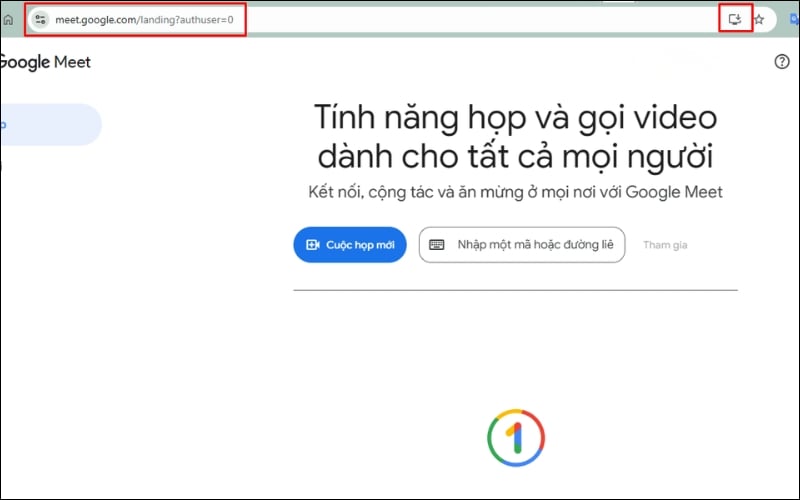
Select the install icon in Chrome's address bar.
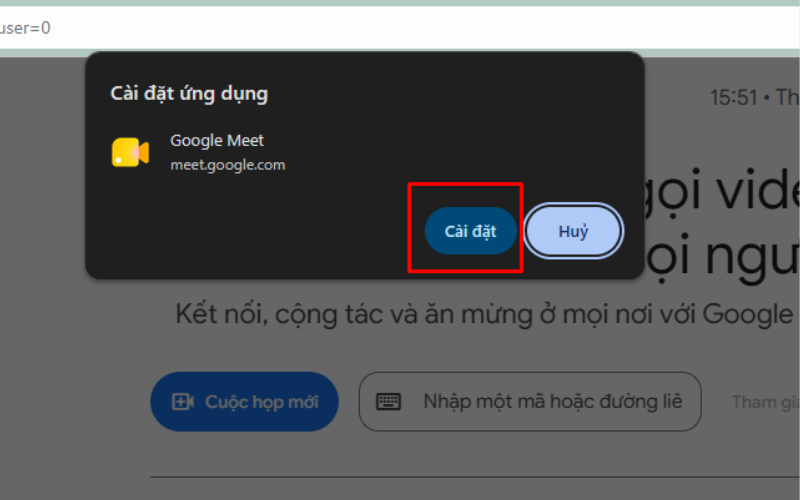
Confirm the installation when Chrome prompts you.
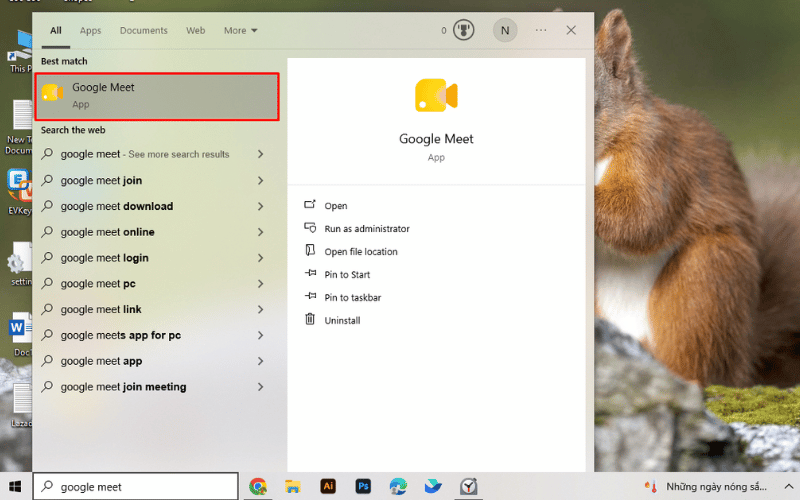
The installed web app opens in its own window.
If the address-bar icon is not visible, open Chrome's menu and look for Cast, save, and share > Install page as app. Menu wording can change between Chrome versions. Google maintains the current steps in its official Meet PWA instructions.
What about Microsoft Edge?
Edge can install compatible websites through Apps > Install this site as an app. That creates a similar app-style shortcut, but Google's official Meet PWA instructions use Chrome. If the Edge menu or behavior differs, use Meet directly in a browser tab or install it with Chrome.
How to use Meet after installation
On the Meet home screen, select New meeting to start or schedule a call, or paste a meeting code or link to join an existing room. Before joining, use the preview screen to turn your camera and microphone on or off and confirm that the correct devices are selected. During a meeting, Present now lets you share a tab, window, or screen, subject to the meeting host's settings.
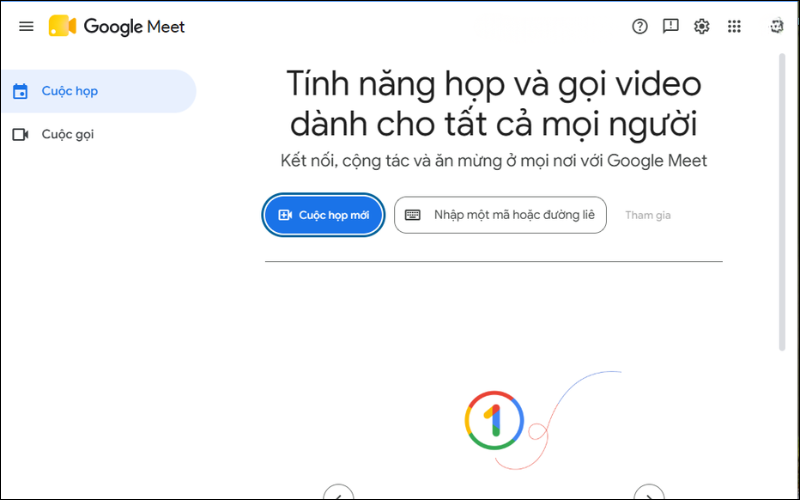
The PWA provides the same familiar Meet controls as the website.
Prepare before an important call
- Open the meeting link early and check the camera preview.
- In Meet settings, choose the intended microphone, speaker, and camera.
- Use headphones when speakers create echo or feedback.
- Close apps that are using the camera or consuming significant bandwidth.
- Keep the laptop connected to power during a long call.
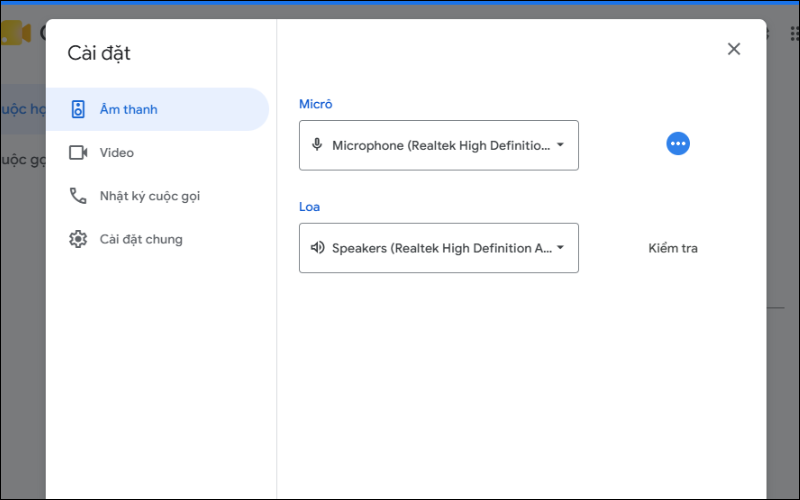
Check audio and video from the pre-join screen before the meeting starts.
For a broader look at browser-based conferencing, see TipsMake's Google Meet and Zoom comparison. If you are setting up a dedicated meeting station, the guide to online meetings on a Raspberry Pi also explains basic camera and headset considerations.
Fix a missing Install option
Try these checks in order:
- Confirm that you are on https://meet.google.com, not a search-results page or an individual help page.
- Update Chrome, close it completely, and reopen it.
- Look in Chrome's menu for the install-page option instead of relying only on the address-bar icon.
- Check whether the app is already installed by opening chrome://apps.
- On a managed work or school laptop, ask the administrator whether browser policy blocks web-app installation.
You can still use Meet in a browser tab if the PWA cannot be installed. Avoid downloading unofficial “Google Meet for PC” installers from third-party sites; the web app does not require an executable from a download portal.
Fix a camera or microphone that does not work
- Select the site-controls icon beside the address bar and allow camera and microphone access for Meet.
- Open Meet settings and select the correct input and output devices.
- Check system-level privacy permissions for Chrome on Windows or macOS.
- Close other video, recording, or calling apps that may be using the device.
- Reconnect an external headset or webcam, then restart Chrome if necessary.
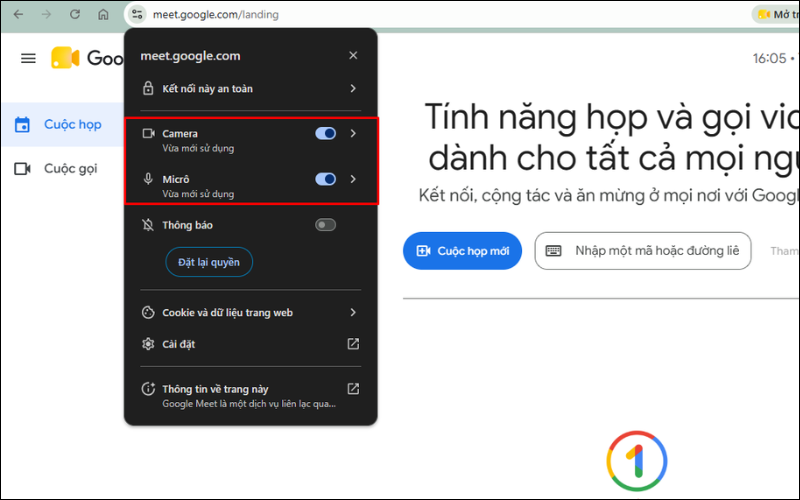
Meet, the browser, and the operating system must all permit access to the device.
If you can see the camera but other participants cannot hear you, make sure you are not muted both in Meet and on the headset itself. Test with the microphone level meter in Meet settings. For video problems, confirm that the intended camera produces a preview before joining.
How to uninstall the Google Meet PWA
The most consistent removal method works on Windows, macOS, and Linux:
- Open the installed Google Meet web app.
- Open its three-dot menu.
- Select Uninstall Google Meet, then confirm Remove.
You can also open chrome://apps in Chrome, right-click Google Meet, and choose the removal option. If Chrome offers to delete associated app data, read the checkbox carefully: removing local web-app data is separate from deleting your Google account or cloud data.
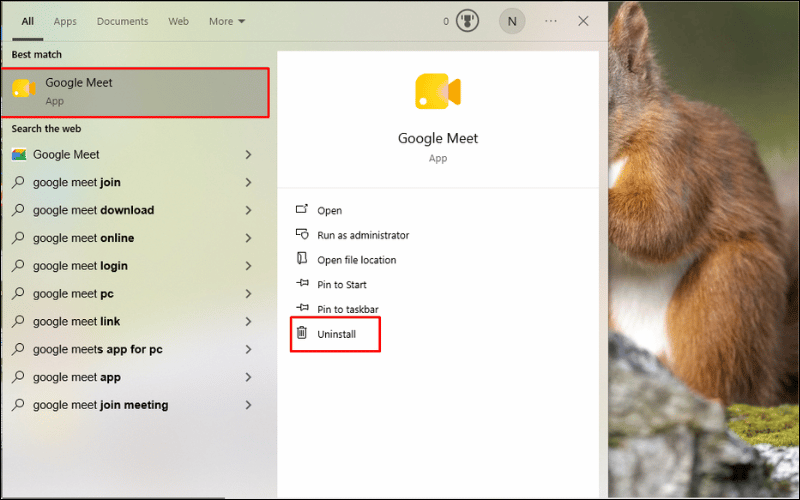
Remove the PWA through its app menu or Chrome's app-management page.
Tips for stable meetings
- Use a reliable connection; if Wi-Fi is unstable, move closer to the router or use Ethernet when available.
- Pause large downloads, cloud backups, and high-bandwidth streaming during the call.
- Close unnecessary tabs and apps on a resource-limited laptop.
- Share one browser tab instead of the entire screen when that is sufficient and more private.
- Review what is visible before presenting, including notifications and confidential windows.
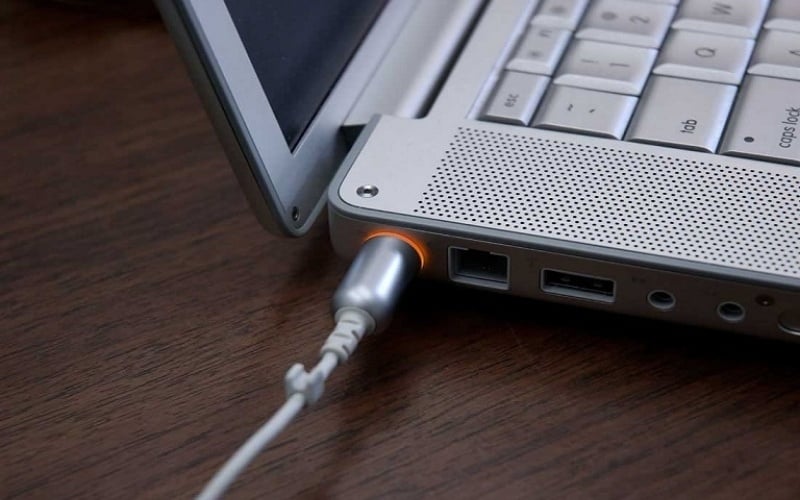
Power, connectivity, and device checks prevent many avoidable meeting interruptions.
Installing or uninstalling the PWA does not create or remove a Google account. It only adds or removes a local way to launch the Meet website.
Related Articles
 Link Download Google Meet: Free Online Meeting Application6 minutes read
 How to Download Where Winds Meet Mobile5 minutes read
 Instructions to Rename Google Meet on PC and Phone6 minutes read
 How to Use Filters on Google Meet3 minutes read
 How to Install Mac OS on Laptop Using USB6 minutes read
 How to Return or Livestream with Google Meet7 minutes read
Reader Comments 0
Sign in with email or Google to join the discussion.