Table of Contents
If you forgot the sign-in credential for a Windows laptop you own or administer, start with the recovery option for that account type. Check whether Windows is asking for a PIN or a password, then use Microsoft account recovery, local-account security questions, or an authorized administrator. Avoid third-party password-bypass tools: they can compromise the device and may make encrypted data harder to recover.
This guide applies to Windows 10 and Windows 11. A work or school laptop may be controlled by organizational policy, so contact its IT administrator instead of trying to bypass access controls.
Before resetting anything
- Check Caps Lock and Num Lock. A changed letter case or missing keypad digit is enough to make a correct password fail.
- Confirm the keyboard layout. Select the language indicator on the sign-in screen, especially if the password includes punctuation.
- Choose the right sign-in option. Select Sign-in options and distinguish a Windows Hello PIN from the Microsoft or local account password.
- Verify the account. On a multi-user PC, make sure the selected name or email address is yours.
- Restart once. This can clear a temporary input or sign-in problem without changing any data.

Check the lock-key indicators and selected keyboard layout before starting recovery.
Choose the recovery path that matches the account
| Sign-in type | Safest recovery option |
|---|---|
| Microsoft account | Reset the account password online, then reconnect the laptop to the internet. |
| Windows Hello PIN | Use I forgot my PIN, when offered, or sign in with the account password. |
| Local account | Answer the security questions or use a password reset disk created earlier. |
| Work or school account | Contact the organization's IT administrator. |
| Another authorized administrator is available | That administrator may reset a local account, with the data caveat below. |
Reset a Microsoft account password
If the sign-in screen shows your Microsoft email address, use Microsoft's password reset page on another connected device. You can also select I forgot my password on the Windows sign-in screen when that option is available.
- Enter the Microsoft account associated with the laptop.
- Choose an available verification method and request a code.
- Enter the code, create a new password, and keep the laptop connected to the internet while signing in with it.
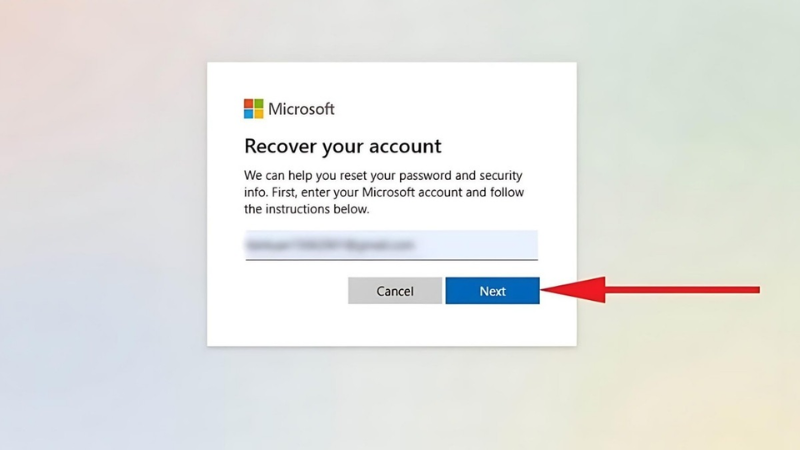
Start recovery with the Microsoft account linked to Windows.
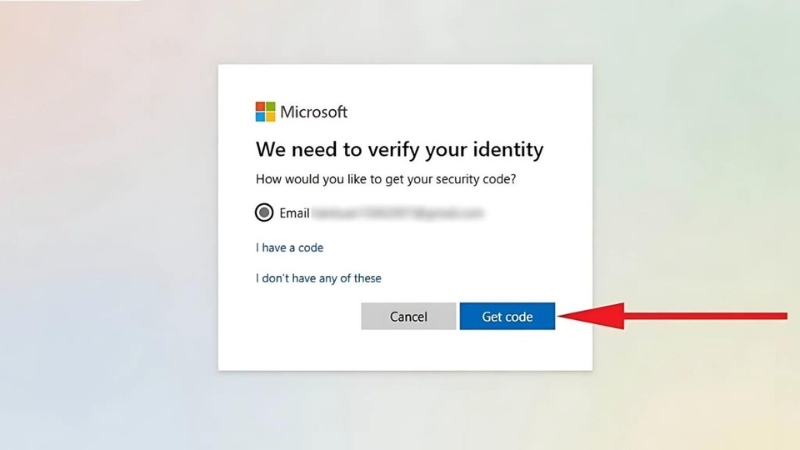
Use only a recovery email address or phone number you control.
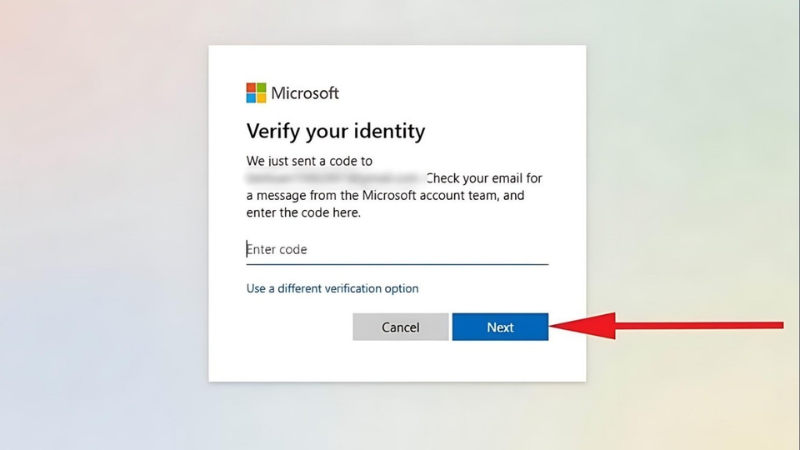
After verification, create a unique password and use it on the laptop.
If you remember the password but not the device PIN, Microsoft's Windows PIN recovery instructions explain when I forgot my PIN is available. A PIN belongs to that device; it is not the same as the Microsoft account password.
Use another authorized administrator for a local account
If the PC has another administrator account that you are authorized to use, sign in to it and open Control Panel > User Accounts > Manage another account. Select the local account and choose the password-change option.
Important: resetting another local account's password this way can affect access to encrypted files and stored credentials associated with that account. If the files matter and no backup exists, stop and get qualified support before changing the password.
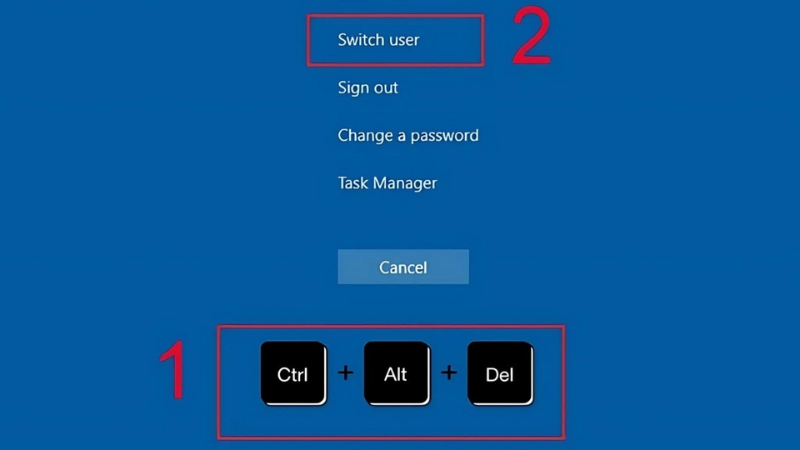
Sign in with a separate, authorized administrator account.
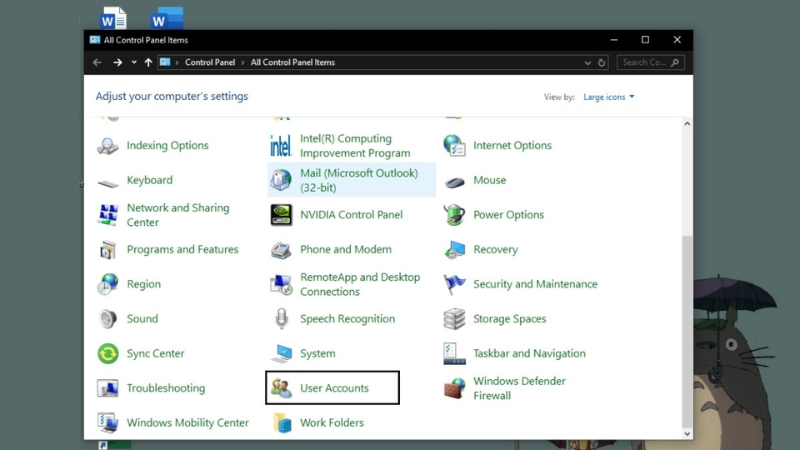
Open User Accounts and choose Manage another account.
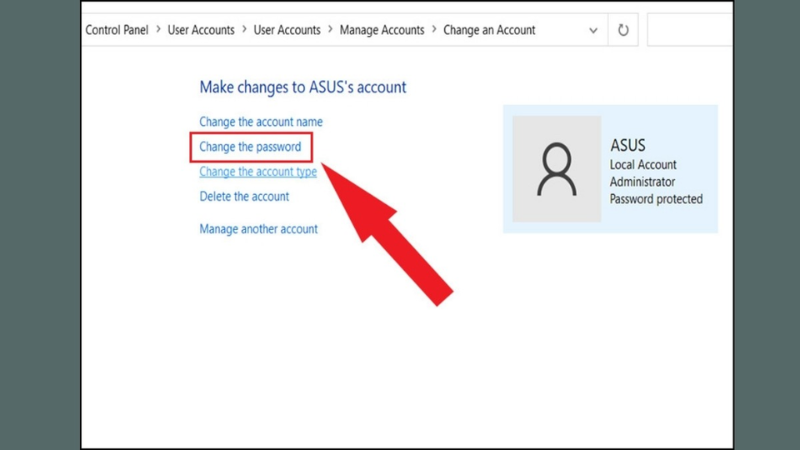
Select the affected local account only after considering encrypted data.
Reset a local account with security questions
On the password sign-in screen, enter an incorrect password once and select Reset password if it appears. Answer the security questions created for that account, enter a new password, and sign in. Microsoft's local-account password guidance also covers a password reset disk if one was prepared in advance.
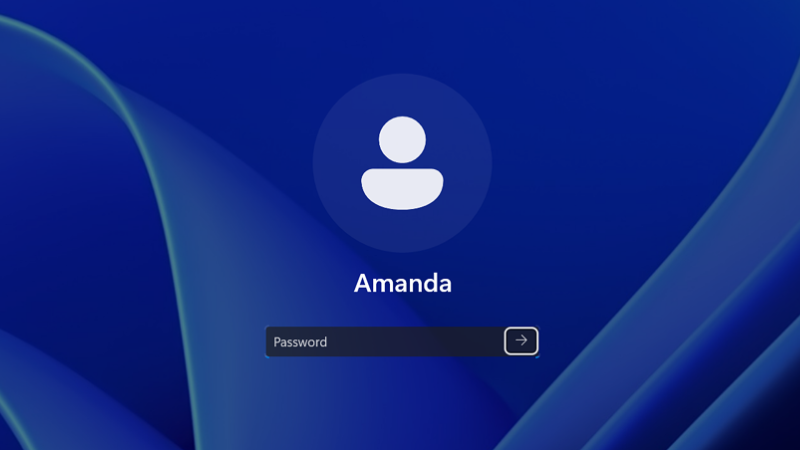
Select the local-account reset option on the Windows sign-in screen.
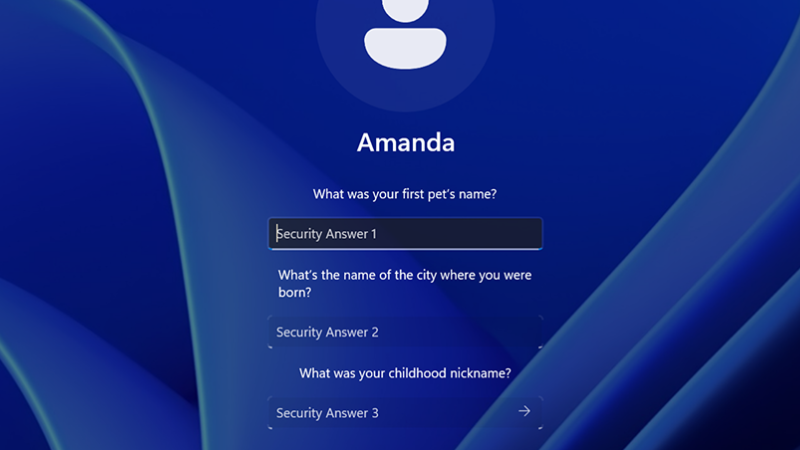
Answer the existing security questions to set a new local password.
If the normal recovery options are unavailable
Do not download an unknown bootable password-reset or password-cracking utility. Such tools may alter account data, introduce malware, or conflict with drive encryption. A USB flash drive is useful only if it is an official Windows recovery or installation medium, or a local-account password reset disk that was created for this account before the password was forgotten.
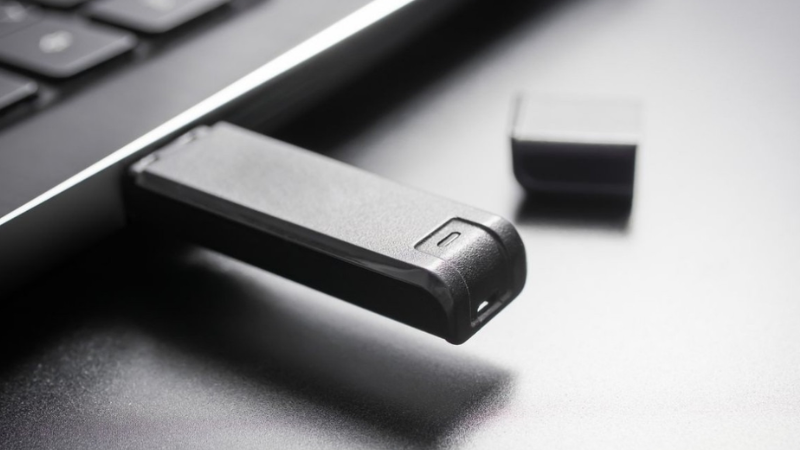
Avoid untrusted bootable password-reset tools; use official recovery media only.
For a personal device, Reset this PC is a last resort. The Keep my files option reinstalls Windows and retains personal files, but it removes installed apps and resets settings. It is not a substitute for a backup. If the drive is encrypted, Windows recovery may require the BitLocker key before it can continue.
Check for a BitLocker recovery key first
If Windows displays a BitLocker recovery screen or you plan to use recovery tools, find the key before proceeding. Microsoft explains how to locate it in a Microsoft account, work or school account, printout, or USB file. Match the key ID shown on the laptop to the stored key. If the device belongs to an organization, contact its IT team.
Stop before destructive recovery work when important files are not backed up or a BitLocker key is unavailable.
Prevent another lockout
- Store the account password in a reputable password manager and follow these secure-password practices.
- Keep the Microsoft account recovery email and phone number current.
- Set up Windows Hello fingerprint, face recognition, or a device PIN where supported; see the Windows Hello setup example.
- Back up personal files and verify that the BitLocker recovery key is accessible.
- If BitLocker uses a startup PIN, use the documented process to change the BitLocker PIN while you still have access.

Use a memorable but non-obvious PIN, and keep separate recovery methods up to date.
What to do next
Identify the sign-in type first, use its official recovery route, and preserve access to backups and encryption keys before attempting a reset. Reinstalling Windows is rarely the first step, and third-party bypass tools are not a safe substitute for account recovery.
Related Articles
 How to Open a Computer When Forgetting Password Windows 104 minutes read
 How to Unlock iPhone When Forgot Password2 minutes read
 What Should I Do If I Forget My Laptop Password? 4 Simple7 minutes read
 How to Unlock 3-digit Suitcase without Password5 minutes read
 Forgot Laptop Password How to Log in to Windows?6 minutes read
 Unlocking Excel Files When You Forget Your Password Is Super Simple Explained7 minutes read
Reader Comments 0
Sign in with email or Google to join the discussion.