Table of Contents
If you have deleted files, formatted a drive, or lost a partition, the most important action is to stop writing to the affected device. Recovery software can help with logical data loss, but it cannot repair physical damage and no program can guarantee that every file will be recoverable.
Before running data recovery software
- Check simple restore options first. Look in the Recycle Bin or Trash and check File History, Time Machine, cloud version history, and other backups.
- Stop downloads, installations, and file copies. New writes can reuse storage space that still contains deleted data.
- Do not install the recovery program on the affected drive. Install it on another internal disk or run it from an external device.
- Recover files to a different physical device. Restoring to the source can overwrite other recoverable files.
- Keep the original unchanged. If the files are important and you know how to create a sector-by-sector image safely, scan the image instead of repeatedly scanning the source.
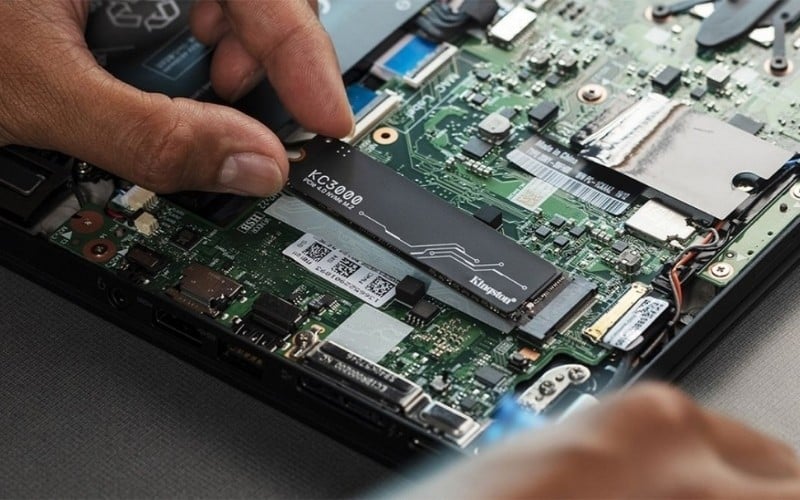
On an SSD, the operating system and controller may use TRIM to mark deleted blocks for cleanup. This can make deleted-file recovery less likely than on a conventional hard drive, but behavior varies by device, connection, operating system, and whether TRIM reached the drive.
Stop if the device may be physically damaged
- The hard drive clicks, grinds, repeatedly spins up and down, or becomes unusually hot.
- The device was dropped, exposed to liquid, or suffered an electrical problem.
- It repeatedly disconnects, reports the wrong capacity, or is not detected reliably.
- The data is irreplaceable and one unsuccessful attempt would be unacceptable.
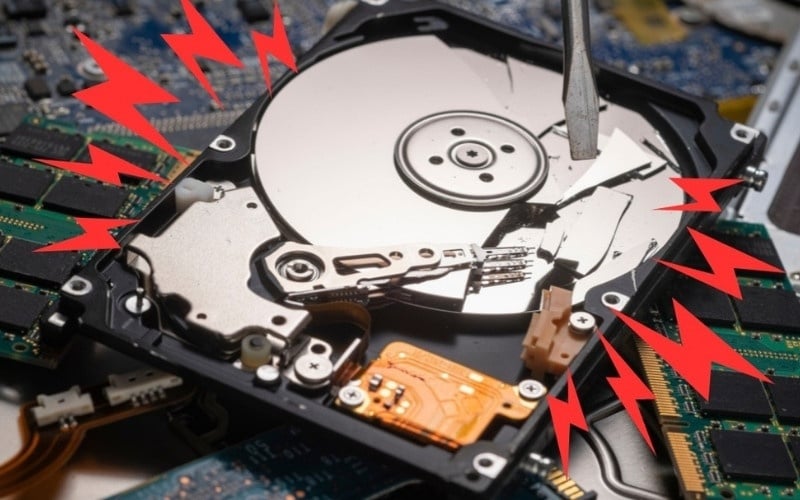
Software recovery repeatedly reads the device. With failing hardware, that activity can make the condition worse. Disconnect the drive and consult a reputable data recovery service if the files justify the cost.
How to choose a recovery tool
Start with the type of loss, the operating system, and the condition of the storage device. A polished interface does not automatically produce better results, and a “deep scan” label does not guarantee recovery.
- Recently deleted files: begin with a quick file-system scan.
- Formatted or damaged file system: use a tool that can scan the file system and search by file signature.
- Lost partition: consider a recovery tool that can identify lost volumes, but avoid writing a new partition table before copying the data.
- Photos from a memory card: a file carver such as PhotoRec can work even when directory information is missing.
- Critical drive: prioritize disk imaging, read-only access, and professional help over experimenting with several programs.
Useful comparison features include file preview, scan-session saving, disk-image support, filtering, file-system support, and a clear indicator of file condition. Confirm current operating-system compatibility and recovery limits on the developer's site before installing.
Quick comparison of 10 data recovery tools
| Tool | Platforms | Best fit | Free access |
|---|---|---|---|
| PhotoRec | Windows, macOS, Linux and other supported systems | File carving from formatted or damaged media | Free and open source |
| Recuva | Windows | Simple undelete tasks | Free and paid editions |
| Puran File Recovery | Windows | Lightweight scanning on compatible PCs | Free download; check license and compatibility |
| Wise Data Recovery | Windows; separate Mac version | Guided scans for common deleted files | Free tier with limits; paid edition |
| MiniTool Power Data Recovery | Windows | Guided recovery and lost-volume scans | Free edition with a recovery limit |
| Disk Drill | Windows, macOS | Preview, filtering, and disk-image workflows | Free scanning; recovery entitlement varies |
| EaseUS Data Recovery Wizard | Windows, macOS | Beginner-friendly guided recovery | Free edition with a recovery limit |
| Stellar Data Recovery | Windows, macOS | Guided recovery with several editions | Free/trial access; limits apply |
| Wondershare Recoverit | Windows, macOS | Guided recovery and preview | Free/trial access; limits apply |
| Ontrack EasyRecovery | Windows, macOS | Multiple recovery modes and paid tiers | Trial and paid editions |
Pricing, edition names, supported systems, and free-recovery allowances change. Treat the table as a selection guide and verify the current terms on each official page.
1. PhotoRec
PhotoRec is a free, open-source file carver distributed with TestDisk. Instead of depending only on directory records, it searches storage for recognizable file signatures. That makes it useful after formatting or file-system damage.
- Strengths: free, cross-platform, supports many file families, and can scan hard drives, USB drives, and memory cards.
- Trade-offs: recovered files may lose their original names and folder structure; the interface and device selection can be intimidating.
- Use it when: file-system records are unavailable or a free signature scan is appropriate.
2. Recuva
Recuva is a Windows undelete utility from the company behind CCleaner. Its wizard and filters make it approachable for files recently removed from a healthy drive or removable device.
- Strengths: simple workflow, free edition, quick and deeper scan options.
- Trade-offs: Windows only; serious file-system damage may require a different tool.
- Use it when: a file was recently deleted on Windows and the drive is otherwise working normally.
3. Puran File Recovery
Puran File Recovery offers quick, deep, and full scanning for drives visible to Windows. It is compact and its official page remains available, but the product has an older interface and users should confirm compatibility with their current Windows version.
- Strengths: lightweight and capable of scanning formatted or RAW volumes.
- Trade-offs: older product presentation and Windows-only workflow.
- Use it when: you need a small Windows utility and have verified that it supports your system.
4. Wise Data Recovery
Wise Data Recovery provides a guided interface for searching internal drives and removable media. The developer offers Windows software and a separate Mac version.
- Strengths: simple filtering and an accessible workflow for ordinary deleted files.
- Trade-offs: free recovery is limited, and complex damage may require other approaches.
- Use it when: you want to preview a common deleted file with minimal setup.
5. MiniTool Power Data Recovery
MiniTool Power Data Recovery is a Windows application for deleted files, formatted volumes, removable media, and lost partitions. It provides a visual scan workflow and a limited free edition.
- Strengths: clear source selection, preview and filtering, several logical-loss scenarios.
- Trade-offs: Windows only, and recovery beyond the free allowance requires a license.
- Use it when: you want a guided Windows scan that covers more than a basic undelete.
6. Disk Drill
Disk Drill is available for Windows and macOS. It can scan storage devices, preview recoverable files, and work with disk images. Recovery rights in the free edition differ by platform and version, so check the current license before relying on it.
- Strengths: modern interface, previews, filtering, session management, and image support.
- Trade-offs: unrestricted recovery generally requires a paid license.
- Use it when: you want a visual cross-platform workflow and need to inspect results before purchase.
7. EaseUS Data Recovery Wizard
EaseUS Data Recovery Wizard offers guided recovery on Windows and macOS for deleted files, formatting, and lost partitions. The free edition has a recovery allowance; verify the current amount and any conditions on the official page.
- Strengths: beginner-friendly navigation, preview, and support for common storage devices.
- Trade-offs: larger recoveries require a paid plan.
- Use it when: you want a guided scan and the preview confirms that the needed files are present.
8. Stellar Data Recovery
Stellar Data Recovery provides Windows and macOS editions for common logical-loss scenarios. The product line contains multiple editions, so compare the features required for your device and file type rather than choosing by name alone.
- Strengths: visual workflow, file preview, and separate options for different recovery needs.
- Trade-offs: features and recovery allowances depend on the edition.
- Use it when: you prefer a guided application and can identify the edition that covers your case.
9. Wondershare Recoverit
Wondershare Recoverit is a Windows and macOS recovery application with a guided interface, file filtering, and preview. It also markets specialized video-recovery functions, but results still depend on the condition and remaining data on the storage device.
- Strengths: accessible interface and support for common internal and removable media.
- Trade-offs: meaningful recovery generally requires a paid license; no feature can guarantee an intact file.
- Use it when: its scan can preview the specific files you need and the license fits the recovery size.
10. Ontrack EasyRecovery
Ontrack EasyRecovery offers Windows and macOS software for deletion, reformatting, and other logical-loss scenarios. Ontrack also operates professional recovery services, but buying the software is not the same as sending a damaged device to a lab.
- Strengths: several scan modes and editions for different users.
- Trade-offs: advanced editions can be expensive, and physical damage still requires specialist equipment.
- Use it when: the storage device is healthy enough to read and the selected edition supports the required recovery.
Which tool fits each situation?
| Situation | Reasonable starting point | Important caution |
|---|---|---|
| Recently deleted Windows file | Recycle Bin or backup, then Recuva or Wise | Do not install the tool on the affected drive |
| Formatted memory card | PhotoRec for free file carving; a visual tool when previews matter | Carving may lose names and folders |
| Formatted drive or lost volume | MiniTool, Disk Drill, EaseUS, Stellar, Recoverit, or EasyRecovery | Do not initialize or repartition the source first |
| macOS logical data loss | PhotoRec, Disk Drill, EaseUS, Stellar, Recoverit, or EasyRecovery | Confirm current macOS and Apple-silicon support |
| Deleted files on an SSD | Stop using the SSD and check backups before scanning | TRIM and garbage collection may make recovery impossible |
| Clicking or unstable device | Professional recovery service | Repeated scans or power cycles may worsen damage |

For a separate walkthrough of scanning and saving results to another drive, see this step-by-step data recovery guide. Be aware that older screenshots and product versions may differ from current software.
A safe recovery workflow
- Disconnect the affected device until another destination drive is ready.
- Use a different computer or physical drive to download and install the recovery tool.
- If the source is stable and the data is important, create a disk image before extensive scanning.
- Run the least intensive appropriate scan first, then a deeper scan only if necessary.
- Preview important files where possible; a filename alone does not prove that the contents are intact.
- Recover selected files to another physical device.
- Open and validate the copies before formatting, repairing, or reusing the source.
If a partition is missing, avoid making changes with a partition manager until the data is copied. The Windows partition-management overview is useful after recovery, but partition edits are not a safe first response to unexplained data loss.
When professional recovery is the safer choice
Use a laboratory or experienced recovery specialist when the drive shows physical symptoms, important data has no backup, an encrypted device has a controller or firmware problem, or the first read attempt is unstable. Ask how the provider handles privacy, diagnostic fees, return shipping, and charges when recovery is unsuccessful.
Prevent the next recovery emergency
Recovery software is a last resort, not a backup strategy. Keep multiple copies of important files, with at least one copy on a separate device or service. Test that backups can be restored and monitor drives for errors. These computer backup tools can help you build a routine, but verify that any older product in the list still receives updates before adopting it.
Related Articles
 Top 5 Data Recovery Software, Computer Data Rescue, Hard10 minutes read
 SSD Hard Drive: Recover Lost Data on SSD7 minutes read
 Effective Data Recovery Software on Computers16 minutes read
 How to Deal with Potential Data Loss: Step-by-Step Guide6 minutes read
 Create Recovery Recovery Hard Drive for Windows 107 minutes read
 Paragon Reduced the Price of Computer Data Protection Software4 minutes read
Reader Comments 0
Sign in with email or Google to join the discussion.