Table of Contents
Canva provides editable mind-map templates, while Magic Write can help draft the short ideas that go into each branch. The most reliable workflow is to plan the hierarchy first, use AI only for a concise outline, and then place and verify the content manually.
The location and name of Magic Write controls can vary as Canva updates its editor. If the feature is not available in your account, skip to the manual method below. You can also review other AI tools in Canva before deciding which parts of the design process to automate.
Create a mind map with a template and Magic Write
1. Find a mind-map template
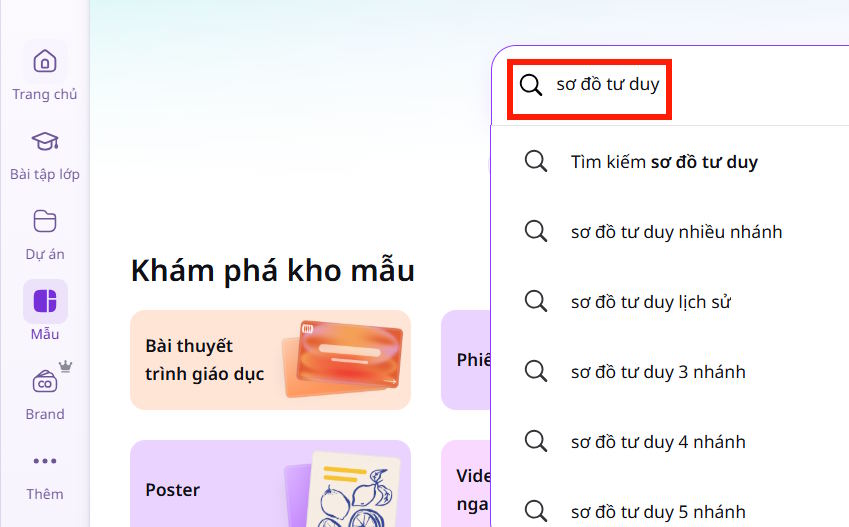
Open Canva and search the template library for mind map. Use the available filters to narrow the results, then choose a layout with enough branches for your topic. A clean template is easier to adapt than a visually crowded one.
2. Open the template in the editor
Select a template to preview it, then choose Customize this template. Before changing its appearance, identify the central topic, primary branches, and any supporting points so you know which text boxes are needed.

3. Ask Magic Write for an outline
Select a text box in the template and open Magic Write from the available writing controls.
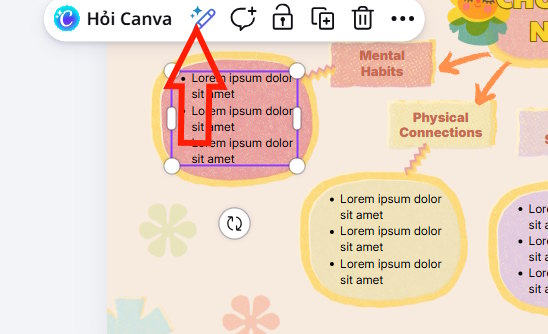
Choose Transform text or the equivalent prompt option in your editor.
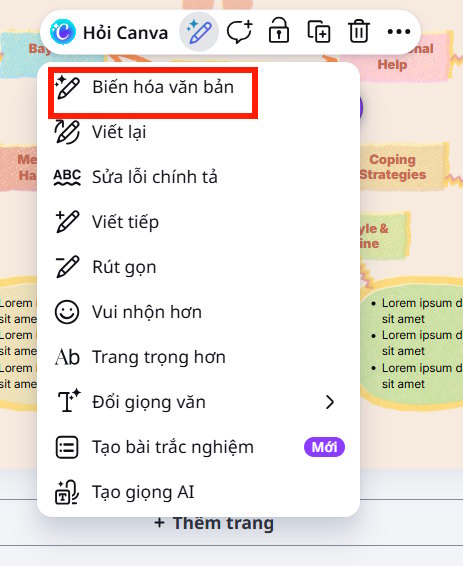
Write a prompt that specifies the topic, audience, language, number of main branches, and desired length. For example:
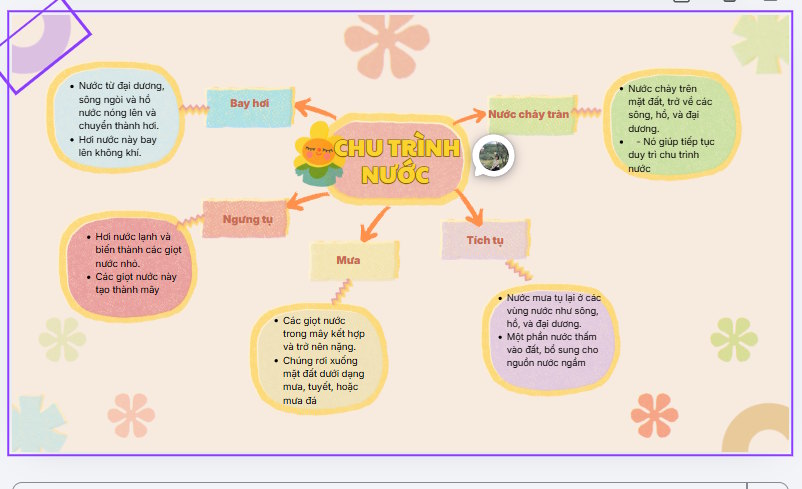
Write content for a mind map about the water cycle for fourth-grade students. Use five main branches and concise points in simple English.Copy the useful parts of the generated outline, but verify the information before adding it to the diagram. Magic Write may produce points that overlap, sit at the wrong level, or do not match the intended audience.

4. Place the outline into the branches
Paste one main idea into each primary branch, then add supporting details to its child branches. Short phrases work better than paragraphs. Adjust the text boxes and branch spacing as you go instead of forcing long text into the original layout.
Review the finished hierarchy, correct any generated wording, add only graphics that clarify the subject, and download the mind map when it is complete.
Create a Canva mind map manually
1. Start a mind-map design
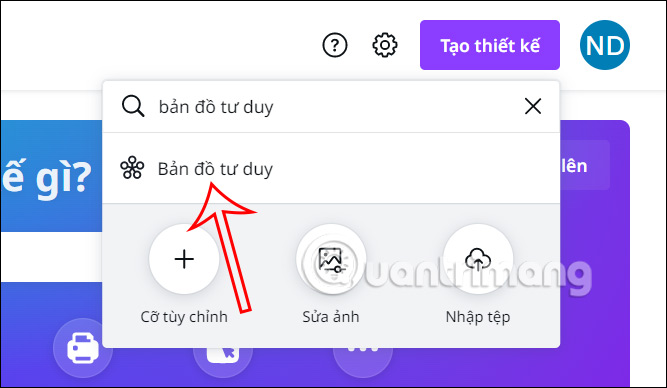
Sign in to Canva, select Create a design, and search for Mind Map. You can also begin from the main template search if that path is more visible in your version of Canva.
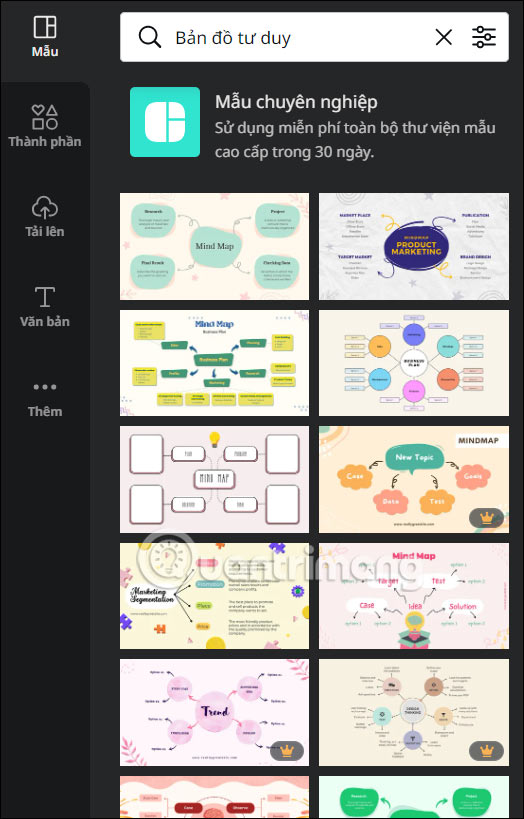
2. Choose an appropriate layout
Compare the available templates and select one that fits the amount of information you have. Templates marked as premium may require a paid plan; choose an unmarked option if you want to stay within free assets.
3. Replace the sample content
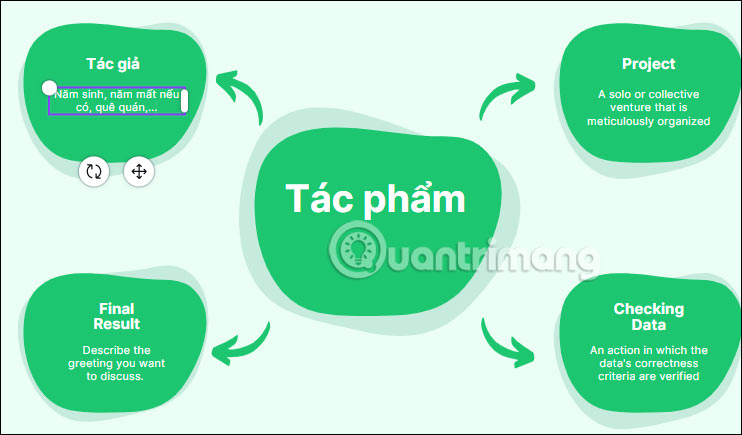
Change the central text to the main topic. Work outward, replacing each branch with a distinct subtopic and each smaller branch with a supporting point. Keep labels parallel—for example, use nouns for all main branches instead of mixing questions, sentences, and single words.
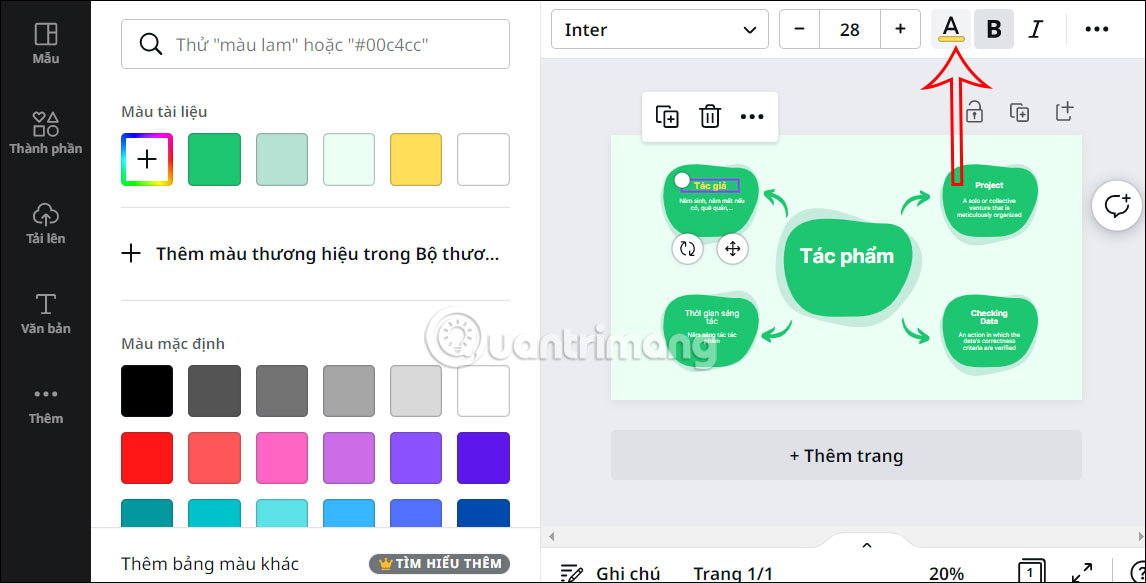
Select a text box to adjust its font, size, and color. Use a readable typeface and make the central topic and main branches visually stronger than supporting details.
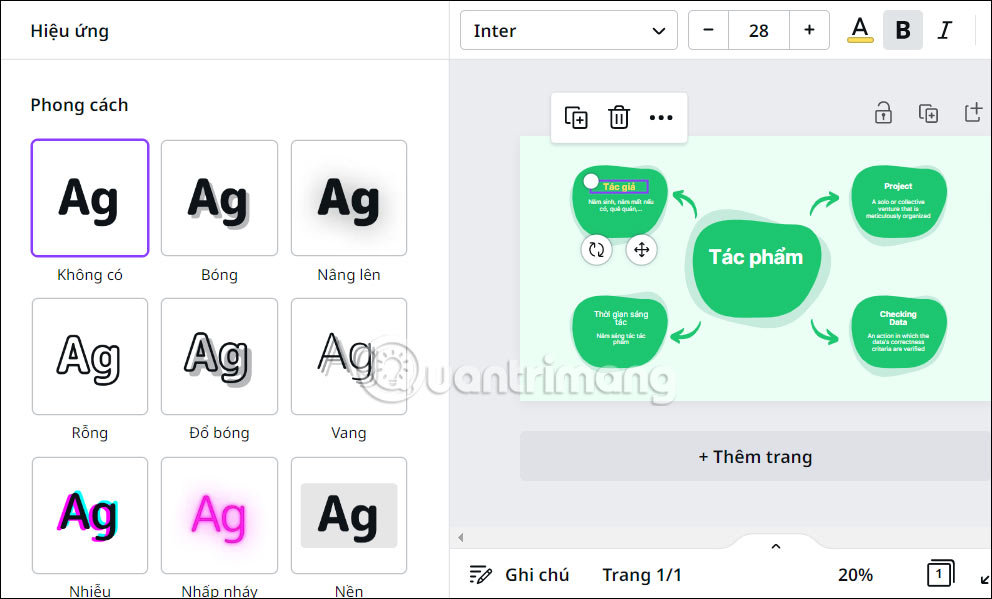
4. Use text effects sparingly
Open Effects if a heading needs extra emphasis. Avoid applying decorative effects to every branch; a mind map should remain easy to scan.
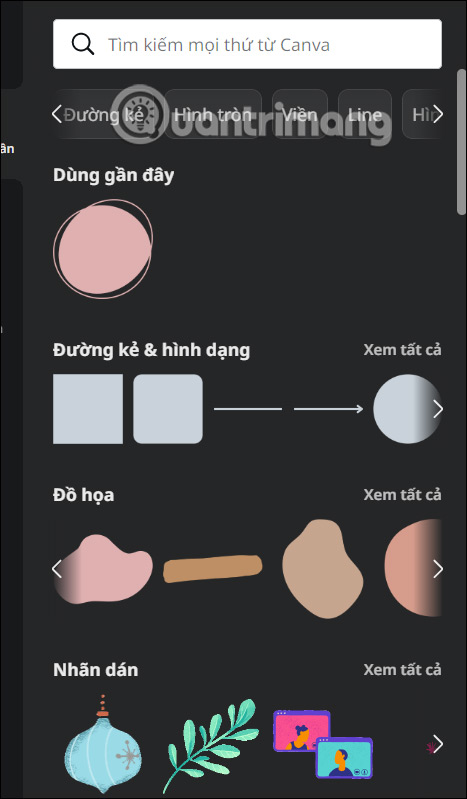
5. Add or replace shapes
Open Elements—called Components in some translations—to find lines, connectors, icons, and shapes. Duplicate an existing branch when possible so spacing and formatting stay consistent.
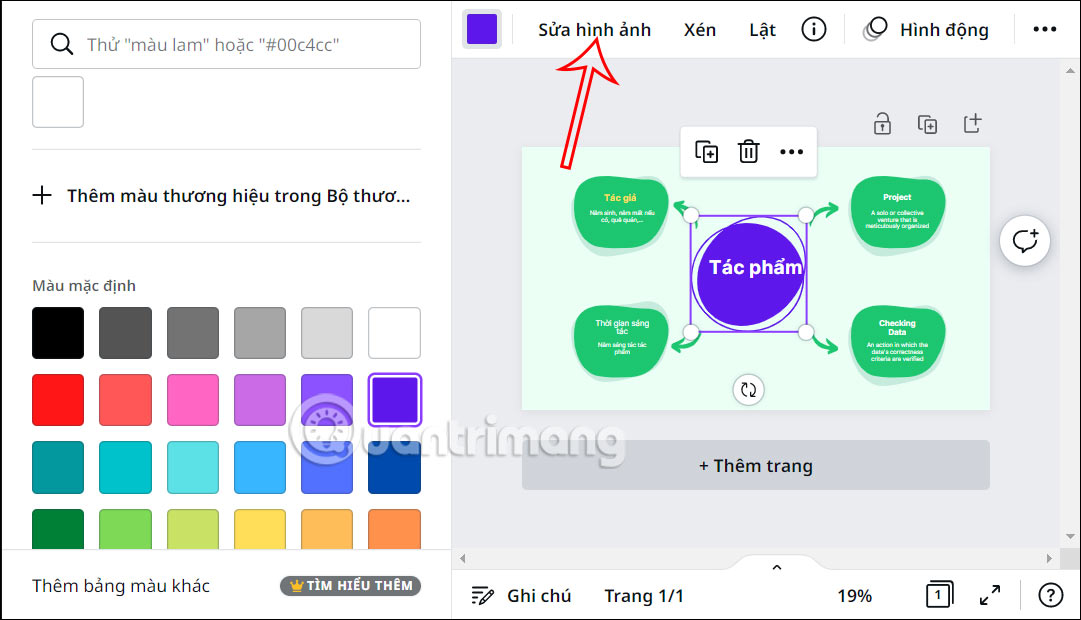
Select a new element to change its color and size, then align it with the related branch. If you need a coordinated scheme, see how to choose colors with online color palette generators.
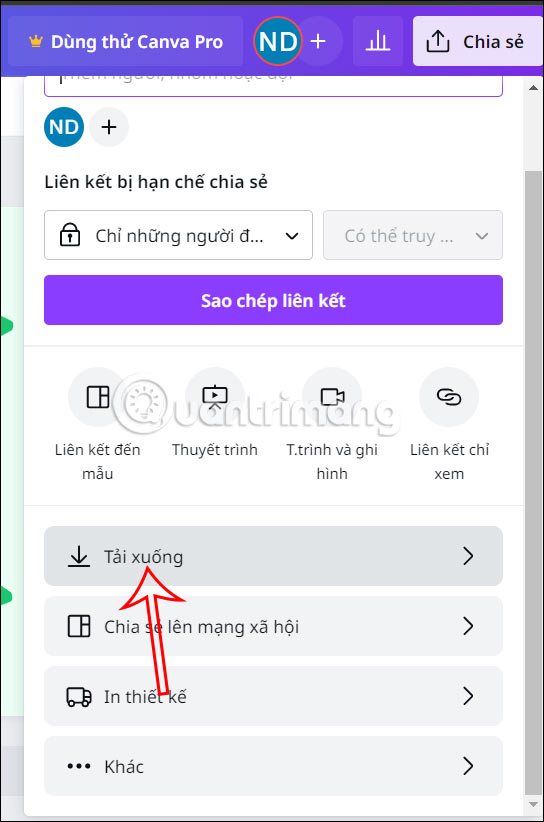
6. Review and download
Check that every branch connects to the correct parent, no labels are clipped, colors have sufficient contrast, and the text remains readable at the intended output size. Select Share, then Download, and choose a suitable file format.
Make the mind map easier to understand
- Use one central question or topic rather than two competing ideas.
- Keep each primary branch distinct and remove repeated subpoints.
- Prefer keywords and short phrases over full paragraphs.
- Use color to group related branches, not as decoration alone.
- Verify AI-generated facts and rewrite them for the intended reader.
Related Articles
 How to Make Mind Maps on Canva4 minutes read
 Best AI Tools for Creating Mind Maps7 minutes read
 How to Create Mind Maps Using AI4 minutes read
 How to Create Mind Maps in NotebookLM3 minutes read
 How to Create Mind Maps for Lessons Using Gemini5 minutes read
 The Best Thinking Mapping Software Today9 minutes read
Reader Comments 0
Sign in with email or Google to join the discussion.