Table of Contents
The best connection method depends on what you want to do. Use a USB cable for a large local transfer, Quick Share for convenient Android-to-Windows file sharing, Phone Link for notifications and everyday device integration, and a trusted cloud service when the devices are not nearby. For an iPhone connected to Windows, Apple Devices and the Windows Photos app handle most cable-based tasks.
| Goal | Best starting method | What to know |
|---|---|---|
| Move many files quickly | USB data cable | Usually the most stable option; the cable must support data, not charging only. |
| Send files wirelessly from Android | Quick Share | Works locally between compatible Android and Windows devices. |
| View messages, calls, and notifications on Windows | Phone Link | Available for Android and iPhone, but supported features vary by phone. |
| Import iPhone photos | USB + Windows Photos | Unlock the iPhone and approve the computer when prompted. |
| Access the same files on several devices | Cloud storage | Requires an account and usually an internet connection. |
Connect an Android phone with a USB cable
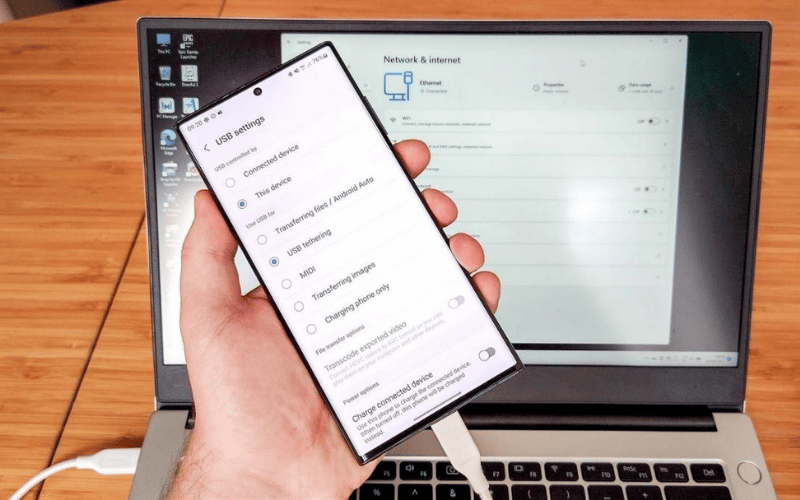
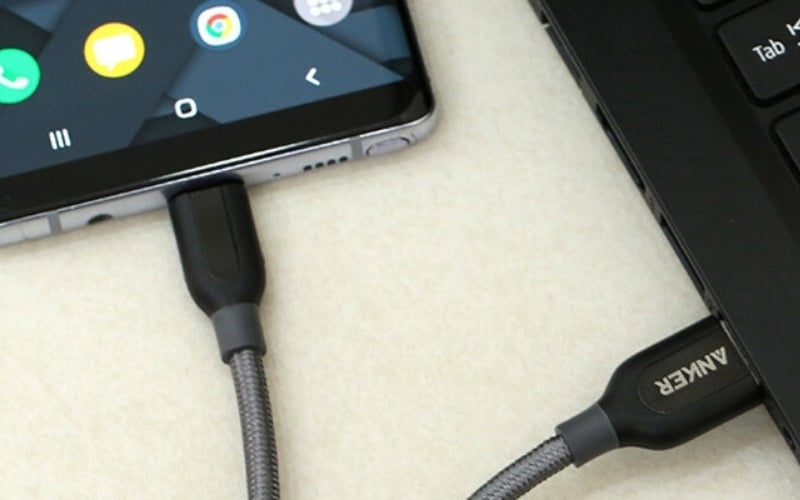
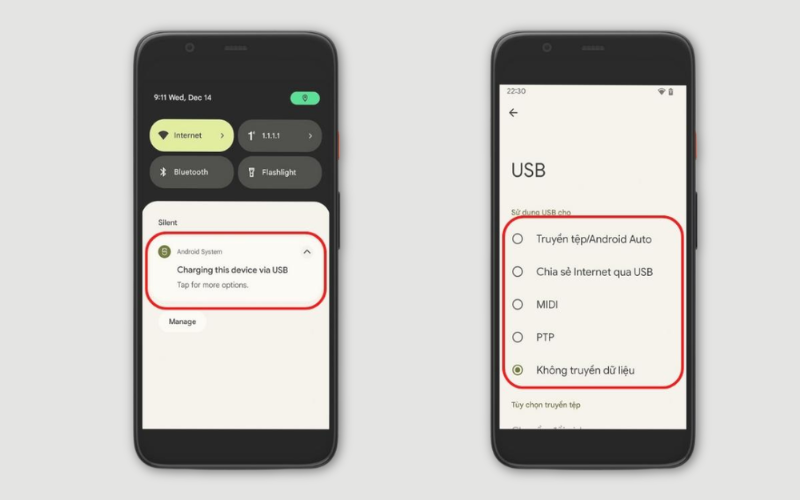
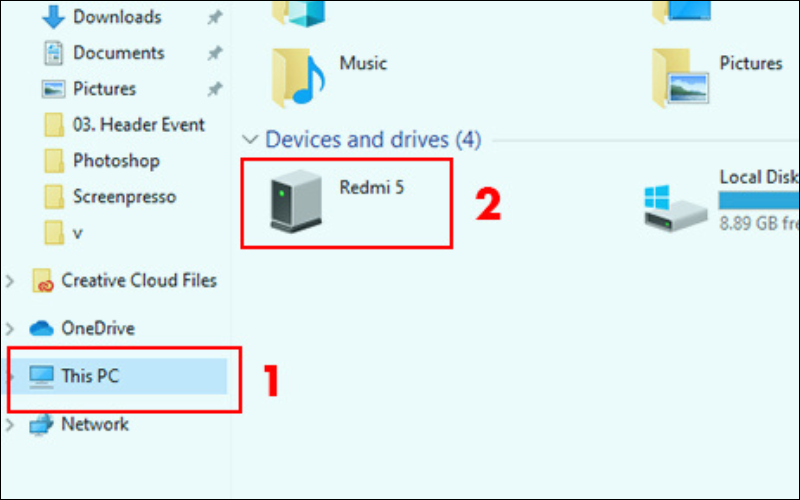
A wired connection is the simplest choice for copying large photo, video, or document folders. First, use a known-good USB data cable and unlock the phone. After connecting it to the laptop, open the Android USB notification—often labeled Charging this device via USB—and select File transfer or File Transfer/Android Auto. Windows should then show the phone in File Explorer.
- Unlock the Android phone and connect it to the laptop.
- Tap the USB notification on the phone.
- Under Use USB for, choose File transfer.
- Open File Explorer in Windows, select the phone, and browse its internal storage or SD card.
- Copy files to the laptop, verify that they open correctly, and eject or disconnect the phone when finished.
Google's official USB transfer instructions use the same sequence. Folder names vary by phone, but camera photos are usually under DCIM. Downloads are commonly in Download, while app-created media may be stored in app-specific folders.
Transfer Android files wirelessly with Quick Share
Quick Share is a good alternative when you do not want to connect a cable. Install Google's Quick Share app on the Windows laptop, sign in if required, and set the computer's visibility. On Android, select one or more files, tap Share, choose Quick Share, and select the laptop.
Confirm that the device name and any displayed PIN match before accepting a transfer. The devices should have Bluetooth and Wi-Fi enabled and be close to each other. Google's Quick Share instructions for Windows include current system requirements and visibility controls.
Use Phone Link for calls, messages, and ongoing access
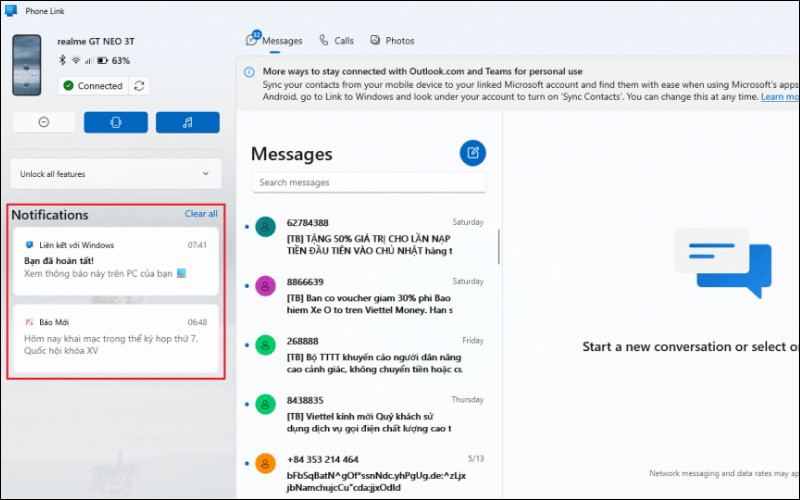
Microsoft Phone Link is designed for everyday integration rather than one-time bulk backup. Depending on the phone, it can surface messages, calls, notifications, recent photos, or other device features in Windows. It supports both Android and iPhone, although the exact feature set differs by device and operating-system version.
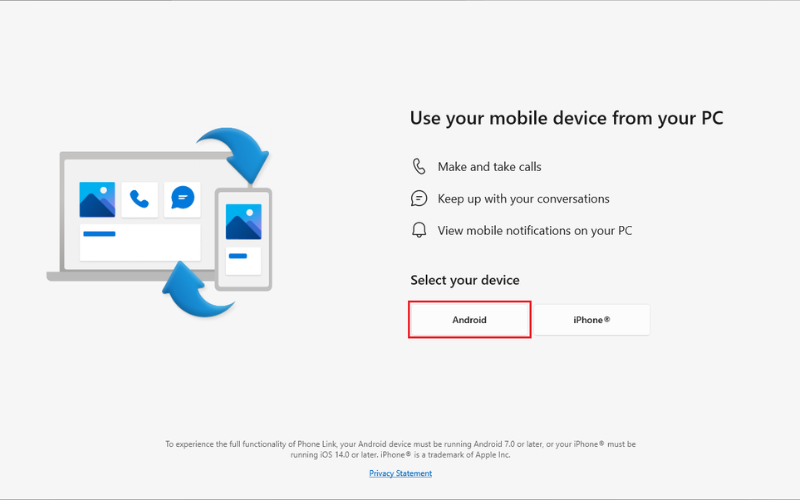
- Open Phone Link on the Windows laptop.
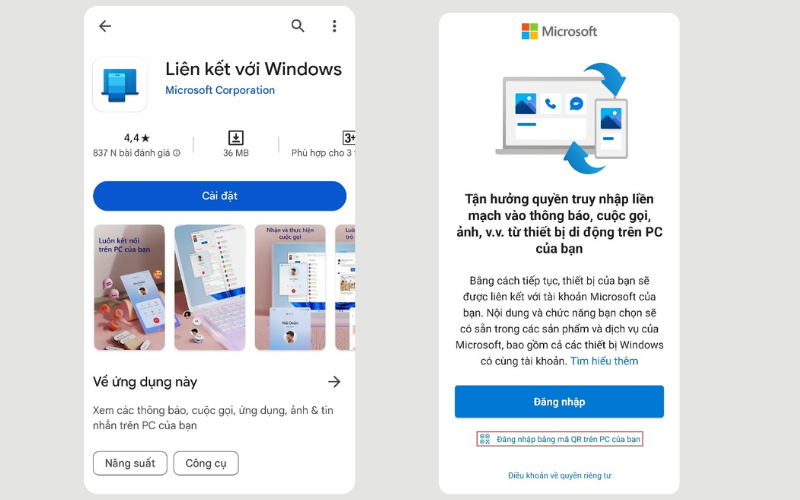
- Select Android or iPhone and follow the on-screen sign-in or pairing instructions.
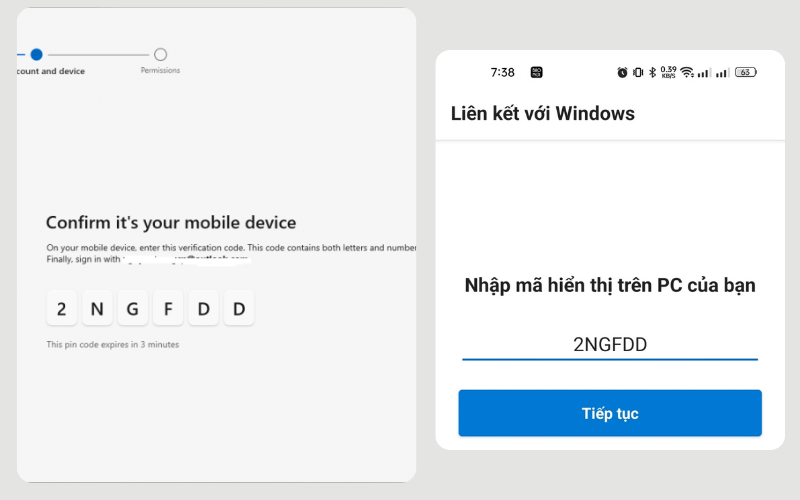
- On Android, install or open Link to Windows if prompted. Scan the QR code and approve only the permissions needed for the features you plan to use.
- On iPhone, follow the Bluetooth pairing flow shown by Phone Link.
- After setup, review notification and privacy permissions on both devices.
Microsoft maintains the current Phone Link setup requirements. If your main goal is moving a large folder, USB or Quick Share is normally more direct. For other cross-device options, see TipsMake's guide to apps that keep a phone and computer connected.
Send a small file over Bluetooth
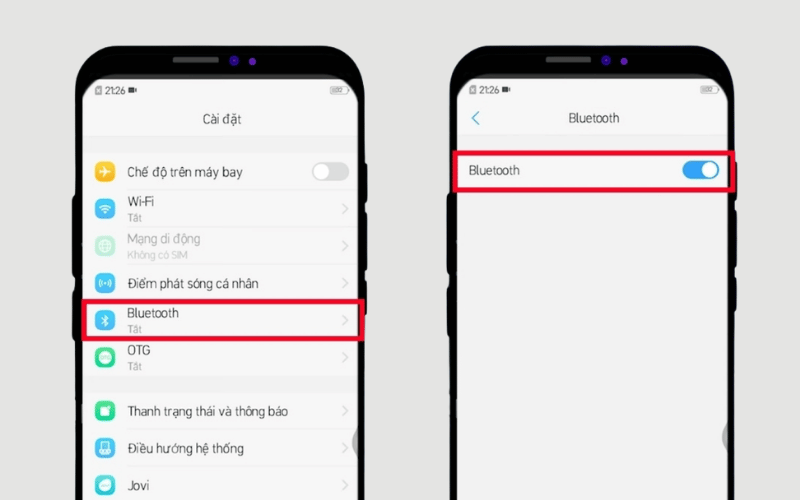
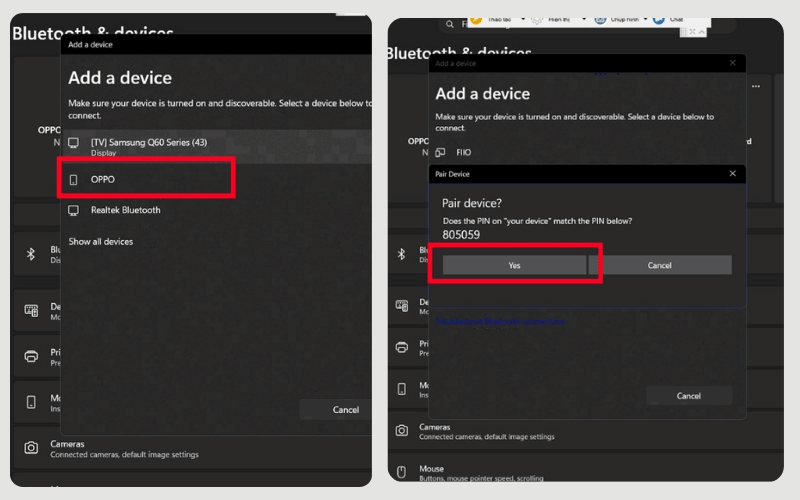
Bluetooth is widely available, but it is slower than USB or local Wi-Fi sharing. It is most useful for a few small files when no cable or other transfer app is available.
- Turn on Bluetooth on both devices.
- In Windows, open Settings > Bluetooth & devices, add the phone, and confirm that the pairing codes match.
- In Windows, search for and open Send or receive files via Bluetooth.
- Choose whether the laptop will send or receive, then start the corresponding share action on the phone.
Remove an unfamiliar or no-longer-used pairing after the transfer, especially on a shared laptop.
Connect an iPhone to a Windows laptop by cable
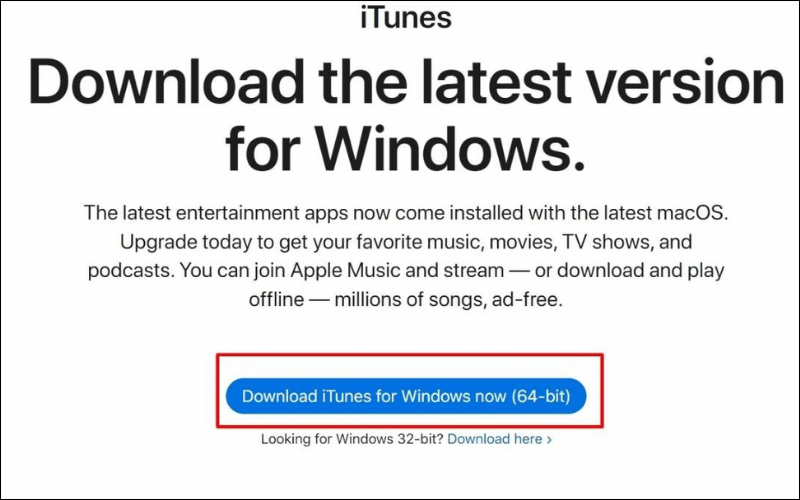
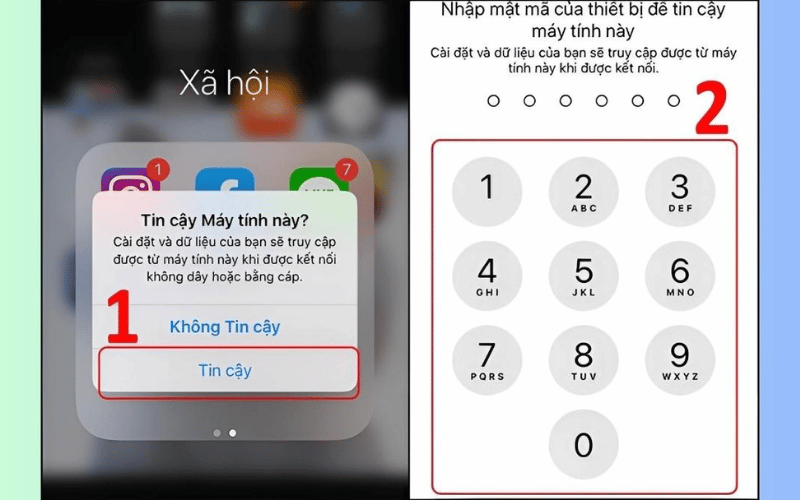
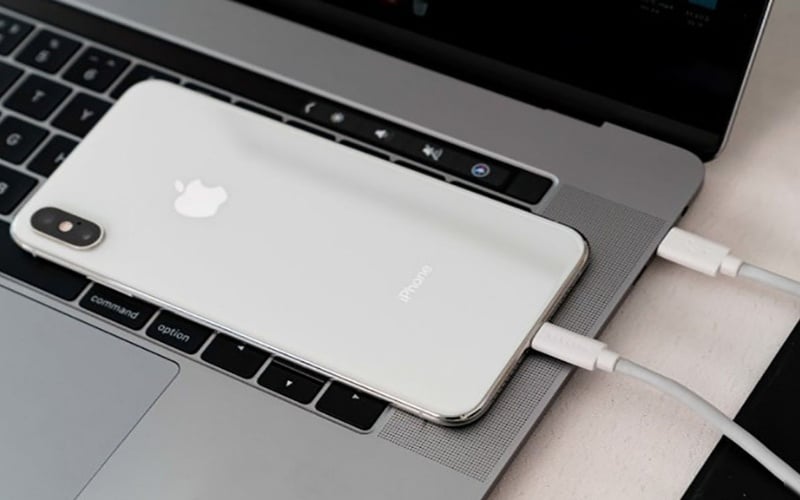
For current Windows systems, Apple's main device-management app is Apple Devices. Install it from the Microsoft Store, connect the iPhone with a data-capable cable, unlock the iPhone, and select Trust or Allow only if you recognize and control the laptop. Apple's Windows connection guide covers the current setup.
To import photos and videos, open the Windows Photos app and choose its import option after the iPhone is recognized. If iCloud Photos is enabled, some full-resolution originals may need to download to the iPhone before a cable import can copy them.
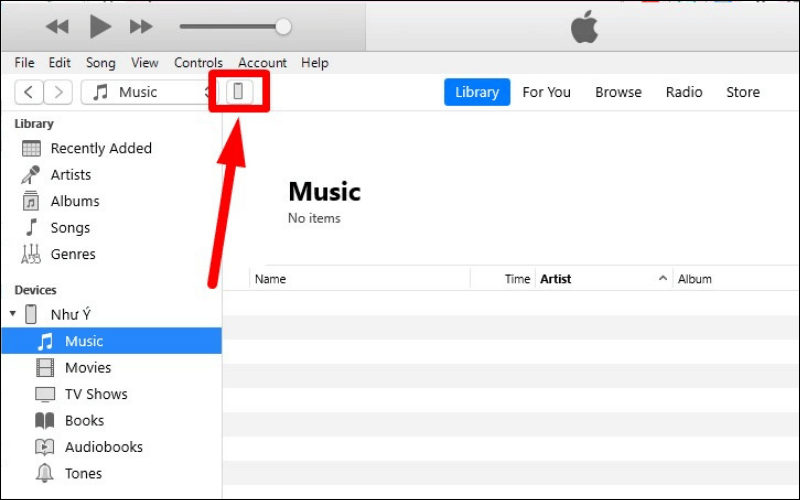
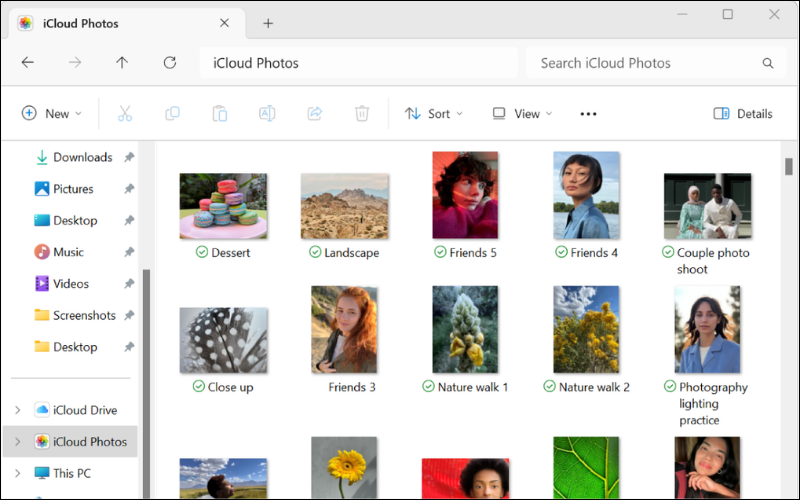
Windows does not expose the entire iPhone file system like a removable USB drive. The Apple Devices app can share documents only with apps that support File Sharing. Apple's File Sharing documentation explains this app-by-app model. Use Windows Photos for camera media, Apple Devices for supported app documents, or iCloud Drive for files stored in the cloud.
Use cloud storage when the devices are not together
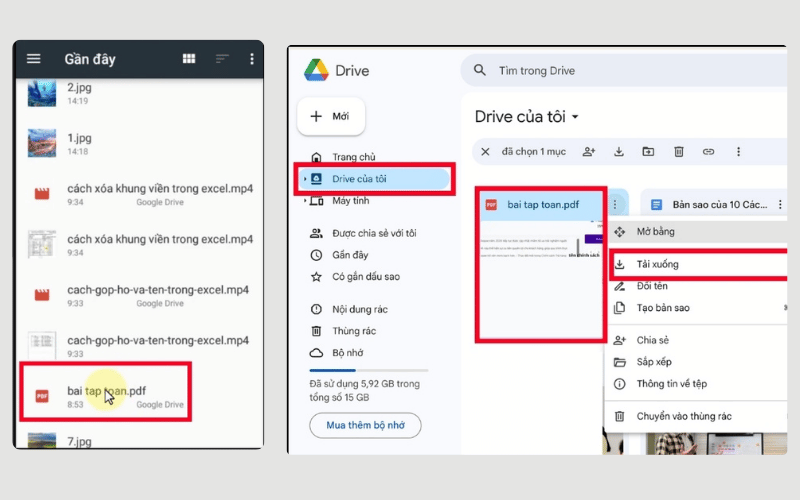
OneDrive, Google Drive, iCloud Drive, and similar services can keep selected files available on both devices. Upload from the phone, wait for synchronization to finish, then open the same account on the laptop. This is convenient, but it may consume mobile data and cloud-storage capacity.
- Use a unique password and enable multi-factor authentication.
- Do not upload sensitive files to a service you do not trust.
- Distinguish synchronization from backup: deleting a synced file on one device may delete it elsewhere.
- Wait for the upload to complete before disconnecting or deleting the phone copy.
If you prefer a dedicated local-transfer utility, TipsMake also compares apps for sharing Android data with a computer. Check that a listed app is still maintained before installing an older recommendation.
What to do when the laptop does not detect the phone
- Unlock the phone. Both Android and iPhone may hide data while locked.
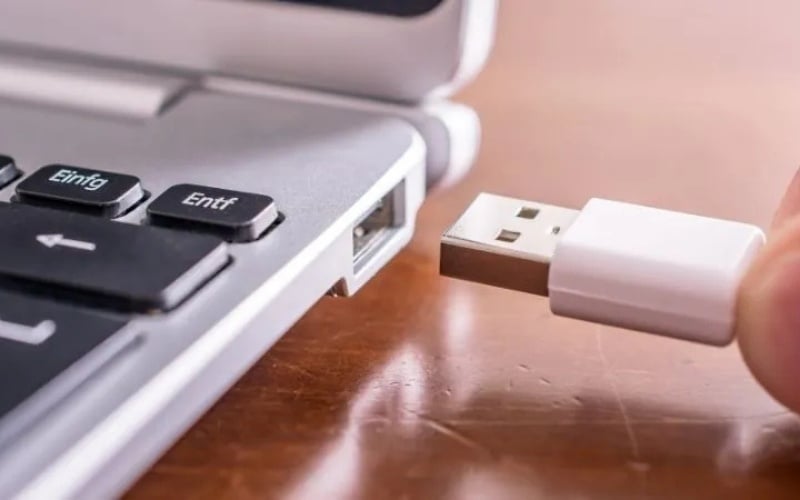
- Try another data cable and USB port. Charging proves that power works, not that the data wires work.
- Change the Android USB mode. Reopen the USB notification and select File transfer.
- Approve the connection. Accept the appropriate Trust, Allow, pairing, or permission prompt only on a known laptop.
- Restart both devices. This can clear a stalled USB, Bluetooth, or companion-app session.
- Update the relevant apps and operating systems. Update Phone Link, Link to Windows, Quick Share, Apple Devices, and device software through their official stores or settings.
- Check wireless conditions. For Quick Share or Phone Link, enable the required Wi-Fi and Bluetooth settings, bring the devices closer, and temporarily rule out restrictive VPN or firewall settings.
- Reconnect carefully. Remove an old Bluetooth pairing or Phone Link association, then pair the devices again and verify every displayed code.
Protect your files during transfer
Treat a transfer as a copy until you have verified the result. Open several photos, videos, or documents on the laptop and compare the expected folder size or file count before deleting anything from the phone. Keep a second backup of irreplaceable data.
Avoid trusting public computers, leaving the phone unlocked unattended, or approving a pairing request you did not initiate. When using a borrowed laptop, sign out of cloud accounts, remove downloaded copies, revoke device trust where appropriate, and delete the Bluetooth or Phone Link association when finished.
Related Articles
 How to Connect Bluetooth Headphones to Your Phone, Laptop, or PC8 minutes read
 8 Ways to Connect Laptop Computer to TV22 minutes read
 How to Connect Laptop to TV? 5 Ways to Connect the TV to Laptop6 minutes read
 Tips to Fix the Phone Not Connecting to the Computer, Laptop5 minutes read
 How to Download Videos from YouTube to Your Phone Quickly4 minutes read
 How to Quickly Connect Bluetooth Headphones to a Laptop9 minutes read
Reader Comments 0
Sign in with email or Google to join the discussion.