Table of Contents
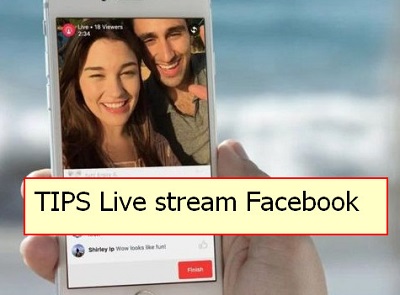
A successful Facebook Live needs more than a camera and a Go Live button. Decide what viewers will get, test the picture and sound, prepare a simple running order, assign someone to watch comments, and tell the audience what is happening as soon as the broadcast begins.
1. Define one useful outcome
Write a one-sentence promise for the broadcast: “By the end, viewers will know…”. Use that sentence to choose the title, opening, demonstrations, and closing action. A product demo, question-and-answer session, event report, game stream, and training session need different structures.
Avoid vague titles such as “We’re live!” A better title identifies the subject and reason to watch, such as “How to replace a laptop SSD: live installation and questions.” Do not promise prizes, results, or product performance you cannot deliver.
2. Confirm access before announcing a date
Facebook currently applies Live eligibility requirements, including account age and follower conditions for Pages or professional-mode profiles. Page access and group permissions also matter. Open the destination and check that the Live option is available before promoting the session.
TipsMake's step-by-step Facebook Live guide covers mobile, webcam, and OBS workflows, along with the current eligibility checks.
3. Prepare a short run of show
You do not need a word-for-word script, but you should know what comes next. A practical outline is:
- Opening: identify the topic immediately and confirm that viewers can hear you.
- Context: explain who the session is for and what it will cover.
- Main segments: list demonstrations, questions, guests, or talking points in order.
- Recap: restate the important decision or result without repeating the whole stream.
- Next action: tell viewers where to find the resource, replay, product details, or next event.
Place names, URLs, prices, product codes, and other error-prone details in notes. If another person is producing the stream, agree on signals for changing scenes, wrapping up, or handling a technical problem.
4. Treat audio as the priority
- Use an external microphone when possible and position it close enough to the speaker.
- Wear headphones when a remote guest, video, or computer speaker could create echo.
- Turn off fans, televisions, notification sounds, and other controllable noise.
- Speak at the expected loudest level during the test and make sure the meter does not repeatedly clip.
- Record a sample and listen to it through ordinary phone speakers as well as headphones.
Viewers may tolerate an imperfect picture, but speech that is too quiet, distorted, or echoing makes a stream difficult to follow.
5. Improve lighting and framing
Place the main light in front of the speaker rather than behind them. A bright window in the background can turn the face into a silhouette. Clean the camera lens, use a stable tripod or mount, and keep the camera near eye level.
Choose portrait or landscape orientation before starting; rotating the phone during a broadcast can produce a sideways or poorly framed result. Leave room for Facebook interface elements and captions, and keep essential text large enough to read on a phone.
If you use a webcam or capture card, set it up in OBS before opening Live Producer. For a second desktop workflow, see the guide to streaming to Facebook with XSplit Broadcaster.
6. Test the full signal path
A camera preview alone is not a complete test. Verify the exact workflow viewers will receive:
- camera or screen-capture source;
- microphone, desktop sound, and guest audio;
- scene changes, videos, overlays, and captions;
- upload connection and platform preview;
- viewer experience on a separate phone with the sound on.
Use wired Ethernet for a computer when practical. On a phone, test Wi-Fi and mobile data at the actual location, connect power, turn on Do Not Disturb, and keep the device out of direct sun. Do not rely on a public network whose upload speed or login session can change during the event.
7. Promote the stream without spamming
Announce the topic, date, time zone, and expected value where the intended audience already follows you. A reminder shortly before the event is useful; repeated identical posts are not.
Share to a Facebook group only when the broadcast is relevant and the group rules allow it. Posting a sales stream to unrelated groups can lead to removals, reports, or account restrictions. When a group is central to the event, ask an administrator first and broadcast directly in the approved destination if that is the intended audience.
8. Start with context, not dead air
Do not wait silently for a large audience. Begin with the topic and a useful point while people join, then briefly reintroduce the session at natural transitions. Ask specific questions that are easy to answer, acknowledge useful comments, and say when you will take questions.
Avoid reading every username or allowing the comment feed to derail the promised subject. If a question is off topic, note it for a later post rather than improvising an inaccurate answer.
9. Assign and configure moderation
For a public or high-traffic stream, have another trusted person monitor comments. Facebook's Live tools can support actions such as deleting or reporting comments, pinning useful comments, and muting or restricting abusive viewers, depending on the destination and account.
Meta's Facebook Live moderation guide describes the available controls. Pages and professional-mode profiles may also have Moderation Assist or blocked-word settings. Test those rules before the event so they do not hide legitimate questions.
- Pin a comment with the key resource, correction, or discussion rule.
- Do not argue with abusive accounts during the stream; moderate and continue.
- Save evidence of serious threats privately and use Facebook's reporting tools.
- Tell guests which topics and behavior are off limits before they join.
10. Protect privacy and account security
Display Capture can expose passwords, messages, customer information, bookmarks, and notification previews. Use Window Capture where possible, close private apps, and place the presentation on a clean desktop. Never show a Facebook or OBS stream key; reset it immediately if exposed.
Ask permission before featuring guests or people at a private event. Avoid revealing a home address, children's location, travel plans, financial documents, license plates, or confidential workplace material. Facebook's audience selector does not guarantee that a viewer will not record or reshare the broadcast.
11. Check music, video, and sales claims
Owning a song, film, sports subscription, or game does not automatically grant rebroadcast rights. Use material you created, licensed for livestreaming, or are otherwise authorized to show. Music playing in a shop or event venue can still trigger rights enforcement.
For a sales stream, state prices, availability, conditions, sponsorships, and limitations accurately. Do not imply guaranteed earnings, health outcomes, investment returns, or product performance. Keep order and payment details in an official, secure channel rather than asking viewers to post them publicly.
12. Have a failure plan
| Problem | Prepared response |
|---|---|
| Connection becomes unstable | Lower the encoder bitrate if using OBS, switch to the tested backup connection, or end and publish an update |
| Microphone fails | Switch to the tested backup mic or phone; do not continue a long silent broadcast |
| Guest disconnects | Move to the next segment and send the guest a private reconnection link |
| Private information appears | Cut to a safe scene or end the stream, then restrict or remove the replay and rotate exposed credentials |
| Harassment escalates | Have the moderator remove/report comments and block or suspend the account as appropriate |
Keep a “Starting soon,” holding, or technical-difficulty scene ready for produced streams. A phone-only broadcast should have a simple spoken explanation and a backup device or contact who can post an update.
13. Save and improve the replay
Facebook says Live videos that are not downloaded, saved, or converted to Reels are automatically deleted after 30 days. Download an important broadcast promptly and keep an independent backup. Meta documents the current rule in its Live time-limit and retention guidance.
After the event:
- correct the title or description if needed;
- add captions or correct automatic captions;
- pin the promised link or answer unanswered questions;
- remove or restrict a replay that exposes private information;
- cut one useful segment into a shorter approved clip;
- review audience retention, comments, technical failures, and the action viewers took.
Use those observations to improve the next broadcast rather than judging success only by the peak viewer count. If Facebook is not where the intended audience watches, compare it with TipsMake's current livestreaming app options before investing in a larger production setup.
Related Articles
 This Is How Live Stream Facebook Video on PC, Fanpage16 minutes read
 Instructions for Setting up Live Stream Feature Facebook Videos on8 minutes read
 Fix Blocking Pop-Ups When Stream Live Facebook Videos on PC4 minutes read
 The Way to Stream Live Videos to Facebook Does Not Require Open7 minutes read
 How to Fix Common Errors When Live Streaming Facebook with OBS5 minutes read
 Reveal Some Tricks When Live Video Is on Facebook4 minutes read
Reader Comments 0
Sign in with email or Google to join the discussion.