Table of Contents
An OBS black screen is usually a capture-source problem, not a recording or streaming-platform problem. First identify whether Game Capture, Display Capture, Window Capture, a browser, or a capture card is black. Then confirm that the source is visible and correctly sized before changing Windows or graphics settings.
Do not grant Full control over the Windows system drive, install an obsolete 32-bit OBS build, or force Windows 7 compatibility mode. Those old recommendations do not address normal capture failures and can create security or compatibility problems.
Quick diagnosis
| Symptom | Most useful first check |
|---|---|
| Preview is black before recording | Active scene, source visibility, source order, transform, and capture properties |
| Preview works but the file is black | Studio Mode program output, selected scene, encoder/log errors, and playback in another current player |
| Only one game is black | Game Capture mode, matching privilege level, anti-cheat compatibility, and overlays |
| Only Display Capture is black | Capture Method, OBS/Windows updates, and laptop GPU configuration |
| Only a browser or streaming app is black | Protected video/DRM or the selected Window Capture method |
| USB/HDMI capture card is black | Video Capture Device selection, cable/input, resolution, frame rate, and use by another app |
1. Check the source, scene, and transform
- Select the scene you expect to record.
- In Sources, make sure the eye icon beside the capture source is on.
- Move the capture source above any full-canvas color, image, or browser source that could cover it.
- Open the source's Properties and reselect the intended game, window, display, or device.
- Right-click the source and choose Transform > Reset Transform, then Transform > Fit to Screen.
A tiny red dot at the corner of the canvas often means the source exists but has an incorrect transform. The official Game Capture troubleshooting guide recommends Reset Transform and Fit to Screen for this case.
If Studio Mode is enabled, remember that the left side is Preview and the right side is Program. A source added only to the preview is not sent until you transition it to Program.
2. Update first, then restart the capture chain
Install the current stable OBS Studio release, Windows updates, and the graphics driver from the GPU or computer manufacturer. Restart Windows after a display-driver update. Then launch the target game or app and create a new capture source rather than reusing a source with many old changes.
If you need a clean installation baseline, use TipsMake's OBS Studio installation guide. Do not download an “OBS fix” executable or old build from a third-party driver site.
3. Fix a black Game Capture source
On Windows, Game Capture is normally the most efficient way to capture a DirectX or OpenGL game. Add one Game Capture source to the scene and start with the default options.
- Open Game Capture Properties.
- For a full-screen game, try Capture any fullscreen application. For a windowed or borderless game, use Capture specific window and select the running game.
- If the game runs as administrator, close OBS and test Run as administrator once so the privilege levels match. Do not make elevation permanent if it does not solve the capture.
- Disable third-party overlays or on-screen displays one at a time, including performance monitors, recorder overlays, chat overlays, and GPU-tuning OSDs.
- Keep SLI/Crossfire Capture Mode off unless the computer actually uses that unusual multi-GPU setup and no standard capture method works.
- Check the game's specific anti-cheat compatibility. Do not disable anti-cheat, security software, or game protections to force capture.
OBS documents the modes and recommends default source options in its Game Capture setup guide. Some games or anti-cheat systems cannot be hooked; Window Capture or Display Capture may be the supported fallback.
Run as administrator only when appropriate
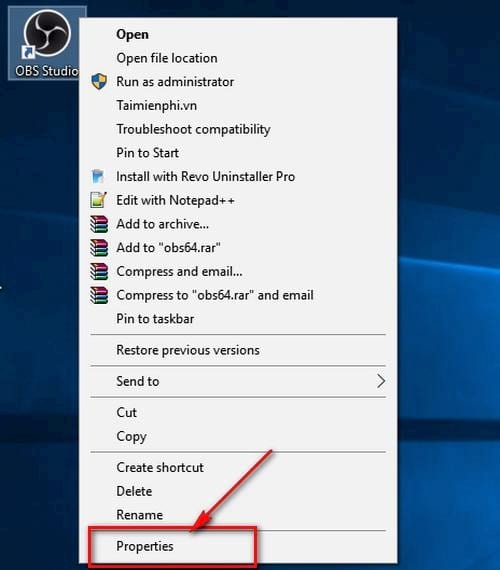
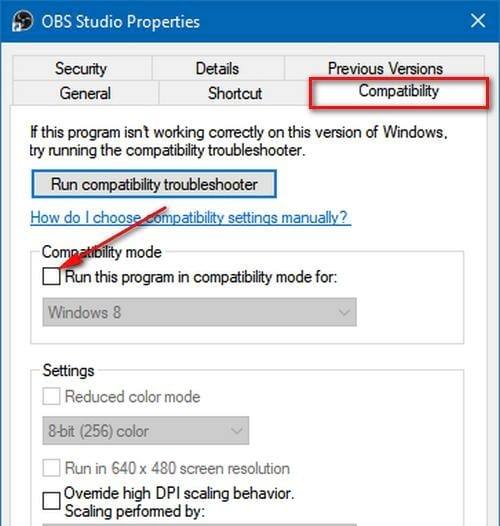
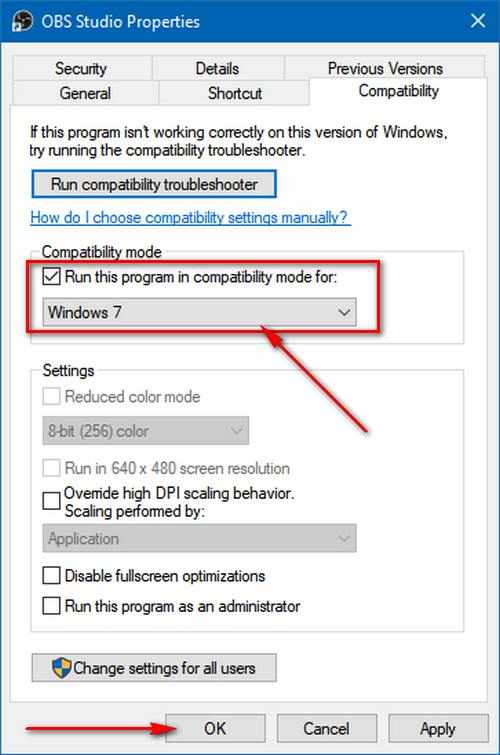
The older screenshots below show Windows compatibility settings. Do not select Windows 7 compatibility mode. Administrator mode is a targeted test for an elevated game or an OBS GPU-overload case, not a general black-screen solution.
4. Fix Display Capture on Windows 11 or Windows 10
- Open Display Capture Properties and verify that the correct monitor is selected.
- Leave Capture Method on Automatic first. If it is black, try the current Windows capture method shown in the list.
- Close OBS, open Settings > System > Display > Graphics, add or select OBS Studio, and normally choose High performance. Restart OBS.
- On a laptop, update Windows and OBS before applying old “integrated GPU for Display Capture” advice. Current OBS capture methods are designed to work across GPU configurations.
The current OBS laptop troubleshooting guide recommends leaving updated OBS on the default high-power GPU and trying the Windows capture method when Display Capture fails.
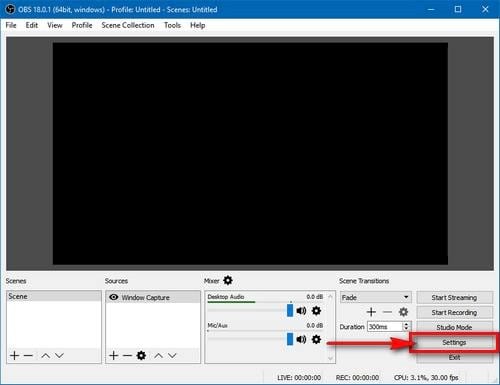
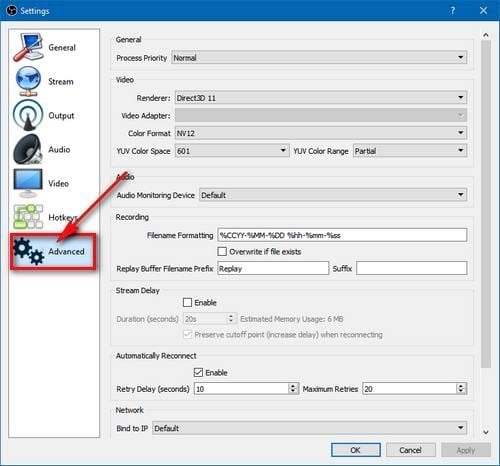
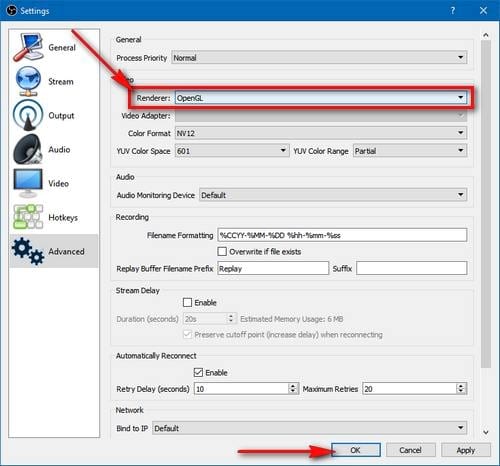
Do not force the old OpenGL renderer
These screenshots show an old OBS renderer menu. Modern Windows installations should use the supported default renderer. The old instruction to switch the application renderer to OpenGL is not a standard fix and may be unavailable.
5. Use Windows Graphics settings, not legacy NVIDIA profiles
The following NVIDIA Control Panel screens document an older way to force a graphics processor. Windows now provides the per-app GPU control under Settings > System > Display > Graphics. Add the current executable—normally C:Program Filesobs-studiobin64bitobs64.exe—and use the option recommended for the capture type and current OBS version.
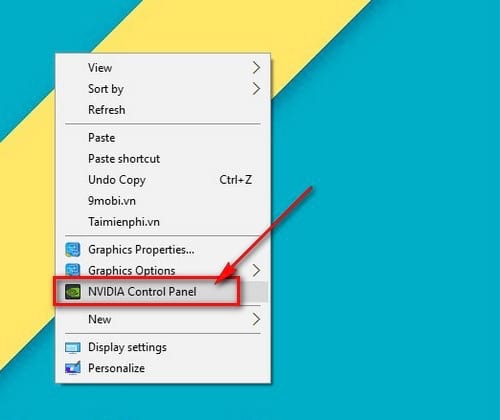
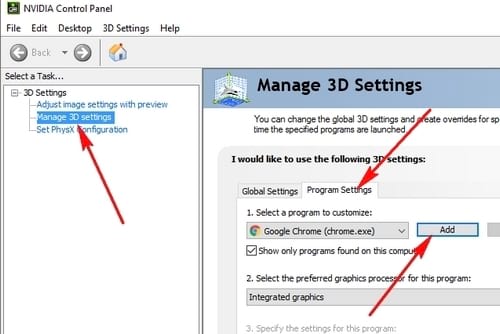
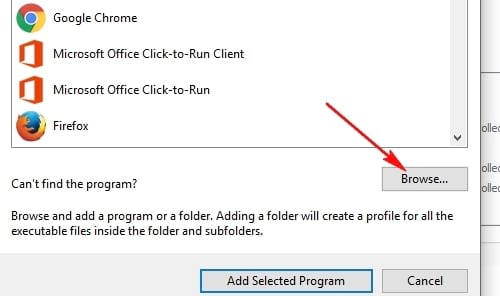
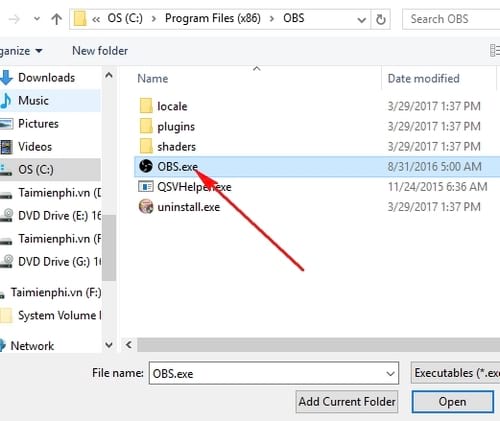
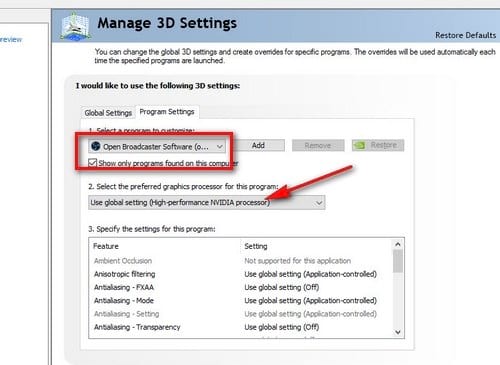
For Game Capture on a hybrid-graphics laptop, the game and OBS generally need compatible GPU placement. The OBS GPU Selection Guide shows how to add the current OBS executable in Windows Graphics settings.
6. Fix a black Window Capture or browser video
- Open Window Capture Properties and select the exact running window again.
- Try another available Capture Method in the source properties.
- Make sure the target window is not minimized; some applications stop rendering when minimized.
- If a browser window is the only failure, test a normal unprotected page and, as a diagnostic step, toggle the browser's hardware-acceleration setting before restarting the browser.
Subscription video, protected streaming media, and some secure apps intentionally render black when captured. Do not try to defeat DRM or content protection. Use media you own or have permission to broadcast, or obtain an authorized source from the content provider.
7. Fix a capture card or camera that is black
- Add Video Capture Device and select the exact card or camera.
- Close video-call, camera, and vendor-preview apps that may be using the device exclusively.
- Set Resolution/FPS Type to Device Default first. If that works, select a supported resolution and frame rate from the device documentation.
- Confirm the HDMI input, cable, camera output mode, and HDCP status. Protected HDMI output cannot be captured normally.
- Deactivate and reactivate the source in its Properties, or unplug and reconnect the device after closing OBS.
8. Ignore the old 32-bit OBS workaround
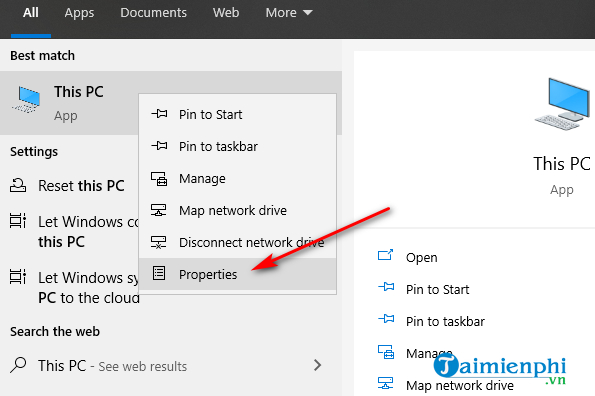
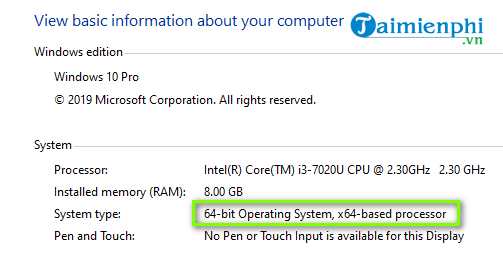
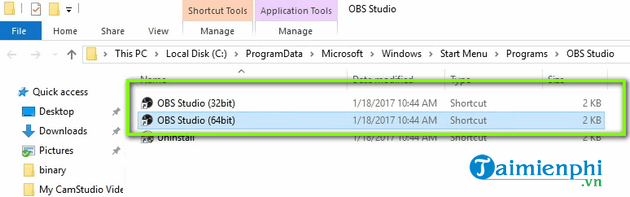
Current Windows OBS releases use the supported installer and executable for the operating system. The screenshots below show an older period when users chose between 32-bit and 64-bit program folders. Do not install an unsupported 32-bit build to fix a capture source.
9. Do not change permissions for the entire C drive
The original fix advised giving Authenticated Users Full control of the Windows system drive. Do not do this. It weakens the protection of operating-system and application files and is unrelated to whether OBS can hook a game or capture a display.
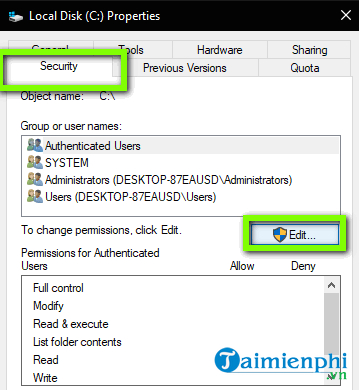
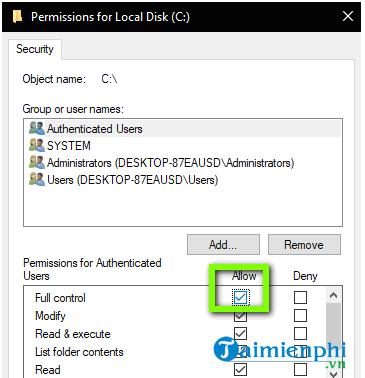
If OBS cannot save a recording, choose a recording folder inside your user profile, such as Videos, and check that folder's access. A save-path error does not normally make the live OBS preview black.
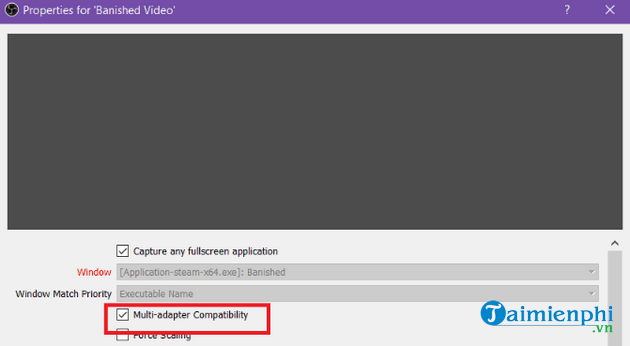
10. Leave multi-adapter capture off by default
The old SLI/Crossfire option shown below is a slow fallback for specific multi-GPU systems, not a universal fix. OBS's current Game Capture reference says it should remain off unless no standard method works on a genuine SLI/Crossfire setup.
11. Test overlays, plugins, and system stability
Close screen recorders, FPS overlays, GPU-monitoring on-screen displays, and other tools that hook the same game. OBS maintains a list of known application conflicts, including several overlay and tuning utilities.
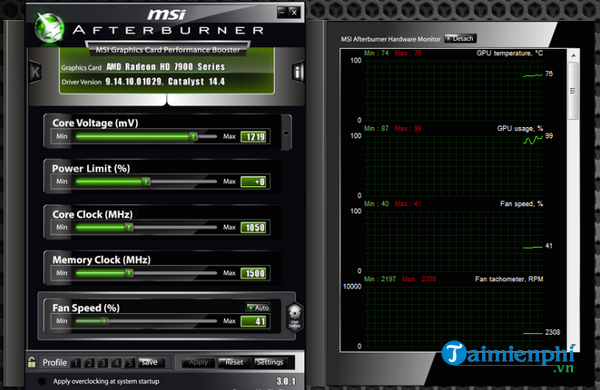
If the computer is overclocked or undervolted and games or drivers are unstable, return the CPU, GPU, and memory to known-stable settings for the test. Do not change firmware voltages solely because an OBS source is misconfigured.
Start OBS in Safe Mode when it offers the option after a crash, or launch it with third-party plugins and scripts disabled. If capture works there, update or remove one third-party component at a time. Do not uninstall unrelated applications merely because they can record a screen.
12. Use a fresh scene and inspect the log
- Create a new scene collection or a new empty scene.
- Add only one capture source and test it.
- Reproduce the black screen once.
- Choose Help > Log Files > Upload Current Log File.
- Save the URL and include it when requesting help from the OBS support forum.
The log can show the OBS version, GPU, capture method, failed hooks, plugins, and rendering errors. It is more useful than applying a list of unrelated compatibility tweaks.
13. Reinstall only after isolating the problem
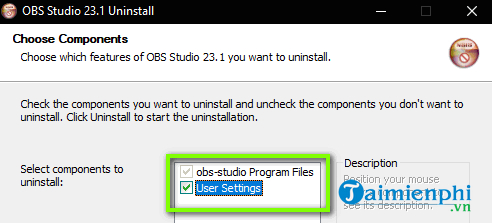
Back up the profile and scene collection before uninstalling. If you reinstall, get the current installer from the official OBS Project site and initially keep your user settings. A corrupt plugin or scene can remain in the configuration, so use Safe Mode or a fresh scene to distinguish it from a damaged program installation.
For a black picture specifically during a Facebook broadcast, verify the OBS preview first, then follow TipsMake's current Facebook Live and OBS workflow. If video works but sound is missing, use the separate guide to OBS recording and no-audio problems in Windows 11.
Related Articles
 How to Fix Camtasia Black Screen Error on Windows 105 minutes read
 How to Black Out or Whiten the PowerPoint Presentation Screen3 minutes read
 How to Adjust Screen Recording Video Quality on Samsung3 minutes read
 How to Fix Black Screen Error After Adjusting Display Settings in Windows6 minutes read
 5 Best Best Android Screen Recording Apps 20205 minutes read
 Guide to Recording Android Screen Videos with AZ Screen Recorder7 minutes read
Reader Comments 0
Sign in with email or Google to join the discussion.