Table of Contents
A VBA Do While loop repeats a block of code while its condition remains True. Use it when the number of repetitions depends on data or another changing condition. If the number of iterations is already known, a For...Next loop is often clearer.

Do While syntax in VBA
VBA supports a pre-test form that evaluates the condition before running the body:
Do While condition
    statements
Loop
If condition is False at the start, the statements do not run at all. VBA also supports a post-test form:
Do
    statements
Loop While condition
The post-test form always runs the statements once before checking the condition. You can also use Until instead of While: a Do Until loop continues until its condition becomes True.
Example: write even numbers from 2 to 20
This macro writes ten even numbers to cells A1:A10 on a worksheet named Sheet1. Qualifying Cells with a worksheet prevents the output from going to whichever sheet happens to be active.
Option Explicit

Sub WriteEvenNumbers()
    Dim rowNumber As Long
    Dim targetSheet As Worksheet

    Set targetSheet = ThisWorkbook.Worksheets("Sheet1")
    rowNumber = 1

    Do While rowNumber <= 10
        targetSheet.Cells(rowNumber, 1).Value = 2 * rowNumber
        rowNumber = rowNumber + 1
    Loop
End Sub
Add and run the macro
- Save the workbook as an Excel Macro-Enabled Workbook (.xlsm) if you need to keep the code.
- Press Alt+F11 to open the Visual Basic Editor.
- In the Project Explorer, select the target workbook, then choose Insert > Module.
- Paste the code into the module. If the worksheet is not named Sheet1, replace that string with the actual tab name.
- Place the cursor inside
WriteEvenNumbersand press F5, or return to Excel and run the macro from Developer > Macros.
Only run macros you wrote or obtained from a source you trust. Macro code can change files and data, and a downloaded workbook may contain code beyond the procedure you intend to run.
How the example works
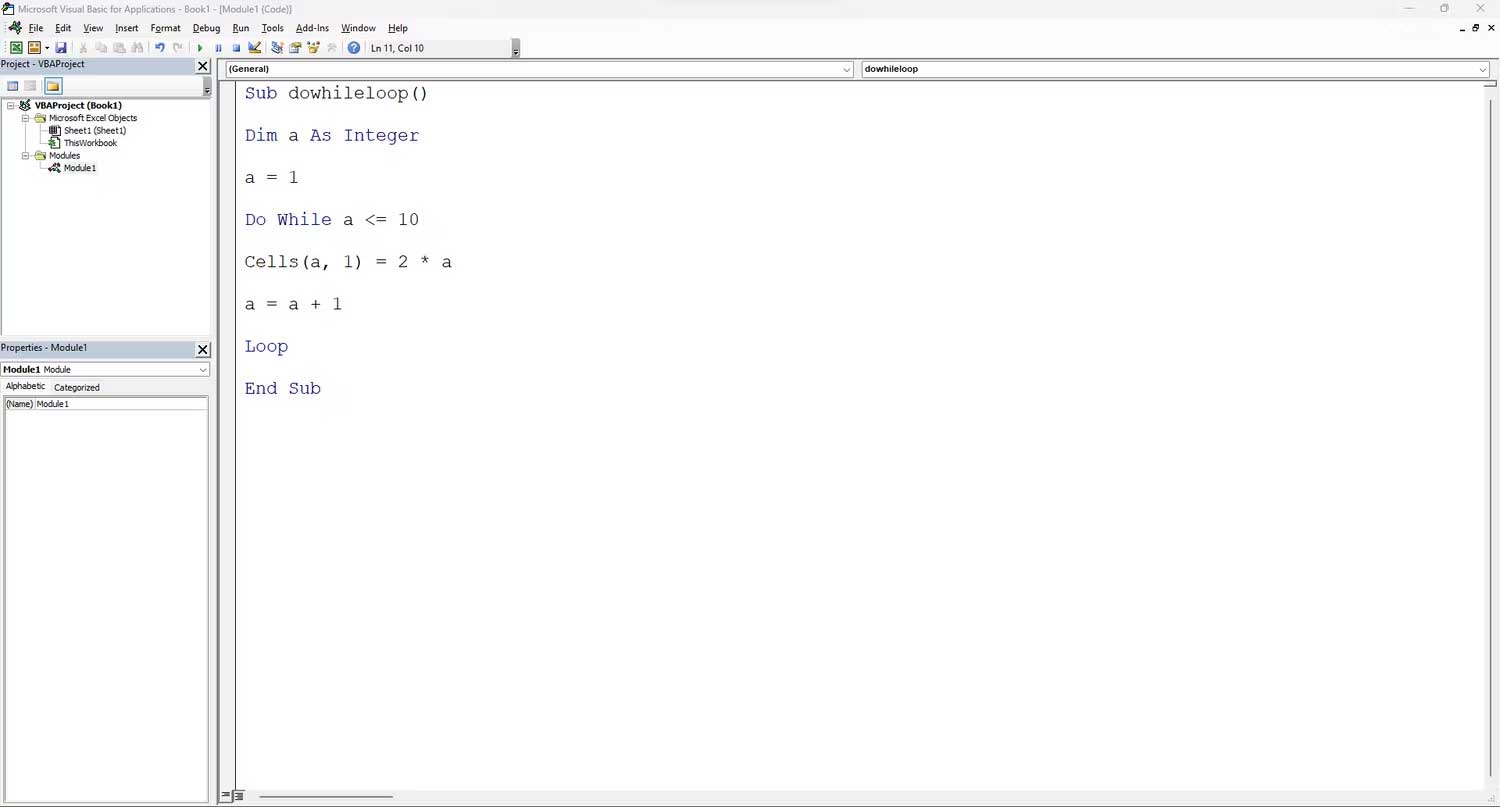
Option Explicitrequires variables to be declared, which helps catch misspelled variable names.rowNumber As Longstores the current row. Long is appropriate for Excel row indexes and avoids the limited range of the older Integer type.targetSheetpoints to Sheet1 in the workbook that contains the macro.- The condition
rowNumber <= 10is checked before each pass. Cells(rowNumber, 1)addresses a cell by numeric row and column. Column 1 is column A.- The assigned value is twice the current row number, so the output is 2, 4, 6, and so on through 20.
rowNumber = rowNumber + 1advances the loop. When rowNumber becomes 11, the condition is False and execution continues afterLoop.
Loop until a blank cell
A data-driven loop can continue while column A contains a value. This version reads from Sheet1 and writes an uppercase copy to column B:
Sub CopyUppercaseUntilBlank()
    Dim rowNumber As Long
    Dim targetSheet As Worksheet

    Set targetSheet = ThisWorkbook.Worksheets("Sheet1")
    rowNumber = 2

    Do While Len(targetSheet.Cells(rowNumber, 1).Value) > 0
        targetSheet.Cells(rowNumber, 2).Value = _
            UCase$(CStr(targetSheet.Cells(rowNumber, 1).Value))
        rowNumber = rowNumber + 1
    Loop
End Sub
This stops at the first blank cell. It is therefore suitable only when blanks mark the end of the list; an accidental gap will end the loop early.
Prevent an infinite loop
Every Do loop needs a path that eventually changes the condition. Before running it, check:
- the counter or relevant cell value is updated inside the loop;
- the update moves the condition toward False for a While loop, or toward True for an Until loop;
- the input data can actually reach the expected stopping state;
- an exceptional case has a controlled escape when appropriate.
Use Exit Do for an intentional early exit:
Do While rowNumber <= 1000
    If targetSheet.Cells(rowNumber, 1).Value = "STOP" Then
        Exit Do
    End If

    rowNumber = rowNumber + 1
Loop
If a macro is stuck in a loop while testing, Ctrl+Break may interrupt execution. Save a backup before running code that changes important workbook data.
When another loop is a better fit
- Use For...Next for a known count, such as rows 1 through 10.
- Use For Each...Next to visit every cell in a Range or every object in a collection.
- Use Do While or Do Until when continuation depends on a condition whose stopping point is not known in advance.
If you are new to the editor and workbook security settings, start with how to create and run an Excel macro. The Excel Name Box guide explains the row-and-column addresses used throughout workbook automation.
For the language rules, see Microsoft’s Do...Loop statement reference and Worksheet.Cells documentation.
Related Articles
 WHILE Loop in SQL Server: Explained1 minutes read
 The Loop Technique in Python8 minutes read
 While Loop in SQL Server: FOR Loop in SQL Server3 minutes read
 C ++ Programming Language: C ++ Loop3 minutes read
 11 Best Tips to Get Started with Microsoft Loop8 minutes read
 Quick Method to Fix Excel Loop Error: Key Facts7 minutes read
Reader Comments 0
Sign in with email or Google to join the discussion.