Table of Contents
Google does not provide a switch that disables AI Overviews throughout Search. To see text-based links without an AI Overview for a particular search, run the search and choose the Web filter. On some screens, the filter is under More. This changes the results view; it does not turn off every AI feature across Google products.
Use the Web filter after a search
- Enter a query in Google Search.
- On the results page, select Web. If it is not visible in the row of filters, open More and look for Web.
- Check that the results show text links instead of an AI Overview. Return to the main results view whenever you want other result types.
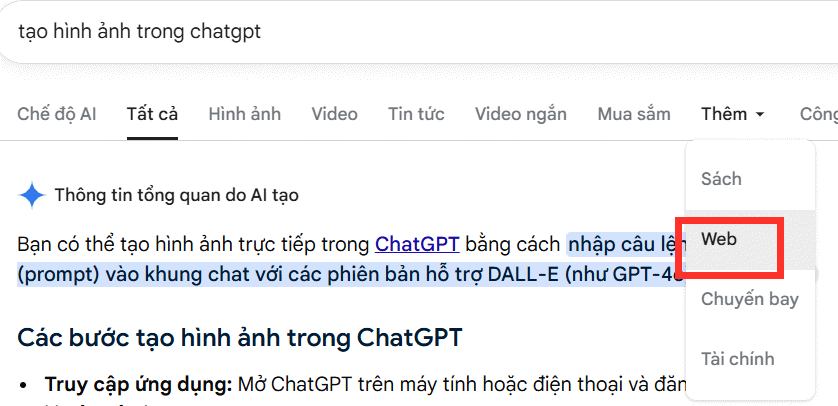
Google's Search Help describes the Web filter as the supported way to display links without features such as AI Overviews. The filter only changes how that search is presented; it cannot tell whether the linked pages themselves contain AI-generated material.
Use a Web-results URL for a repeat search
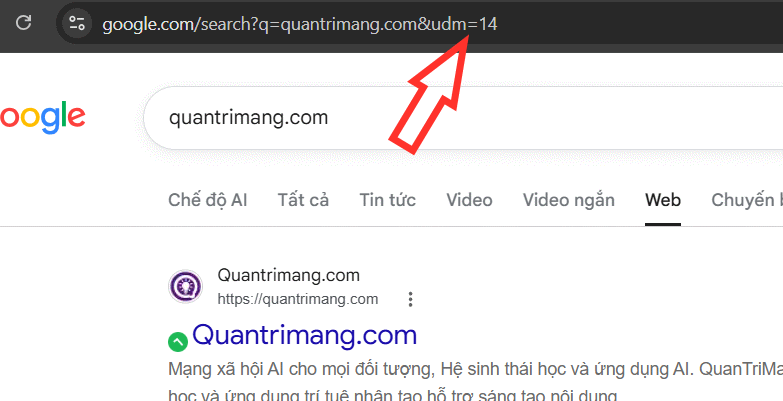
The original guide uses the udm=14 parameter to request Google's Web results. For a one-off search, a URL such as https://www.google.com/search?q=TipsMake.com&udm=14 illustrates the format. Search parameters are less discoverable than the visible Web filter and may change, so check the resulting page rather than assuming the parameter will always behave identically.
Add an optional Chrome desktop shortcut
If you routinely want this view from Chrome's address bar on a computer, you can create a site-search entry. Chrome's menus may vary by version and managed-account policy.
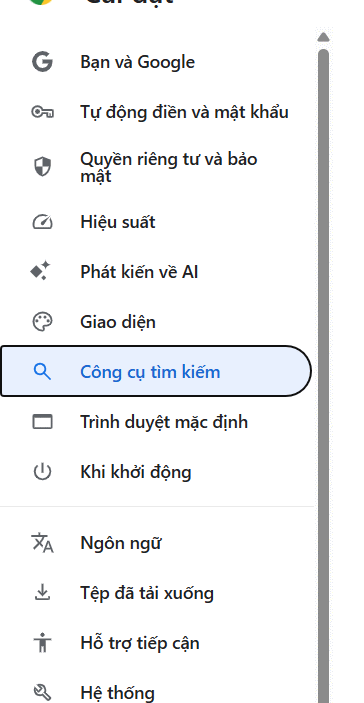
- Open Chrome Settings, then Search engine.
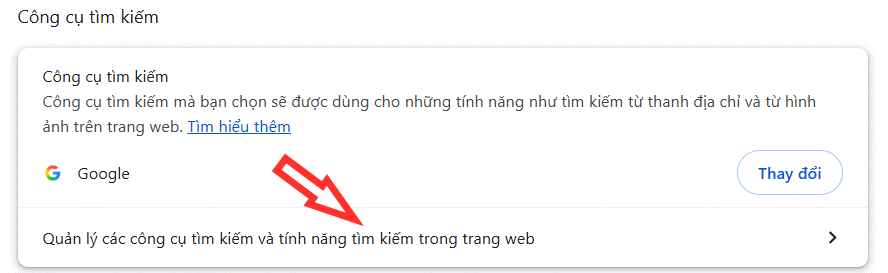
- Open Manage search engines and site search. Under Site search, choose Add.
- Enter a name such as Google Web, a shortcut such as @web, and this URL with
%sin place of the query:https://www.google.com/search?q=%s&udm=14. Save the entry.
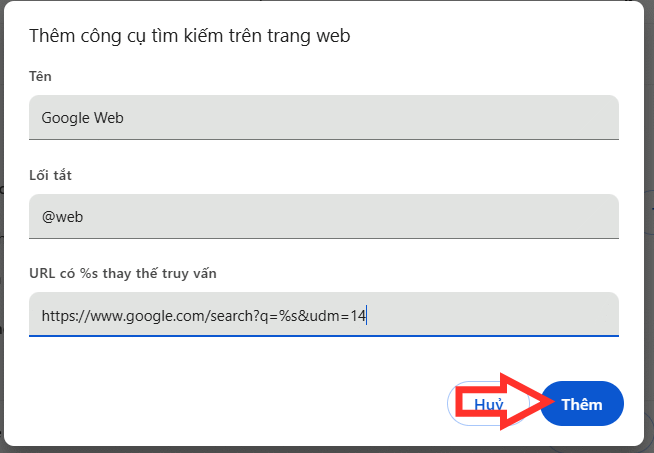
- Use the shortcut from the address bar. If Chrome offers Make default for that entry and you prefer it for all address-bar searches, choose that option and test a search.
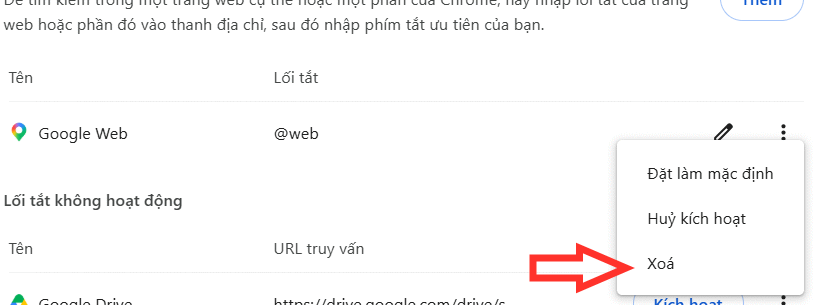
Chrome's site-search instructions explain the fields and the default option. Some managed or guest profiles may restrict custom defaults. You can still select the Web filter manually on a results page.
AI Overview and AI Mode are different
An AI Overview is a generated summary that can appear in ordinary Search results. AI Mode is an interactive search experience for follow-up questions. Avoiding AI Mode does not by itself remove an Overview from ordinary results. For more context, see TipsMake's explanation of Google AI Mode.
Turning off an experimental Search Labs option or deleting Search history also does not disable the core AI Overview feature. If your goal is to change separate features in the Chrome browser, see TipsMake's Chrome AI settings guide; those browser settings are a different matter from Google's Search results.
Related Articles
 How to Turn on the New Search Interface in Windows 10 Build 170403 minutes read
 How to Turn on the Search Box on the Lock Screen on Windows 105 minutes read
 Turn Off Indexing Service to Let the Computer Run Faster5 minutes read
 How to Turn Off Searching for Recent Friends on Telegram3 minutes read
 How to Turn Off the Safesearch Feature on the Google Search3 minutes read
 How to Turn Off Search Personalization on Google3 minutes read
Reader Comments 0
Sign in with email or Google to join the discussion.