Table of Contents
To turn off Chrome's locally stored generative AI models on a computer, open Chrome menu > Settings > System, then switch off On-device AI. Chrome deletes the associated model files and prevents them from downloading again while the setting remains off.
This setting affects features that depend on Chrome's on-device generative models. It does not necessarily disable every AI-powered Chrome feature, especially features processed by an online service.
Turn off on-device AI in Chrome
Step 1: Open Chrome, select the three-dot menu in the upper-right corner, and choose Settings. Select System in the left menu.

Step 2: Find On-device AI and turn the switch off.
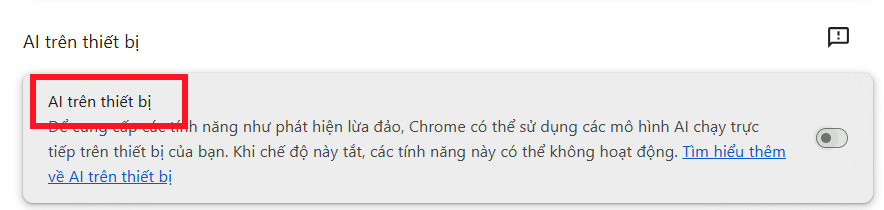
The switch is managed separately for each Chrome user and device. If several people use different Chrome profiles on the same computer, each person can have a different setting.
What happens when you turn it off?
- Chrome deletes the downloaded on-device generative AI model files.
- Features that require those local models stop working.
- Chrome does not download the models again while the switch is off, even if a website or feature requests them.
- Turning the setting back on permits Chrome to download a compatible model again when the device and network meet the requirements.
Google recommends using this switch rather than manually deleting model files. Manual deletion may be temporary because the browser manages model downloads and updates itself.
Why Chrome downloads AI models
Chrome's built-in AI APIs can use browser-managed models for tasks such as prompting, writing, rewriting, summarizing, proofreading, translation, and language detection. Availability varies by Chrome version, operating system, hardware, language, and the individual API.
The initial model download requires an unmetered connection, sufficient device performance, and substantial free disk space. The exact model size can change as Chrome updates it, so the frequently repeated “4 GB” figure should not be treated as fixed. Developers and advanced users can inspect current model details at chrome://on-device-internals.
Once a model is available, supported processing can occur locally without sending that prompt to Google. A website can still combine a local model with its own servers, however, so on-device capability alone is not proof that an entire web service works offline or keeps all data local.
Should you disable it?
Turning on-device AI off may make sense when storage is tight, you do not use compatible features, or you do not want Chrome downloading model files. Leave it enabled if you rely on local AI functions and your computer has enough resources.
If the switch is missing, update Chrome and check again, but keep in mind that the setting or supported features may not yet be available for that profile, device, or managed workplace installation. Enterprise policy can also control model downloads. Google's on-device generative AI model help page documents the current supported procedure and requirements.
Related Articles
 Turn Off These 5 Google Settings to Improve Your Privacy: Explained6 minutes read
 6 Annoying Google Photos Features You Should Turn Off5 minutes read
 How to Permanently Disable AI on Google Chrome: Step-by-Step Guide7 minutes read
 5 Annoying Features on Google Photos You Should Turn Off Immediately6 minutes read
 How to Disable Google AMP in Google Search on Android and Iphone7 minutes read
 What Is Google One?8 minutes read
Reader Comments 0
Sign in with email or Google to join the discussion.