Table of Contents
The safest places to download laptop apps are the Microsoft Store, the Mac App Store, and the software developer's verified website. Before running an installer, confirm the developer, operating system, CPU architecture, file type, and system requirements. Treat advertisements, “download managers,” unofficial mirrors, and requests to disable security protection as warning signs.
Check compatibility before downloading
- Operating system: confirm whether the app supports your release of Windows or macOS.
- Processor architecture: Windows downloads may be labeled x64, x86, or Arm64. Mac downloads may be for Apple silicon, Intel, or Universal.
- Storage: allow room for both the download and the installed files. Installers often need temporary space.
- Account and permission: a Store account may be required. A managed work or school laptop may block installations by policy.
- Hardware requirements: check RAM, graphics, and other requirements for demanding creative, engineering, and gaming software.
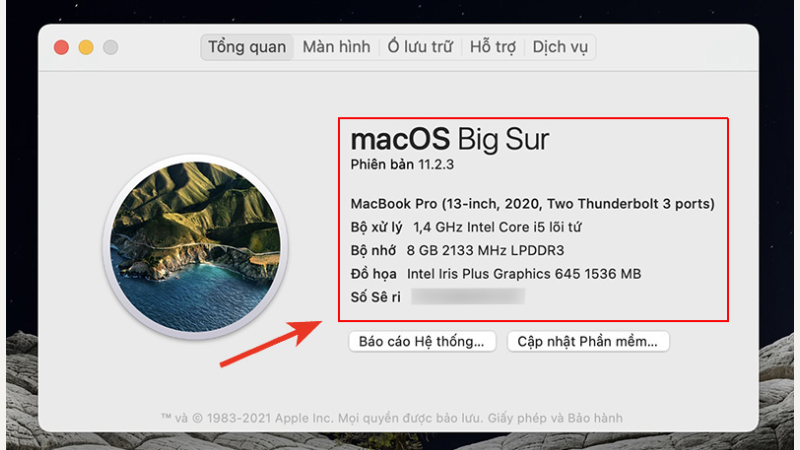
Check the operating-system version before choosing an installer.
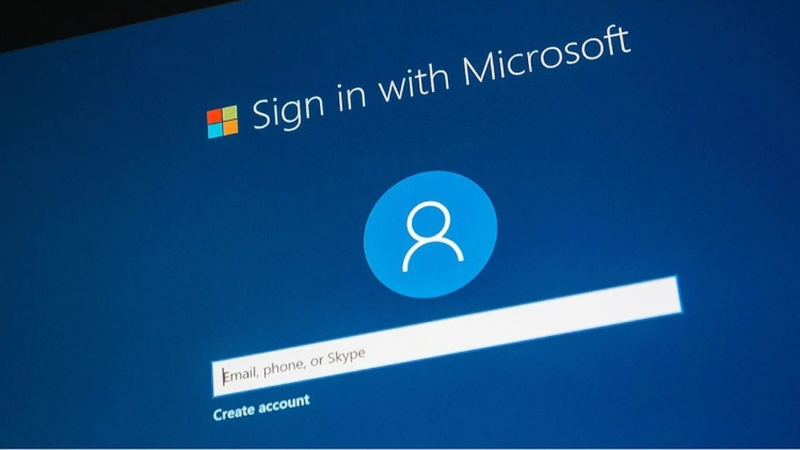
A Store may require a Microsoft or Apple account, but a web installer should not request unrelated account access.
How to download apps safely on Windows
Install from Microsoft Store
- Open Microsoft Store from Start.
- Search for the app and open its product page.
- Confirm the publisher, description, age rating, permissions, and in-app purchase information. A familiar app name alone is not proof that the publisher is genuine.
- Select Get or Install, then launch the app after installation completes.
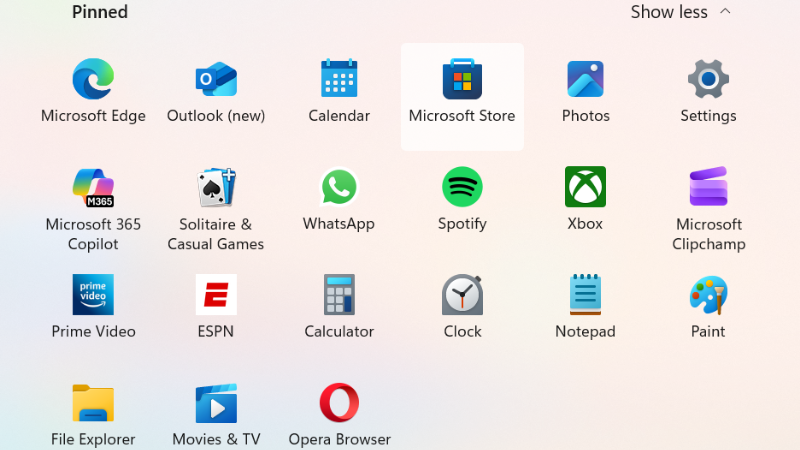
Search inside Microsoft Store and open the full listing.
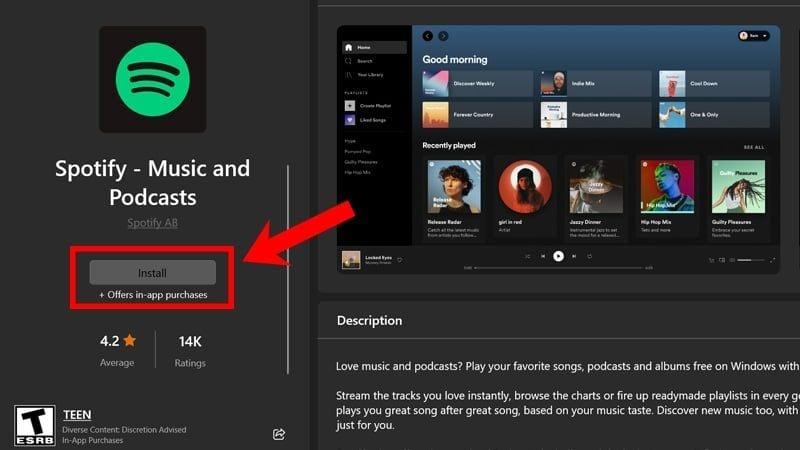
Verify the publisher and listing details before selecting Get or Install.
Install from a developer's website
- Navigate to the developer's official domain. A search advertisement can imitate the real download page, so inspect the domain before clicking.
- Select the Windows build that matches the laptop: commonly x64, x86, or Arm64.
- Download the
.exeor.msiinstaller. If the developer publishes a checksum or digital-signature instructions, verify them. - Scan the file with Windows Security. Right-click the installer, open Properties, and check the Digital Signatures tab when present.
- Run the installer, read each screen, and decline unrelated bundled software.
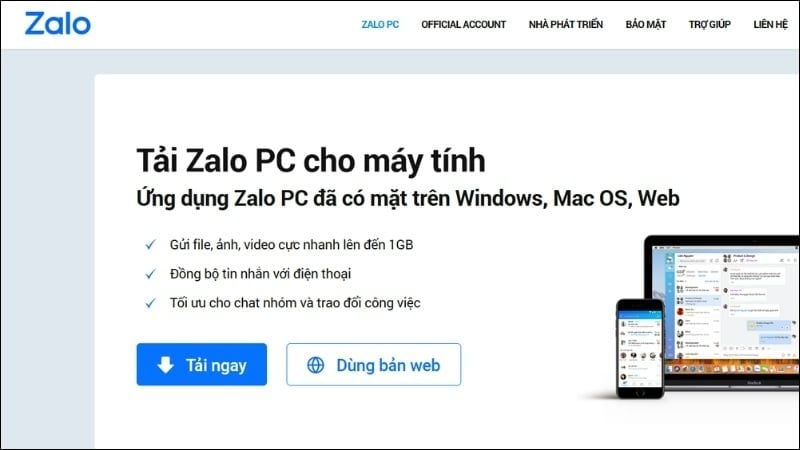
Use the developer's real website and choose the correct Windows build.
Microsoft Defender SmartScreen may warn about an unrecognized or suspicious file. Do not choose “Run anyway” merely to get past the warning. Recheck the source, publisher, and signature first. This guide explains additional ways to identify potentially malicious EXE files.
How to download apps safely on a Mac
Install from the Mac App Store
- Open App Store and search for the app.
- Check the developer name, compatibility, privacy information, purchases, and recent version history.
- Select Get or the price button, then authenticate through the normal App Store prompt if required.
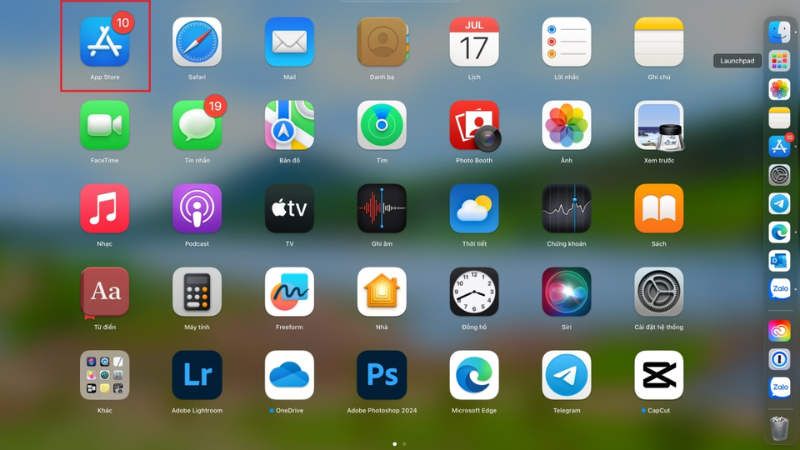
Open the app's complete Mac App Store listing.
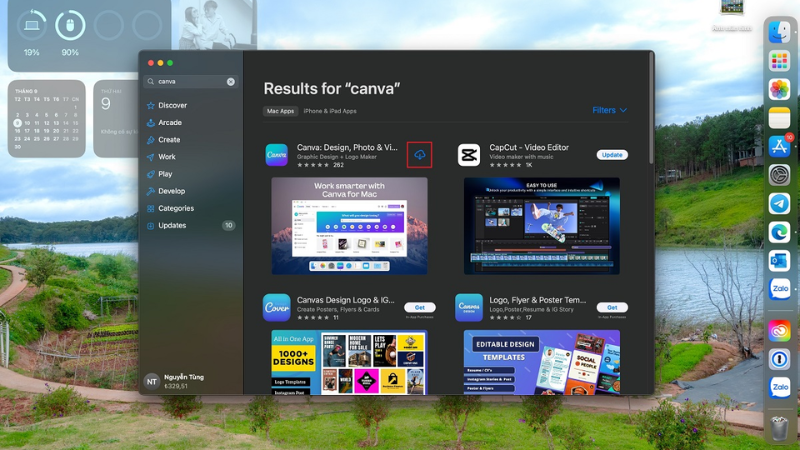
Check the developer and compatibility before installing.
Install from a developer's website
- Open the developer's official domain and choose the macOS download.
- Select Apple silicon, Intel, or Universal as directed by the site. To check the Mac, choose Apple menu > About This Mac and read the Chip or Processor line.
- For a
.dmg, open the disk image and drag the app to Applications when the window instructs you to do so. Then eject the mounted disk image. - For a
.pkg, open the package and review the installer steps and destination.

Choose the macOS build for the Mac's processor.
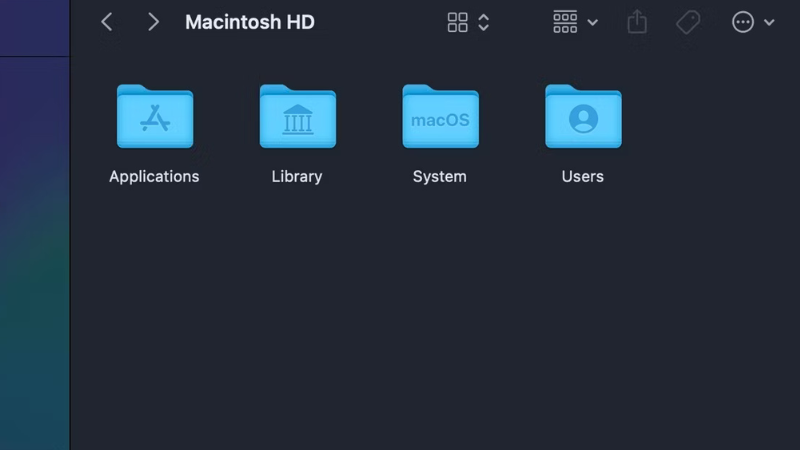
A typical DMG window directs you to copy the app into Applications.
macOS Gatekeeper may block software that is unsigned, altered, or from an unidentified developer. Do not bypass the message until you have confirmed the official source and understand why the app is not notarized. An installer that asks you to disable Gatekeeper or run an unexplained Terminal command deserves extra scrutiny.
How to verify a download before opening it
- Check that the domain spelling and HTTPS certificate match the developer.
- Compare the file name, size, version, and architecture with the download page.
- Use a SHA-256 checksum when the developer publishes one. A matching checksum confirms that the bytes match the published file, but it does not prove that the publisher itself is trustworthy.
- Keep Microsoft Defender, macOS security checks, and the browser's download protection enabled.
- Back up important data before installing drivers, system utilities, or software that modifies disks.
TipsMake's security and privacy tools include hash-related utilities, while the operating system's own command-line tools can also calculate checksums without uploading a private file.
Why an app will not download or install
The download will not start
- Check the internet connection and available disk space.
- Make sure the browser is not waiting for a download permission or showing a security warning.
- For a Store problem, restart the Store and sign out and back in only if the account session appears to be the cause.
- On a managed laptop, ask the administrator whether the app is allowed.
The installer will not open
- Confirm that the file is for Windows or macOS and for the correct processor.
- Download it again from the official source if the file is incomplete or its checksum differs.
- Read the exact SmartScreen, Gatekeeper, signature, or compatibility message instead of disabling protection.
- Check the developer's support page for required frameworks or a minimum OS release.
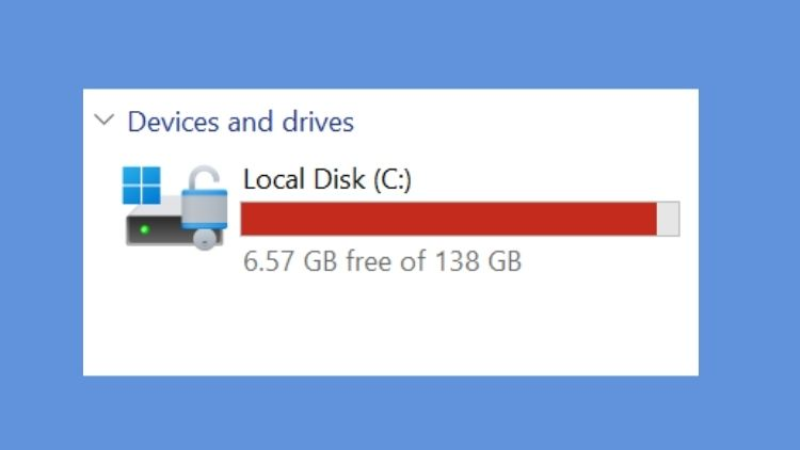
A full drive can prevent both downloading and extracting an installer.
After installation
- Open the app from Start or Applications, not from the mounted DMG or Downloads folder unless the developer specifically uses a portable app.
- Install updates from the app, Store, or official site.
- Review startup behavior, notifications, and permissions such as camera, microphone, files, accessibility, or full disk access.
- Remove the installer after the app works and you no longer need it.
- Uninstall software you do not use through Settings, Control Panel, or the app's documented uninstaller; see how to uninstall a program.

Keep the operating system and trusted applications updated.
Safe-download checklist
Prefer the platform Store. If the app is not there, use the developer's verified website, choose the correct build, inspect the publisher and security warnings, and decline bundled extras. A file extension such as .exe, .dmg, or .pkg describes the package format; it does not guarantee that the file is safe.
Related Articles
 How to Effectively Delete Applications on Windows Laptops and MacBooks14 minutes read
 Top Windows Laptops in Early 20253 minutes read
 Things to Do to 'Stay Healthy' on Windows 7 After the Operating6 minutes read
 10 Ways to Fix iPhone Error That Can't Download Apps11 minutes read
 How to Enable Bluetooth on Windows Laptops and MacBooks (Detailed Guide)9 minutes read
 How to Download the Free Application Is Completely Free on iPhone /6 minutes read
Reader Comments 0
Sign in with email or Google to join the discussion.