Table of Contents
Cloudflare WARP is a Windows client that can encrypt DNS queries or tunnel device traffic to Cloudflare's network, depending on the selected mode. Download it only from Cloudflare, install the client, accept the privacy terms after reviewing them, and turn on the connection. WARP may improve reliability or latency on some routes, but it does not increase your internet plan's bandwidth and can be slower on some networks.
Cloudflare's 1.1.1.1 public DNS resolver and the WARP client are related but not identical. Understanding the selected mode prevents misleading expectations about speed, privacy, and location.
1.1.1.1 DNS versus WARP
| Mode or service | What it routes | What it does not do |
|---|---|---|
| 1.1.1.1 public DNS | DNS lookups are sent to Cloudflare; encryption depends on your DNS configuration. | It does not tunnel ordinary app traffic or change your internet bandwidth. |
| DNS only in WARP | DNS queries go to 1.1.1.1 using DNS-over-HTTPS or DNS-over-TLS. | It does not tunnel the rest of the device's traffic. |
| Traffic and DNS (WARP) | Device traffic and DNS are sent through an encrypted WARP tunnel to Cloudflare's network. | It is not an anonymity service and does not let you choose another country. |
| WARP+ | Uses WARP with access to a larger Cloudflare routing network under the current subscription terms. | A paid plan cannot guarantee lower latency on every connection. |
Cloudflare's current WARP modes documentation explicitly says that WARP does not provide anonymity and is not designed to make you appear to connect from another country. It should not be described as a conventional location-changing VPN.
Download WARP for Windows safely
- Open Cloudflare's official Windows installation page.
- Use its download link for the consumer Cloudflare WARP client.
- Open the downloaded installer from your Downloads folder.
- Check that the publisher is Cloudflare before approving the Windows prompt.
- Follow the installer and allow the client to launch.
Do not use an MSI or EXE hosted by a software mirror, file-sharing service, forum, or video description. Organizations that use Cloudflare Zero Trust may require the separate organization-managed setup supplied by their administrator.
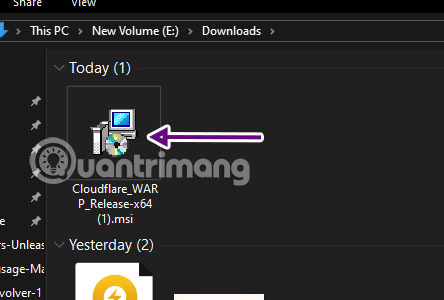
Install and connect
- Run the official installer and select Next or Install as prompted.
- When WARP opens, read the service and privacy information, then accept it if you agree.
- Open the Cloudflare icon in the Windows notification area.
- Turn on the connection toggle.
- Wait until the client reports Connected before testing websites or apps.
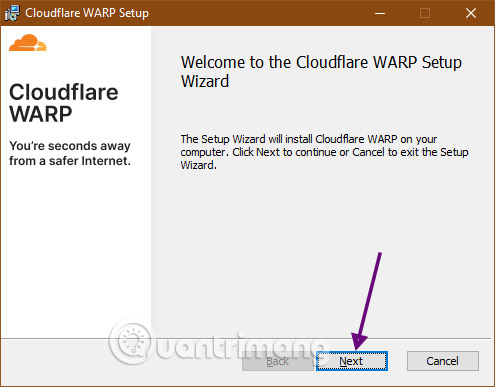
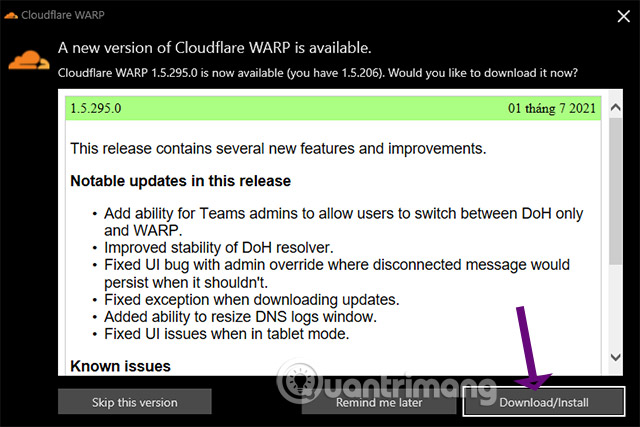
WARP can update itself or offer an update when a new build is available. Install updates from the client or Cloudflare's official channel rather than searching for a newer package elsewhere.
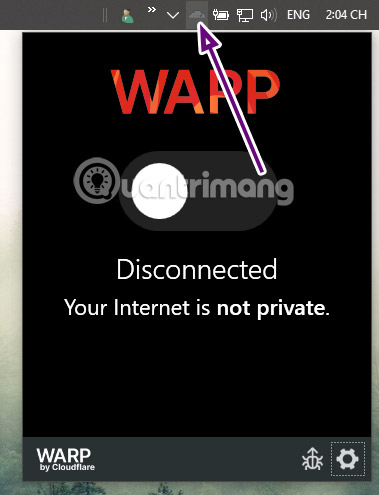
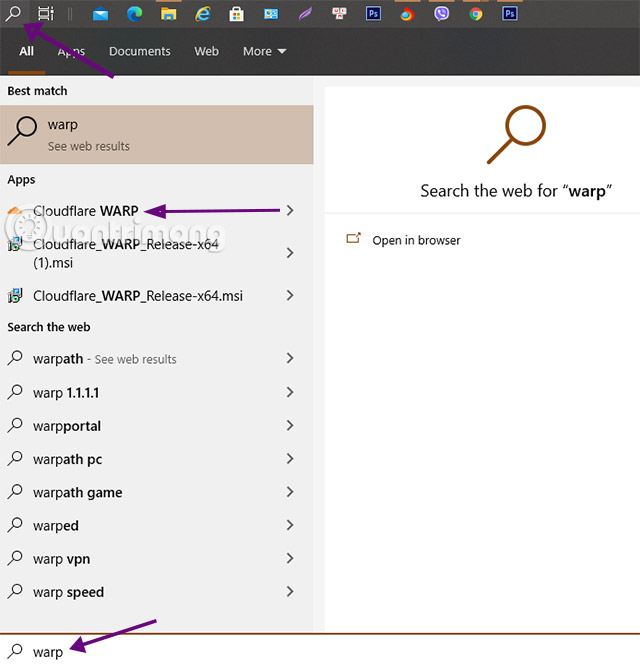
If the icon is hidden, expand the notification area or search for Cloudflare WARP from the Start menu.
Choose the appropriate mode
Open the client settings and locate the connection-mode control. Labels can change by client version, but current Cloudflare documentation describes these main choices:
- DNS only: use this when you want encrypted DNS resolution without tunneling all application traffic.
- Traffic and DNS: use this when you want WARP to tunnel device traffic and DNS through Cloudflare.
- Traffic only: tunnels device traffic while leaving DNS resolution to the operating system.
- Local proxy: an advanced desktop option that routes only applications explicitly configured for its proxy.
Most users should choose either DNS only or Traffic and DNS. Local proxy mode can leave other applications outside the tunnel, so it requires a clear understanding of which apps are configured.
What speed improvement should you expect?
DNS affects how quickly a domain name is resolved, which is only one part of loading a site. A faster resolver may reduce a delay before the initial connection, but it cannot raise the maximum upload or download speed purchased from an internet provider.
Traffic and DNS mode changes the network path. Cloudflare may find a more efficient route, but the extra tunnel can also add latency or conflict with a particular ISP, game, corporate network, or captive portal. Compare WARP on and off using the same server, time period, and task. Do not rely on a single speed-test result.
For a DNS-focused configuration without the full tunnel, TipsMake explains how to enable DNS-over-HTTPS in Windows 11. Its comparison of DNS services for online safety provides alternatives and filtering considerations.
Privacy and access limitations
- WARP protects traffic between the device and Cloudflare according to the selected mode, but Cloudflare becomes part of the network path.
- HTTPS still matters for protecting traffic between the browser and a website.
- Websites can still identify you through logins, cookies, browser fingerprinting, and information you submit.
- WARP does not provide a country selector or guaranteed access to geographically restricted services.
- DNS only may affect a block implemented solely through DNS, but it cannot bypass IP, account, device, payment-region, or application-level restrictions.
- Use the service in accordance with local law, network policy, and the website's terms.
Before sending sensitive traffic, read Cloudflare's current WARP and 1.1.1.1 privacy documentation. The privacy commitments for the public DNS resolver and the WARP application are not necessarily identical.
1.1.1.1 for Families is separate filtering
Cloudflare also provides resolver addresses that filter known malware and phishing domains, with an optional adult-content category. The standard 1.1.1.1 and 1.0.0.1 resolvers do not apply that family filtering.
| Resolver | Purpose |
|---|---|
1.1.1.1 / 1.0.0.1 | Standard public DNS without content filtering |
1.1.1.2 / 1.0.0.2 | Blocks domains Cloudflare classifies as malware or phishing |
1.1.1.3 / 1.0.0.3 | Adds adult-content filtering to malware and phishing blocking |
DNS filtering is one layer, not a replacement for operating-system updates, endpoint security, browser protections, backups, or parental supervision.
Troubleshoot WARP on Windows
| Problem | What to try |
|---|---|
| Connected but no internet | Disconnect WARP, confirm the underlying connection works, restart the client, then test the other main mode. |
| Public Wi-Fi login page does not appear | Temporarily disconnect WARP, complete the captive-portal login, then reconnect. |
| A work or school app stops connecting | Follow the organization's policy; its VPN, proxy, or Zero Trust client may conflict with consumer WARP. |
| WARP and another VPN conflict | Use one tunnel at a time unless both providers explicitly support the configuration. |
| Browsing becomes slower | Compare DNS only, Traffic and DNS, and WARP off. Keep the mode that performs reliably on that network. |
| Installer is blocked | Verify the official source and publisher, update Windows Security, and seek vendor support; do not disable protection for an unverified file. |
To remove WARP, disconnect it first, then uninstall Cloudflare WARP from Settings > Apps > Installed apps. Restart Windows if the network adapter or DNS settings do not return to their normal state immediately.
Related Articles
 How to Download and Install WARP 1.1.1.1 on Your PC or Laptop4 minutes read
 How to Increase International Internet Speed Extremely Fast Using5 minutes read
 What Is Cloudflare WARP? Should I Use It?6 minutes read
 How to Download and Install Warp 1 1 1 1 on Computer5 minutes read
 Scientists Are Increasingly Interested in Warp Engines, Which12 minutes read
 Instructions on How to Increase DATA Warp + VPN (1.1.1.1) for Free3 minutes read
Reader Comments 0
Sign in with email or Google to join the discussion.