Table of Contents
Uninstall applications with Windows Settings or the app's own uninstaller on a PC, and with Finder, Launchpad, or the vendor's uninstaller on a Mac. Deleting a desktop shortcut does not remove an application. Before uninstalling, back up projects, presets, local databases, saved games, and any files the app keeps outside your normal Documents folder.
Removing an unused app can recover storage and stop its background or startup components, but it does not automatically make every laptop faster. Confirm which app is consuming space or resources before removing software you still need.
Before you uninstall
- Quit the app and save any open work.
- Check whether account data, licenses, plug-ins, or projects need to be exported or deactivated.
- Identify whether the item is an app, a hardware driver, a system component, or security software.
- Use the vendor's removal instructions for antivirus suites, VPN clients, drivers, virtualization tools, and large creative suites.
- Make a current backup if the app manages important data.
Uninstalling large unused apps can recover storage, but check their data first.
Do not manually delete folders from Program Files, Windows, System32, macOS System, or Library as a substitute for uninstalling. That can leave services, drivers, launch agents, and configuration records behind.
Uninstall an app in Windows 11 or Windows 10
Use Settings
This is the preferred method for most Microsoft Store apps and traditional desktop programs.
- Press Windows + I.
- Open Apps > Installed apps in Windows 11, or Apps > Apps & features in Windows 10.
- Find the app. In Windows 11, select the three-dot menu and choose Uninstall; in Windows 10, select the app and choose Uninstall.
- Confirm the request and complete the vendor's removal wizard if one opens.
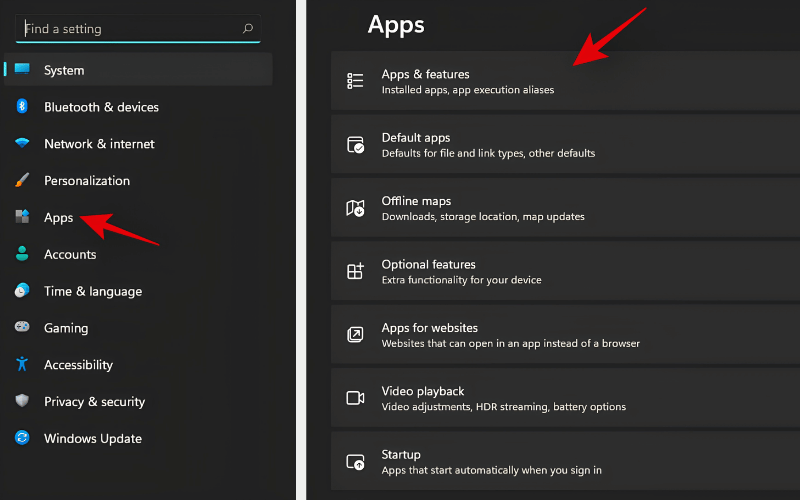
Open the installed-app list in Windows Settings.
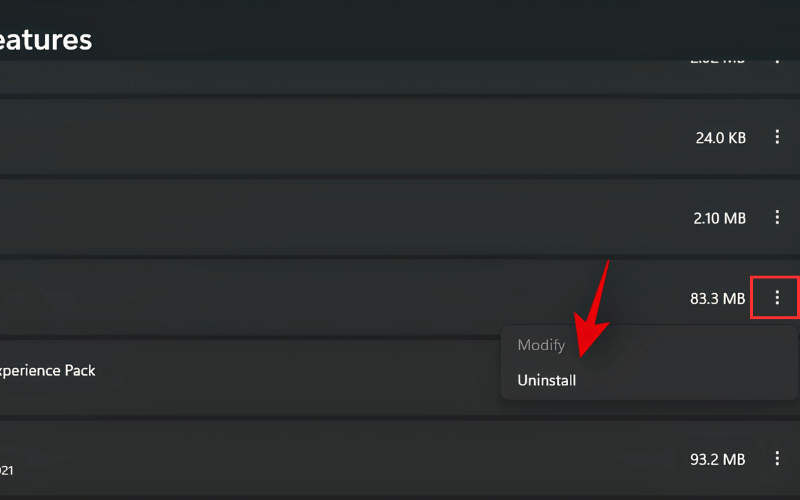
Select Uninstall for the exact application you intend to remove.
If the button is unavailable, the app may be a protected component, controlled by an administrator, or designed to be removed through another vendor tool. Do not attempt to force-remove it until you identify which case applies.
Use Control Panel for traditional desktop software
- Search for and open Control Panel.
- Select Programs > Programs and Features.
- Select the program and choose Uninstall or Uninstall/Change.
- Follow the prompts and restart only when requested.
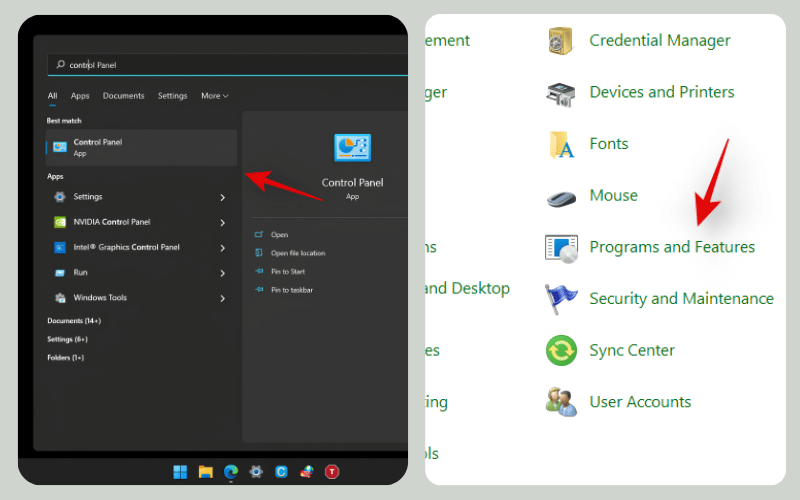
Programs and Features lists many traditional Windows installers.
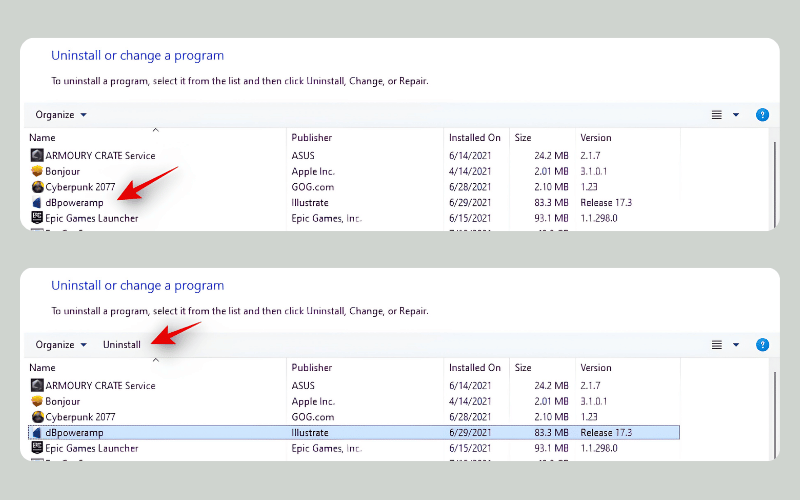
Select one program and use its Uninstall or Change action.
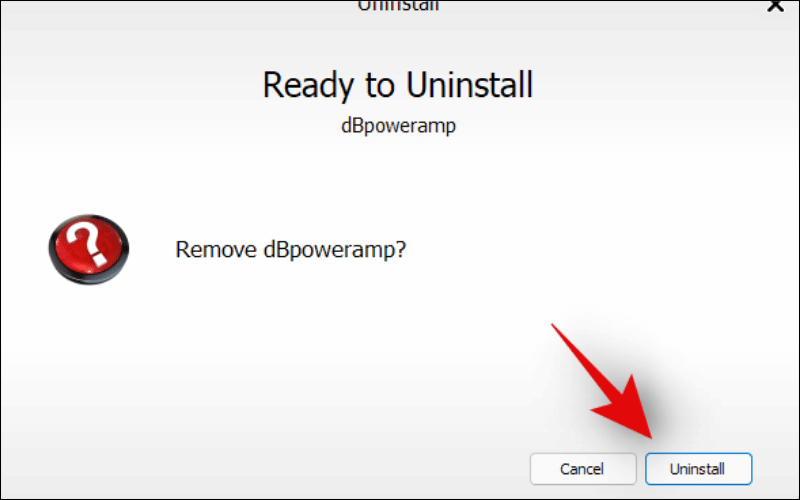
Read the removal wizard before deleting shared data or settings.
Settings and Control Panel may launch the same vendor uninstaller. Use whichever surface lists the app correctly; one is not inherently “deeper” than the other.
Uninstall from Start
Open Start, search for the app, right-click it, and choose Uninstall. Windows may remove a Store app directly or send you to Settings or Control Panel for the remaining steps.
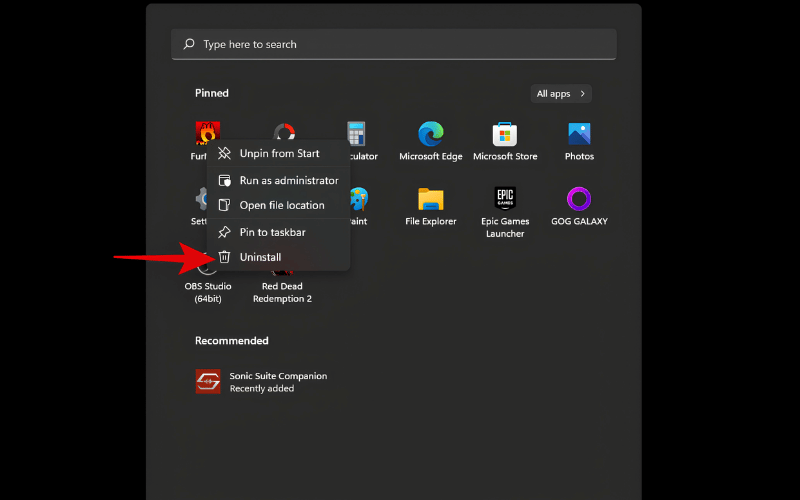
The Start menu provides a shortcut to the normal uninstall process.
Use the vendor's uninstaller when necessary
Some software includes an uninstaller in its Start-menu folder or installation directory. Prefer a shortcut documented by the vendor. If you inspect the program folder, verify that it belongs to the correct product and that the uninstaller is digitally signed before running a file such as uninstall.exe.
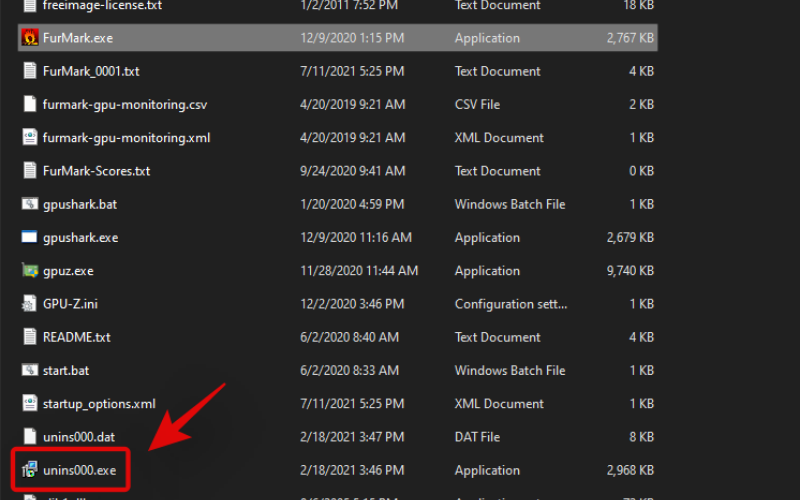
Run an installation-folder uninstaller only after verifying the product and publisher.
Security suites, device utilities, and creative software may provide a separate cleanup tool on the vendor's support site. Download it from the official domain, not from an unrelated “driver” or download portal.
Uninstall an app on a Mac
Use Launchpad for eligible App Store apps
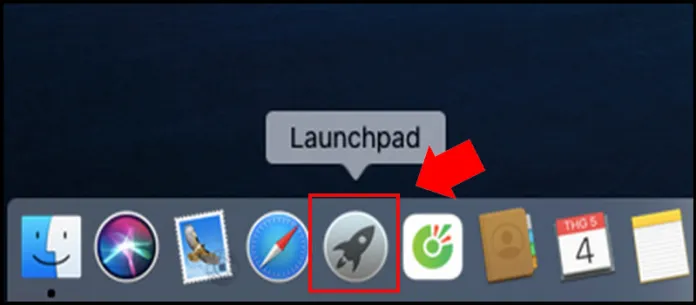
- Open Launchpad.
- Press and hold Option, or click and hold an app until the icons jiggle.
- Select the delete button for the app, if one appears, and confirm.
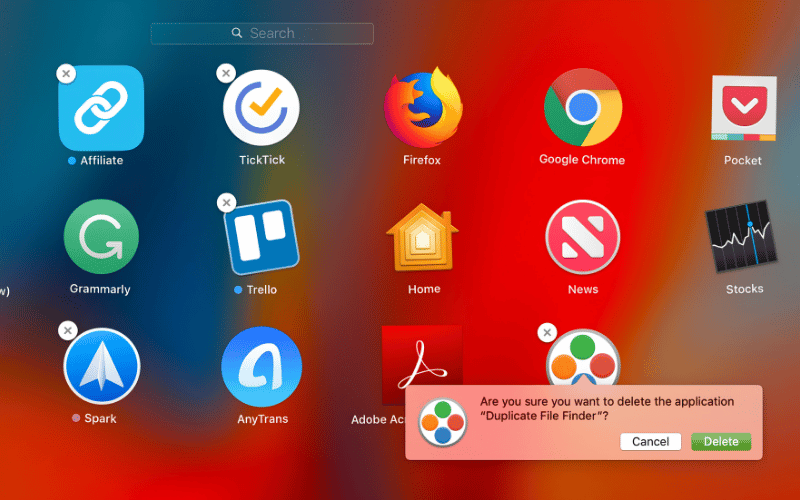
Launchpad shows a delete control only for apps it can remove this way.
If no delete control appears, use Finder or the developer's uninstaller. Do not assume the app is protected or broken.
Move a self-contained app to Trash in Finder
- Quit the app.
- Open Finder and select Applications.
- Select the app and choose File > Move to Trash, or drag it to Trash.
- Enter an administrator name and password through the normal macOS prompt if required.
- Empty Trash only after confirming that no other needed files are there.
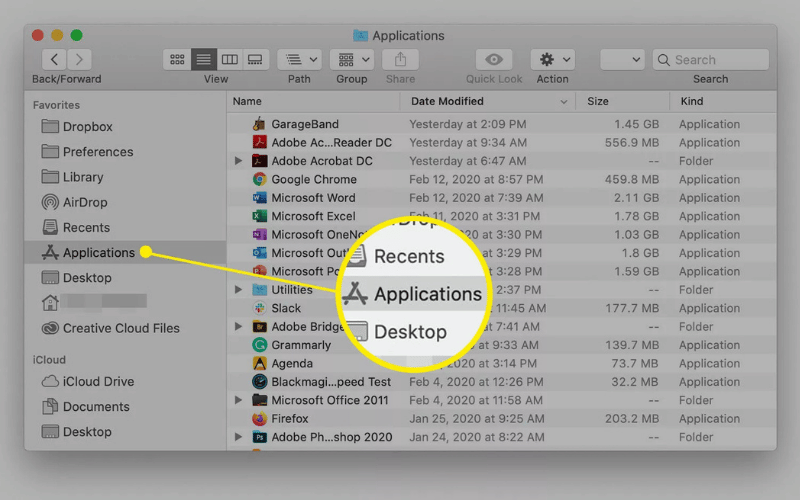
Open Applications in Finder to locate the installed app.
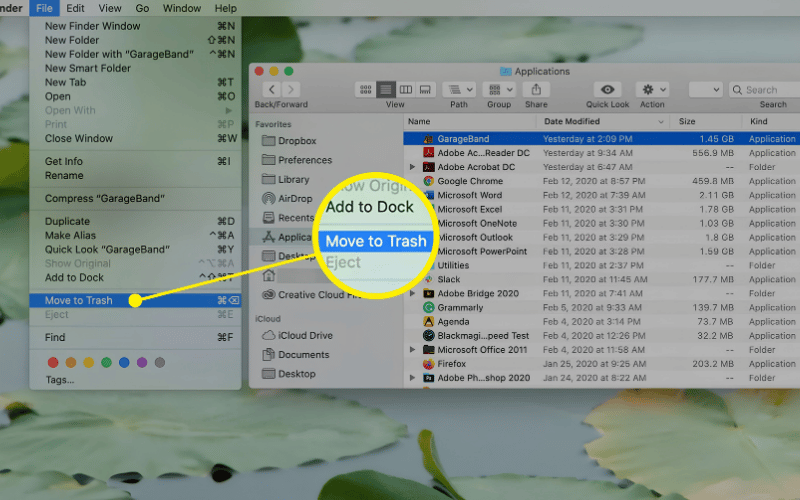
Move the application bundle to Trash rather than deleting arbitrary support folders.
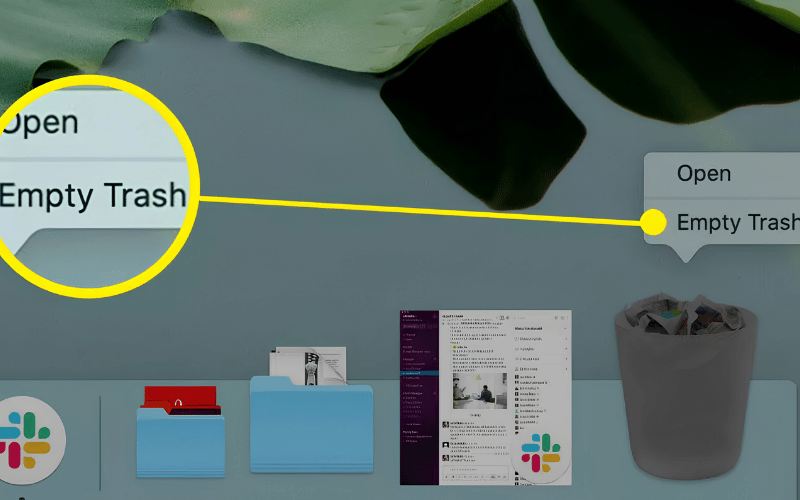
Emptying Trash is permanent, so review its contents first.
Use the app's Mac uninstaller when provided
Apps that install extensions, privileged helpers, drivers, audio components, security filters, or background services may require their own uninstaller. Check the app's folder, disk image, Help menu, or vendor support page. Moving only the main app to Trash may leave active components behind.
Should you use AppCleaner or another removal utility?
A reputable removal utility can identify preferences, caches, and support files associated with an app. It is optional, not the default first step. Review every proposed file because similarly named items may contain shared settings, plug-in data, or documents that another app still uses.
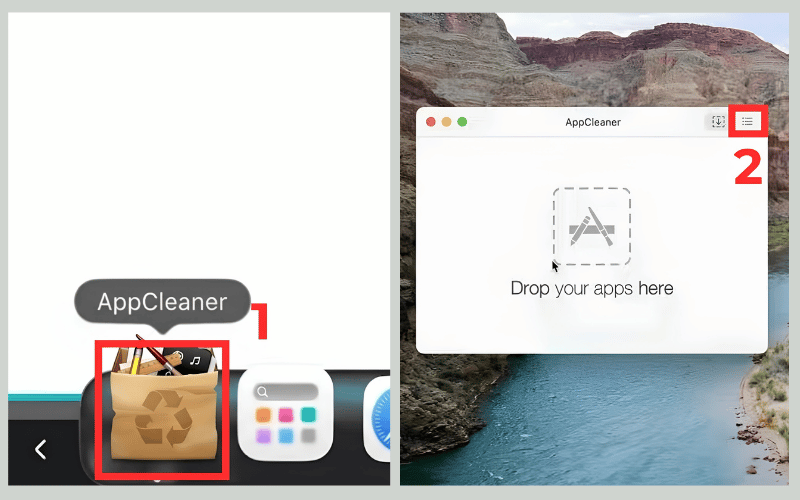
Open a cleanup utility only after obtaining it from a trusted source.
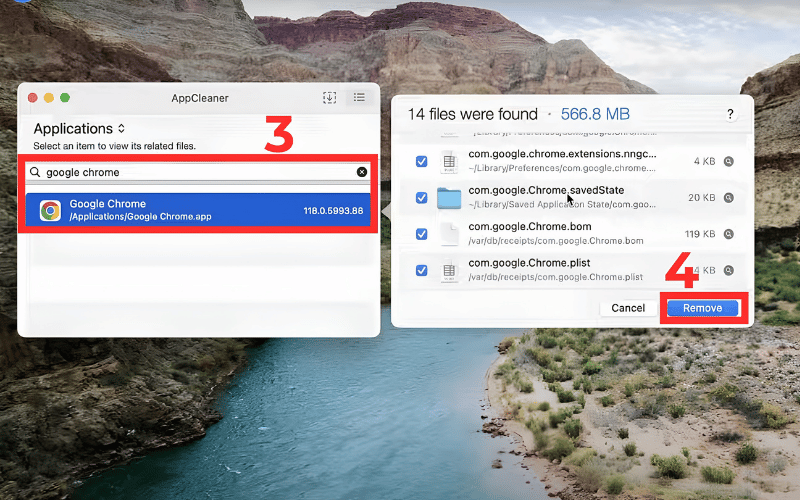
Review each related file instead of deleting the entire suggested list automatically.
On Windows, third-party uninstallers carry the same caution. Avoid “registry cleaners” that promise a universal performance boost, and never force-remove system apps, drivers, or security components just to eliminate a leftover entry. TipsMake has a separate overview of standard program-uninstall methods.
When an app will not uninstall
- Close it fully. On Windows, use Task Manager; on macOS, use Force Quit or Activity Monitor.
- Restart the laptop to release locked files, then try the normal method again.
- Check permissions. A managed device may require an administrator.
- Repair or reinstall the same version if the uninstaller is missing or corrupted, then uninstall normally.
- Use the vendor's official cleanup tool if its support documentation requires one.
- Scan for malware if the program recreates itself, blocks security tools, or has no legitimate publisher.
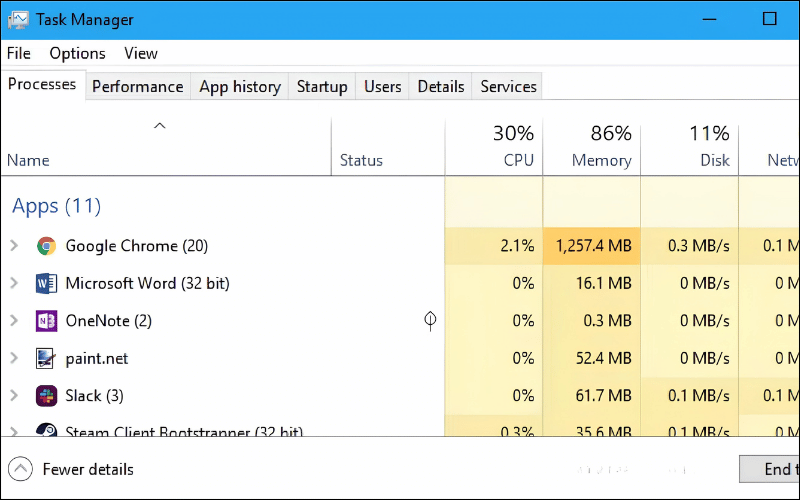
End the app's process only when you recognize it and have saved its work.
Do not delete random registry keys, services, or Library folders to chase every leftover file. Small preference and cache files are often harmless; the risk of deleting a shared component may be greater than the space recovered.
Why storage may not increase immediately
- User-created projects and downloads are normally retained after uninstalling.
- Game libraries or media packs may be stored separately from the launcher.
- Cloud-sync folders remain because they belong to the account, not the app binary.
- Recycle Bin or Trash still holds deleted data until emptied.
- Windows and macOS may take time to recalculate storage categories.
Check the actual storage totals before and after removal with the guide to checking laptop storage on Windows and Mac. Do not remove an app based only on the size shown in a menu; its local data can be larger or smaller.
Apps that need extra caution
- Graphics, audio, network, touchpad, chipset, and printer drivers
- Antivirus, firewall, VPN, encryption, and backup software
- Virtualization and container tools
- Creative suites with plug-ins and license managers
- Work or school software installed by device management
Removing the wrong driver can disable audio, networking, input, or display features.
Safe removal checklist
Confirm the app, preserve its data and license details, close it, and use the operating system or vendor's documented uninstaller. Restart and verify that the laptop works normally before deleting backups or cleanup files. If the software appears malicious or uninstalling it disrupts hardware, stop making changes and use qualified support.
Related Articles
 How to Safely Download Apps on Windows Laptops and MacBooks8 minutes read
 The Latest Windows 10 Version Allows Users to Delete Preinstalled Applications on the OS4 minutes read
 Instructions on 5 Ways to Delete Applications on Your Computer8 minutes read
 4 Quick and Simple Ways to Delete Applications on Macbook: Recommended Choices7 minutes read
 How to Delete Default Applications on Windows 105 minutes read
 How to Take a Simple Screenshot of a Windows 7/8/10/1114 minutes read
Reader Comments 0
Sign in with email or Google to join the discussion.