Table of Contents
Recent versions of Notepad can display lightweight Markdown formatting and offer cloud-based AI tools such as Rewrite and Summarize. Both features are optional. If you use Notepad for plain-text notes, configuration files, or code, you can turn them off from the app's settings.
The options may not appear on every PC at the same time because Notepad updates through Microsoft Store and some features roll out gradually. Update Notepad first if your interface does not match the screenshots.
Turn off text formatting
- Open Notepad.
- Select the Settings gear in the upper-right corner.
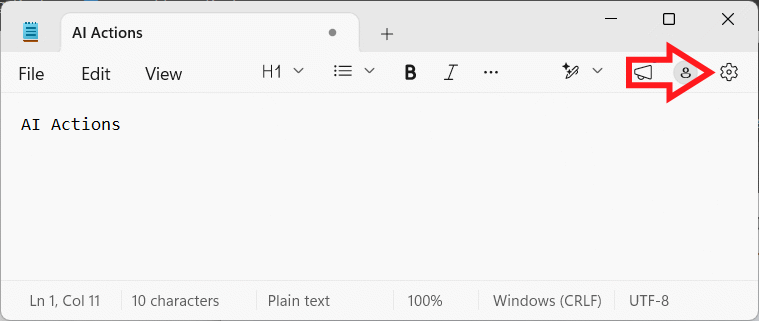
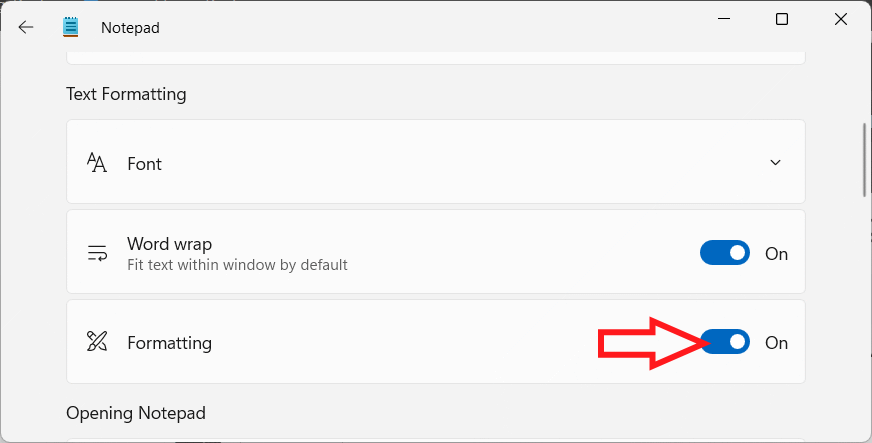
- Find Text formatting.
- Turn Formatting off.
If Notepad displays a confirmation message, choose Turn off.
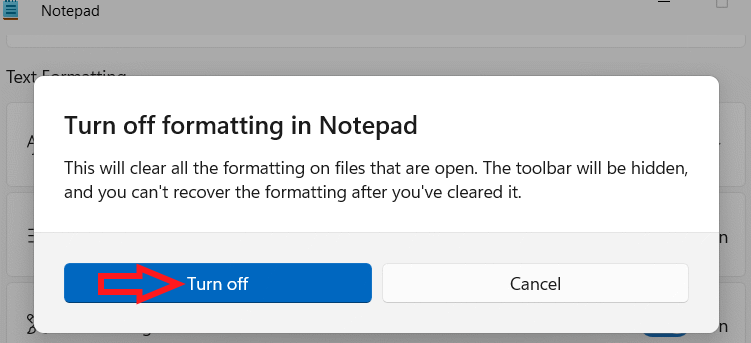
This setting disables Notepad's formatting interface. It does not convert an existing Markdown document into a different file type or automatically remove Markdown characters already saved in the text.
Clear formatting without disabling the feature
If you want formatting support to remain available but need plain text for one selection or document, use Clear formatting from the formatting toolbar or Edit menu. You can also switch between the formatted Markdown view and Markdown syntax view from the View menu or status-bar control.
Notepad's formatting is based on Markdown syntax rather than the hidden rich-text format used by a word processor. For headings, lists, emphasis, links, and tables beyond plain text, save with an appropriate Markdown filename and verify how the destination app interprets it.
Turn off Copilot and other AI features
- Open the Settings gear in Notepad.
- Scroll to the Copilot or AI features section.
- Turn the Copilot setting off. In some versions, this control covers features such as Rewrite and Summarize.
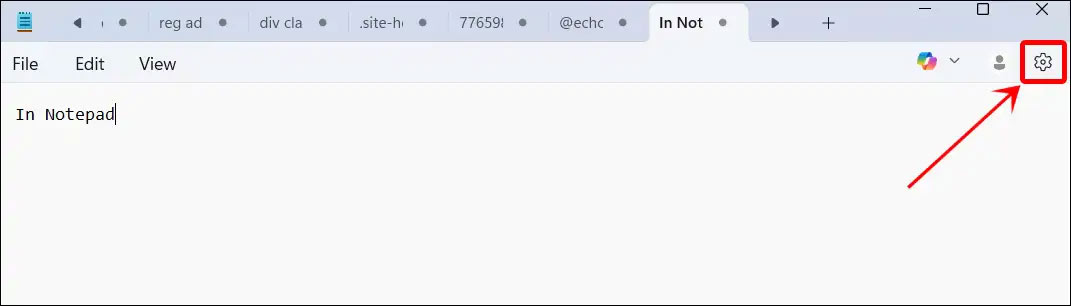
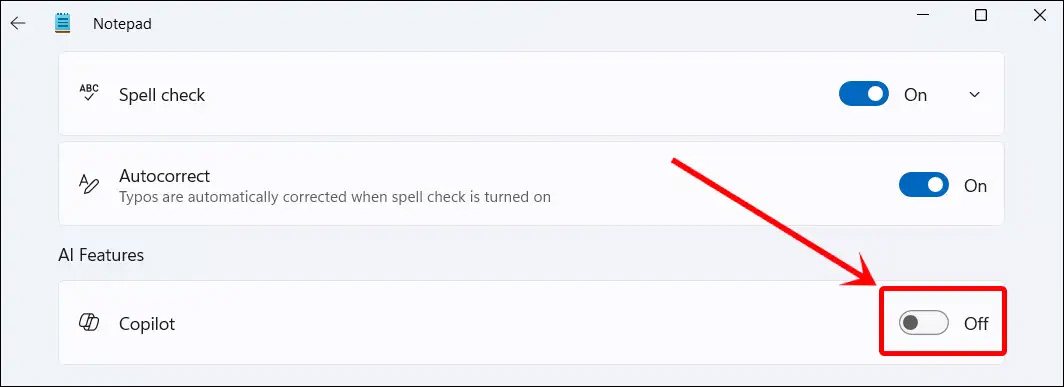
The AI commands should no longer appear in the editing workflow. Return to the same setting if you want to enable them later.
What changes when Copilot is disabled?
- Notepad stops offering its AI Rewrite and Summarize commands.
- Ordinary editing, search, replace, tabs, autosave, and plain-text features continue to work.
- Disabling formatting is separate from disabling AI; you can turn off either one independently.
Microsoft states that Notepad's AI features use a cloud-based service and require authentication. The content selected for an AI command must be processed to produce a response. Turning the feature off helps prevent accidental use, but simply leaving the switch enabled does not mean every note is automatically submitted for AI processing.
Accounts, credits, and availability
Using Notepad AI features requires signing in with a supported Microsoft account. Access and usage limits can depend on the Windows region, Notepad version, subscription, and available AI credits. Check the message shown by Notepad before upgrading or purchasing a plan; do not assume one subscription is required for every account.
For current requirements and controls, see Microsoft's Notepad AI feature documentation. Microsoft also documents the formatting controls in its Notepad formatting announcement.
When plain-text mode is the better choice
Disable formatting when a file must contain exact characters—such as source code, scripts, logs, CSV data, or configuration files—and you do not want Markdown controls in the interface. Disable Copilot when you do not need cloud-assisted editing, want to avoid using AI credits, or must follow a workplace policy for sensitive text.
These settings simplify the interface, but they should not be presented as a guaranteed performance optimization. The practical benefit is a predictable editing workflow with fewer commands you do not use.
Related Articles
 How to Turn Off Copilot in Windows 11: Step-by-Step Guide4 minutes read
 How to Use Markdown and Rich Text Formatting in Windows 11 Notepad5 minutes read
 Windows Notepad Is Now a Real Writing Tool Thanks to This AI Upgrade!5 minutes read
 Power Up Notepad Windows 11 with Copilot: Main Insights8 minutes read
 minutes read
 Notepad on Windows 11 Now Supports Creating Tables and Upgraded a Series Of3 minutes read
Reader Comments 0
Sign in with email or Google to join the discussion.