Table of Contents
Outlook rules automatically process incoming email according to conditions you choose. A rule can move messages to a folder, assign a category, mark mail as important, or forward selected messages. The most reliable setup is to start with one narrow condition, test it, and then decide whether later rules should also run.
What Outlook rules can do
Each rule combines a condition with one or more actions. You can also add exceptions. For example, a rule might move newsletters to a Reading folder unless they come from a sender you have marked as important.

Rules are most useful for predictable messages: automated reports, receipts, project notifications, newsletters, and mail sent to a particular address or distribution list. Avoid rules that are so broad that they hide messages you still need to act on.
Create a rule in new Outlook or Outlook on the web
- Open Settings (the gear icon).
- Select Mail > Rules.
- Choose Add new rule and enter a descriptive name.
- Under Add a condition, specify which messages the rule should match. Add another condition if the first one is too broad.
- Under Add an action, choose what Outlook should do. You can add more than one action when needed.
- Add an exception if certain messages should bypass the rule.
- Enable Stop processing more rules when a matching message should not continue through rules lower in the list.
- Select Save.
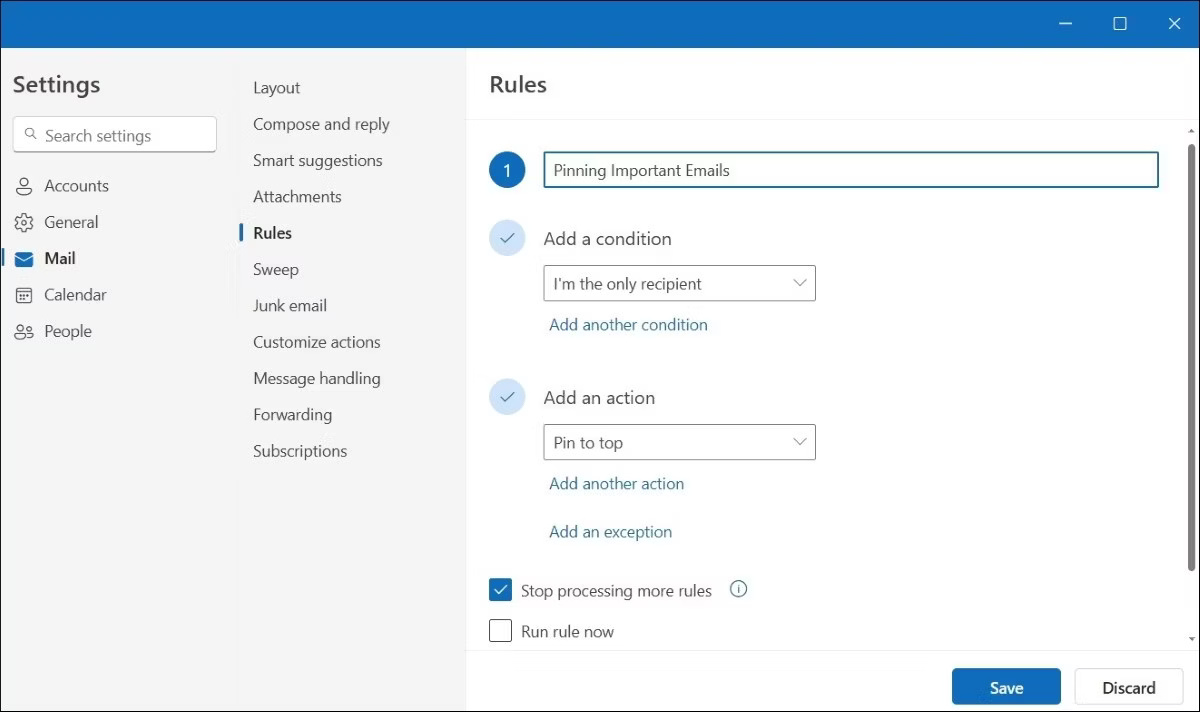
Some versions also offer Run rule now, which applies the rule to messages already in a folder. If that option is unavailable, the rule will normally affect new messages as they arrive.
Create a rule in classic Outlook for Windows
Classic Outlook uses a different path. Select File > Manage Rules & Alerts > New Rule, choose a template or start from a blank rule, then define the conditions, actions, and exceptions. Review the description before selecting Finish.
Some classic Outlook rules are client-side rules, meaning Outlook must be running for them to work. Outlook normally warns you when a rule has this limitation.
Useful rules for a less cluttered inbox

Move recurring updates to a folder
Match a known sender or a consistent subject phrase, then move those messages to a dedicated folder. This works well for routine status reports and newsletters. Check the folder regularly rather than allowing it to become a second, ignored inbox.
Highlight mail from priority senders
Use the sender condition and apply a category or importance marker. Keeping the message in the Inbox is often safer than moving it, especially when it may require a response.
Separate messages where you are copied
If copied messages are usually informational, move mail where your address is in the Cc field to a separate folder. Add exceptions for key senders or project subjects so urgent messages are not buried.
Identify messages with attachments
A rule can flag or categorize messages that include attachments, making documents easier to find later. This is usually better than forwarding every attachment or moving all such messages away from the Inbox.
Forward narrowly defined messages
Automatic forwarding can be useful for shared responsibilities, but use specific conditions and test with a non-sensitive message. Work or school administrators may restrict external forwarding, and messages may contain information that should stay within the organization.
Manage rule order and prevent conflicts
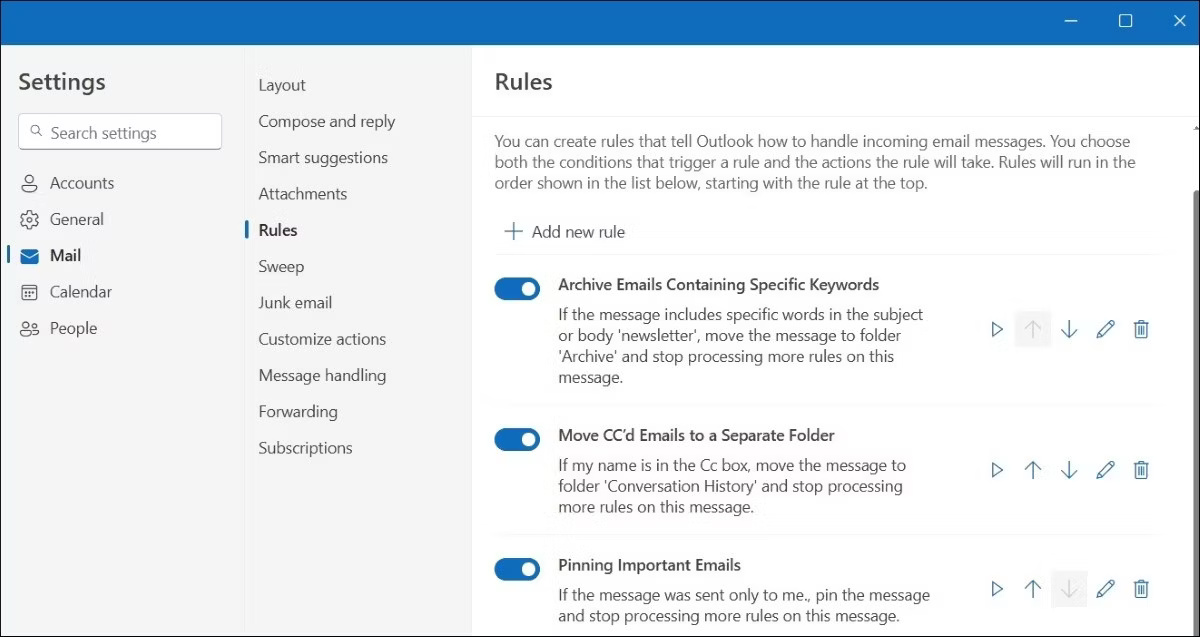
Open Settings > Mail > Rules in new Outlook or Outlook on the web. From there, you can edit, enable, disable, delete, and reorder rules. In classic Outlook, use File > Manage Rules & Alerts.
Outlook evaluates rules in their listed order. Put specific rules above broad rules. If a message should be handled by only one rule, turn on Stop processing more rules for that rule. Otherwise, the same message may be moved, categorized, or forwarded more than once.
If an Outlook rule is not working
- Confirm that the rule is enabled and applies to the correct account.
- Check whether another rule runs first and stops further processing.
- Review every condition; multiple conditions can make a rule more restrictive than expected.
- Make sure the destination folder still exists.
- Test the rule with one known message and, where available, use Run rule now.
- In classic Outlook, keep the application open if Outlook identifies the rule as client-side.
If the application itself will not open, work through these Outlook startup fixes before changing the rules. For a different kind of email automation, see how to create personalized messages with Word mail merge.
Related Articles
 How to Create Rules (Rules) in Outlook5 minutes read
 10 Ways to Manage Inbox in Outlook 201010 minutes read
 Add New, Delete, Edit Outlook Email Alias like?: Outlook Alias3 minutes read
 4 Ways to Manage Email Effectively17 minutes read
 Fix PST File Errors with Outlook Inbox Repair3 minutes read
 Move Daily Email to a Folder in Outlook2 minutes read
Reader Comments 0
Sign in with email or Google to join the discussion.