Table of Contents
To hide the green dot and “active now” indicator, turn off Active Status in both Facebook and Messenger. If you use the account on more than one phone, browser, or app, repeat the change everywhere; leaving Active Status enabled in one place can still make you appear online.
Turning off Active Status does not log you out, block messages, disable notifications, or stop people from seeing that you have read a message. It also normally prevents you from seeing other people's active or recently active status.
Turn off Active Status in Messenger on iPhone or Android
- Open the Messenger app.
- Tap Menu or your profile picture.
- Tap the settings icon if it appears, then choose Active status.
- Turn off Show when you're active.
- If shown, also review Show when you're active together. Turning off only this second option is not the same as hiding Active Status completely.
- Confirm the change when prompted.
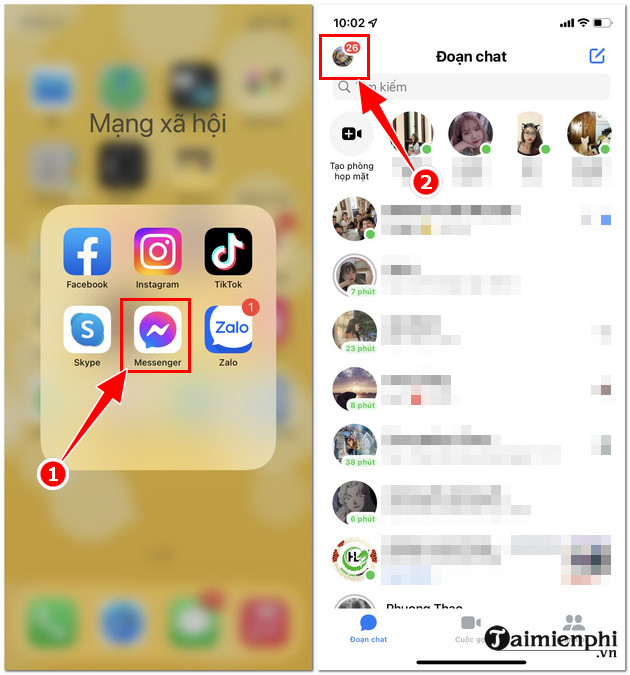
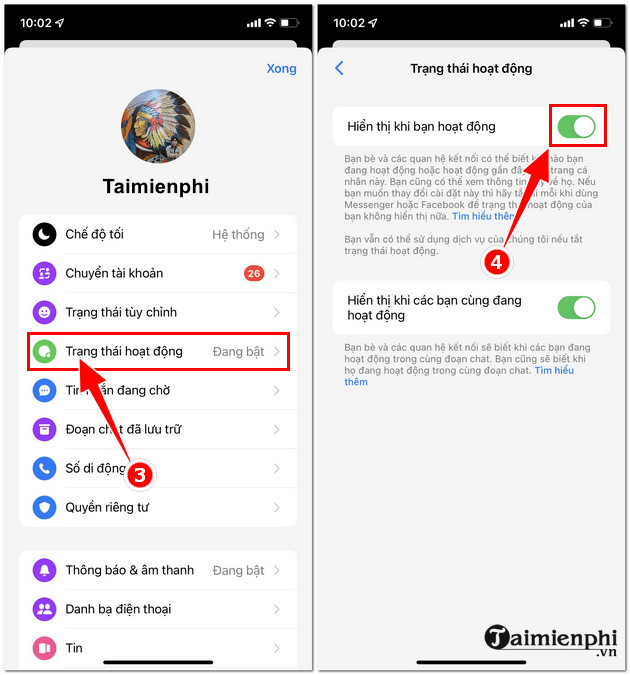
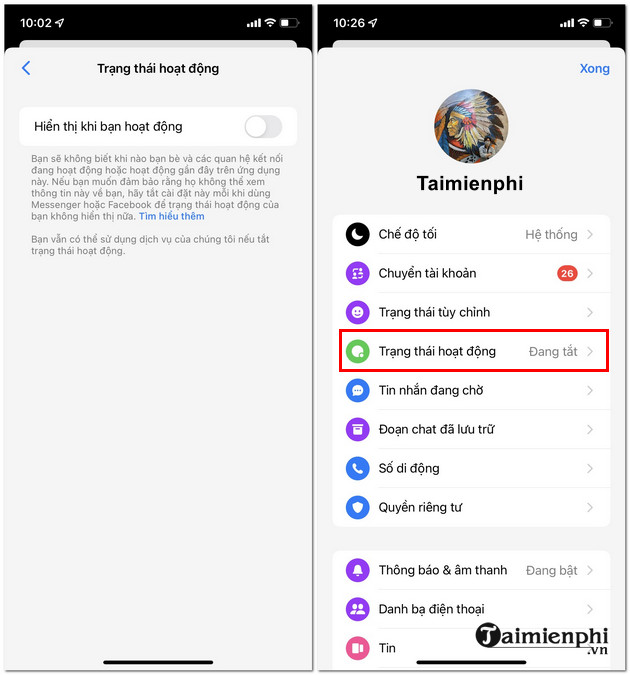
Meta's current Messenger Active Status instructions show the latest menu path. If Messenger is not installed or needs updating, use TipsMake's Messenger installation guide.
Turn off Active Status in the Facebook app
- Open Facebook and tap Menu.
- Select Settings & privacy, then Settings.
- Scroll to Audience and visibility and tap Active Status. Depending on the app version, it may appear under a different preferences group.
- Turn off Show when you're active and confirm.
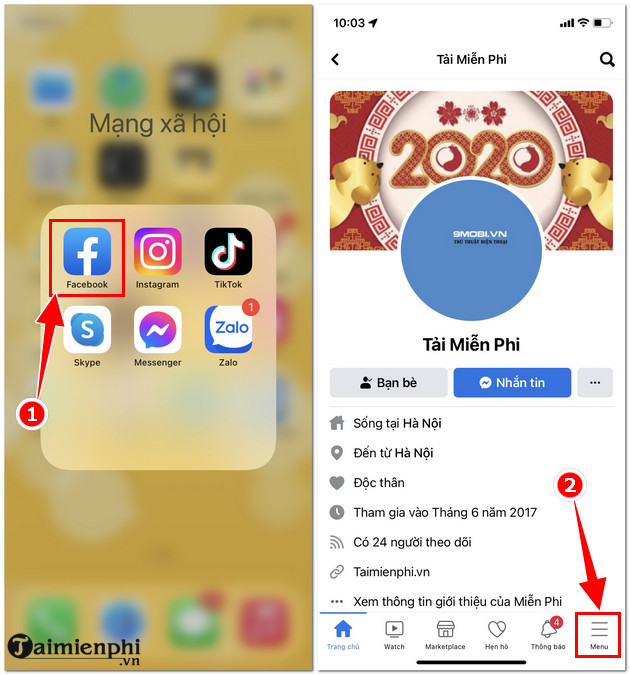
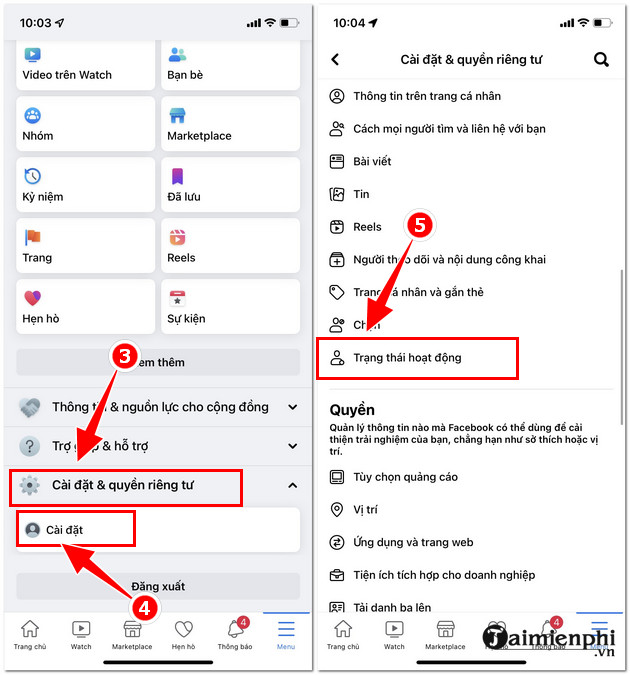
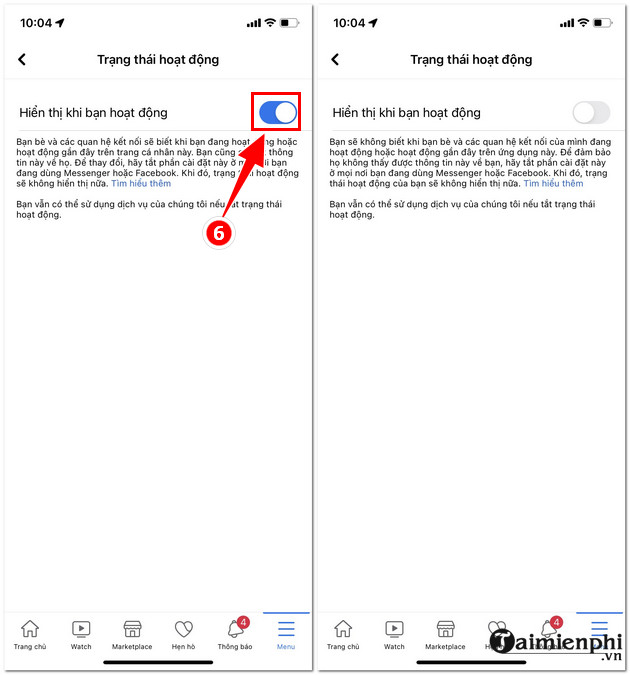
Repeat the Messenger steps as well if you use both apps. Facebook's Active Status help specifically notes that the setting should be disabled in both Facebook and Messenger.
Appear offline on a computer
On Facebook.com
- Open Facebook and select the Messenger icon.
- Open the chat options menu, usually shown as three dots.
- Select Active Status.
- Turn the setting off and save.
On Messenger.com or the Messenger desktop experience
Open your profile or settings menu, choose Active Status, and turn off Show when you're active. The exact layout can differ, but the setting has the same effect. If the Facebook site still shows you as active, turn it off there separately.
What changes after you hide Active Status?
| Feature | What happens |
|---|---|
| Green active dot | Other people should no longer see it for the apps and devices where the setting is off. |
| Recently active time | It is hidden with Active Status. |
| Incoming messages | Messages still arrive in the chat list. |
| Notifications | They continue unless you mute them separately. |
| Read receipts | Active Status does not disable them. |
| Other people's status | You generally cannot see who is active or recently active while yours is off. |
If interruptions are the real problem, mute the conversation or change Messenger notification settings instead of relying only on Active Status. TipsMake's overview of Messenger conversation controls explains related options.
Why you may still appear active
- Another session is open: Check Facebook and Messenger on other phones, tablets, browsers, and desktop apps.
- Only one app was changed: Turn the setting off in both Facebook and Messenger.
- Status is delayed: It can take a short time for an activity indicator to update across devices.
- The app is outdated: Update Facebook and Messenger, force-close them, and reopen Settings.
- The switch did not save: Return to Active Status and confirm it remains off.
For a full session check, open Accounts Center > Password and security > Where you're logged in. End unfamiliar sessions and change the password if any device is not yours. See TipsMake's guide to changing a Facebook password when needed.
Turn Active Status back on
Return to the same Active Status menu in Facebook and Messenger and enable Show when you're active. Repeat on each device where you want presence information to appear. You may need to reopen the app before friends' activity indicators return.
Privacy limits to understand
Appearing offline is a presence preference, not an anonymity feature. People may still infer that you are using Facebook from a new post, reaction, comment, Story view, message response, or read receipt. For stronger privacy, review audience settings, app permissions, and active sessions rather than treating the green dot as a complete activity shield.
Related Articles
 Turn Off Facebook Messenger Chat, How to Hide Facebook Nick4 minutes read
 How to Hide All Old Posts on Timeline Facebook: Facebook Timeline4 minutes read
 How to Turn Off / Hide Facebook Nick Even When Online4 minutes read
 How to Hide and Share Status with Someone on Whatsapp3 minutes read
 How to Turn Off Status Status on Facebook?3 minutes read
 Guide to Hide Facebook Fanpage Like Activity3 minutes read
Reader Comments 0
Sign in with email or Google to join the discussion.