Table of Contents
These images can be used as Facebook cover photos, profile-picture sources, post graphics, or phone and computer wallpapers. Facebook does not let you replace its entire interface background with a personal image through a built-in setting; use Facebook dark mode for the app or website appearance.
To save an image, open it at full size, then use Save image as on a computer or press and hold it on a phone. Check that you have the right to reuse an image before publishing it outside your personal profile.
Choose an image that works as a Facebook cover
- Prefer a wide image with enough resolution to stay sharp after Facebook compresses it.
- Keep faces, text, and other important details near the center because mobile and desktop crops differ.
- Preview the cover on both a phone and a computer before you finish.
- Avoid small text. It may be unreadable on mobile or obscured by profile controls.
- Remember that a current profile picture and cover photo are public, including to people outside Facebook.
Meta's cover photo instructions explain the current upload flow. For coordinated designs, see how to match a Facebook avatar and cover photo.
Bold and graphic Facebook cover ideas
These designs favor dramatic color, silhouettes, and high-contrast subjects. They work best when the subject remains visible after a wide crop.









Anime Facebook wallpaper ideas
Anime images can work as a cover, avatar source, or device wallpaper. Check the crop carefully so faces and focal details are not hidden by the profile picture or buttons.










Cute and playful Facebook wallpapers
This group uses soft colors, simple illustrations, and lighthearted subjects. Minimal designs are easier to crop for several screen sizes.














Nature and landscape wallpapers
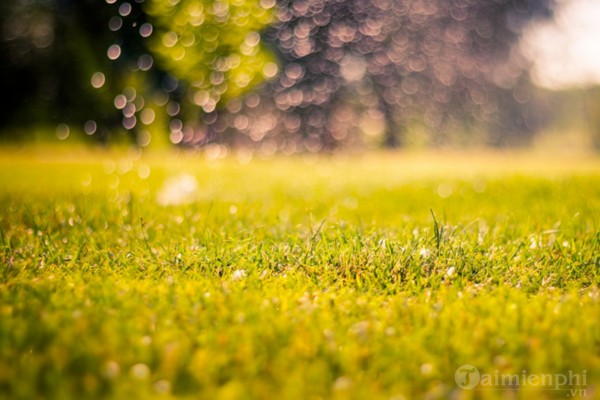
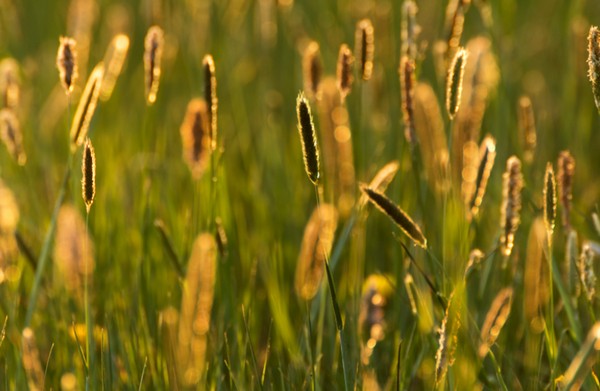
Landscape images suit wide cover-photo crops and desktop backgrounds. Keep the horizon level, and position the main subject away from interface controls.








How to set an image as your Facebook cover photo
- Open your Facebook profile.
- Select Edit cover photo in the lower-right area of the current cover.
- Choose Upload photo and select the saved image.
- Drag or reposition the image so the important area stays visible.
- Save the change, then check the result on both mobile and desktop.
A Page uses a similar Edit cover photo control after you switch into the Page. A group, event, and personal profile can use different crops, so do not assume one file will frame identically everywhere. TipsMake's guide to adding photos to Facebook posts covers ordinary posts rather than cover images.
Improve a selected image before uploading
Crop a vertical wallpaper to a wide composition for a cover photo, but keep the original file in case you want to use it on a phone. If the image contains text, add it only after deciding the crop. Use a subtle dark or light overlay when profile controls make the subject hard to see, and export as a standard JPEG or PNG.
Do not enlarge a small image aggressively: it will look soft after upload. Avoid placing contact details or private information in a cover photo because Facebook treats the current cover as public. If a design contains an artist signature or copyright notice, do not remove it.
Cover photo or wallpaper?
| Use | Best approach |
|---|---|
| Facebook profile cover | Choose a wide crop and keep key details centered. |
| Facebook Page cover | Use a simple composition, preview on mobile, and follow Page branding. |
| Profile picture | Crop around one clear subject that still reads at a small size. |
| Phone wallpaper | Use a vertical crop with space around clock and icons. |
| Computer wallpaper | Use the image's full native resolution or a wide crop that matches the display. |
Related Articles
 The Most Cute and Adorable Set of Cat Wallpapers3 minutes read
 Cute Wallpapers for Smartphones2 minutes read
 Download Full Set of Extremely Cool Cute Computer Wallpapers4 minutes read
 Rabbit: Cute, Cute Bunny Wallpaper2 minutes read
 The Most Cute, Funny and Funny Animal Wallpapers3 minutes read
 Download Now Set of Wallpapers with Minimalist Themes2 minutes read
Reader Comments 0
Sign in with email or Google to join the discussion.