Table of Contents
Instagram offers built-in typefaces for Stories, but bios, captions, and comments normally use the device's standard text style. To create a different look in those areas, people often copy and paste decorative Unicode characters that resemble fonts. The method is simple, but it is worth using styled text sparingly so your profile remains readable and accessible.

Instagram fonts vs. styled Unicode text
Most “Instagram font” tools do not install a new font in the app. Instead, they replace ordinary letters with Unicode symbols that have a bold, italic, script, outlined, or decorative appearance. Because the result is text rather than an image, you can usually paste it into a bio, caption, comment, direct message, or Story.
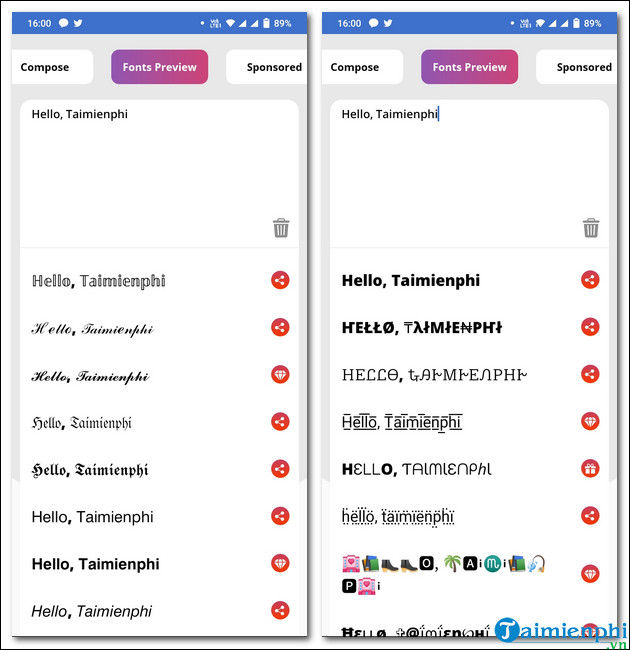
Not every symbol is supported on every device. Some screen readers may also pronounce decorative characters incorrectly, and heavily styled words can be difficult to search or copy. Keep important information such as your name, business category, contact details, and calls to action in regular text.
Method 1: Use Instagram's built-in Story fonts
This is the most reliable option for text that appears inside a Story because Instagram controls the typeface, alignment, color, animation, and background effects.
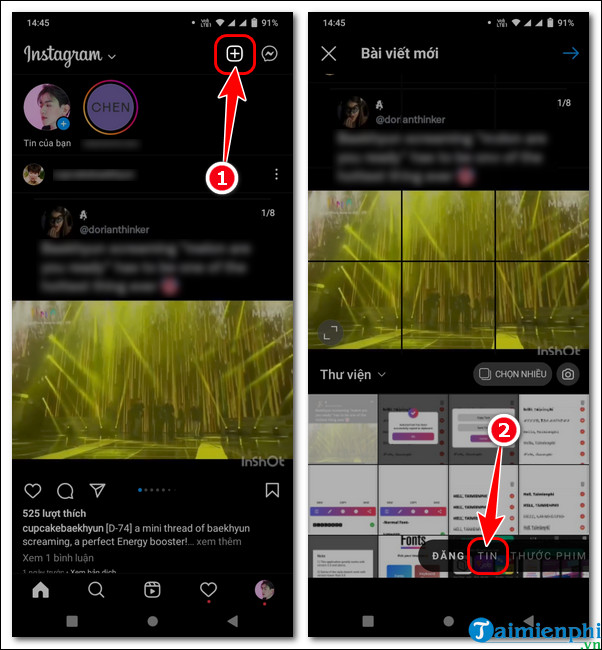
- Open Instagram and tap the create button.
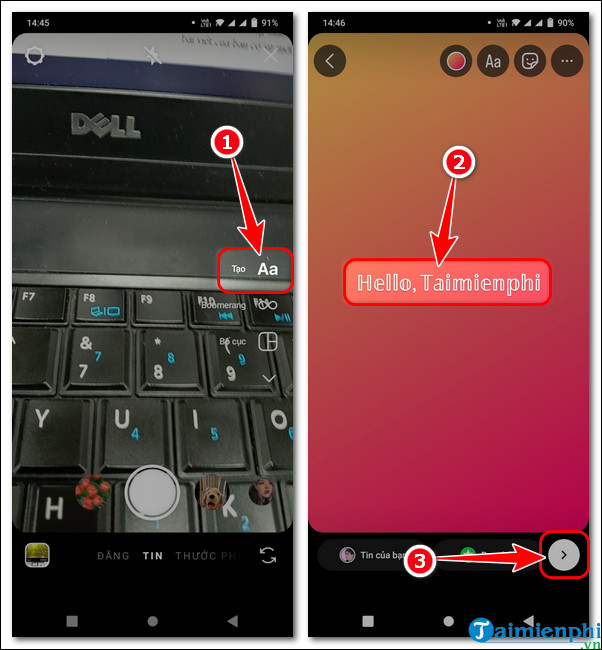
- Choose Story, then capture or select a photo or video. You can also use Create mode for a text-focused Story.
- Tap the text tool and enter your message.
- Use the font controls shown on screen to switch styles. Adjust the color, alignment, size, background, or animation as needed.
- Check that the text stays inside the safe area and remains legible over the image, then share the Story.
For more help with the format, see TipsMake's Instagram and social-network guides.
Method 2: Copy styled text from a font tool
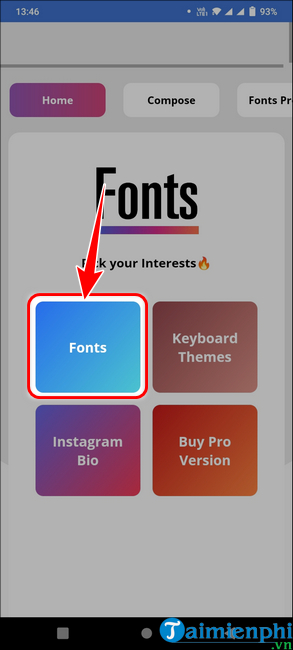
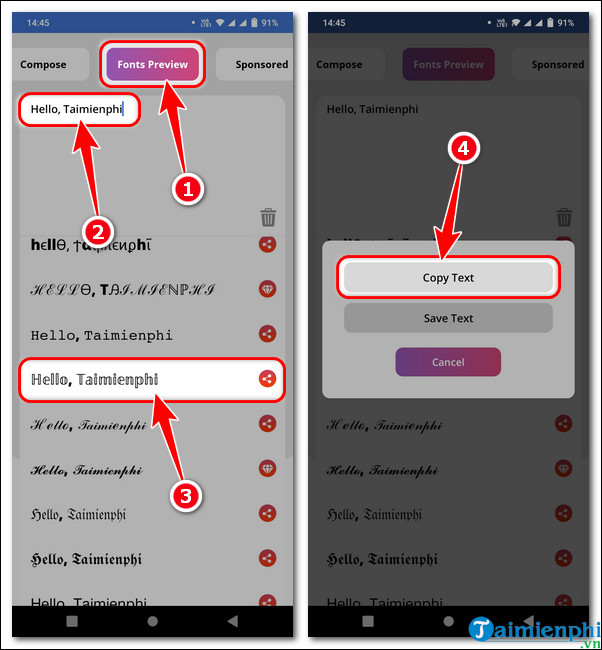
A Unicode text generator or a font-styling app can create text for profile areas where Instagram does not provide a font selector. The exact controls vary, but the process is generally the same:
- Open a reputable font generator in a browser or a text-styling app on your phone.
- Type the words you want to format.
- Review the available styles and choose one that is easy to read.
- Copy the generated text.
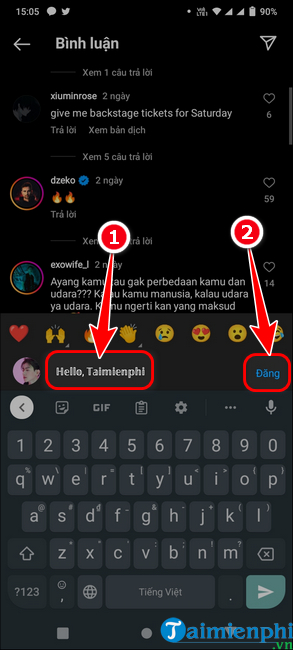
- Return to Instagram and paste it into the desired field.
The screenshots below show an older version of the Cool Fonts for Instagram app. Its availability and interface may change, so treat the images as an example rather than a required download.
If you want to place designed lettering directly on a photo instead of pasting Unicode text, compare the options in TipsMake's guide to apps for adding attractive text to photos. TipsMake also lists useful Instagram support apps for broader creative tasks.
Where to paste styled Instagram text
Bio or name field
Open your profile, choose Edit profile, and paste the styled text into the appropriate field. Preview the result before saving. A short accent word often works better than styling the entire bio.
Caption
Create a post or Reel as usual, then paste the text into the caption field. Use normal characters for hashtags and keywords so they remain recognizable.
Comment
Open the post, tap the comment field, paste the copied text, and publish the comment. If any characters appear as empty boxes, switch to a simpler style.
How to choose a readable style
- Use decorative text as an accent. One name, heading, or short phrase is usually enough.
- Test it on another device. Character support can vary by operating system and app version.
- Avoid styling hashtags and links. Decorative characters may stop them from working as expected.
- Keep essential details in standard text. This helps people using screen readers and makes information easier to search.
- Do not grant unnecessary permissions. A simple font tool should not need access to your Instagram password, messages, or contacts.
If pasted text looks broken, delete it and generate the phrase with a less decorative option. Instagram may also filter unsupported symbols, so always review the final profile, post, or Story after publishing.
Related Articles
 How to Create Instagram Fonts: Circle Letters, Squares, Reverse4 minutes read
 How to Add Fonts, Change Beautiful Fonts for iPhone Keyboard3 minutes read
 How to Use Stylish Text to Create a Unique Font in Windows 103 minutes read
 The Simplest Way to Install Additional Fonts for Computers4 minutes read
 Combining the Most Luxurious and Modern Fonts2 minutes read
 5 Notes to Help Capture Beautiful and Virtual Fonts6 minutes read
Reader Comments 0
Sign in with email or Google to join the discussion.