Table of Contents
If you know your current Facebook password, change it in Accounts Center > Password and security > Change password. If you cannot sign in or do not remember the current password, use Forgot password? on the official Facebook login screen to reset it by a verified recovery method.
You do not need to change a strong, unique password on an arbitrary schedule. Change it promptly if it has been exposed, reused on a breached site, shared, entered on a suspicious page, or associated with an unfamiliar login.
Change your Facebook password while signed in
On a computer
- Open Facebook, select your profile picture, and choose Settings & privacy > Settings.
- Open Accounts Center.
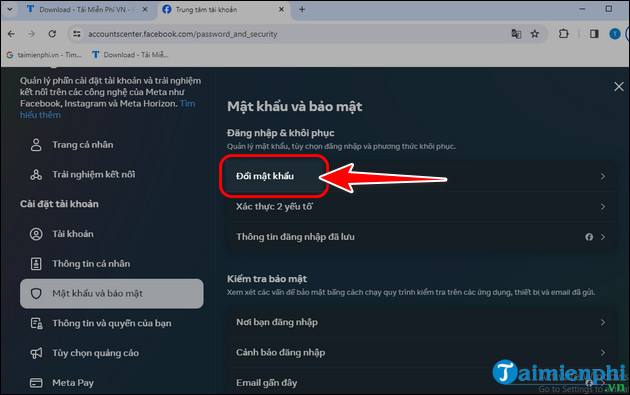
- Select Password and security, then Change password.
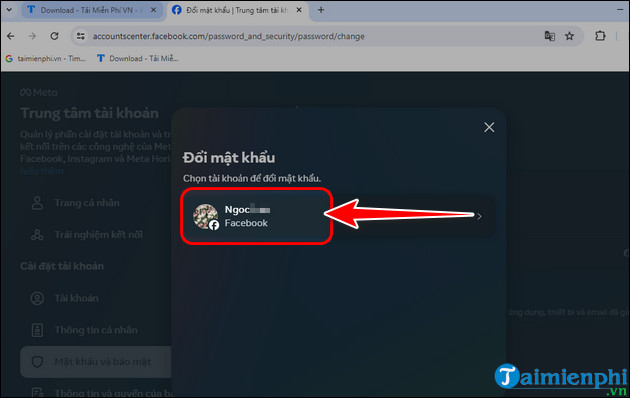
- Choose the Facebook profile whose password you want to change.
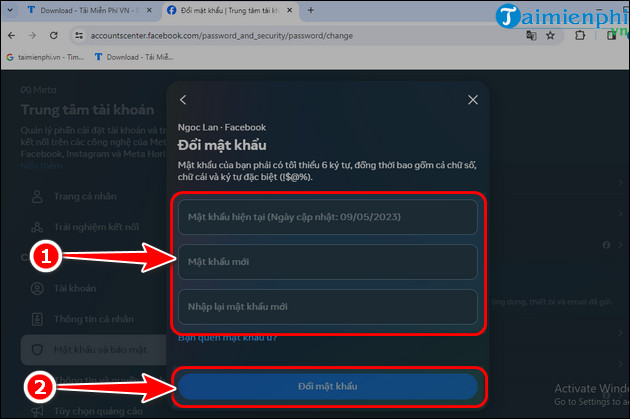
- Enter the current password, then enter the new password twice.
- Select Change password and complete any security prompt.
On Android or iPhone
- In the Facebook app, open Menu.
- Tap Settings & privacy, then Settings.
- Open Accounts Center > Password and security.
- Tap Change password and select the Facebook profile.
- Enter the current password and a new password, confirm it, and save.
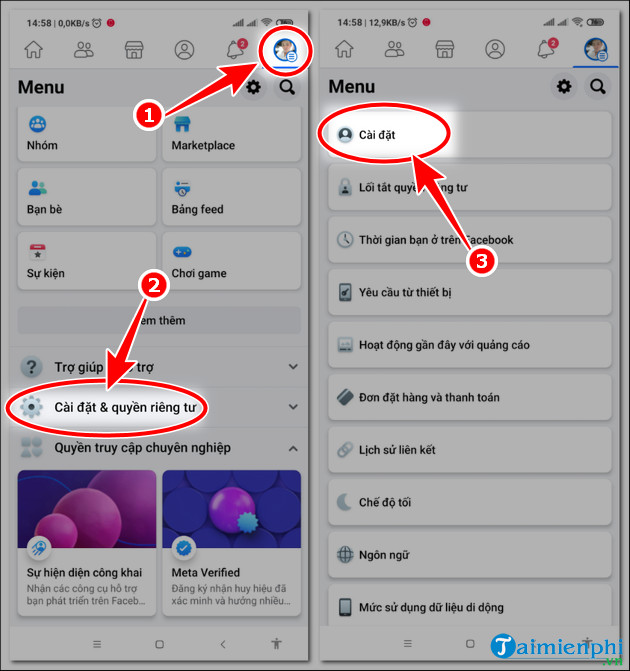
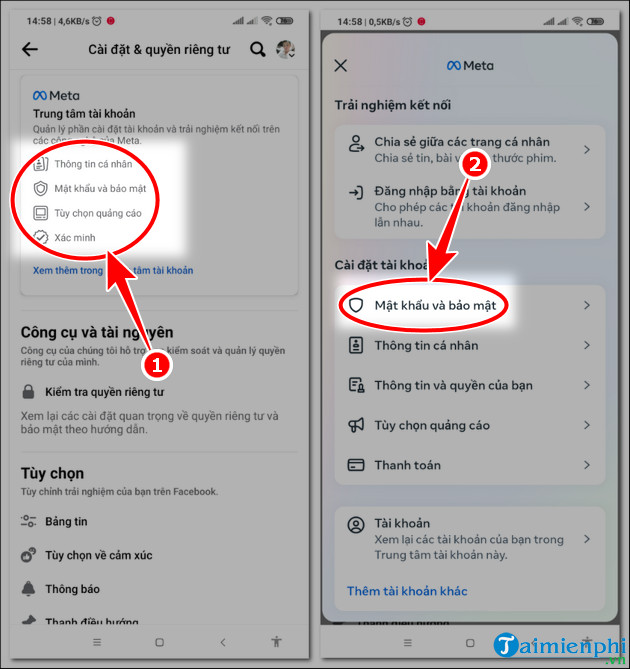
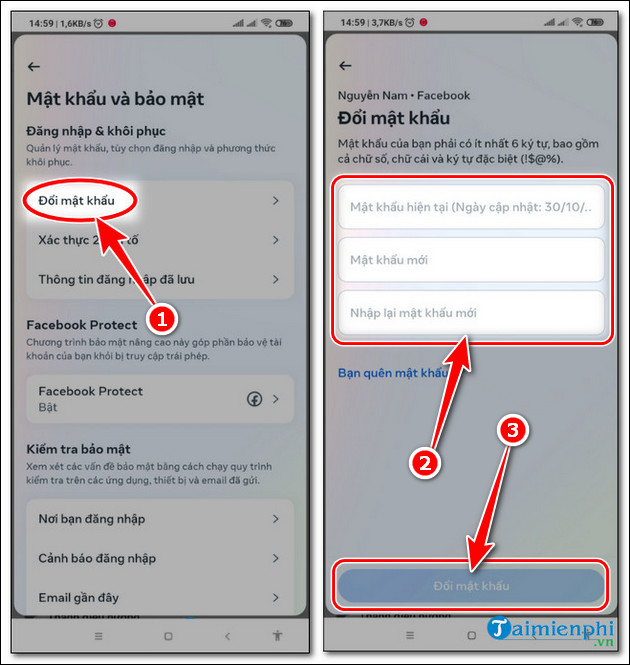
Labels can vary slightly by app version. Facebook's official change or reset password guide provides the current menu path.
Reset the password when you are signed out
A reset replaces the password after Facebook verifies that you control a recovery method. It does not reveal the old password.
- Open the Facebook app or type facebook.com into the browser yourself.
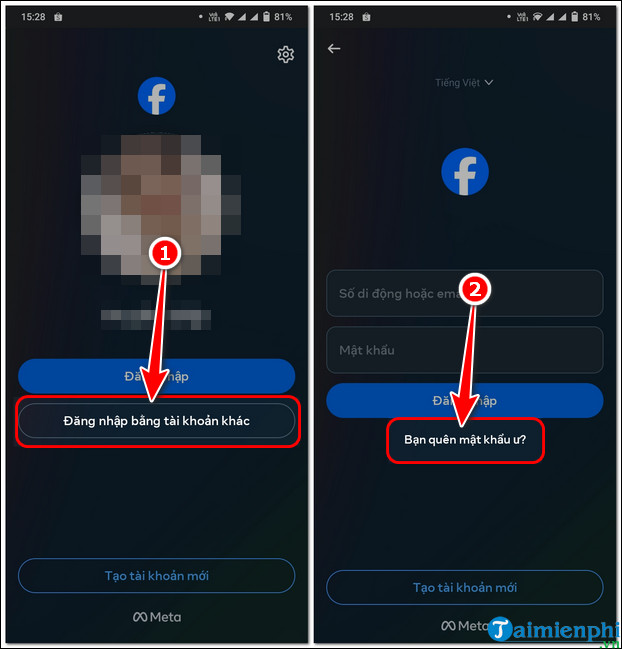
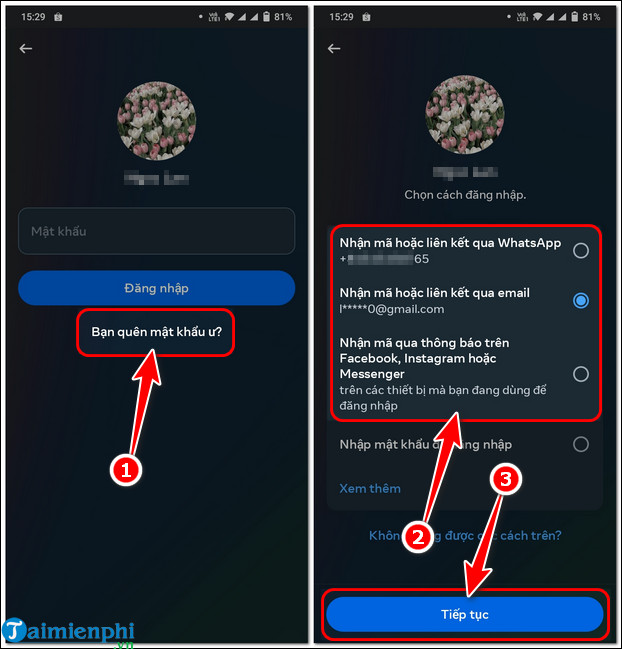
- Select Forgot password?.
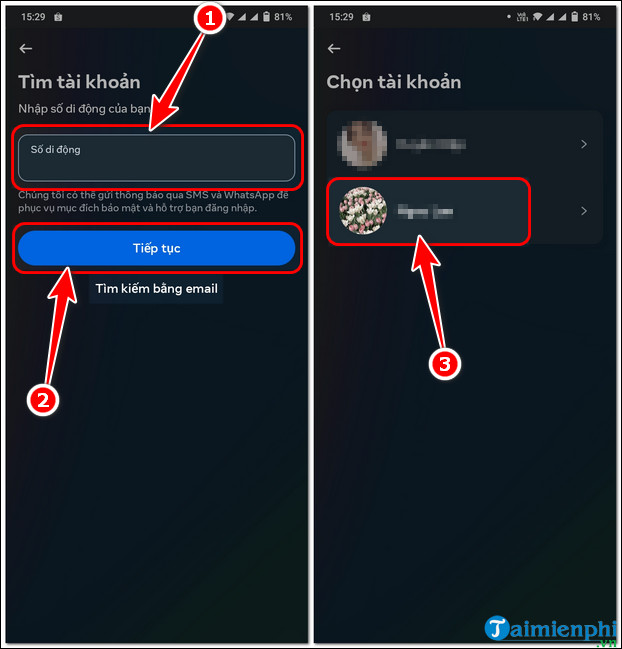
- Enter an email address, mobile number, full name, or username connected to the account.
- Choose the correct profile and select an available recovery method.
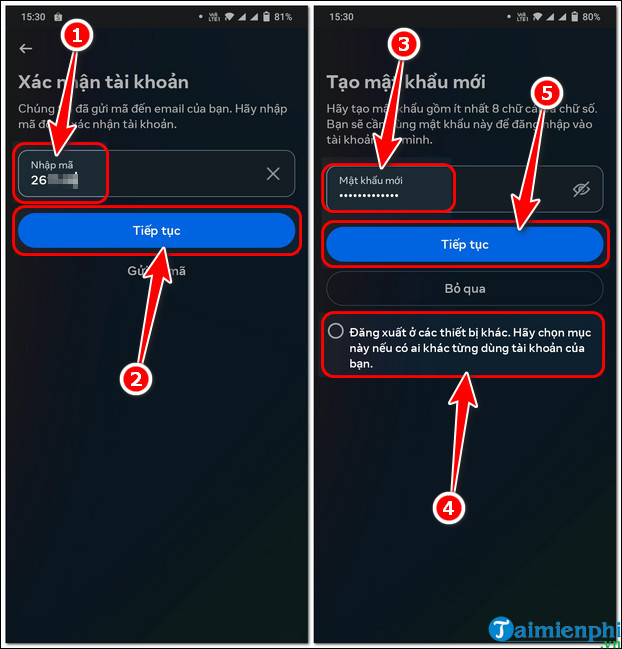
- Enter the newest code sent by Facebook.
- Create a unique new password. If offered, log out of other devices when you suspect unauthorized access.
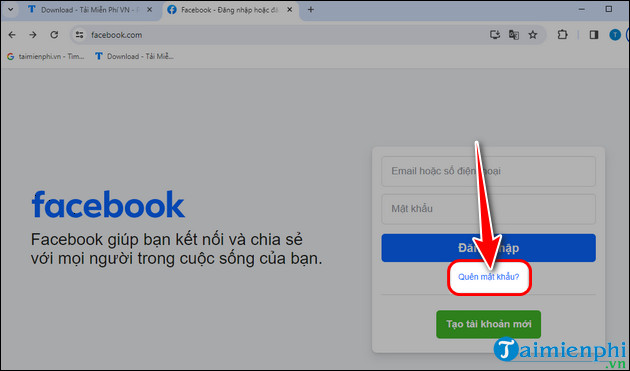
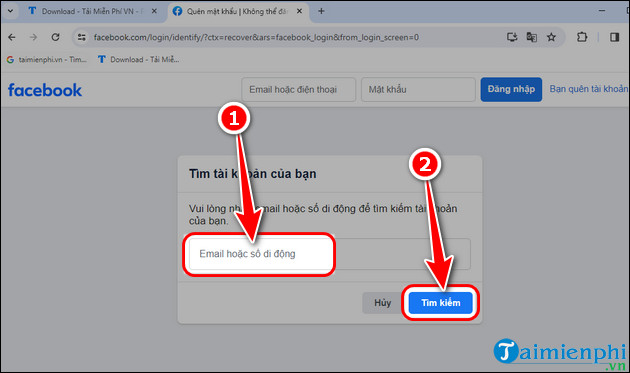
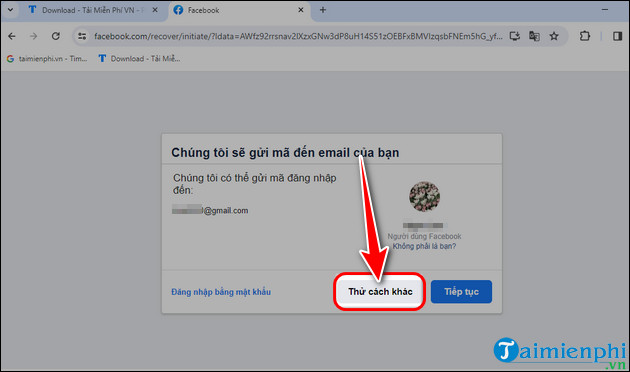
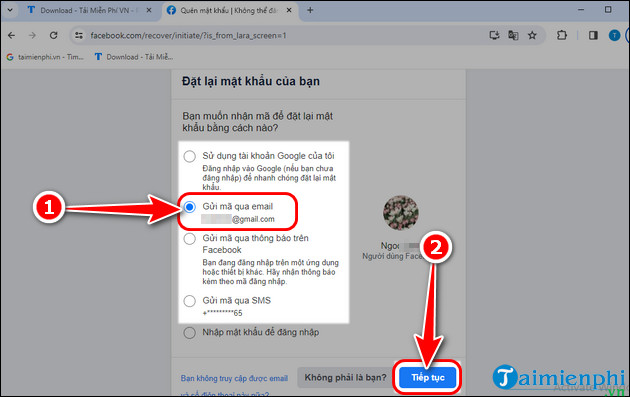
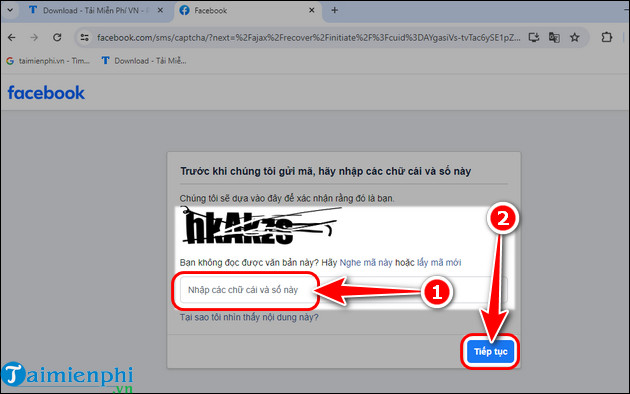
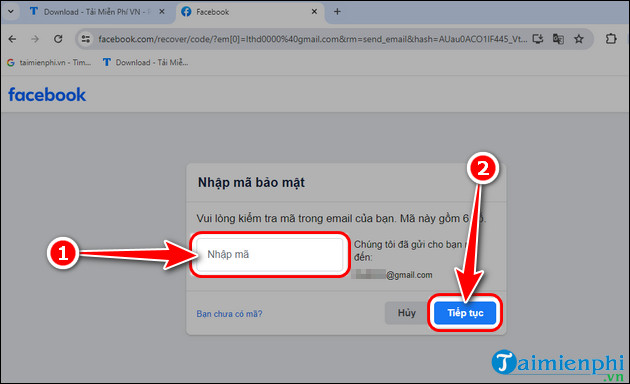
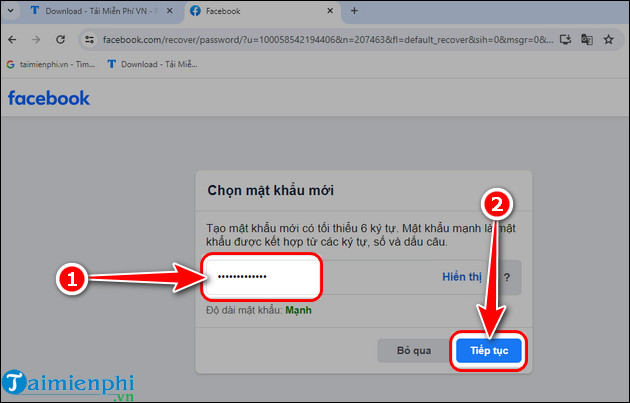
For account-identification and code-delivery problems, follow the fuller guide to reset a forgotten Facebook password.
Reset in the mobile app
From the Facebook app's login screen, choose Log into another account if necessary and tap Forgot password?. Search by a connected phone number or switch to email or username. Select the profile, receive a code through a method Facebook offers, and create the new password.
Choose a stronger replacement password
- Make it long and unique to Facebook.
- Avoid names, birthdays, phone numbers, common phrases, and predictable substitutions.
- Do not reuse an email, banking, work, or shopping password.
- Store it in a reputable password manager instead of a plain note or message to yourself.
- Do not use a sample password shown in an article, video, or social post.
A password manager can generate and autofill a different credential for each service. Compare TipsMake's password manager options if you do not already use one.
What to do after changing the password
Review logged-in devices
In Accounts Center > Password and security, open the section that shows where you are logged in. End unfamiliar sessions. A location can be approximate, so compare the device type and time as well as the city.
Enable two-factor authentication
In the same security area, turn on two-factor authentication with an authentication app, security key, or another method Facebook offers. Save recovery codes separately. A new password protects only one factor; two-factor authentication helps when a password is stolen.
Secure the connected email account
An attacker who controls your recovery email may be able to reset Facebook again. Change the email password if it was reused or exposed, review its sessions and forwarding rules, and enable its own two-factor authentication.
Remove unfamiliar contact details and apps
Review the email addresses and phone numbers in Accounts Center, as well as connected apps and websites. Remove anything you did not add. If you suspect a takeover, use facebook.com/hacked from a familiar device and follow the guided checks.
If the password change does not work
- Current password rejected: Check keyboard layout and Caps Lock, then use Forgot password? instead of guessing repeatedly.
- No reset code: Check spam, mobile signal, blocked short codes, and whether the masked destination is yours. Wait before requesting another code.
- Code expired: Use the newest message; requesting another code can invalidate an older one.
- No access to the listed email or phone: Select another method if offered and try from a device you have used before.
- Account may be compromised: Use Facebook's hacked-account flow and avoid anyone charging to “recover” it.
If you regain access but still cannot update security settings, see how to contact Facebook account support. For the next sign-in, use the official app or follow the Facebook login instructions.
Keep recovery details current
Maintain at least one email address and mobile number you control, remove obsolete details, and periodically review security alerts and active sessions. That is more useful than changing a unique password every few months without evidence of compromise.
Related Articles
 Change Your Facebook Password on Your Phone, How to Change Mk Fb5 minutes read
 Instructions to Change Facebook Password on Computer4 minutes read
 How to Change Your Computer, Phone and Mac Passwords4 minutes read
 How to Rename Facebook on the Phone4 minutes read
 How to Change Phone Number on Facebook Computer, Phone4 minutes read
 Instructions to Change Garena Password on the Phone6 minutes read
Reader Comments 0
Sign in with email or Google to join the discussion.