Table of Contents
Instagram Stories let you share vertical photos and videos that normally disappear from public view after 24 hours. You can capture media in Instagram or import it from your phone, add text, music, stickers, links, drawings, and effects, then choose whether to share with your usual Story audience or a Close Friends list.
The screenshots in this guide show an older Instagram interface. The current icons and menu names may differ, but the tasks and controls described below remain the useful points to look for.
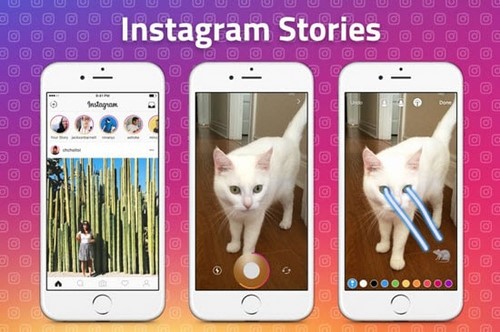
Create a new Instagram Story
- Open Instagram and tap the create button, your profile picture with a plus sign, or the Story camera entry shown in your app.
- Select Story.
- Tap the shutter button to take a photo, or hold it to record a video when that behavior is available.
- Use the editing controls to add any text, stickers, drawings, music, or effects you need.
- Tap the sharing control and choose Your Story, Close Friends, or another audience option offered by the app.
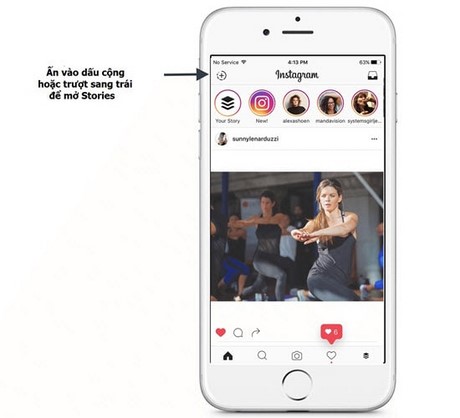
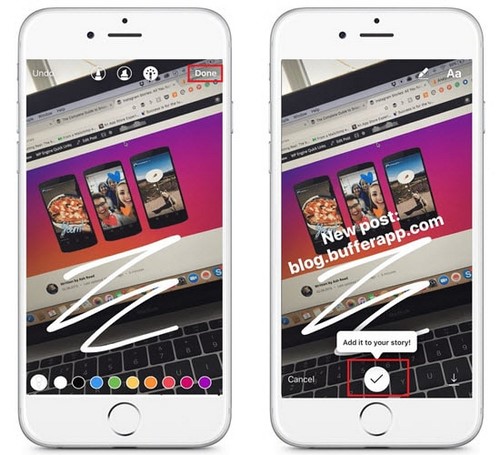
Before publishing, check the top and bottom edges. Instagram overlays profile information and reply controls in those areas, so text placed too close to an edge can become difficult to read.
Add a photo or video from your phone
Open the Story editor, then tap the gallery thumbnail or swipe to reveal recent media. Select a photo or video and edit it as you would a new capture. Modern versions of Instagram are not limited to files created in the previous 24 hours, although the gallery view may initially emphasize recent items.
If Instagram cannot see the file, check the app's photo-library permission in the phone settings. On devices that allow limited photo access, add the desired item to Instagram's permitted selection.
Edit a Story before sharing
Use camera effects and color filters
Camera effects are chosen while you compose a photo or video; color filters and other adjustments may be available after capture. Swipe through the visible choices and use a restrained effect when clarity matters. Creator-made effects can be removed, so a saved effect may not remain available permanently.
For ideas, see TipsMake's guide to Instagram filters for different photo styles.
Add text
Tap the text control, type your message, and choose the font, alignment, color, background, animation, and size shown by your version of Instagram. Use high contrast between the text and image. For designed lettering outside Instagram, compare these apps for adding text to photos.
Create a solid-color background
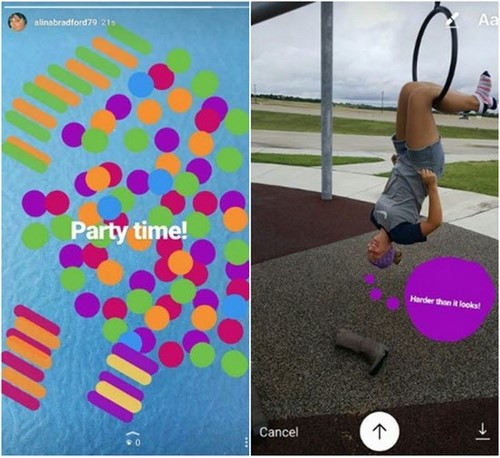
Start with a photo or Create mode, open the drawing tool, choose a color, then press and hold on the canvas if your app supports the fill gesture. Add text or stickers after the background is filled.
Add stickers, music, links, location, or a poll
Tap the sticker control to view the features available to your account. Options vary by region, account type, and app version. Add only the interactive elements that serve a purpose, and test link, mention, or poll placement so it does not cover a face or important detail.
Mention another Instagram account
Use the mention sticker or type @username in a text box. Select the correct account from Instagram's suggestions before sharing. A mention can notify the account and link viewers to its profile, subject to privacy and message settings.
View and navigate Stories
- Tap the right side of a Story to advance within that account's sequence.
- Tap the left side to return to the previous item when available.
- Swipe horizontally to move between accounts.
- Press and hold the screen to pause a Story long enough to read it.
- Swipe down or use the close control to leave the viewer.
Controls can vary slightly between the iPhone and Android apps.
Delete a Story you posted
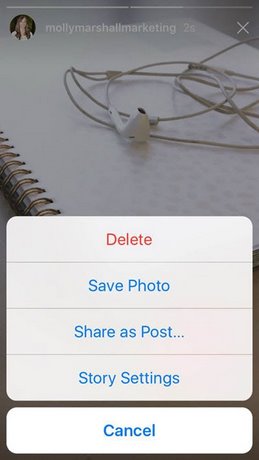
Open your active Story, display the photo or video you want to remove, and open its menu. Choose Delete and confirm if Instagram asks. Deleting one item does not necessarily remove the other items in the same Story sequence.
Choose who can see your Story
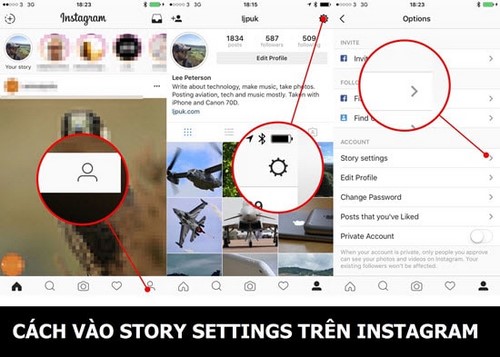
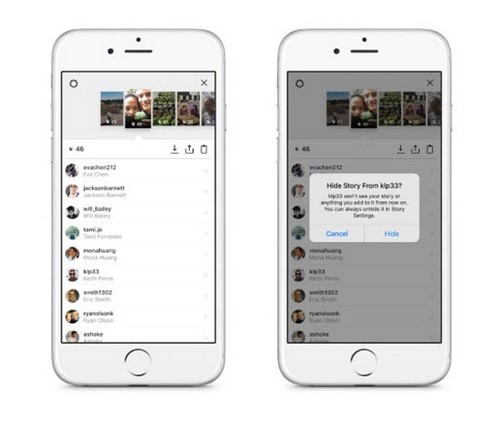
Instagram provides several audience controls. You can share a Story with your usual followers, use a Close Friends list, or hide your Story from selected accounts. To change persistent settings, open your profile menu and look for Story controls under privacy, sharing, or message-and-reply settings.
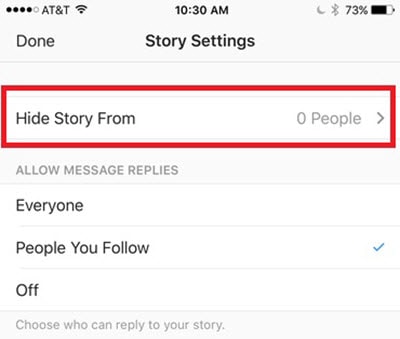
Hiding a Story from an account is not the same as blocking it. The person may still be able to view your profile and regular posts according to your account privacy settings.
See who viewed your Story
Open your own active Story and use the viewer activity or swipe-up control offered by the app. Instagram may show the accounts that viewed it while that information remains available. Only the Story owner can access the viewer list.
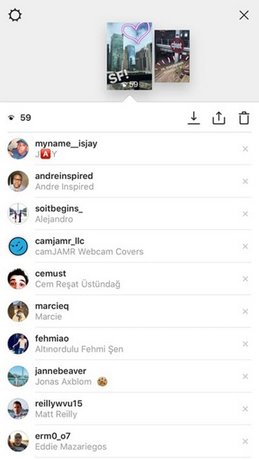
If an unwanted account appears, open the controls beside that account when available and choose the appropriate action, such as hiding future Stories, restricting, blocking, or reporting.
Control Story replies and reactions
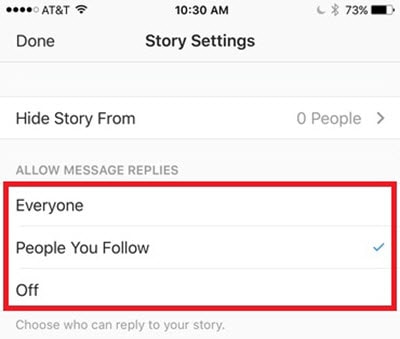
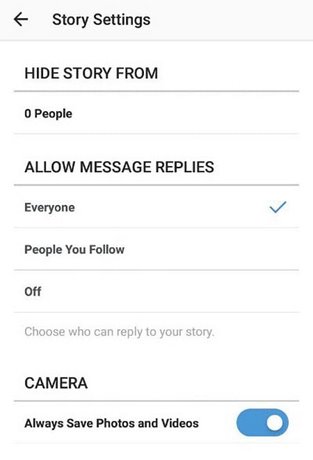
Story interactions arrive through Instagram's messaging system rather than as a public comment thread. In settings, look for Story replies, message replies, or sharing controls. Depending on your account and app version, you may be able to allow replies from a chosen audience or turn them off.
To respond to someone else's Story, use the reply field or reaction controls only if the account allows replies. Your response is sent privately unless the interface explicitly says otherwise.
Mute or unmute another account's Stories
Press and hold the account's Story icon in the Story row, then choose the mute option shown by Instagram. Muting does not unfollow or block the account. To reverse it, find the muted account in your following list or Story settings and choose Unmute.
Save your Story and use the archive
To save an active Story to your phone, open it, use the menu, and choose the available save or download option. Music, stickers, and licensed elements may not all appear in the downloaded file.
Story Archive can keep expired Stories privately inside Instagram. Open your profile menu, go to Archive, and confirm that Story archiving is enabled for future posts. An archive keeps the Story in your account; it is not the same as a local backup on your phone.
Keep a Story on your profile with Highlights
Highlights let you display selected Stories on your profile after their 24-hour public period. Open an active or archived Story, choose Highlight, and add it to a new or existing Highlight. You can later change the name, cover, and included Stories.
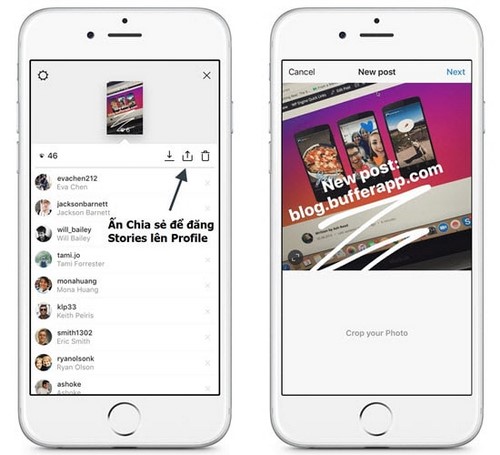
If you want the media to become a regular feed post instead, use the share-as-post option when Instagram offers it or upload the original file as a new post. A feed post and a Highlight have different layouts and audience behavior.
Quick fixes for common Story problems
- Camera or gallery is blank: Check Instagram's camera, microphone, and photo permissions.
- Music or a sticker is missing: Availability can depend on region, account type, licensing, and app version.
- The upload stalls: Switch to a stable connection, keep Instagram open, and retry the individual Story item.
- Text is cropped: Move it away from the edges and preview the Story again.
- You cannot reply: The account may have limited or disabled Story replies.
- A saved effect disappeared: Choose another available effect; creator-made effects can be withdrawn.
For more creation options, see TipsMake's list of Instagram support apps and its guide to creating Story-ready videos from photos on Android.
Related Articles
 How to Tell Stories with Stories on Instagram5 minutes read
 15 Tips for Instagram Stories You May Not Know Yet11 minutes read
 10 Visual Tricks Make Your Instagram Stories Stand Out10 minutes read
 6 Apps Make Your Instagram Stories Even More Awesome8 minutes read
 How to Download Instagram Stories and Save Other People's Featured Stories on Instagram6 minutes read
 How to Create Instagram Stories from Your Voice and Photos5 minutes read
Reader Comments 0
Sign in with email or Google to join the discussion.