Table of Contents
You can save your own Instagram Story directly from the app or retrieve it later from your Story Archive. Saving another person's Story is different: Instagram generally does not provide a download button for it, so the safest option is to ask the creator for the original file. Third-party downloaders may work with public accounts, but they require extra privacy and security checks.
Save your own Instagram Story before it expires
While your Story is still active, open it from your profile. Tap the menu button, then choose the available save or download option. Depending on the device and Story format, Instagram may let you save one photo or video, or save the complete Story as a video.
If the Story contains licensed music, interactive stickers, or other Instagram-only elements, the downloaded file may not include every element exactly as it appeared in the app. Check the saved copy in Photos or Gallery before deleting the original media.
Save an older Story from the archive
If Story Archive is enabled, Instagram keeps your expired Stories privately after their 24-hour public period ends.
- Open your Instagram profile.
- Tap the menu and open Archive.
- Make sure Stories Archive is selected.
- Open the Story you want to keep.
- Use the menu to save the photo or video to your device.
If no older Stories appear, archive saving may have been disabled when they were published. Turning it on now will help with future Stories, but it will not restore media that Instagram never archived.
Keep a Story visible as a Highlight
A Highlight does not download the file; it keeps selected Stories visible on your profile after the normal 24-hour period. Open an active or archived Story, choose Highlight, and add it to an existing collection or create a new one. You can later change the Highlight cover, name, and included Stories.
For more help creating and managing Stories, browse TipsMake's Instagram and social-network guides. If you want additional editing options before publishing, see these Instagram support apps.
Save someone else's Instagram Story
Instagram does not normally offer a direct download control for another account's Story. Before saving or reposting someone else's photo or video, get the creator's permission. A public Story is viewable, but that does not automatically grant permission to reuse it.
Option 1: Ask the creator for the file
This is the best option when image quality, music, captions, or editing matters. The creator can send the original media through a direct message, shared album, cloud link, or another agreed method. It also avoids giving a third-party service the account name or Story URL.
Option 2: Use screen recording with permission
Most recent phones include a built-in screen recorder. Start recording, play the Story once, stop the recording, and trim the beginning and end in the phone's editor. Make sure the media volume is enabled if you need sound, and avoid recording private messages, notifications, or other personal information.
On a computer, you can use a screen recorder when the creator has allowed you to keep the Story. TipsMake's list of screen recording tools with audio explains the main options.
Option 3: Use a public-Story downloader carefully
Some websites can retrieve media from a currently public Instagram Story or Highlight. These services change frequently and usually cannot access private accounts. Do not use a service that asks for your Instagram password, login code, recovery information, or permission to access your account.
- Confirm that the account and Story are public and that you have permission to save the content.
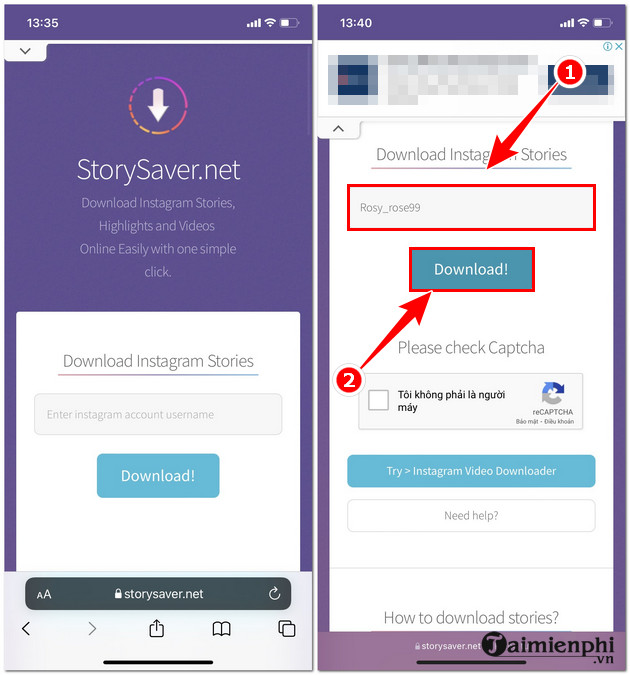
- Open the downloader in your browser and enter only the public username or public Story link it requests.
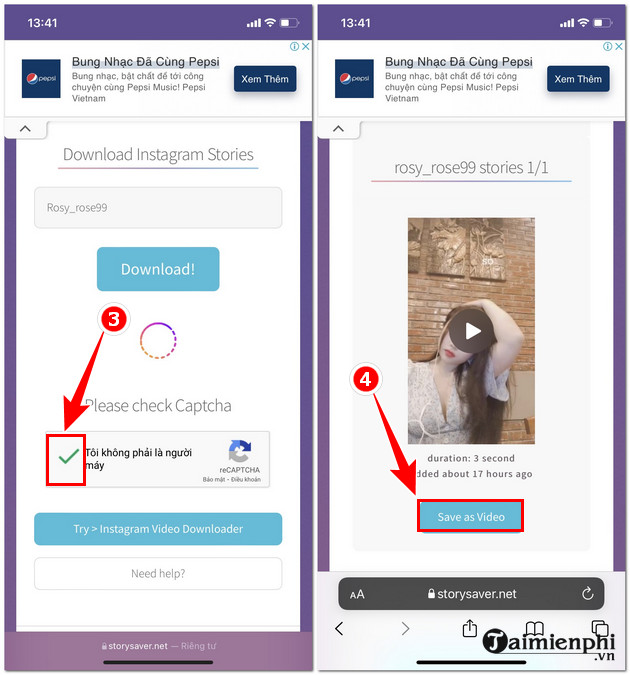
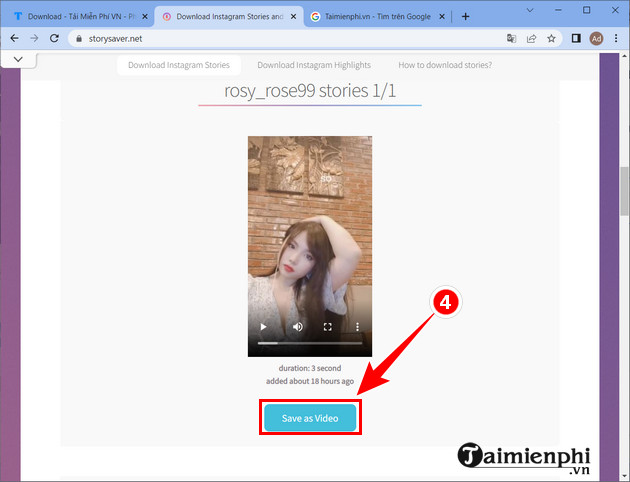
- Select the correct Story or Highlight from the results.
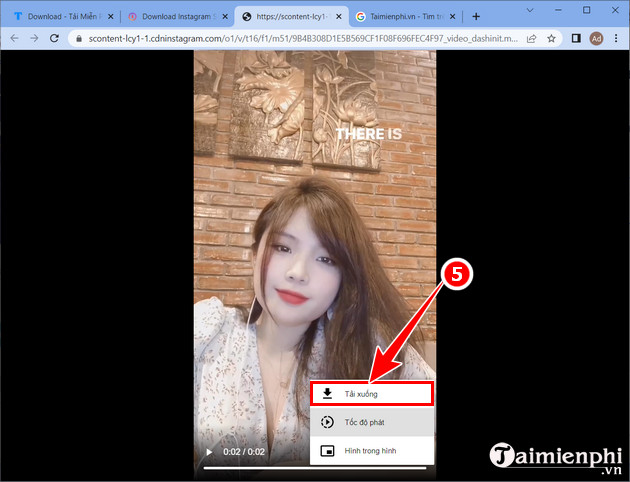
- Use the site's download control, then verify the file in your device's Downloads folder.
The screenshots below show an older StorySaver workflow. The current layout may differ, and the service may no longer behave the same way.
Download a public Story on a computer
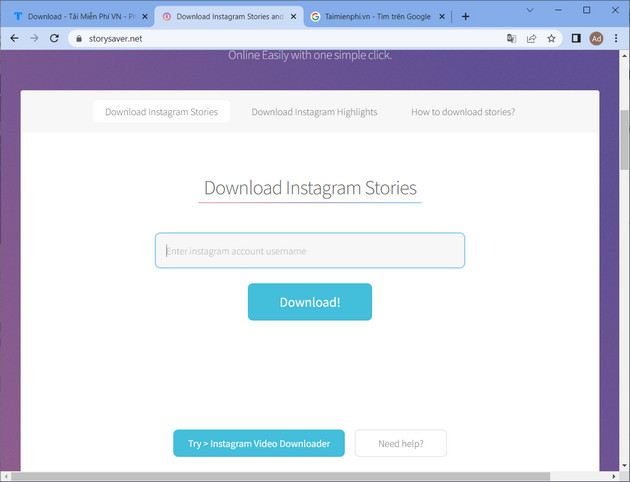
The browser-based process is similar on Windows, macOS, and Linux. Enter the public account name, complete any legitimate human-verification step displayed by the service, select the correct media, and download it. Do not install unexpected extensions or allow browser notifications just to save a video.
What to check when a download fails
- The Story expired: A third-party service cannot retrieve a Story that is no longer public unless it remains in a Highlight.
- The account is private: Do not enter your Instagram credentials into a downloader to bypass the restriction.
- The file has no music: Music licensing or the saving method may prevent the audio track from being included.
- The result is the wrong Story: Return to the account name and confirm the selected thumbnail before downloading.
- The site opens aggressive ads: Close it and use a safer method. Do not install software or browser extensions promoted by a pop-up.
For your own content, Instagram's built-in save and archive tools are the most dependable choices. For someone else's Story, permission and a copy from the creator provide better quality and fewer privacy risks than an unknown downloader.
Related Articles
 How to Add Featured Instagram2 minutes read
 10 Visual Tricks Make Your Instagram Stories Stand Out10 minutes read
 How to Download Instagram Stories and IG Videos Anonymously?9 minutes read
 How to Tell Stories with Stories on Instagram5 minutes read
 How to Create Instagram Stories from Your Voice and Photos5 minutes read
 How to Use Instagram Stories, the Storytelling Feature on Instagram11 minutes read
Reader Comments 0
Sign in with email or Google to join the discussion.