Table of Contents
Facebook has a built-in dark mode on desktop and in its Android and iPhone apps. On a computer, open the profile menu and select Display & accessibility. In the mobile app, look under Settings & privacy > Settings > Preferences > Dark mode.

Dark mode changes the interface colors; it does not change your profile, posts, photos, or the way other people see Facebook. It can reduce glare in a dim room, but it is not a substitute for comfortable brightness, text size, and regular screen breaks.
Turn on Facebook dark mode on a computer
- Open facebook.com in a current browser and sign in.
- Select your profile picture or account menu in the upper-right corner.
- Choose Display & accessibility.
- Under Dark mode, choose On. If Facebook offers an automatic or system option, select it to follow the operating system's appearance.
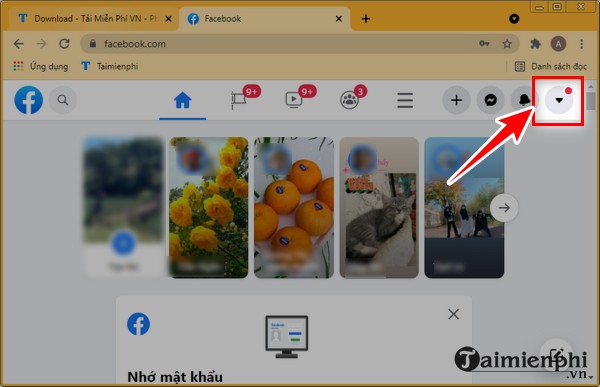
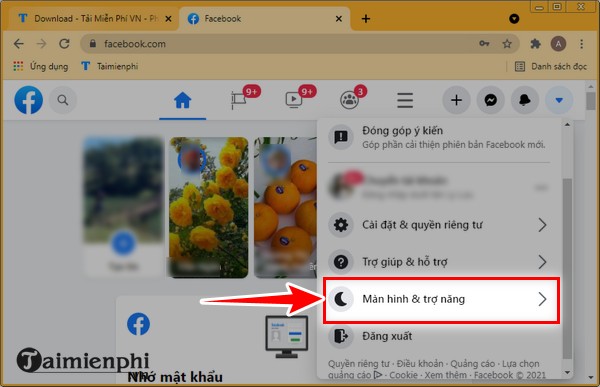
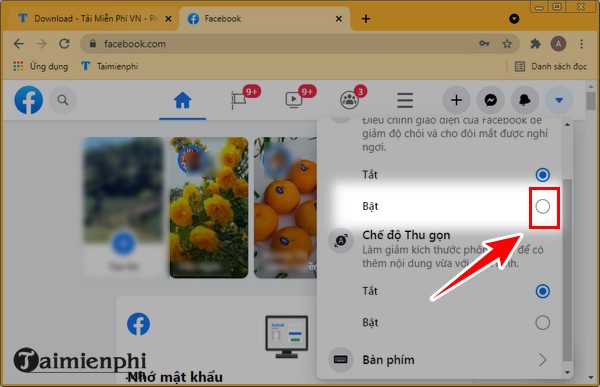
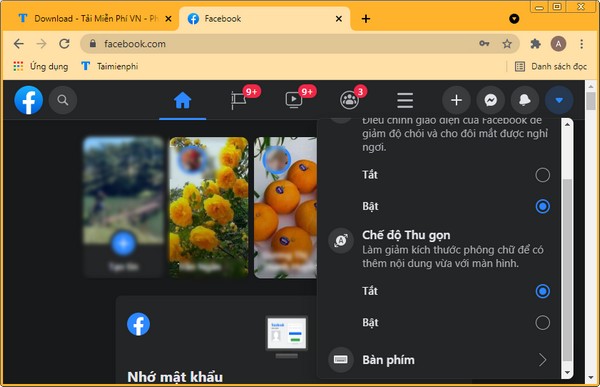
To return to the light interface, follow the same path and select Off. The choice is associated with the browser or account environment, so another browser or device may use a different setting.
Turn on Facebook dark mode on Android
- Open the Facebook app and tap Menu.
- Expand Settings & privacy, then tap Settings.
- Scroll to Preferences and tap Dark mode.
- Choose On, Off, or Use system settings if that option is available.
If you select the system option, Facebook should switch when Android changes between its light and dark themes.
Turn on Facebook dark mode on iPhone
- Open Facebook and tap Menu, usually at the bottom right.
- Open Settings & privacy > Settings.
- Under Preferences, choose Dark mode.
- Select On or the option that follows iPhone's system appearance.
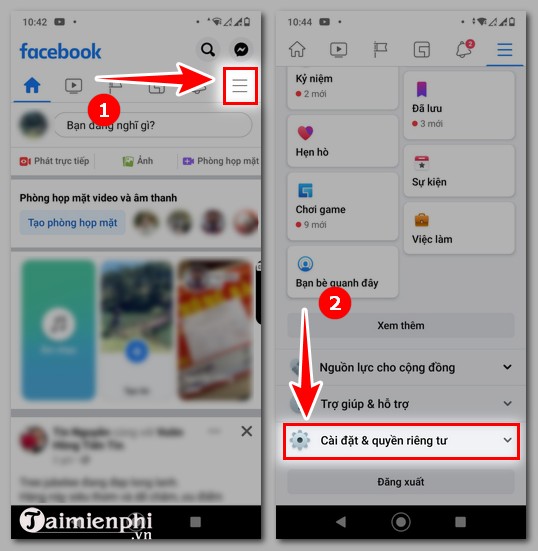
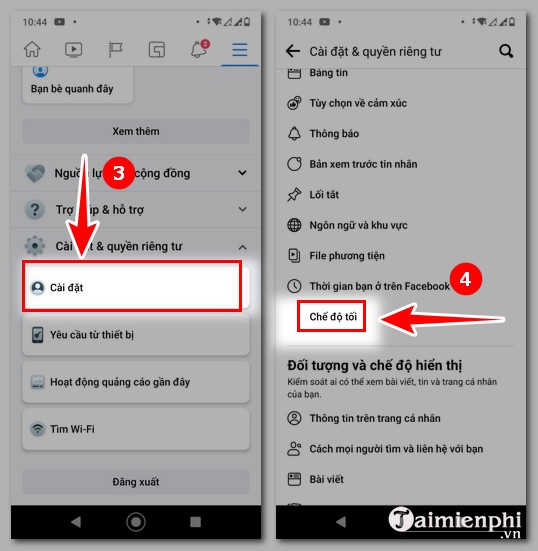
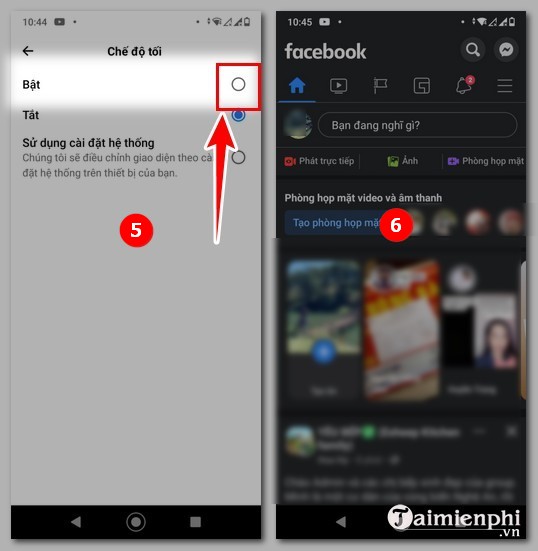
Meta's Facebook dark mode help lists the supported platforms and current menu paths. Facebook dark mode may not be available in every mobile browser, so use the official app when the setting is absent.
Follow the device theme automatically
The system option is useful if your phone or computer changes appearance on a schedule. Turn on automatic light/dark appearance in Android, iOS, Windows, or macOS, then set Facebook to follow the system. If Facebook does not switch immediately, close and reopen the app or refresh the browser tab.
If the Dark mode option is missing
- Update Facebook: Install the latest version from Google Play or the App Store, then reopen the app.
- Check the correct menu: It is normally below Preferences in Settings, while desktop places it under Display & accessibility.
- Try the official app: Facebook notes that dark mode is not available in all mobile-browser experiences.
- Restart the app: Force-close Facebook and open it again. On Android, clearing only the app cache can also help.
- Test another browser: If desktop colors are broken, disable page-color extensions temporarily and reload Facebook.
- Check high-contrast settings: Operating-system accessibility options or browser extensions can override website colors.
If you cannot reach the account menu at all, follow the Facebook login guide.
Dark mode versus custom Facebook colors
Facebook's built-in setting offers a supported light or dark appearance. Extensions that promise arbitrary colors modify the page locally and may request broad access to the sites you visit. Review permissions and publisher history before installing one, and remove it if Facebook behaves unexpectedly. TipsMake's older guide to custom Facebook background colors explains that extension-based approach, while browser tools for more comfortable reading provide alternatives for other websites.
Make dark mode easier on the eyes
Dark mode is most comfortable when screen brightness matches the room. Increase text size if you are squinting, avoid maximum contrast in complete darkness, and switch back to light mode if dark text rendering causes blur or halation for you. The best setting is the one that keeps content readable without eye strain.
Related Articles
 Collection of More Than 90 Black Wallpapers for Computers and3 minutes read
 How to Change Phone Number on Facebook Computer, Phone4 minutes read
 How to Rename Facebook on the Computer: Change Facebook Name3 minutes read
 How to Use Friendly for Facebook to Merge Facebook with3 minutes read
 How to Rename Facebook on the Phone4 minutes read
 Change Your Facebook Password on Your Phone, How to Change Mk Fb5 minutes read
Reader Comments 0
Sign in with email or Google to join the discussion.