Table of Contents
The safest way to keep an Instagram video depends on who published it. You can download or export content you created, use Instagram's built-in Reel download when the creator allows it, or save a post inside Instagram for later viewing. Third-party download sites may retrieve some public videos, but they should never require your Instagram password.
First decide whether you need Save or Download
- Save in Instagram: The bookmark control adds a post or Reel to your private Saved collection. It does not create a video file on your device and may stop working if the post is removed.
- Download to your device: This creates a local file in Photos, Gallery, or Downloads. Availability depends on the content, account privacy, creator settings, and Instagram's current features.
- Request the original: This is usually the best way to keep another person's video at full quality and with permission.
Download a Reel when Instagram provides the option
Some public Reels can be downloaded directly if the creator and Instagram allow it. Open the Reel, tap the share control, and look for Download. If it appears, choose it and then check your Photos or Gallery app.
A downloaded Reel may include an Instagram watermark, and licensed audio may be omitted or changed. If the Download option is missing, do not assume there is an error; the account may be private, the creator may have disabled downloads, or the feature may not be available for that Reel or account.
Keep a video you created
For your own Reel or video, open it from your profile and check the share or menu controls for a download or save-to-device option. If the published version cannot be exported with all audio, use the original clip in your phone's media library or the draft/project file from the editor you used.
For a larger account backup, Instagram's account-information tools can create an export of your data. The menu path changes over time, but it is generally available through Accounts Center or the account information/download section in settings. An export is more suitable for backing up multiple items than saving one Reel quickly.
Copy the link to a public Instagram video
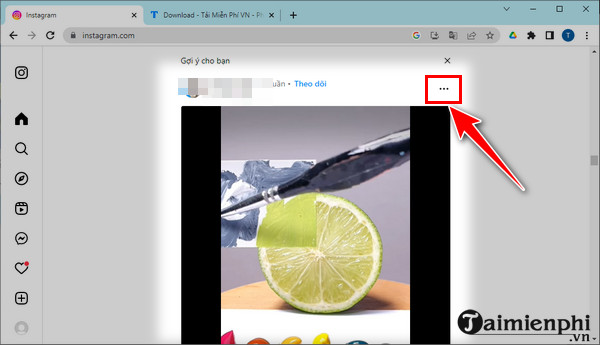
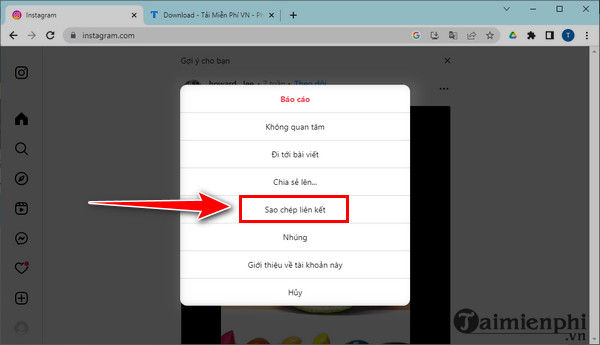
If you have permission to keep a public video and need its link, open the post or Reel, tap the three-dot or share menu, and choose Copy link. On a computer, the same control is available from the post menu or you can copy the address of the opened post from the browser.
Use a third-party downloader cautiously
Public-video download websites change frequently, may show aggressive advertising, and may stop working when Instagram changes its systems. Use them only for content you are allowed to save. A downloader should not need your Instagram password, login code, recovery details, or permission to manage your account.
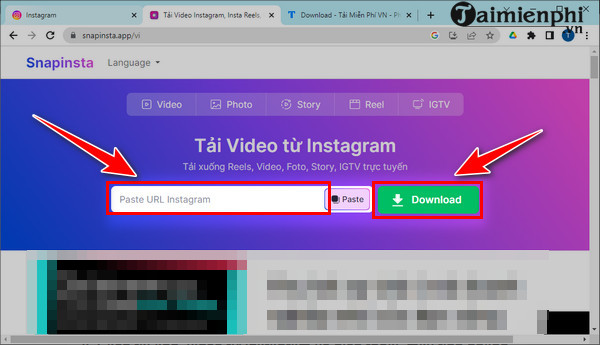
- Copy the link to the public post or Reel.
- Open a downloader you have evaluated and paste the link into its input field.
- Confirm that the preview shows the correct account and video.
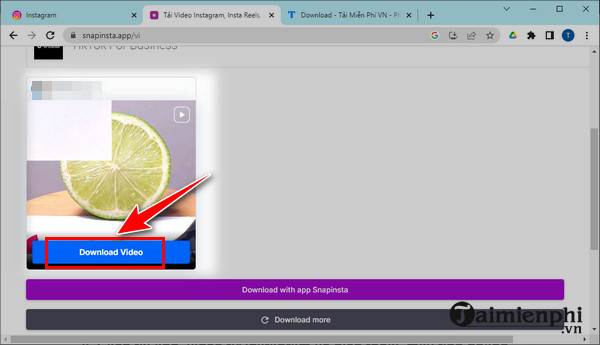
- Choose the available video download option.
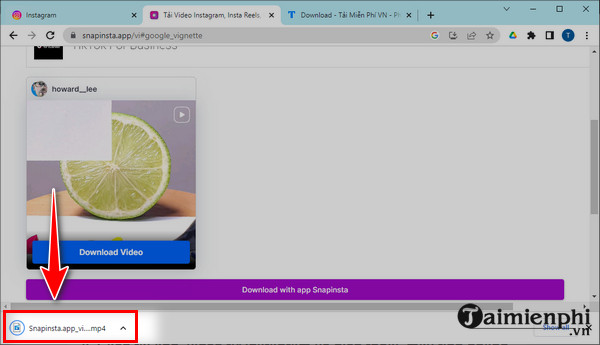
- Verify the file type and filename before opening the download.
The following screenshots show an older Dredown workflow. Its current availability, safety, interface, and supported sites may differ, so the images are a historical example rather than a recommendation.
If a site opens repeated ads, asks you to install an extension, downloads an unexpected executable file, or redirects you to a login page, close it. Do not disable browser or antivirus protections to complete a video download.
Alternative: record the screen with permission
When a download control is unavailable, a phone's built-in screen recorder can capture a video that you have permission to keep. Enable media audio if required, play the video full-screen, stop recording, and trim the beginning and end. Notifications and private messages can appear in recordings, so use Do Not Disturb and review the result before sharing it.
On a computer, compare TipsMake's screen recording tools with audio. For broader downloader options and their limitations, see ways to download online video.
Why an Instagram video download may fail
- The account is private: A public downloader should not be able to retrieve private-account media.
- The post was deleted or the link expired: Open the copied link in Instagram to confirm the video still exists.
- Downloads are disabled: Ask the creator for the original file.
- Only the thumbnail appears: The downloader may not support that post format.
- The audio is missing: Music licensing or Instagram's export rules may prevent the audio track from being included.
- The file does not play: Delete it if the format is unexpected, then use Instagram's built-in option or a screen recording instead.
Respect privacy and ownership
Being able to view or technically save a public video does not grant permission to repost, edit, sell, or present it as your own. Ask the creator before reuse, credit them where appropriate, and avoid saving private or sensitive content without clear consent. For more account and posting help, use TipsMake's social-network guides.
Related Articles
 How to Download, Download Instagram Videos: Instagram Tips10 minutes read
 How to Download Instagram Photos to Computers and Phones7 minutes read
 How to Download Videos from YouTube to Your Phone Quickly4 minutes read
 How to Download High-Quality YouTube Videos to Your Phone or Computer6 minutes read
 How to Download Instagram Photos and Videos to iPhone with InstaSaver4 minutes read
 10 Ways to Download YouTube Videos Fast and Simple14 minutes read
Reader Comments 0
Sign in with email or Google to join the discussion.