Table of Contents
A USB device that repeatedly disconnects and reconnects is usually affected by a loose connection, insufficient hub power, a failing cable or device, a driver problem, or—less often—a power-management compatibility issue. Start with the physical connection before changing Windows power settings.
Protect your data first
Stop large transfers if the device is unstable. Copy irreplaceable files in small batches to another drive, verify that the copies open, and do not use the device as the only backup. Repeated disconnects during writes can leave files incomplete or damage the file system.
1. Test the port, cable, and power source
- Connect the device directly to another USB port on the computer. Avoid an unpowered hub while testing.
- For an external drive, use its supplied cable and power adapter. Replace a visibly damaged or loose cable.
- Try the device on one other trusted computer. If it disconnects there too, the device or cable is the likely cause.
- Test a different USB device in the original port. If several devices fail in that port, the computer's port or controller needs attention.
2. Restart and update Windows
Safely eject other removable storage, restart the PC, and install pending Windows updates. Check the computer or motherboard manufacturer's support page for current chipset and USB controller drivers for the exact model. Avoid generic “driver updater” utilities.
Device Manager can help confirm whether Windows is repeatedly losing the device. Right-click Start > Device Manager, expand the relevant storage or USB category, and watch whether the entry disappears when the disconnect occurs. An error icon or status message can narrow the problem, but do not uninstall unrelated controllers at random.
3. Test USB selective suspend only after basic checks
USB selective suspend saves power by allowing Windows to suspend an idle USB device. Microsoft recommends leaving it enabled in normal use. Temporarily disabling it can be a useful diagnostic step when one otherwise healthy device fails to resume, but it may increase battery use and will not fix a loose port or failing drive.
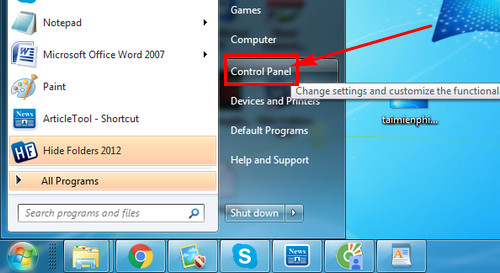
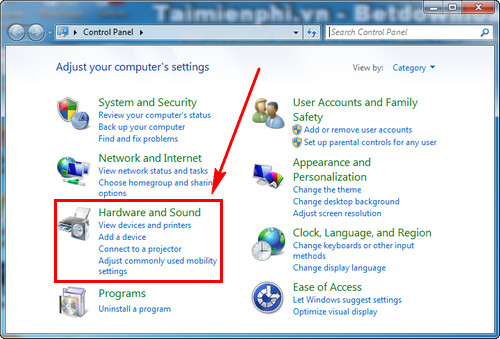
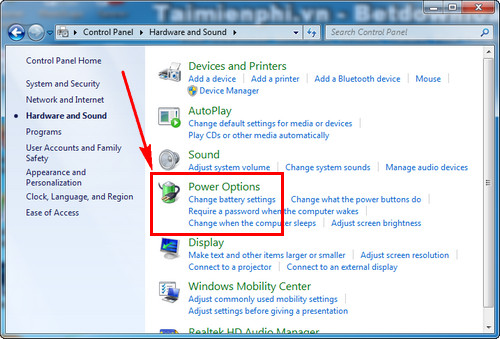
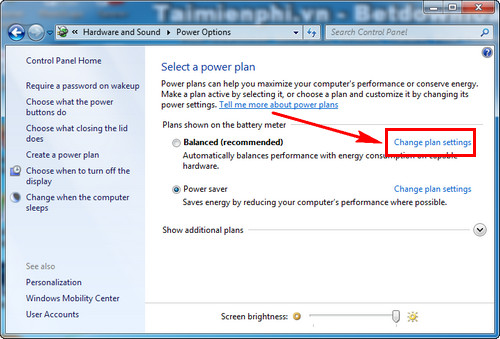
The screenshots below show the older Control Panel route:
- Open Control Panel > Hardware and Sound > Power Options.
- Beside the active power plan, select Change plan settings.
- Select Change advanced power settings.
- Expand USB settings > USB selective suspend setting.
- Set it to Disabled for the power mode you are testing, apply the change, and restart Windows.
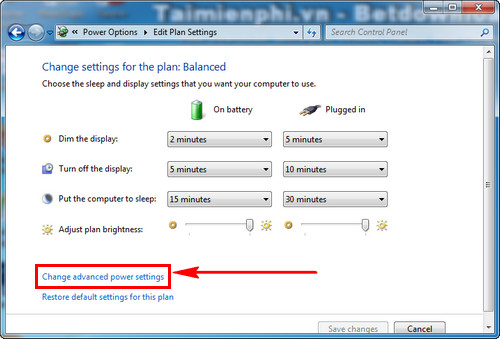
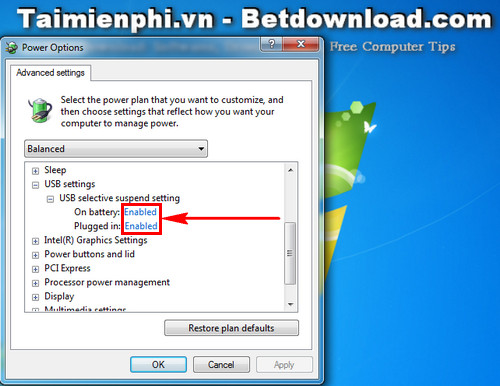
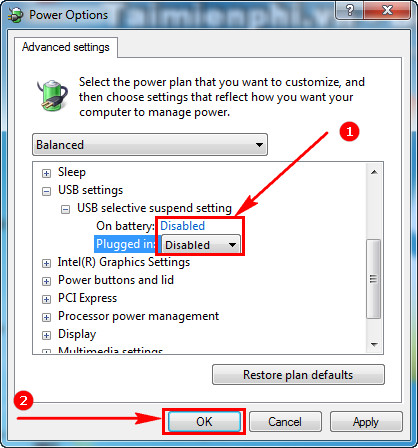
If the disconnects continue, restore the setting to Enabled. If disabling it clearly solves the issue, check for device firmware and driver updates from the hardware manufacturer before leaving a system-wide power-saving feature off.
4. Check the drive and file system
If a storage device reconnects but files are missing or Windows requests a format, do not format it until needed data has been recovered. Review common USB error checks and the safe procedure for a USB drive Windows cannot format.
When the device should be replaced
Replace a flash drive or cable that fails on multiple computers, becomes unusually hot, reports an incorrect capacity, repeatedly turns read-only, or corrupts new files. For external hard drives and SSDs, unusual noises or repeated I/O errors are reasons to stop testing and prioritize data recovery.
Once the connection is stable, always eject removable storage safely before unplugging it. Power-setting changes cannot protect a drive that is removed during an active write.
Related Articles
 How to Fix Laptop Automatically Disconnecting Wi-Fi?8 minutes read
 Steps to Fix Wi-Fi Error That Keeps Disconnecting on Windows5 minutes read
 Simple Way to Fix Wi-Fi Disconnection Error on Windows 10 Laptop Explained7 minutes read
 How to Prevent iTunes from Automatically Syncing When Connecting iPhone4 minutes read
 Automatically Lock the Computer When Hacked5 minutes read
 Stop Excel from Automatically Formatting as a Date: How-To Guide4 minutes read
Reader Comments 0
Sign in with email or Google to join the discussion.