Table of Contents
If Windows cannot format a USB drive, first confirm that the correct drive is selected, recover any files you still need, and check for write protection. Formatting erases the selected volume, so do not continue until you have verified the drive letter and capacity.

Before you format the drive
- Copy accessible files to another storage device. If the data is irreplaceable and the drive is failing, stop using it and consider professional recovery.
- Try a different USB port and, if possible, another computer. Connect the drive directly rather than through an unpowered hub.
- Close File Explorer windows and applications that may be using the drive.
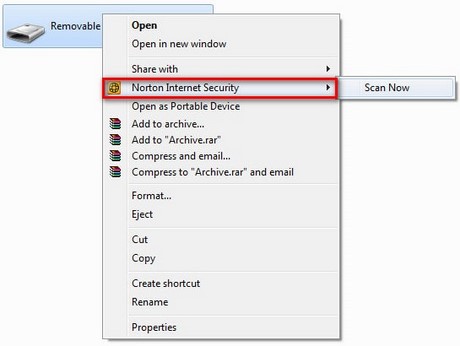
- Scan the drive with Windows Security before copying files from it.
1. Check for physical write protection
Some flash drives and many SD card adapters have a small lock switch. Disconnect the device, move the switch to the unlocked position, reconnect it, and try again. A loose or damaged switch can leave the device read-only.
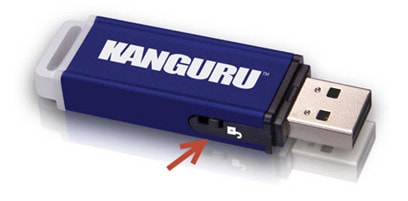
If Windows reports The disk is write-protected even without a physical switch, use the detailed guide to diagnose and format a write-protected USB drive. Do not change registry or DiskPart settings until you have confirmed which disk is the USB device.
2. Format it in Disk Management
- Right-click Start and select Disk Management.
- Identify the USB drive by its capacity and removable-disk entry. Check it twice; choosing the wrong disk can erase another drive.
- If the partition is healthy, right-click its volume and select Format.
- Choose a file system that suits the devices you use: exFAT is broadly useful for large files and cross-platform storage; NTFS is appropriate mainly for Windows; FAT32 offers wide device compatibility but cannot store a single file larger than 4 GB.
- Enter a volume label and complete the format.
If the space is shown as Unallocated, right-click it, select New Simple Volume, and follow the wizard. If Windows cannot create or format the volume, continue with the checks below.
3. Check the drive for malware and hardware failure
A security scan may remove malware that is holding files open, but antivirus software cannot repair worn-out flash memory. Repeated disconnects, a capacity of 0 bytes, frequent read/write errors, or a drive that becomes read-only again can indicate hardware failure.
Try the drive on one other trusted computer. If the same failure occurs, replace it rather than relying on it for important files. The article on common USB errors covers additional symptoms, while USB write-protection troubleshooting focuses on read-only devices.
Do not install random USB firmware
The original procedure recommended using ChipGenius to read a controller's VID and PID, then downloading a matching firmware utility from a third-party database. The retained screenshots below show that old workflow, but it is not a safe general fix.
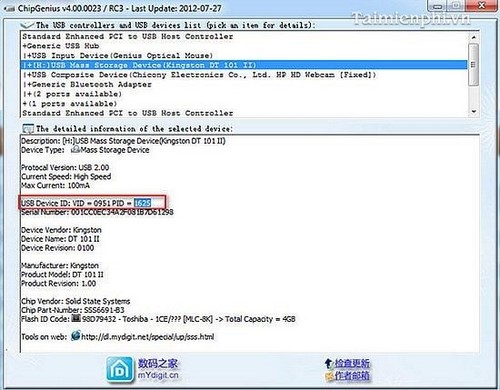
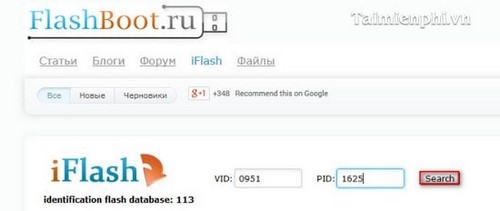
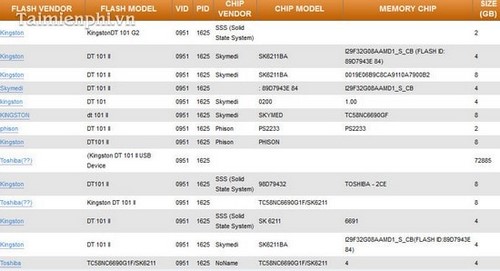
A VID/PID match does not guarantee that firmware is correct for the exact controller, flash memory, or board revision. The wrong utility can permanently disable the drive, and unverified downloads may contain unwanted software. Use a firmware recovery tool only when the USB manufacturer's official support team provides one for the exact model and you accept that all data may be lost.
When to replace the USB drive
Replace the drive if it repeatedly disappears, reports the wrong capacity, becomes read-only after formatting, fails on multiple computers, or produces new file errors. After a successful format, test it by copying several non-critical files, safely ejecting it, reconnecting it, and confirming that the files open correctly before trusting it with valuable data.
Related Articles
 20 Useful Troubleshooting Tools for Windows 1014 minutes read
 VPN Errors: Summary of Common VPN Error Codes6 minutes read
 How to Fix Ultraview Not Being Able to Retrieve ID7 minutes read
 Fix Problem of Displaying 'No Internet, Secured' Message on2 minutes read
 Instructions for Fixing Memory Card Errors Are Corrupted11 minutes read
 Troubleshooting and Best Practices in Claude Dispatch13 minutes read
Reader Comments 0
Sign in with email or Google to join the discussion.