Table of Contents
To stop iTunes from syncing an iPhone, iPad, or iPod automatically, open iTunes Preferences, select Devices, and enable Prevent iPods, iPhones, and iPads from syncing automatically. This is a global setting: it applies to every compatible device connected to that iTunes library.
Before you change the setting
Disabling automatic syncing does not erase content already on the device. It simply prevents iTunes from beginning a sync as soon as you connect the device. You can still sync music, videos, backups, and other supported content manually.
This guide applies to iTunes on Windows and older versions of macOS. On current Macs, device syncing is managed in Finder. Windows users may also see Apple's newer Apple Devices app instead of iTunes; Apple's Apple Devices syncing guide explains that workflow.
Turn off automatic syncing in iTunes
- Open iTunes. You do not need to connect the iPhone or iPad first.
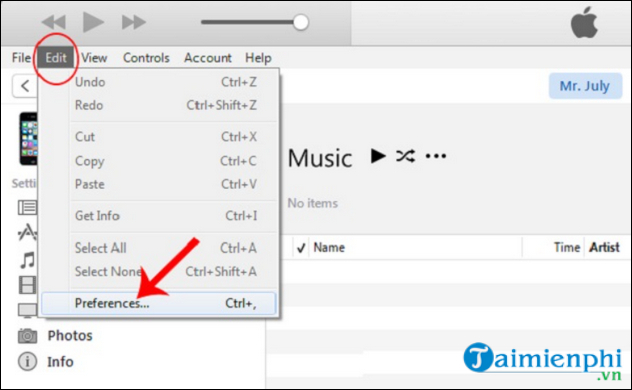
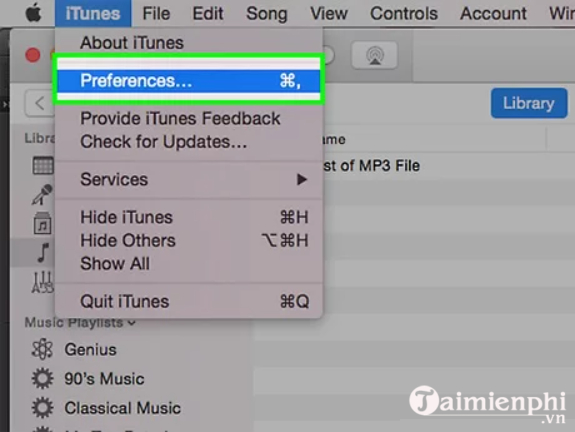
- Open Preferences. On Windows, choose Edit > Preferences. If the menu bar is hidden, press Alt to show it. On an older Mac, choose iTunes > Preferences.
- Select the Devices tab.
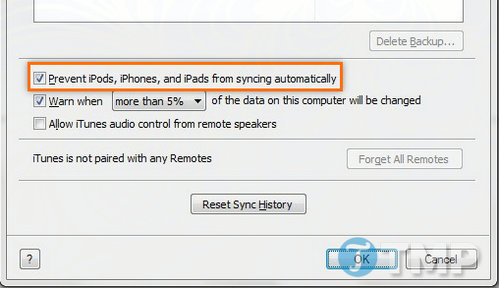
- Check Prevent iPods, iPhones, and iPads from syncing automatically.
- Click OK to save the setting.
How to sync manually afterward
Connect the device with a cable, unlock it, and tap Trust if prompted. In iTunes, select the device button, choose the content category you want to manage, and click Apply or Sync. See how to use iTunes for an overview of its library and device controls.
If iTunes still opens when the device is connected
The preference above stops automatic syncing, but iTunes may still launch when a device is attached. With the device selected, open its Summary page and clear Automatically sync when this iPhone is connected if that option appears. If the computer cannot detect the device at all, troubleshoot the connection rather than enabling automatic sync; start with the cable, USB port, device trust prompt, and current Apple software.
Stopping automatic sync is especially useful when several people use the same computer or when you want to control which library updates the device. If you later decide to move media manually, follow the steps for transferring music to an iPhone or iPad.
Related Articles
 Prevent Itunes from Working When Connecting an iPhone or Ipod4 minutes read
 How to Connect a New Device to Itunes5 minutes read
 How to Set up iTunes14 minutes read
 How to Prevent iPhone and iPad from Automatically Connecting to4 minutes read
 How to Use ITunes for Beginners5 minutes read
 What Is Itunes 3259 Error? How to Fix the Error 3259?3 minutes read
Reader Comments 0
Sign in with email or Google to join the discussion.