Table of Contents
To disconnect a USB flash drive or external drive safely, first stop any file transfers, close files stored on the device, and use Windows' Eject command. Remove the device only after Windows confirms that it is safe. This simple check reduces the chance of incomplete writes and corrupted files.
Safely eject a USB drive with Windows
- Wait for copying, backup, or synchronization activity to finish.
- Close File Explorer windows and applications that are using files on the drive.
- In the taskbar notification area, select Show hidden icons if necessary.
- Right-click Safely Remove Hardware and Eject Media, then choose Eject [device name].
- When Windows says the device can be removed, unplug it without twisting the connector.
You can also open File Explorer > This PC, right-click the removable drive, and select Eject. Make sure you choose the correct drive if several devices are connected.
If Windows says the device is in use
Do not pull the drive out while the warning is displayed. Close documents, media players, terminals, backup tools, and any File Explorer window that may be accessing it. Wait a few seconds, then try Eject again.
If the message continues, sign out or shut down Windows before disconnecting the drive. This is safer than forcing an application to release an unknown file handle. For additional troubleshooting, see how to fix a USB drive that will not eject and the guide to common USB problems.
Do you need USB Disk Ejector?
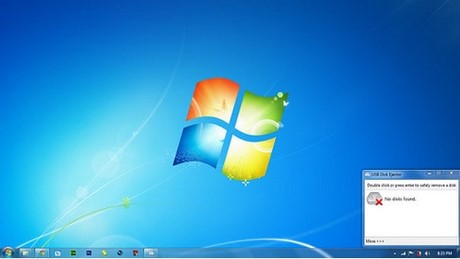
No third-party utility is required for normal use. Windows already provides reliable eject controls. USB Disk Ejector can still be convenient for people who regularly manage several removable drives or want a dedicated keyboard shortcut, but the screenshots and interface below describe an older release and may not match the current program.

The legacy utility lists connected removable devices in one window. Double-clicking a listed drive requests ejection.
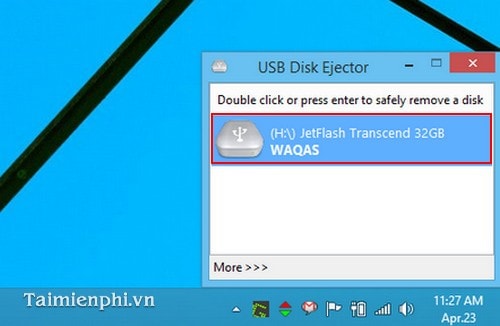
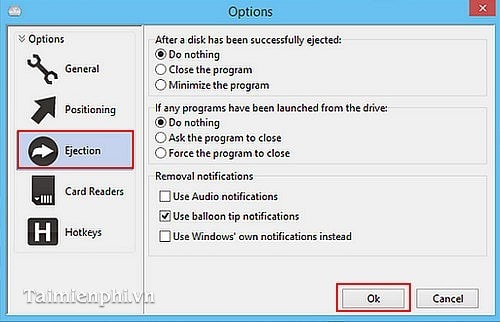
Older versions also offered connection sounds and actions that could run after a device was attached or removed.
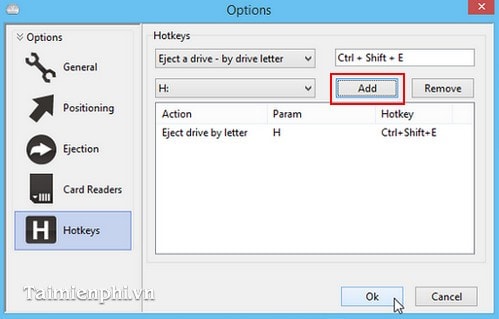
Its Hotkeys section allowed a shortcut to be assigned to an eject action.
If you choose to install any eject utility, obtain it from the developer's official site, verify the publisher, and scan the installer. Avoid old download mirrors and bundled installers. A shortcut adds convenience, but it does not make unplugging safe while a write is still in progress.
Important removal tips
- Never disconnect a drive while its activity light is flashing rapidly or an application shows an active write.
- Do not confuse Remove device in Bluetooth settings with safely ejecting a storage volume.
- If you changed the drive's removal policy for higher write performance, always eject it before unplugging.
- Keep a backup of valuable files; safe ejection cannot protect against a failing flash drive.
- Before moving a drive between computers, follow the steps to protect it from autorun malware.
Related Articles
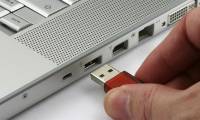 How to Disconnect USB by Shortcut Keys Is Simple and Safe3 minutes read
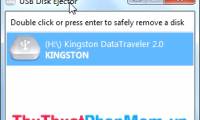 Software That Helps Disconnect USB Safely2 minutes read
 Is It Necessary to Disconnect Secure USB Devices?4 minutes read
 USB Connection Error with Windows3 minutes read
 5 Ways to Securely Disconnect a Removable Hard Drive on a5 minutes read
 Instructions on How to Safely Remove the USB from the Computer, Disconnect2 minutes read
Reader Comments 0
Sign in with email or Google to join the discussion.